


 Video Converter Ultimate
 Gravador de ecrã
 Reparo de vídeo
 Secure Download
Convert Video Using FFmpeg on Windows, macOS & Linux
Video conversion has become an essential part of managing digital content, especially with the wide variety of devices, platforms, and file formats available today. Also, converting videos ensures your content can be accessed and used without limitations.
One of the most reliable tools for this is FFmpeg, which is a powerful, open-source tool known for its flexibility and efficiency. With this, you’ll learn how to convert videos using FFmpeg on Windows, macOS, and Linux, from basic commands to more advanced methods, so you can handle video conversions with ease and familiarity. Are you ready to convert your videos using the commands? Let’s get started!

Part 1. How to Install FFmpeg on Windows, macOS, and Linux?
Before anything else, let’s first learn how to install FFmpeg on your computer, so if you’re a Windows, macOS, or Linux user, don’t fret, you will be guided accordingly based on your operating system. Moreover, once done with this, you can easily convert videos using FFmpeg.
For Windows users:
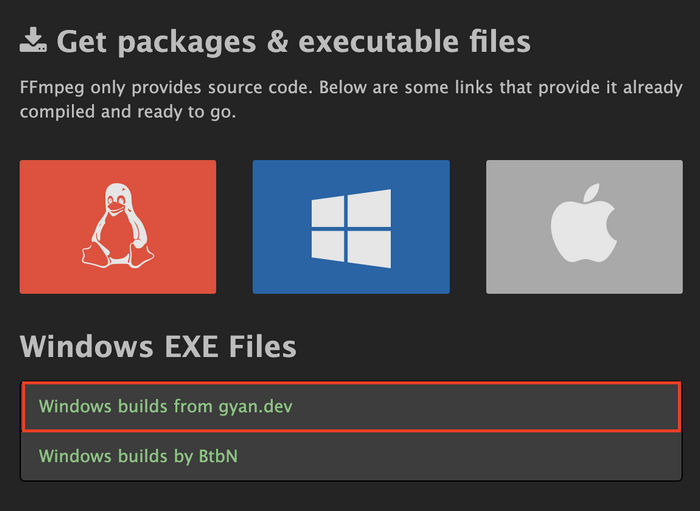
Step 1. If you don’t already have one, download and install a file extractor like 7-Zip. To do that, visit the official FFmpeg website and navigate to the Windows builds section.
Step 2. Next, click on the Windows builds from gyan.dev option to be redirected to the download site.
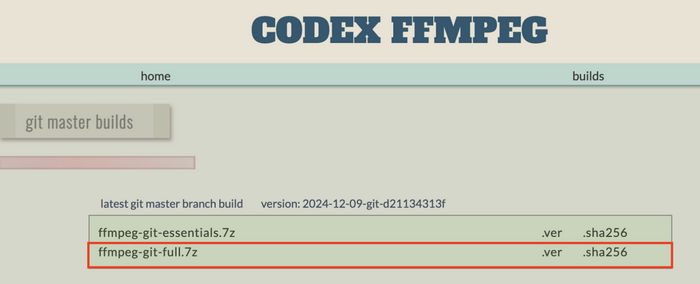
Step 3. Select and download the ffmpeg-git-full.7z file, and right-click the downloaded file and extract it using your ZIP tool.
Step 4. After extraction, rename the folder to FFmpeg for easier access.
Step 5. Transfer the renamed folder to your C: drive so the path becomes C:FFmpeg.
Step 6. Search for "Edit the system environment variables" in the Windows search bar and open it.
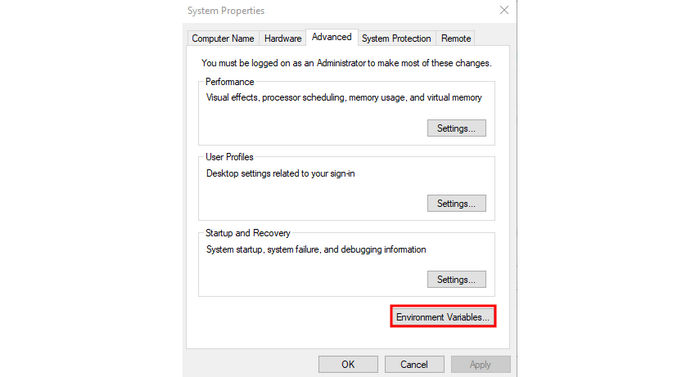
Step 7. In the System Properties window, go to Advanced, and click Environment Variables.
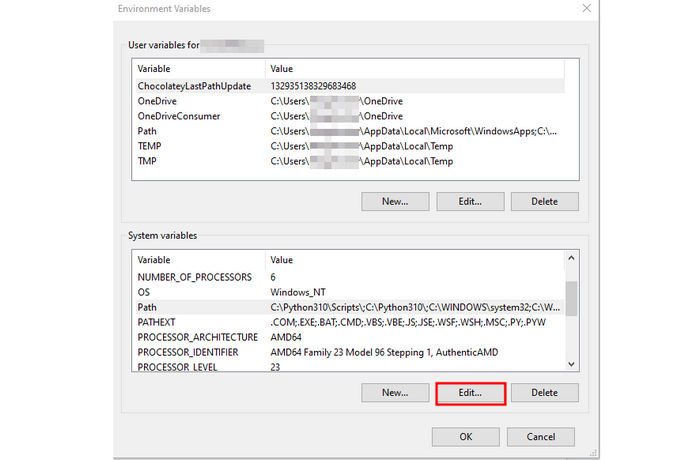
Step 8. Under System Variables, find the Path variable, select it, and click Edit.
Step 9. Next, click New and enter: C:FFmpegin
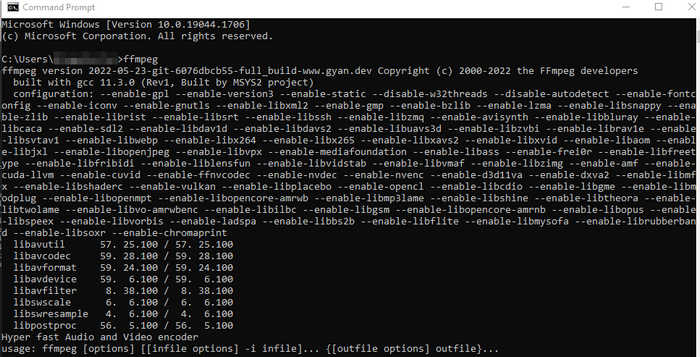
Step 10. Lastly, open Command Prompt by typing cmd in the search bar and pressing Enter.
Type the following command: ffmpeg
For macOS users:
For macOS users, FFmpeg can be installed in multiple ways, including manually downloading and setting up the files just like on Windows. However, the simplest and most efficient method is using Homebrew, a popular package manager for macOS that works similarly to apt on Debian or Ubuntu. With Homebrew, installation is quick, keeps FFmpeg up to date, and automatically handles all the necessary configurations, so you can start converting videos right away without extra setup.
Step 1. Open the terminal and run this command to download and install Homebrew:
/bin/bash -c "$(curl -fsSL https://raw.githubusercontent.com/Homebrew/install/HEAD/install.sh)"
Once installed, you may confirm Homebrew is working by typing:
brew --version
Step 2. Next, make sure Homebrew is up to date:
brew update
brew upgrade
Step 3. Now, use the following command to install FFmpeg along with all its dependencies:
brew install ffmpeg
If you want the latest features, install the Git master version instead by adding the –HEAD flag:
brew install ffmpeg --HEAD
Step 4. Lastly, to confirm FFmpeg is installed, execute:
ffmpeg
For Linux users:
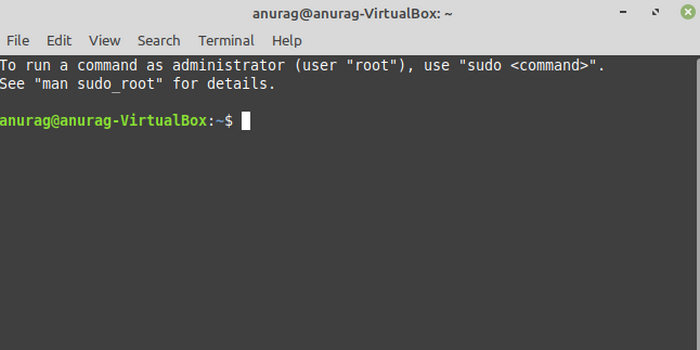
Step 1. First, you need to open a terminal window on your Linux. To do this, press Ctrl + Alt + T.
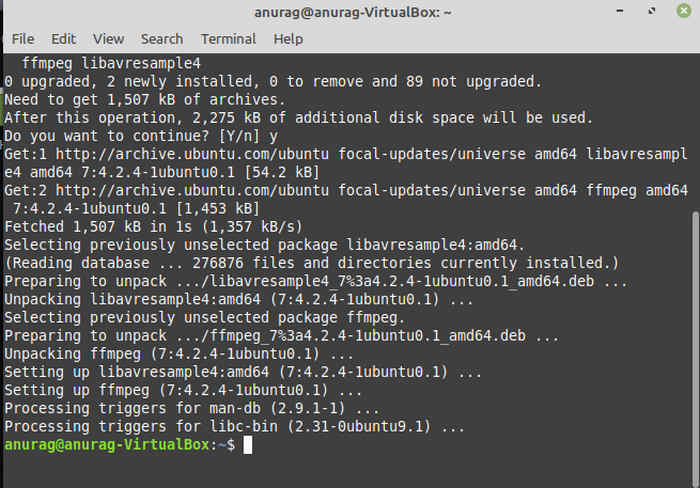
Step 2. Next, to install FFmpeg, use the following command. This will retrieve the latest version of FFmpeg from your package manager:
sudo apt install ffmpeg
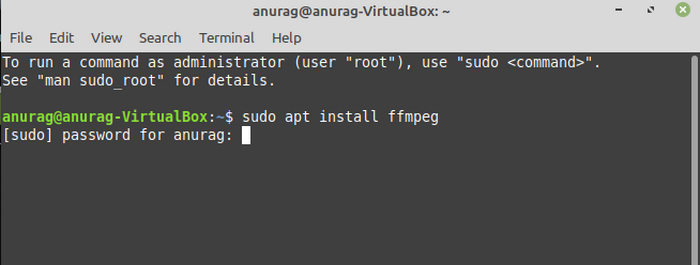
This command is for Debian-based systems like Ubuntu. Now, if you're using a different distribution, for example, Fedora or Arch, the installation command might vary.
For Fedora:
sudo dnf install ffmpeg
For Arch Linux
sudo pacman -S ffmpeg
Step 3. Your system will process the package information and request confirmation. When asked, type Y and press Enter to continue with the installation.
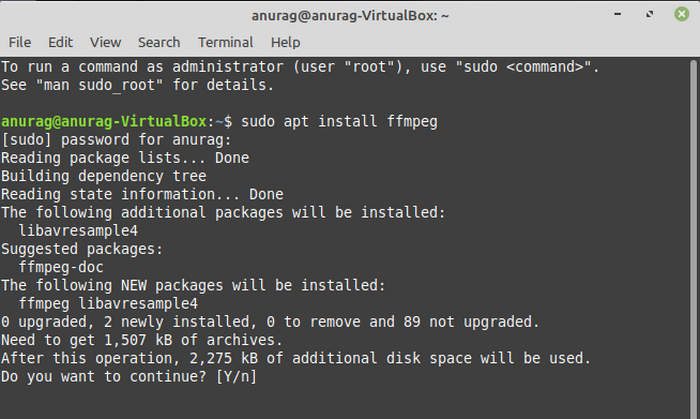
Step 4. Lastly, once confirmed, the package manager will download and install FFmpeg along with any required dependencies. Wait for the installation process to finish, and the terminal will return to its default prompt.
Part 2. How to Convert Video Using FFmpeg: Basic Conversion Command
If you’re looking for a quick way to convert videos with FFmpeg, starting with the basic command is the best approach. This method focuses on simple input and output instructions, making it easy to convert videos using FFmpeg.
Step 1. First, launch the command prompt on your computer.
Step 2. Next, use the cd command to go to the folder where your video is stored.
Step 3. Enter the basic FFmpeg command and type the following command format:
ffmpeg -i input.mkv -c copy output.mp4
Step 4. Now, press Enter and wait for FFmpeg to process the conversion.
Step 5. Lastly, once complete, the new file will appear in the same folder as your original video.
Part 3. Convert Video Using FFmpeg: Advanced Conversion
For users who need more than just format changes, FFmpeg offers advanced options to refine how you convert videos with FFmpeg. This approach allows you to adjust codecs and optimize compatibility, giving you more control over the final output.
Step 1. Go to the Start menu and find the Command Prompt window. Next, the FFmpeg command window will appear, allowing you to begin using the program to convert H.265 to H.264.
The correct command line can now be entered below the cursor.
Step 2. Press Enter, and FFmpeg will take action to convert HEVC to H.264 video.
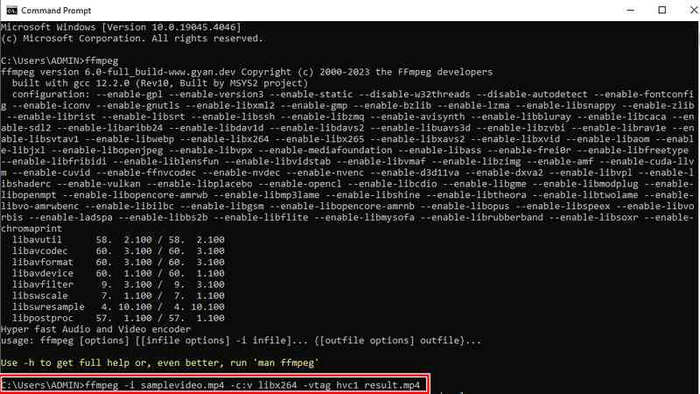
Step 3. Once the conversion is complete, go to the output folder specified in the command to find your newly converted H.264 file.
Part 4. Best Alternative to FFmpeg
While FFmpeg’s ability to convert videos is great, it may not be the most beginner-friendly option, especially for users who are not comfortable with command-line interfaces.
One great alternative for this is the FVC Video Converter Ultimate. FVC is a desktop software designed to convert videos quickly and efficiently without requiring any commands.
Main Features
- • Supports a wide range of video and audio formats like MP4, MKV, MOV, AVI, FLV, WMV, WEBM, and more.
- • Easy-to-use interface with no command-line required.
- • Customizable output settings like codec, resolution, bitrate, frame rate, etc.
- • High-speed conversion with up to 30× faster processing.
- • Maintains high-quality output, including support for up to 4K resolution.
- • Batch conversion to process multiple files at once.
- • Built-in editing tools for trimming, cropping, and enhancing videos.
- • Compatible with both Windows and macOS systems.
Steps on How to Convert FFmpeg videos Using FVC Video Converter Ultimate:
Step 1. First, download the software tool and install it on your computer.
Free DownloadFor Windows 7 or laterSecure Download
Free DownloadFor MacOS 10.7 or laterSecure Download
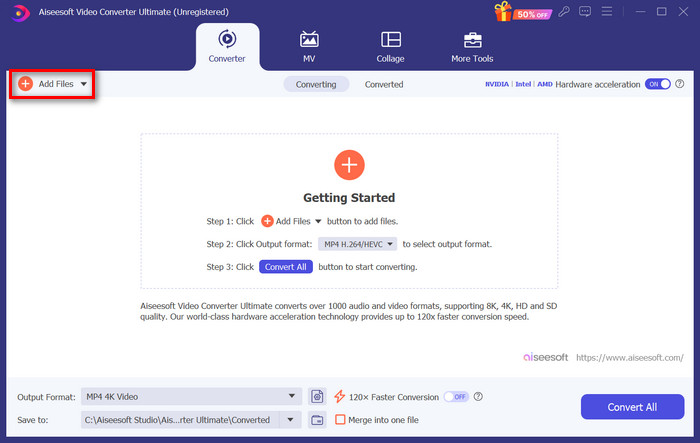
Step 2. On the Converter tab, click on the Add Files button and import your H.264 files.
Step 3. Once the H.264 video file is imported, select MP4 among the list of formats by clicking the Output format button.
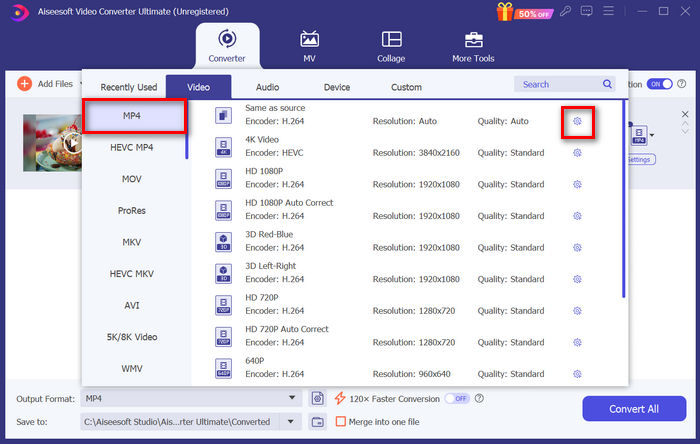
Meanwhile, if you want to customize the Custom Profile, go to the Settings dialog box. From there, you can edit the video codec, quality, file name, etc. When done, just click the Create New button to save.
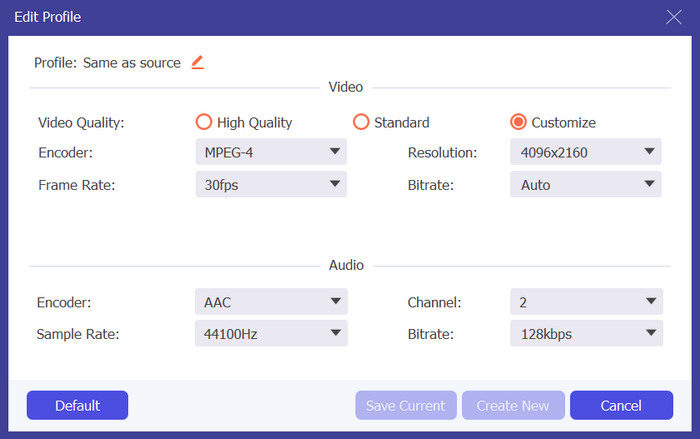
Step 4. Once done, just click the Convert All button.
Part 5. FAQs about FFmpeg Convert Video
What video formats can FFmpeg convert?
FFmpeg supports a wide range of video formats, including MP4, AVI, MKV, MOV, WMV, FLV, and more. This makes it a flexible option for converting videos across different devices and platforms.
Why is my video not compatible after converting with FFmpeg?
This usually happens when the output format or settings are not supported by your device or platform. To avoid this, make sure to choose a compatible format and proper video settings based on where you plan to use the file.
Is FFmpeg free to use for video conversion?
Yes, FFmpeg is completely free and open-source. You can use it to convert videos without paying for a license, making it a popular choice for both personal and professional use.
Conclusão
Converting videos is an important step in making your content more compatible, accessible, and easier to manage across different devices and platforms. Now that you know the commands and the ways to convert videos using FFmpeg, it will be easier to convert videos. Although learning it may take some time, everything will be worth it once mastered. Meanwhile, there are alternative tools like FVC Video Converter Ultimate that can easily and automatically convert videos to various formats.
-
 Revisão dos melhores conversores de MP4 online e offline
 Maximize o alcance e o impacto do seu conteúdo de vídeo com o melhor MP4
-
 Revisão completa dos metadados do FFmpeg sobre uso e funcionalidade
 Quer saber como usar o editor de metadados FFmpeg? Certamente, o software não é fácil de usar, mas com este artigo, você pode realizá-lo com facilidade.
-
 3 Methods to Easily Convert DVD to H.264 [Windows & MacOS]
 Procurando uma solução para converter DVD para H.264? Nós temos a solução! Leia este artigo e conheça 3 ferramentas diferentes que você pode usar para converter seus DVDs facilmente.
