


 Video Converter Ultimate
 Gravador de ecrã
 Reparo de vídeo
 Secure Download
HitPaw Video Converter Review: You Should Know Before Using It
This is the most comprehensive HitPaw Video Converter review.
Users looking to edit video footage or create professional videos may come across this tool while searching online. But jumping in blindly is too risky - is it really that good? Does it have enough features? Is it compatible with my video files?
All these questions will be answered in this article. Additionally, with users who have never used this type of tool in mind, this article will also provide step-by-step instructions for using HitPaw Video Converter, as well as its current pricing plans.
We hope this review will help pave the way for your video production journey.

How We Test and Review
Is our information reliable? Absolutely! This guide has compiled clear, well-organized information based on the following principles:
- • We conduct hands-on testing of the product and document our impressions of each feature and the user experience.
- • We conduct research on the software through the most authoritative review platforms and gather mainstream user reviews from major forums.
- • To ensure a thorough understanding of its features, we carefully review the statements on the official HitPaw Video Converter website, as well as its descriptions of each feature and innovation.
Part 1. Honest HitPaw Video Converter Review
Without further ado, let's dive right into the core topic of this article: what HitPaw Video Converter is and what it can do for you. After introducing the concept, we'll walk through its key features one by one in bullet points.
What is HitPaw Video Converter?
HitPaw Video Converter is a professional video format converter that also offers nearly all basic video editing features. For example, you'll be pleased to find options for video compression, trimming, and even background removal within the software.
Additionally, it has two standout features: speed and compatibility, which we'll analyze in detail in the following points.
Principais características
• Supports conversion to over 1,000 formats
HitPaw Video Converter allows users to convert videos or audio to over 1,000 formats or codecs, such as MP4, AVI, WMV, MOV, MKV, M4V, MP3, WAV, WMA, M4A, M4B, M4R, APE, AAC, AC3, and more.
For specific devices such as the iPhone, it provides optimized output settings.
With such a robust library of supported formats, you'll rarely encounter compatibility issues.
• High-Speed, Lossless Conversion
Powered by GPU hardware acceleration, HitPaw Video Converter for Mac & Windows can boost conversion speeds by up to 170X. Even when you have a heavy workload, this converter will help you complete the task with maximum efficiency.
Another pleasant surprise is that HitPaw Video Converter guarantees there will be no loss of file quality during the conversion process.
Of course, HitPaw Video Converter also supports batch conversion.
• Versatile AI Toolkit
My video still needs some fine-tuning - can HitPaw Video Converter help?
Absolutely. Whether it's video or audio, the software is equipped with advanced AI enhancement features, such as:
- • AI Speech-to-Text: Convert an interview video or audio clip into a text transcript.
- • AI Vocal Removal: Separate vocals from background music in an audio track, which can be used to create karaoke backing tracks.
- • AI Noise Remover: Easily remove ambient noise, humming, and other disturbances from audio.
- • AI Video Enhancer: Upgrade video quality to 1080p or even 4K while preserving all details.
- • AI Face Blurring: Automatically blur faces in videos to protect privacy.
......
There are even more features waiting for you to explore, such as image and video editing, conversion, and enhancement.
For more MP4 video editors, you can click here.
Now that you have a complete understanding of HitPaw Univd Video Converter's features, can users truly experience these benefits? What are the software's shortcomings?
Based on our own experience and feedback from other users, we've summarized the following pros and cons.
Prós
- Industry-leading conversion efficiency. Speeds can reach up to 170 times faster; supports batch conversion.
- Offers a more comprehensive range of supported formats than most similar MP4 converters.
- The interface is beautifully designed, and the function buttons are easy to locate.
Contras
- The free version only unlocks a limited set of features.
- The editing tools are somewhat limited.
Part 2. HitPaw Video Converter Price
We know that sometimes, even if you're interested in a piece of software, its high price can ultimately deter you from purchasing it. So, after evaluating HitPaw Video Converter's features, we immediately went to the subscription page to check the pricing.
In summary, the price of HitPaw Video Converter depends on which plan you choose. Currently, the official site offers three main subscription plans:
• 1-Month License: $19.95
With this plan, you'll have access to the software's full standard features and receive an additional 300 AI tool credits to try out more advanced functions.
• 1-Year License: $39.95
This is an annual subscription. In addition to full functionality, you'll receive 800 AI tool credits.
• Perpetual License: $79.95
Once this plan is unlocked, you'll enjoy lifetime access to HitPaw Video Converter and receive 1,600 AI tool credits upfront.
All three plans offer a 7-day free trial, and you can cancel your subscription at any time within those 7 days.
Part 3. Is HitPaw Video Converter Safe
If you are wondering whether HitPaw Video Converter is safe, there is generally no need to worry too much. Under normal circumstances, downloading and installing the software from the official HitPaw website should not pose a security threat to your computer. It is a legitimate video conversion and editing tool that supports both Windows and Mac.
However, the download source is what you really need to pay attention to. There are unofficial cracked versions and third-party installers available online that may appear free but could come bundled with ads, malware, or other unwanted software. To avoid these risks, it is recommended to download HitPaw Video Converter directly from the official HitPaw website and carefully review each option during installation.
Part 4. How to Use HitPaw Video Converter
Now that we've covered the features, it's time to move on to the practical part. Using video format conversion as an example, we'll show you how to use HitPaw Video Converter.
Here is how to use HitPaw Video Converter.
Step 1. Download HitPaw Video Converter from its official website and launch the program on your computer.
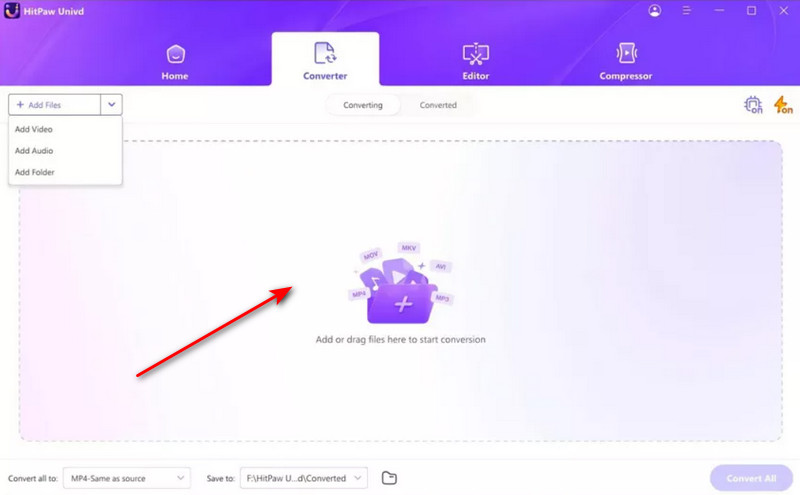
Step 2. Drag and drop the video you want to convert into the HitPaw interface. Alternatively, click Add Files to import your video.
Step 3. Locate Convert all to and click the dropdown menu next to it. Select your preferred output format from the available options.
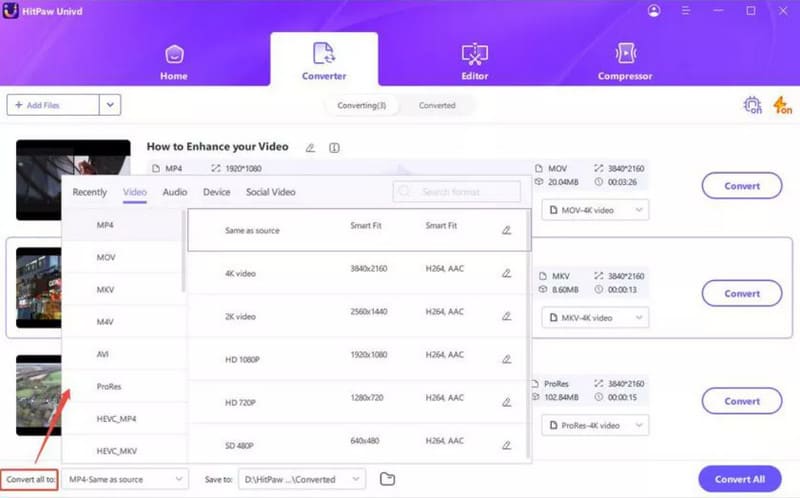
Step 4. Click Save to to select a destination folder for the converted video. Once everything is ready, click Convert to start the conversion.
Part 5. Best Alternative to HitPaw Video Converter
If you're not entirely satisfied with any aspect of HitPaw Video Converter, we also have a better alternative for you: FVC Video Converter Ultimate.
FVC Video Converter Ultimate is an equally versatile audio and video format converter that supports over 1,000 formats and offers batch conversion. It's just as impressive when it comes to AI: models integrated with cutting-edge technology can easily help you enhance video quality to 4K or even 8K.
Free DownloadFor Windows 7 or laterSecure Download
Free DownloadFor MacOS 10.7 or laterSecure Download
Step 1. Download and install FVC Video Converter Ultimate. After launching the program, click Add Files to upload the videos you want to convert.
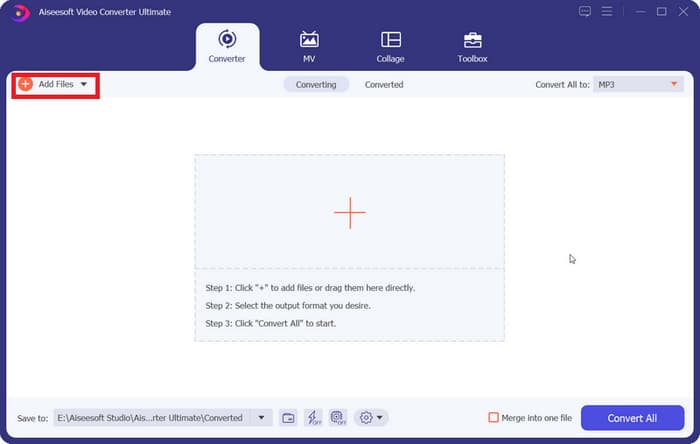
Step 2. Once the upload is complete, locate the Output Format option, open the drop-down menu next to it, and select your desired output format.
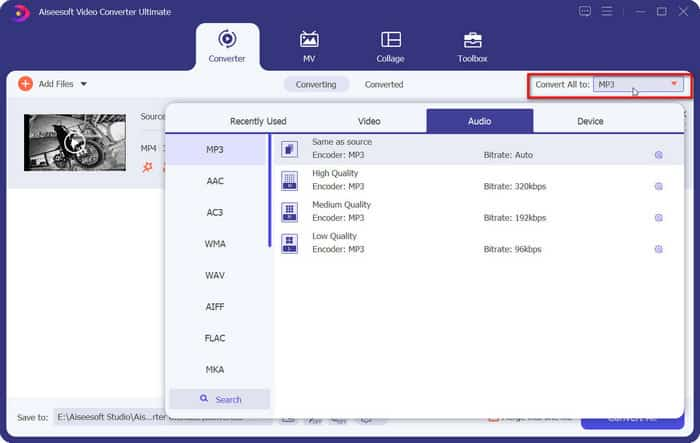
Step 3. Finally, click Convert All.
Part 6. FAQs of HitPaw Video Converter Review
How much does a HitPaw Video Converter cost?
HitPaw Video Converter offers different plans, with the cheapest option starting at $19.95 per month.
Is there a free 4K video converter?
Yes. FVC Video Converter Ultimate is a good option if you need a free 4K video format and resolution converter. It supports high-quality video conversion and is easy to use.
What is HitPaw Video Converter?
HitPaw Video Converter is a tool for video conversion, online video downloading, and basic editing. It supports various video and audio formats and works on both Windows and Mac.
Conclusão
After reading our review of HitPaw Video Converter, you likely have a thorough understanding of its capabilities. It supports a wide range of conversion formats, offers impressive conversion speeds, and provides several different pricing plans to choose from.
Of course, if you're looking for a similar product, we recommend trying FVC Video Converter Ultimate as an alternative. It's every bit as good as HitPaw Video Converter when it comes to conversion, and it also features an easy-to-use interface and excellent compatibility.
-
 Melhores conversores de vídeo gratuitos para Windows 2025 Review
Procurando um conversor de vídeo? Não procure mais! Listamos as 10 melhores ferramentas para converter vídeos gratuitamente em qualquer formato para a saída desejada.
-
 Análise dos 10 melhores softwares de conversão de vídeo HD (grátis e comercial)
Leia e compare para obter o melhor software conversor de vídeo HD a partir de 10 recomendações. Aqui estão as análises detalhadas de cada conversor de vídeo HD para multiplataforma.
-
 Os 8 principais conversores de vídeo 4K para Windows/Mac/Online
Procurando os melhores conversores de vídeo 4K para seus vídeos? Encontre aqui a ferramenta perfeita para converter e aprimorar seus vídeos com nossa lista completa.
