


 Video Converter Ultimate
 Gravador de ecrã
 Reparo de vídeo
 Secure Download
4 melhores aplicativos para usar na conversão de Xvid para DivX
In this modern era, videos are always exposed everywhere. People love watching movies, clips, etc. However, there are unexpected moments when the video is incompatible with a particular platform. One of the best reasons is maybe the file format of the video is not supported on the platform. This way, the best solution is to change the video to another file format. In changing the file format, you have to look for excellent software you can use to convert a file format to another. If you want to learn how to convert Xvid to DivX, read on to find out.

Parte 1: Melhor aplicativo para converter no computador
Video Converter Ultimate is an excellent and astounding software application you can use to convert Xvid to DivX on your Computer. This application is accessible on both Windows and Mac. In addition, it supports various file formats, like GIF, FLV, AVI, MOC, MKV, and more. This converter application can convert incompatible files with other programs or devices. You can also convert your file without losing quality. Moreover, Video Converter Ultimate is simple and easy to use, which is perfect for beginners who want to convert files easily. Also, this application is not only great at converting different files. Furthermore, it has various editing tools you can enjoy with this software, such as collage maker, video speed controller, video compressor, audio compressor, add and remove the watermark, video cropper, collage maker, add watermark, color correction, and more. If you want to convert Xvid to DivX, follow the simple and easy steps below.
Step 1: Download the Video Converter Ultimate on your computer. Launch the application after the installation process.
Free DownloadFor Windows 7 or laterSecure Download
Free DownloadFor MacOS 10.7 or laterSecure Download
Step 2: After you launch the Video Converter Ultimate, proceed to Converter. Then click the Plus sign button to attach your Xvid File video you want to convert to DivX.
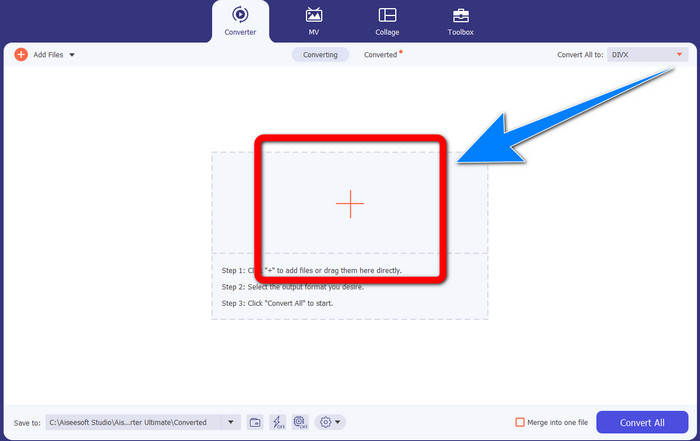
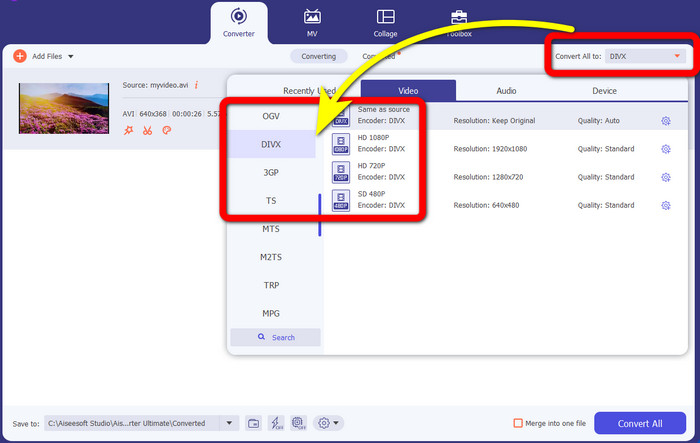
Step 3: When you have already attached your Xvid file video, click the Convert All to button. Then, select the DivX file and choose your desired quality, like 480p, 720p, and 1080p.
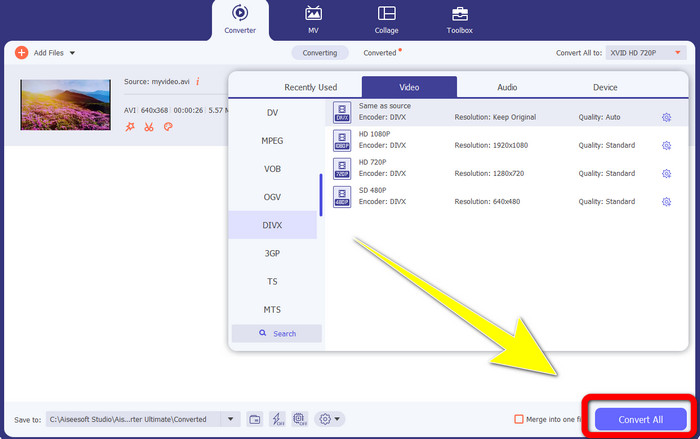
Step 4: After you change your video from an Xvid file to a DivX file, click the Convert All button to convert and save your final output. Then you can try your converted file on your device if it is already compatible.
Parte 2: Software gratuito para converter Xvid para DivX
Another video converter you can use for free is the HitPaw Video Converter. You can download this application on your Windows and Mac. This application lets you convert Xvid to DivX. Moreover, it can also convert more than 1000+ file formats, like MP4, M4V, MOV, MKV, WMV, MPEG, AVI, FLV, and more. Moreover, HitPaw Video Converter is a simple application suitable for any user. Using this application, you can convert many files easier. However, the installation takes some time, and the advanced features are available for paid versions. If you want to convert Xvid to DivX, follow these steps.
Step 1: Download the HitPaw Video Converter on your Windows and Mac. After the installation process, launch the application.
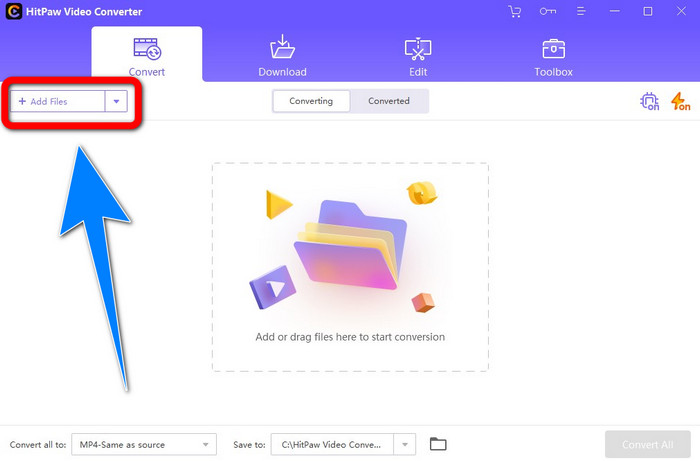
Step 2: Click the Add File button to add your Xvid file.
Step 3: Go to format options, and click the DivX file.
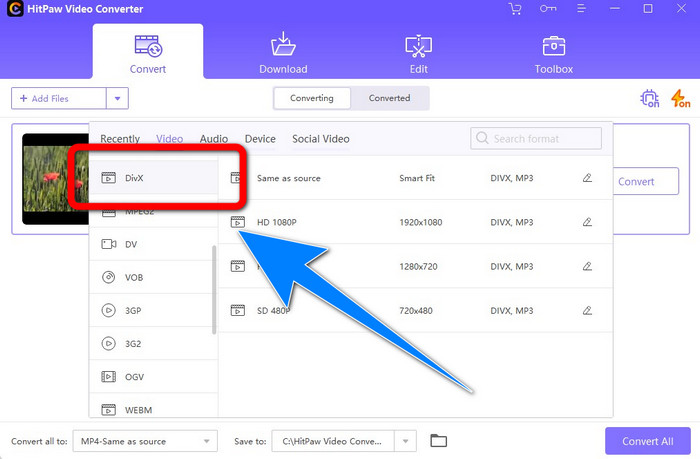
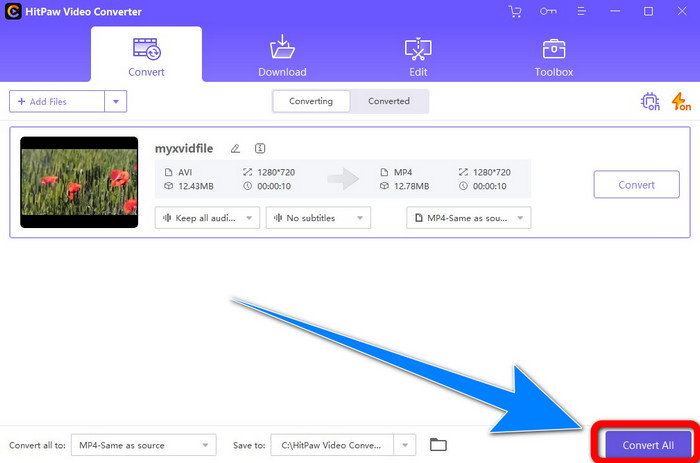
Step 4: After you choose the DivX file format, click the Convert All button to convert and save your final output.
Parte 3: Conversão de Xvid para DivX usando a ferramenta online
1. Usando o Evano
Evano is one of the most reliable and best software you can use to let you convert your Xvid file to a DivX file. In addition, This software is free and has simple methods to convert, which is good for new users. Moreover, it supports various audio and video formats. In audio, it supports MP3, WAV, FLAC, M4R, DTS, AAC, MP2, and more audio formats. It supports Divx, Xvid, AVI, MPEG MKV, MOV, MJPEG, WEBM, and more in video formats. However, this software has limitations. You can only convert at least ten files per day, which is not good, especially for the people who are converting many files. Also, it has a slow converting process that takes a few minutes. If you want to convert Xvid to DivX using Evano, follow the steps below.
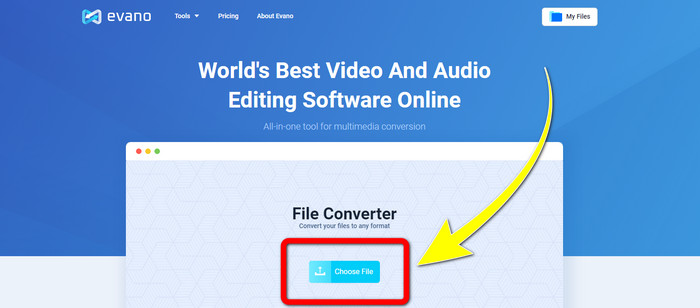
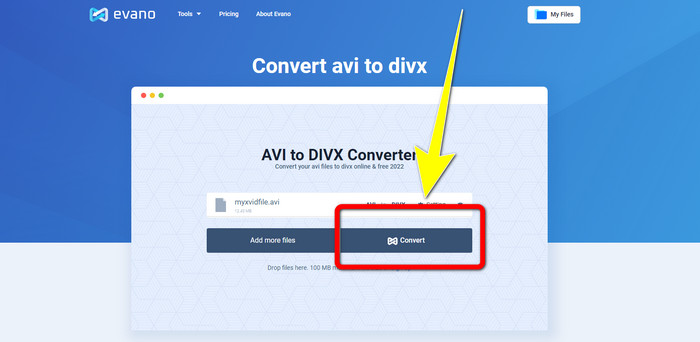
Step 1: Go to the website of Evano. Then, click Choose file and add your Xvid file video.
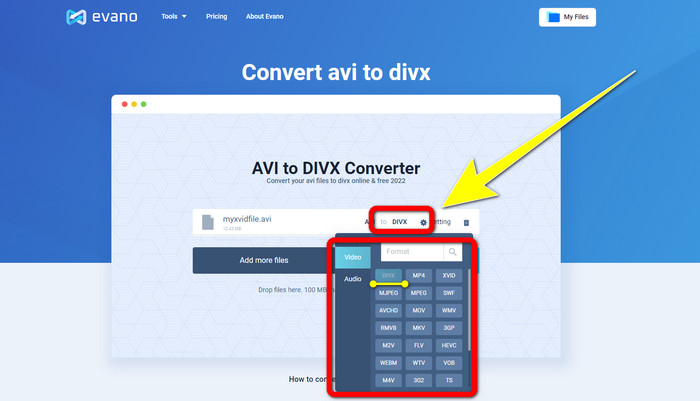
Step 2: When you have already attached your video file, go to Format options, then choose the DivX file format.
Step 3: After clicking the DivX file, select the Convert button. Wait for the converting process and Download your converted file.
2. Usando AnyConv
If you are looking for another helpful and valuable application online to convert Xvid to DivX, AnyConv is the software you can use. In addition, you don’t need to purchase a subscription because this application is free. Moreover, it supports many audios, video, and image formats, such as 3GP, DIVX, MOV, FLAC, FLV, H264, JPEG, JPG, MP3, MP3, MP4, MPEG, and more. Also, you can use this software easily because it only has three simple steps for converting your Xvid file to DivX. However, the conversion process of AnyConv is slow, and sometimes the software is not working well. But if you want to convert different files using this online application, follow the steps below.
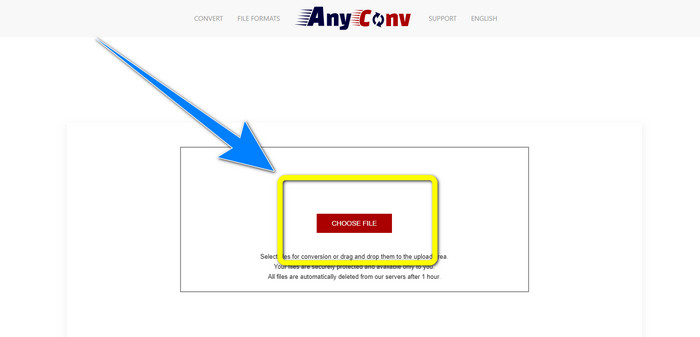
Step 1: Visit the website of AnyConv. Click the Choose File button and insert the video you want to convert.
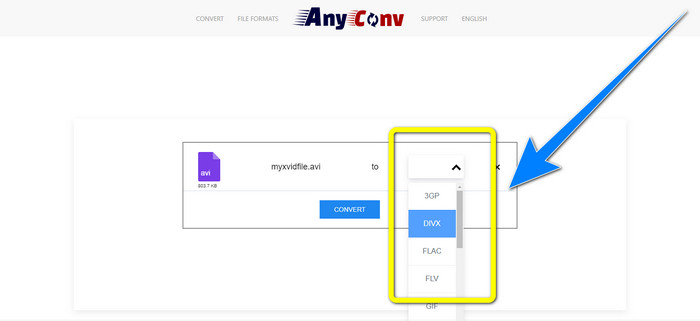
Step 2: After you have added your file, proceed to the format options and choose the DivX format.
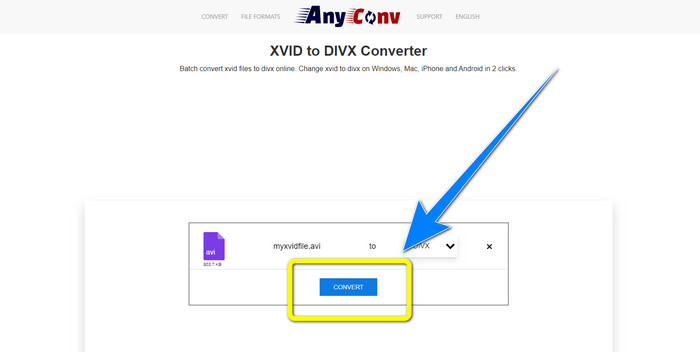
Step 3: Then, click the Convert button. After the converting process, download the file that you converted and save it to your device.
Related to:
How to Convert XviD to FLV Without Quality Loss [Solved]
2 Beneficial Ways to Transcode XviD to WMV Format Losslessly
Parte 4: Introdução de Xvid e DivX
Xvid is a software published in GNU General Public License based on MPEG-4 format. It also provides enough compression for a full-length DVD movie to fit on a single CD. In addition, it was born from DivX. Furthermore, Xvid is a direct competitor of DivX. Moreover, it is the latest and offers better technology than other file formats. On the other hand, DivX is one of the oldest video codecs you can see on the market. Also, it belongs to the MPEG-4 family. However, the file size of the DivX file is smaller than other file formats. The best part is that the DivX file is compatible with different operating systems and devices.
Parte 5: Perguntas frequentes sobre a conversão de Xvid para DivX
Quanto tempo leva para converter meu Xvid em um arquivo DivX?
A velocidade do processo de conversão de vídeo dependerá de qual aplicativo você está usando. Alguns aplicativos levam apenas alguns segundos para serem convertidos e outros demoram um pouco. Além disso, ainda depende do tamanho do arquivo do vídeo.
Posso converter Xvid para um arquivo DivX usando meu Mac?
Yes, of course! You can convert Xvid to a DivX file using your Mac. The application that is suitable for your device is the Video Converter Ultimate. It is accessible on both Windows and Mac. Moreover, it can help you convert faster than other applications.
Também posso converter meu arquivo MP4 em outro arquivo usando o Video Converter Ultimate?
Sim você pode! O Video Converter Ultimate suporta muitos formatos de arquivo de vídeo, como MP4, WEBM, MXF, FLV, GIF, XVID, DIVX, AVI, vídeo 5K/8K e muito mais. Dessa forma, você pode converter diferentes formatos de arquivo usando este aplicativo.
Por que preciso converter meus arquivos para outro formato?
Às vezes, você precisa converter seus arquivos para outros formatos para torná-los mais compatíveis com seus dispositivos.
Conclusão
As you can see, converting Xvid to DivX is very important. It is not just changing the file format. It is about how you can play videos on a particular device without experiencing any problems. Converting is the best solution, especially if your video is not suitable or incompatible on your devices. In addition, if you want to convert more files and change them to other file formats, the best and most reliable converter you can use is the Video Converter Ultimate.
-
 Os 2 principais conversores sugeridos para converter XviD em MOV [online e off-line]
 Descubra quais são os 2 conversores sugeridos que você pode usar para converter arquivos XviD para o formato MOV Leia este artigo com atenção para ter uma ideia de como converter o arquivo Xvid.
-
 Como converter XviD para AVI sem perder a qualidade do vídeo [2021]
 Deseja converter seu arquivo XviD em AVI? Se for assim, leia este artigo enquanto falamos mais sobre XviD e como converter seu arquivo XviD em um formato AVI.
-
 Como converter MKV para DivX online e offline gratuitamente
 Você está procurando as melhores maneiras de converter o formato MKV para DivX gratuitamente. Continue lendo para conhecer os melhores conversores online e offline de MKV para DivX.
