


 Video Converter Ultimate
 Gravador de ecrã
 Reparo de vídeo
 Secure Download
Passo a passo sobre como adicionar arte do álbum ao MP3 usando o melhor software na área de trabalho
Prefixing album art can become handy, especially if you want to help the listener feel more attached to the music they are listening to. With this album art, users can glimpse an idea of what the music is all about, chiefly the digital ones. In some scenarios, MP3 doesn’t have a proper album art or isn’t attached to the file. If you experience the same thing, it is essential to learn how to add album art to MP3 music on your desktop. To know more about this topic, keep reading this article as we provide compact knowledge about the problem.

Parte 1. Como adicionar a arte do álbum ao MP3 com o Video Converter Ultimate [Editor de tags recomendado]
Are you looking to use ultimate software to add album art to MP3? FVC Video Converter Ultimate is the recommended tag editor in this task. This software isn’t recommended for no reason. Unlike other software, there are limited album art formats you can upload and use as a cover for your MP3 music, but not with this tool. With this ultimate software, you can add the album art on your MP3, WAV, WMA, AAC, FLAC, and 1000+ video and audio formats. Amazing right? This tool is the first choice for adding an image cover to your album. Do you want to know how to use the ultimate software? In that case, you can read and follow the demonstration thoroughly we include below.
Step 1. Click the download button below, choose which operating system you currently use. After downloading the software, proceed to install the tool. If all is done, click Start Now to launch the software on your desktop.
Free DownloadFor Windows 7 or laterSecure Download
Free DownloadFor MacOS 10.7 or laterSecure Download
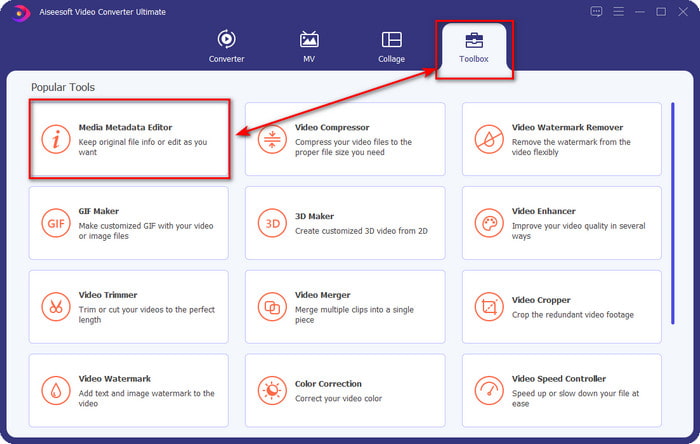
Step 2. Proceed onto the Toolbox section click Media Metadata Editor under it.
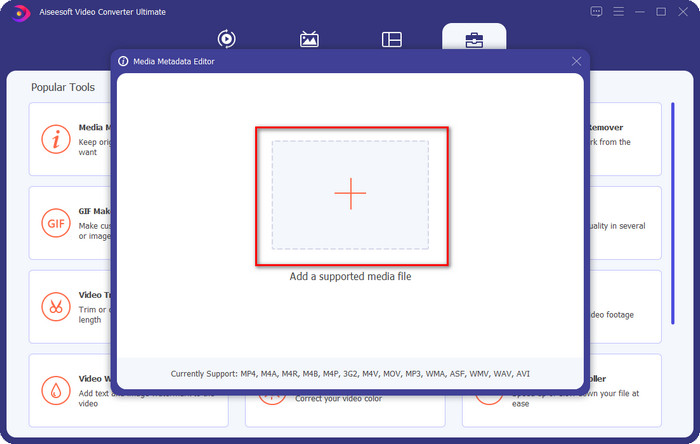
Step 3. Select the music file you want to add album art to by clicking the + button. To insert the music file you’ve selected, click Open.
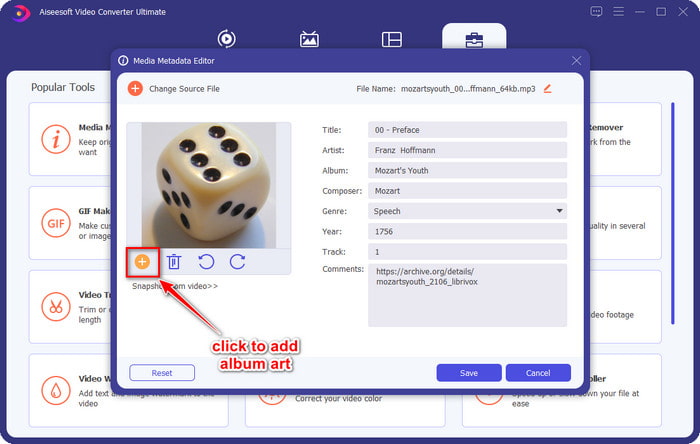
Step 4. Next, click the + button on the left lower left side of the interface, find the album cover you want to use, and click Open. Add the other metadata you want on the textbox if you need it.
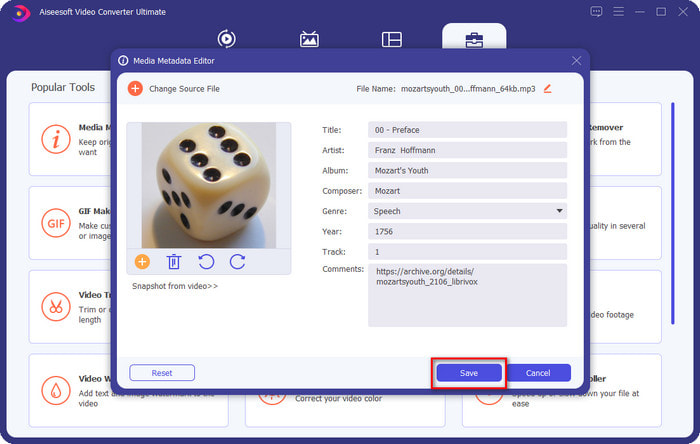
Step 5. If you are finished adding the album art and the metadata on the MP3 file you have, you can now click Save to attach the album art to the MP3 file you’ve uploaded. Easy isn’t it? Everything becomes possible and easy if you use the ultimate tool to fix the problem.
Parte 2. Como adicionar a arte do álbum ao MP3 usando o VLC Media Player Free Metadata Editor]
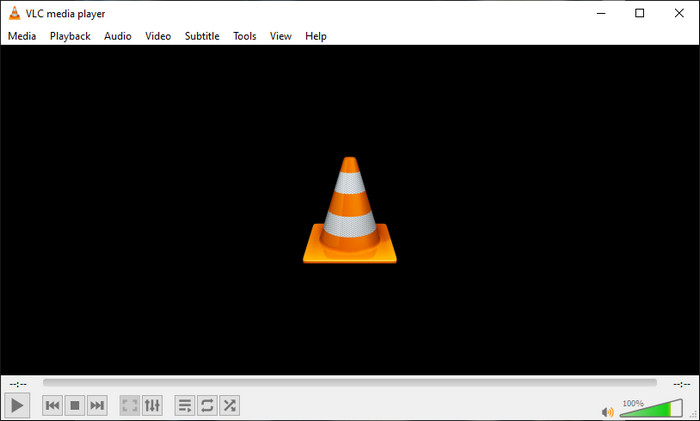
VLC Media Player is the best media player that most of us have. This tool can play any video file, and it is capable of editing metadata as well, like adding album art to the music file. With this media player, you can freely adjust or add metadata. If you want a tutorial on adding album art to MP3 on Windows 10/11 or Mac with this tool, the steps below are for you.
Step 1. Download the media player on your desktop and open it.
Step 2. On the main interface, click Tools, and under it, click Information.
Step 3. Right-click the VLC icon on the bottom right corner, add the album art, and click Save.
Parte 3. Como adicionar a arte do álbum ao MP3 no iTunes [Editor de metadados integrado no Mac]
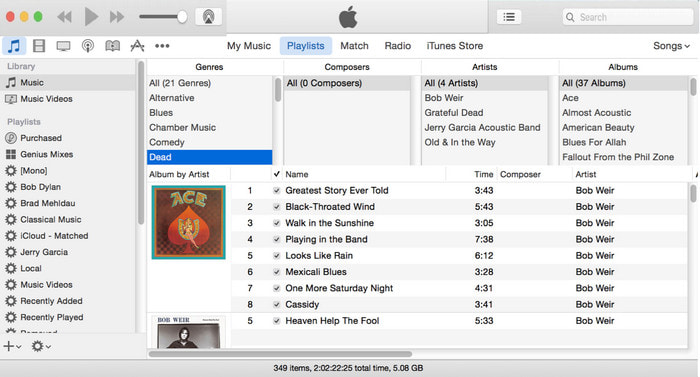
For Mac users, iTunes is our go-to metadata editor to add the image cover on our MP3 file. This built-in app can help us edit the metadata on the file that we have on Mac. However, the software is currently unavailable on some Mac versions because it is now changed into three separate apps that perform the same as iTunes. But on some Mac with the older version. If you are one of the Mac users that wants to know how to add album art to MP3 on iTunes, you can follow the steps below.
Step 1. Open the iTunes application on your Mac.
Step 2. Click the Music then Library and right-click the music file that doesn’t have album art.
Step 3. On the options above, click Artwork, then Add Artwork, select the image you’ve want to upload, and click OK to apply it.
Parte 4. Perguntas frequentes sobre como adicionar arte do álbum em MP3
Posso adicionar a arte do álbum ao MP3 no Audacity?
Infelizmente, você não pode adicionar a arte da imagem no arquivo MP3 usando o Audacity. Esta ferramenta não suporta nenhum formato de imagem ou vídeo porque se destina a ser usado como editor de música. Mas você ainda pode usar o Audacity como editor de metadados se quiser editar seus metadados MP3.
Por que a arte do meu álbum está faltando no meu arquivo de áudio?
Existem três razões pelas quais a arte do seu álbum está faltando no seu arquivo de áudio. A primeira razão é que o arquivo que você tem que baixar não inclui a arte do álbum, especialmente se for pirataria. A maioria dos arquivos de música que baixamos na web não vem com a arte do álbum para evitar problemas de redação. Em seguida, o arquivo desapareceu porque a imagem não foi anexada corretamente. Alguns usuários encontram esse problema e é difícil lidar com isso, portanto, é essencial usar um adicionador de arte de álbum profissional. Por último, a imagem está corrompida; se o arquivo que você carregou não estiver disponível como arte do álbum ou o arquivo de música estiver corrompido, esse pode ser o motivo.
Qual é o melhor metadados que posso usar?
If the metadata editor we provided above is limited, you can click on this link to go to a new article to gather all of the best metadata editors you can use.
Conclusão
Agora que temos a ideia de adicionar a arte do álbum em MP3, é hora de escolher qual ferramenta achamos mais adequada para nós. Se você é um usuário de Mac e não deseja baixar nenhum software em sua área de trabalho, deve escolher o iTunes. Mas o iTunes está descontinuado na versão atualizada do Mac. Se você deseja baixar uma ferramenta gratuita que pode ajudá-lo a adicionar a capa à sua música, o VLC é uma ótima opção. No entanto, a ferramenta não é uma ferramenta profissional. Portanto, se você deseja um software especializado que possa acomodá-lo nessa tarefa disponível em ambos os sistemas operacionais, Windows e Mac, use o software definitivo. Baixe o software em sua área de trabalho para ter a ferramenta profissional ao seu alcance clicando no botão de download apresentado acima.
-
 Como visualizar facilmente metadados de fotos e vídeos no iOS
 Quer saber como ver metadados no iPhone e iPad? Então, ler este artigo pode ajudá-lo a resolver esse problema sem esforço.
-
 Melhores técnicas sobre como editar tags iD3 no iTunes [Dicas eficazes]
 Precisa saber como editar tags no iTunes? Então você está no lugar certo. Conforme discutimos os métodos, você pode seguir para editar as tags usando o iTunes.
-
 Como editar propriedades de arquivos WAV no Windows 10/11 e Mac [Resolvido]
 Você está procurando uma maneira de editar as propriedades de seus arquivos WAV no Windows 10/11? Esta pergunta terá uma resposta se você continuar lendo este artigo.
