


 Video Converter Ultimate
 Gravador de ecrã
 Reparo de vídeo
Como adicionar imagens rapidamente a um vídeo em menos de um minuto
Existem muitas razões pelas quais você precisa adicionar imagens ao vídeo. Por exemplo, alguns editores descobriram que adicionar imagens aos seus vídeos cria uma nova interação para os outros usuários. Dessa forma, você pode usar isso para representar sua marca ou fazer uma excelente apresentação visual e ajudar seu vídeo a transmitir a mensagem certa aos usuários. Mas você sabia que muitas ferramentas realizam o mesmo trabalho? Sabemos que é difícil escolher qual ferramenta será a melhor para você. Então, hoje, já analisamos as três ferramentas que encontramos com bom desempenho. Depois de ler este artigo, você aprenderá a adicionar imagens aos seus vídeos.

Parte 1. Guia passo a passo sobre como adicionar imagem ao vídeo com o Video Converter Ultimate
Want to add a picture to the video with the ultimate tool? In that case, use the Video Converter Ultimate. With the help of this ultimate tool, you can easily overlay the image to the video even though you aren't a pro in this area of editing. Besides its overlaying on video ability, you can easily use this tool to add music as a background, add subtitles, and do more. It is known for being the one-stop solution for most of the problems in regards to the video. Want to know what are the advantages of using this? If so, you can read the provided details below.

FVC Video Converter Ultimate
Mais de 5.689.200 downloads- Oferece excelente desempenho na conversão e edição.
- Edite e faça um vídeo fantástico em poucos cliques.
- Suporta mais de 200 formatos, como MP4, MOV, FLV, WMV, AVI, MTV, etc.
- Disponível em todas as plataformas cruzadas para download, como Windows e Mac.
Free DownloadFor Windows 7 or laterSecure Download
Free DownloadFor MacOS 10.7 or laterSecure Download
Não é incrível o que você pode fazer com a ferramenta? Sim, sabemos que a ferramenta é impressionante de várias maneiras. Se esta ferramenta chamou sua atenção e você quer aprender como adicionar uma imagem a um vídeo com esta ferramenta, você pode ler o tutorial abaixo.
Step 1. Click the download button below to directly download it on your drive, follow the installation promptly, and launch it. Before anything else, we would appreciate it if you got familiarized with the tool's interface to distinguish the proceeding steps easily.
Free DownloadFor Windows 7 or laterSecure Download
Free DownloadFor MacOS 10.7 or laterSecure Download
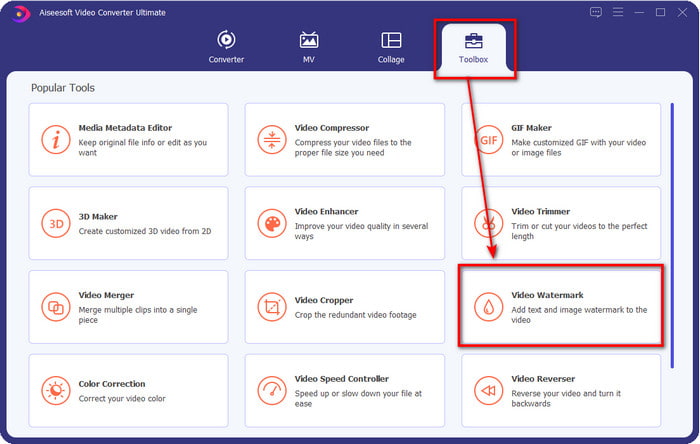
Step 2. Once the tool is running on the system, click Toolbox; under it, locate the Video Watermark and open it.
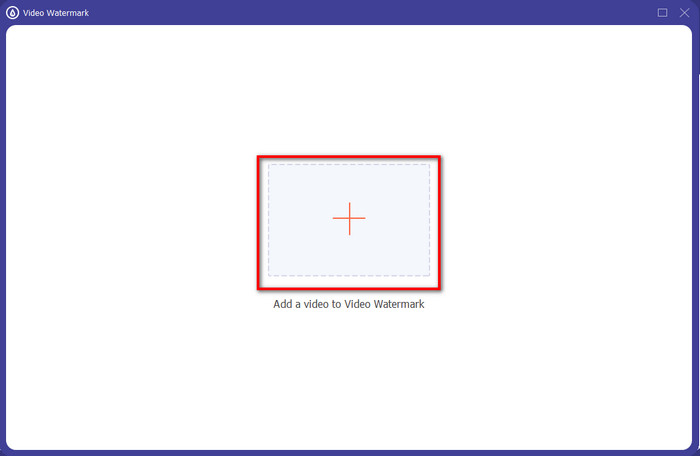
Step 3. Once you've ticked the + button, a file folder will show on your display; locate the file and hit Open if that is the video file.
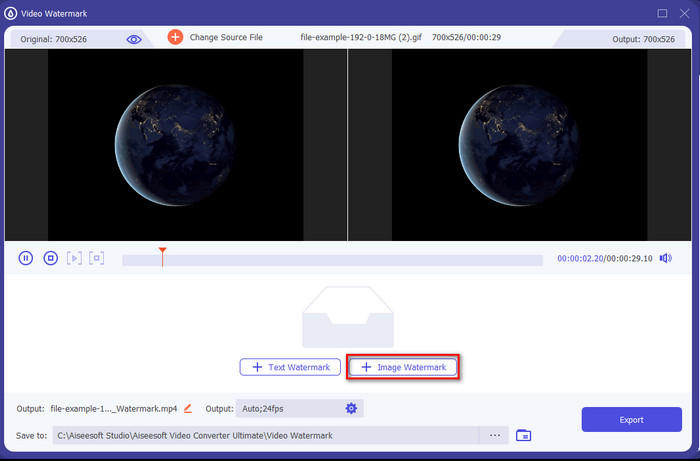
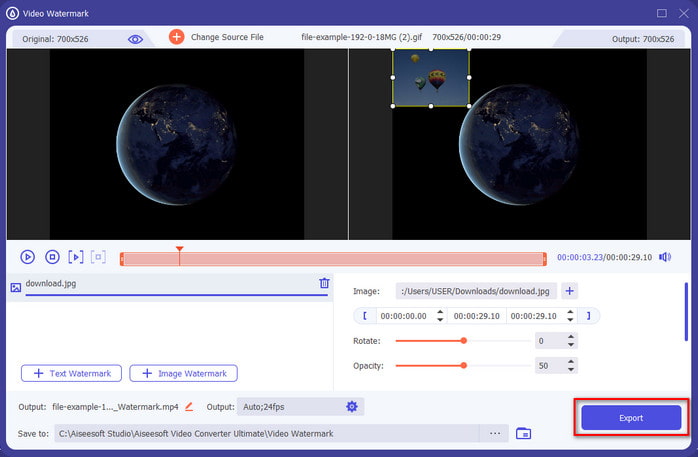
Step 4. A new window will show, click Image Watermark, then a folder will show again, but this time you'll insert the image you want to add to your video and press Open.
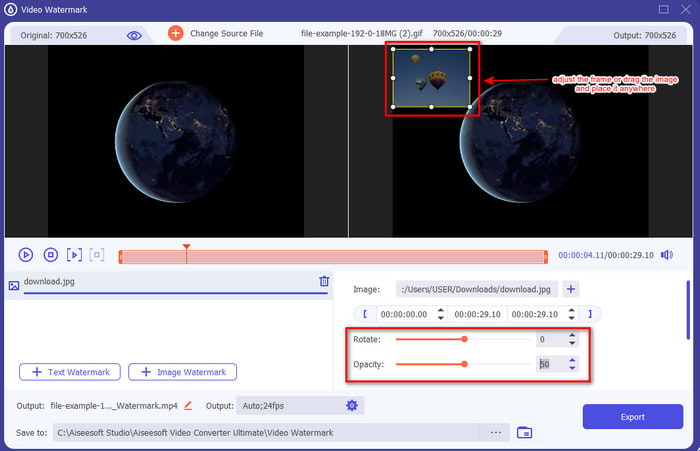
Step 5. Adjust the image size you've inserted on the video and its position by dragging the frame of the photo. You can place it anywhere you want by holding and dragging the image. What's more, you can also adjust the picture's visibility by adjusting the Opacity. Also, you can rotate the image by dragging the slider of Rotate.
Step 6. If you've edited the photo, it is now the time to click Export.
Related:
Parte 2. Como Sobrepor Imagens a Vídeos na Internet Gratuitamente
Cortador de vídeo online - Adicionar imagem a um vídeo
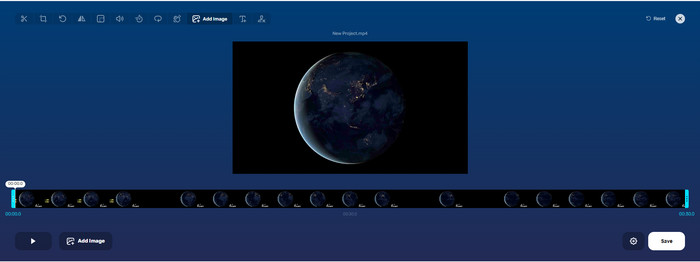
If you want to overlay images online, you can use the Online Video Cutter – Add Image to a Video. This web tool provides a simple yet effective way of adding photos to any video. Although the tool is excellent to use, it is still a bit hassle to upload the video because it depends on your internet connection. Also, you can't add two images here because it is unsupported. But if you want to use the tool, you can follow the steps below.
Step 1. Open your browser and search the web tool on the search tab, then open it.
Step 2. Click Open File to upload the video, then click Add Image to upload the image you've inserted.
Step 3. Drag the image to change its position, click Save to encode, and save it on your computer.
Prós
- Gratuito para usar, e você não precisará baixá-lo.
- Ele suporta recursos básicos de edição para os usuários.
- Não possui marca d'água na saída final.
Contras
- Não pode adicionar até 2 ou mais imagens no vídeo.
- O upload da imagem e do vídeo leva tempo para carregar.
Flixier
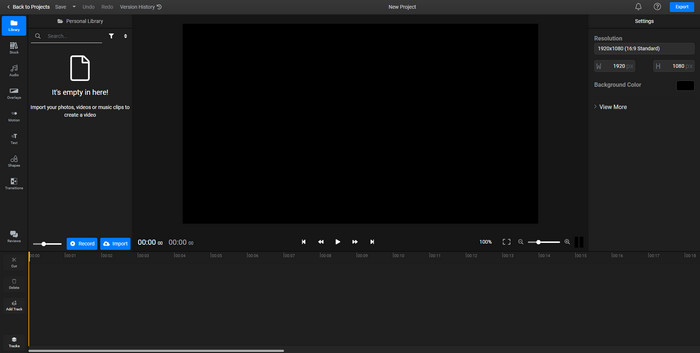
You can use Flixier to add an image to a video online for free. Also, you can edit your video template with this online tool, including adding pictures. This tool provides exceptional built-in editing features you can use to make your video look better. Although the web tool offers you this unique feature, when the time you export it, there will be a watermark on the final output because it is free. But you can purchase the premium tool to remove this watermark.
Step 1. Open your search engine, search the tool's name, and click Choose File.
Step 2. Click Import to upload the video and images, drag the video and the image to the Timeline, make sure that the image is at the top of the video. Change the position of the picture by dragging it inside the video.
Step 3. Click Export, then Export and Download to save it on your desktop drive.
Prós
- Gratuito e acessível na web.
- Ele fornece mais recursos de edição do que a primeira ferramenta online.
- Ele suporta a adição de várias imagens ao seu vídeo.
Contras
- A saída final tem uma marca d'água no final porque é gratuita.
- Ele precisa adquirir a versão VIP para remover a marca d'água na saída de vídeo.
Parte 3. Perguntas frequentes sobre como adicionar imagens ao vídeo
A adição de imagens a um vídeo afeta a qualidade?
A qualidade do vídeo não afetará a imagem que você adicionar. Para simplificar, adicionar imagens não tem qualidade de vídeo significativa, mesmo se você adicionar muitas fotos. No entanto, se você exportar o vídeo no editor usado e configurá-lo em baixa qualidade, espere a saída de vídeo abaixo.
Por que as imagens que adiciono ao vídeo ficam desfocadas?
A principal razão disso é que a imagem já está embaçada desde o início. Para evitar esse problema, você deve verificar a imagem primeiro e garantir que ela não esteja desfocada antes de usá-la em seu vídeo.
Posso adicionar uma transição à imagem no vídeo?
Com alguns editores, é possível adicionar uma transição à sua imagem. Embora existam muitas transições animadas diferentes, cortar, esmaecer, limpar e dissolver são as mais comumente disponíveis. Embora sejam os mais comuns, ainda é ideal adicionar uma transição à imagem para tornar o vídeo mais profissional e emocionante.
Conclusão
After you’ve read this blog, learning how to add photos in a video became easier to understand if you read this article's full scope with the different tools online and offline. Even though we present different sets of tools, we still recommend that any users use the ultimate tool to take up this task. Video Converter Ultimate provides an easy-to-understand interface to help the users do the job efficiently. Still not sure if it fits you? Well, downloading the tool is the only way to prove that it suits you.
-
 5 Conversores OGV para WMV benéficos para converter seus arquivos OGV
 Existem 5 conversores OGV para WMV diferentes que você pode usar para converter os arquivos OGV. Este artigo fornece um fato forte sobre os conversores de 5 ogv disponíveis.
-
 Passo a passo para os 2 melhores softwares de conversão de AMV para WMV [2022]
 Deseja converter AMV para WMV? Se sim, você deve ler este artigo para ter uma ideia do que é AMV e como converter o arquivo para o formato WMV.
-
 Ferramentas mais úteis para converter SWF para WMV (online e offline)
 Você luta para encontrar um player para seus arquivos SWF? Você não precisa se preocupar porque você pode simplesmente convertê-lo para o formato WMV para uma melhor experiência de consumo de vídeo. Leia este artigo para saber mais sobre esse processo de conversão.
