


 Video Converter Ultimate
 Gravador de ecrã
 Reparo de vídeo
 Secure Download
How CapCut Enhances Video Quality? [Mobile & Computer]
CapCut is a widely used video editing tool nowadays, and for sure, you are one of those who use it to edit videos for various purposes, such as creating content for TikTok, reels, work, and more.
Now, if you’re dealing with videos that look blurry, dull, shaky, or poorly lit, CapCut offers simple yet effective tools to improve clarity, sharpness, color balance, and overall visual appeal. From automatic enhancements to manual adjustments, CapCut allows you to upgrade your video quality directly on your mobile device or computer.
In this article, you’ll learn how CapCut enhances video quality, helping you make your videos look cleaner, more polished, and ready to share across different platforms.

Part 1. How to Enhance Video Quality in CapCut Mobile
It is not a surprise that CapCut is available on mobile devices, as it first emerged as an app before being available on desktop. So, whether you’re an Android or iOS user, CapCut is definitely available for you.
In terms of video enhancement, CapCut on mobile can definitely make magic, so if you’re struggling with low-quality clips that you’re editing, you can export them in a higher resolution that will eventually enhance their quality. Moreover, this tool provides built-in adjustment tools that enable CapCut to enhance video quality effectively.
Here’s How CapCut Enhances Video Quality on Mobile Devices:
Step 1. First, open the CapCut app and select Edit or tap New Project on the home screen. Choose the video from your gallery and tap Add.
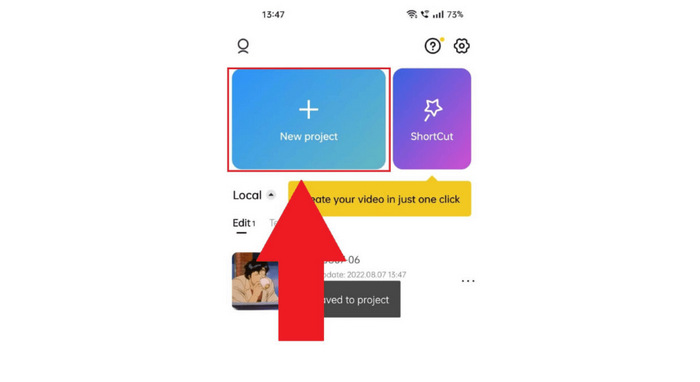
Note: CapCut will automatically load and process the clip in 1080p.
Step 2. Once inside the editing interface, tap Overlay and select Add overlay. Choose a plain black image from your gallery, add it, and zoom in until it completely covers the video.
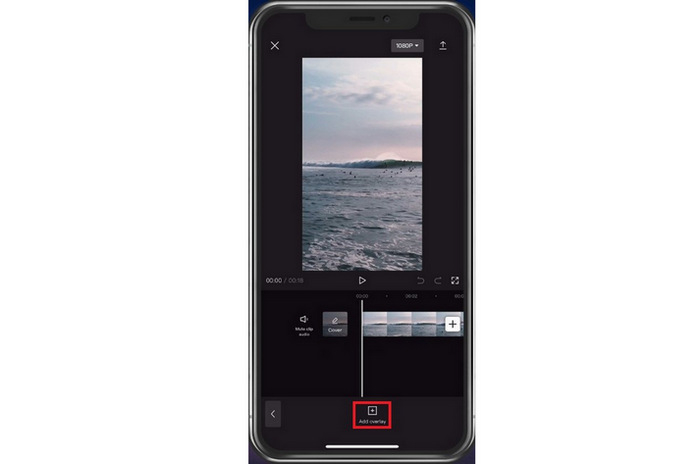
Step 3. Next, tap the black overlay, select Splice, and ensure the overlay is properly connected to the video.
Step 4. After that, return to the editing tools and tap Filter. Select the Opacity filter and set it to around 40%. You may also try filters like Ochre, depending on the look you prefer.
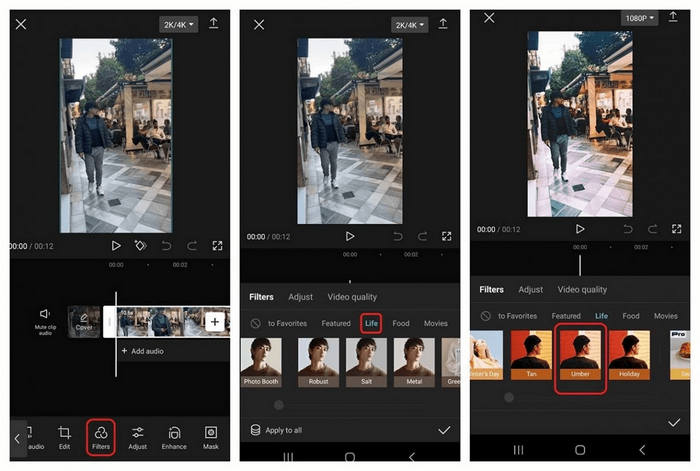
Step 5. Tap Adjust to fine-tune the video. Use the sliders to improve brightness, contrast, saturation, exposure, sharpen, and other settings. Start with small changes and adjust based on how the video looks.
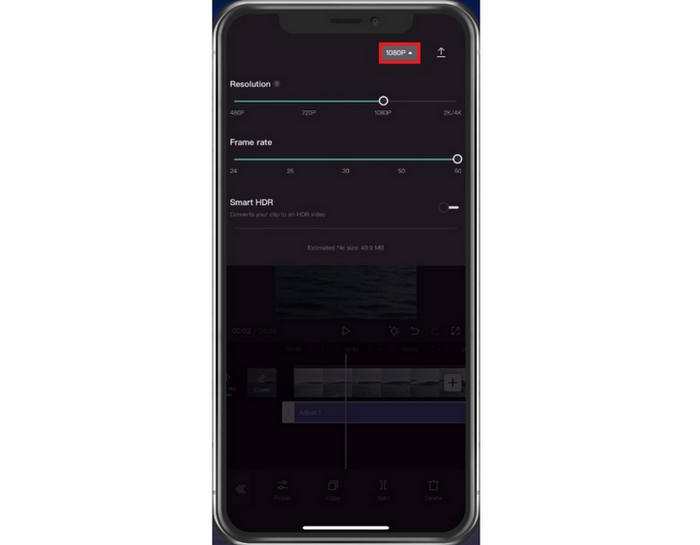
Step 6. Now, before exporting, tap the settings icon next to Export. Set the frame rate to 60fps and increase the resolution to 1080p for better quality.
Step 7. Lastly, tap the Export button in the top-right corner and wait for the process to finish. Avoid closing the app or locking your screen. Once done, the enhanced video will be saved to your gallery and CapCut projects.
Part 2. How to Enhance Video Quality in CapCut Computer
CapCut is also available on computers, making it a practical choice for users who want to learn how to enhance video quality in CapCut PC. Editing on a larger screen enables more precise adjustments, particularly when enhancing clarity, color, and sharpness. With the right settings, CapCut can efficiently enhance video quality, making it easier to refine footage and achieve cleaner, more polished results when using CapCut on a desktop.
Here’s How CapCut Enhances Video Quality on a Computer:
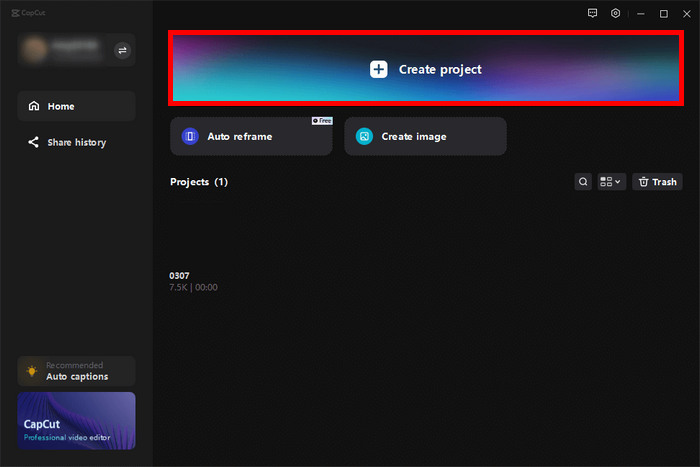
Step 1. Start a new project in CapCut, then tap the gear icon on the timeline to set the resolution to 1080p or 4K, only if your footage supports it. Match the frame rate to your original video, either 30fps or 60fps, to maintain clarity.
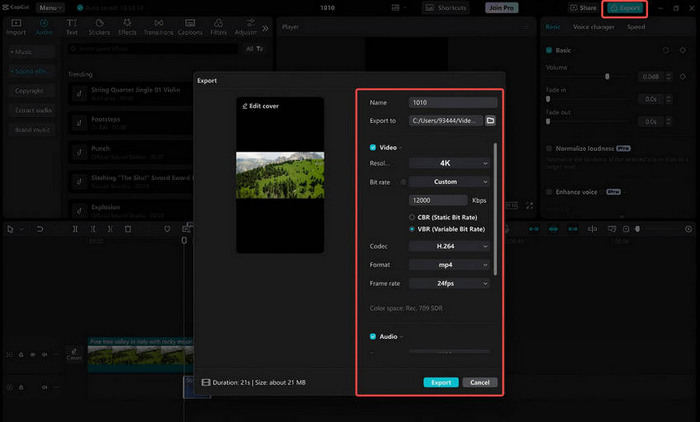
Step 2. Next, when exporting, choose 1080p or 4K resolution and set the frame rate to 60fps for smoother motion.
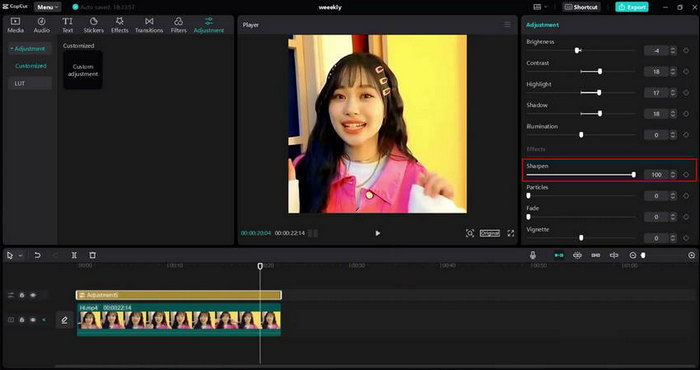
Step 3. Select the clip, open the Adjustment layer, and lightly increase the Sharpen setting to around +10 to +20. Fine-tune brightness, contrast, saturation, and exposure to just the right level to enhance clarity without introducing noise.
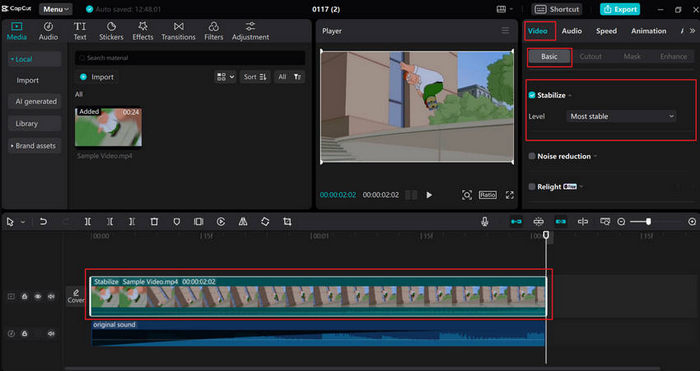
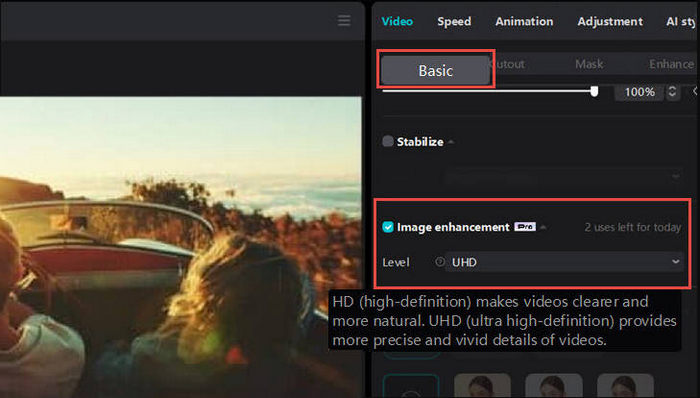
Step 4. To reduce camera shake, select the clip, go to Video, choose Basic, enable Stabilize, and choose a level that smooths motion without cutting too much of the frame.
Step 5. Lastly, for low-quality clips, enable Image Enhancement under Video, choose Basic in, and select HD or UHD to upscale the footage using AI, then export it.
Part 3. Best Alternative to CapCut to Enhance Video Quality with AI
While CapCut's enhanced video quality feature is great, the steps may be too complex for some users to follow. Fortunately, there are tools designed to directly enhance video quality in a few steps, and one such tool is the FVC Video Converter Ultimate.
This tool is built with AI-powered video enhancement features that focus on improving video quality without requiring manual adjustments. Instead of tweaking multiple settings, FVC Video Converter Ultimate automatically analyzes your video and enhances resolution, brightness, and clarity in just a few clicks. This makes it an ideal option for users who want better results without putting extra strain on their device or spending too much time on editing.
Main Features:
- • AI-powered video enhancement that automatically improves resolution, brightness, and clarity.
- • One-click video upscaling with no manual adjustments required.
- • Noise reduction to remove grain and visual distortion.
- • Smart sharpening that enhances details while keeping a natural look.
- • Supports multiple video formats, including MP4, MOV, AVI, and MKV.
- • Works efficiently on low- to mid-spec computers.
- • Fast processing speed for quick video enhancement.
Steps on How to Use FVC Video Converter Ultimate to Enhance Video Quality:
Step 1. First, you need to download and install the tool on your computer.
Free DownloadFor Windows 7 or laterSecure Download
Free DownloadFor MacOS 10.7 or laterSecure Download
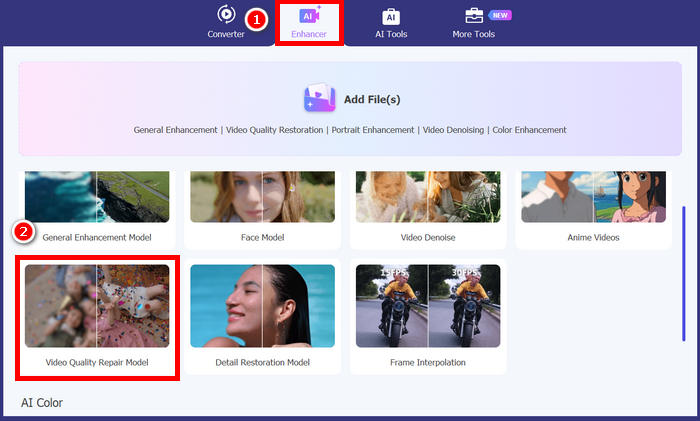
Step 2. Once done, open the tool and click the Enhancer tab. From there, you can select a bunch of AI enhancement tools, including the Video Quality Repair Model.
Step 3. After that, choose the Video Quality Repair Model and import the video that you want to enhance. Wait for a few seconds to directly enhance the video, and then click the Export button to download it.
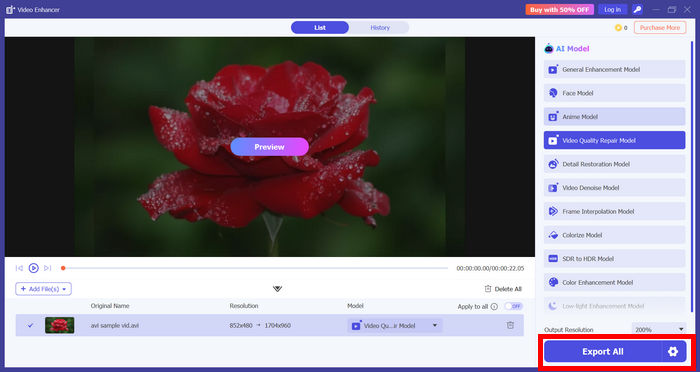
Note: You can preview the video to check the quality of the newly enhanced video and add further enhancement using the AI model feature of the tool.
It’s indeed that the FVC Video Converter Ultimate has it all, especially with its newest AI integration for the Video Enhancer tool. With just a few clicks, videos can be upscaled, sharpened, and cleaned up without the need to manually adjust complex settings. This is truly a great alternative for the CapCut enhanced video quality feature.
Part 4. FAQs about Enhancing Video Quality in CapCut
Why does my video still look blurry after enhancing it in CapCut?
Videos may still appear blurry if the original footage is low resolution, overcompressed, or exported with a low bitrate. Setting the correct project resolution, increasing the frame rate, using moderate sharpening, and exporting in 1080p or higher with a high bitrate can significantly improve results. However, CapCut has limitations when upscaling very low-quality videos.
Is CapCut free to use for enhancing video quality?
CapCut offers free tools that allow users to enhance video quality, such as adjusting resolution, frame rate, filters, and basic sharpening. However, some advanced features, including certain AI enhancements and higher export options on desktop, may require a CapCut Pro subscription.
What is the best alternative if CapCut’s enhancement steps are too complex?
If CapCut’s manual adjustments feel overwhelming, an AI-based tool like FVC Video Converter Ultimate is a good alternative. It enhances video quality automatically by upscaling resolution, reducing noise, and sharpening details in just a few clicks, making it ideal for users who want faster and simpler video enhancement.
Conclusão
CapCut Enhance Video Quality features make it easier for users to improve their videos on both mobile and computer without needing professional editing experience. Through simple adjustments, proper export settings, and optional AI tools, CapCut allows videos to look clearer, smoother, and more polished. For users who want a faster and more automated approach, AI-based alternatives like FVC Video Converter Ultimate provide an efficient option. Overall, whether using CapCut or an AI enhancer, improving video quality has become more accessible and user-friendly.
-
 Como fazer upgrade de 1080p para 4K [formas on-line e off-line]
 Quer fazer com que seus vídeos pareçam ter sido filmados em resolução 4K? Nós pegamos você! Aprenda como fazer upgrade de 1080p para 4K com este guia passo a passo. Leia para saber mais!
-
 Como gravar vídeos da tela em 4K: Por que e como fazer
 Aprenda como gravar vídeos da tela em 4K com este guia. Descubra por que a gravação em 4K é importante e como capturar conteúdo em ultra-alta definição em qualquer dispositivo.
-
 Como aprimorar o vídeo com Topaz Video AI – Guia 2024
 Procurando maneiras de aprimorar seus vídeos? Neste artigo, aprenda como usar o Topaz Video AI para elevar a qualidade de seus vídeos com este guia passo a passo.
