


 Video Converter Ultimate
 Gravador de ecrã
 Reparo de vídeo
Como alterar o vídeo em câmera lenta para velocidade normal como um profissional
Technology has evolved extensively over the years. Various software has been developed, and advanced equipment has been invented to bring out uniqueness and creativity in a mere video. One of such is a slow-motion video. However, most people are only familiar with making said video and do not revert it to normal speed. One example is using random or specific videos online for a project in school or any video-producing activities people are up to that might have been in a playback speed not preferential to that people. So, this article intends to solve this issue one might be facing now and then by providing the best ways to change a slow-motion video to normal playback speed for Mac, Windows, iOS, and Android operating systems.

Parte 1. Como alterar o vídeo em câmera lenta para velocidade normal no Mac e Windows
It is possible to resolve the problem of changing the speed of the slow-motion video to normal by downloading and using converters offline. On the other hand, Video Converter Ultimate is one of the best editing programs available, thanks to the numerous features it provides. Due to its accessibility and ease of use for the general public, we highly recommend it for anyone who wants to convert slow-motion video to normal speed on a Mac or Windows machine. Here are the suggested steps for properly addressing the software: handle it well.
Step 1: Click the Free Download button to save the program to your computer's hard drive. You can then set up the software and customize it.
Free DownloadFor Windows 7 or laterSecure Download
Free DownloadFor MacOS 10.7 or laterSecure Download
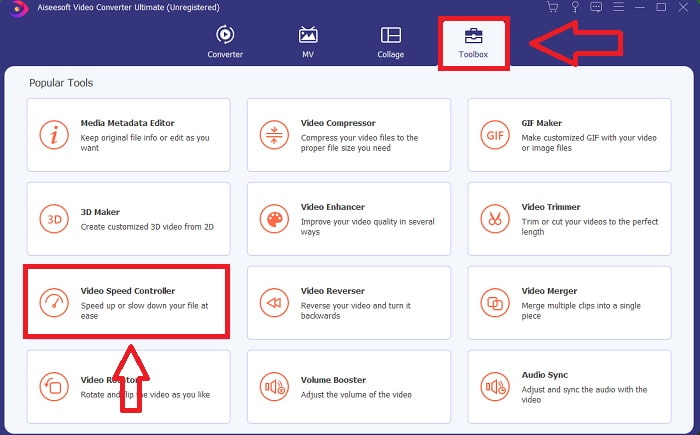
Step 2: Activate the software by clicking on the Toolbox icon in the menu bar and selecting Video Speed Controller from the list.
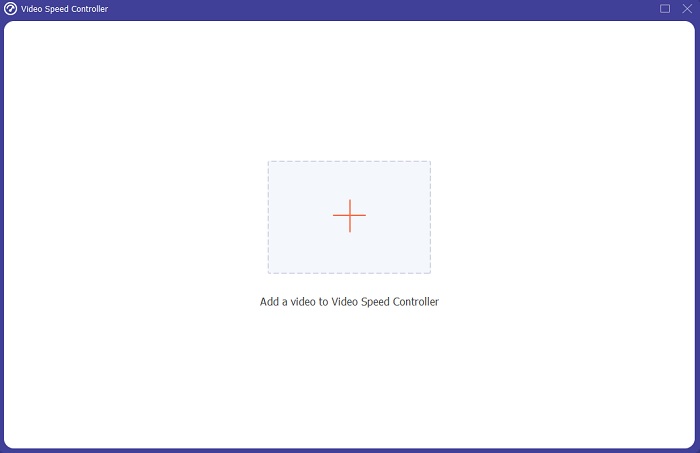
Step 3: To add the slow motion video, click the + button in your preference bar and then continue to edit the video.
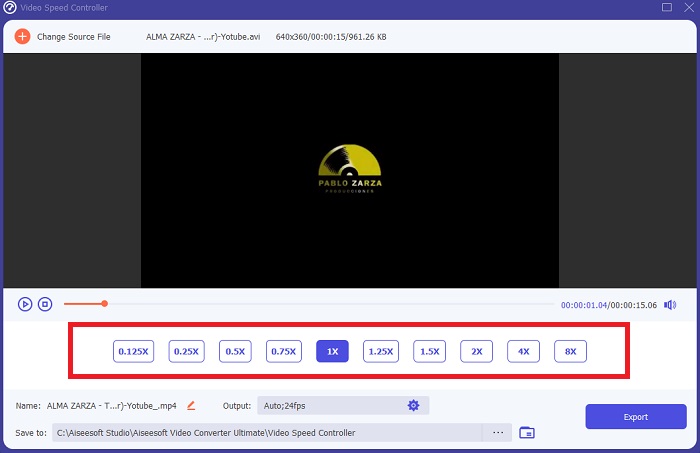
Step 4: Increase or decrease the video rate to adjust the playback speed.
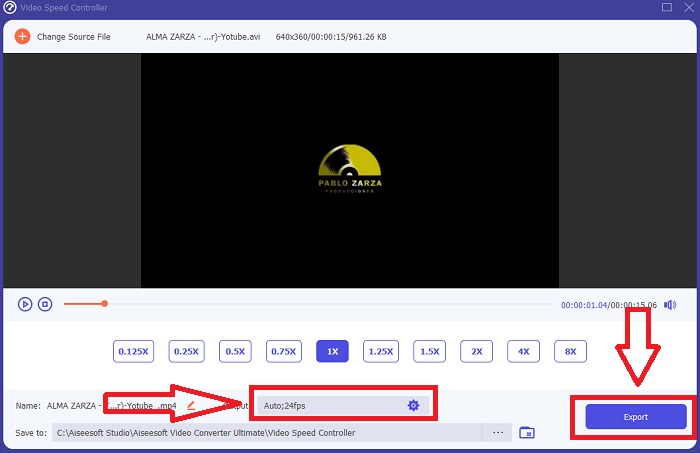
Step 5: The output format, resolution, quality, and so on can all be edited after the playback speed of your video clip has been adjusted. When you're ready to save your work, click Export and choose a location.
Parte 2. Como alterar o vídeo em câmera lenta para velocidade normal no iPhone/iPad usando fotos
Slow-motion videos are one of the best options any content creators or videographers have in their arsenal to add a dramatic effect to any clips only using their mobile phone like iPhone. Since iPhone is one of the mobile phones that has a high-end quality of camera that can make a video captured at higher frames per second, so you can get yourself a satisfying clip to watch. However, videos with a lesser playback speed are not always the best approach in every video you are making – there are types that slow-motion would not suffice or are irrelevant. So, changing the slow-motion video to normal speed on your iPhone becomes your only option. To do this, here are the easy-to-follow steps:
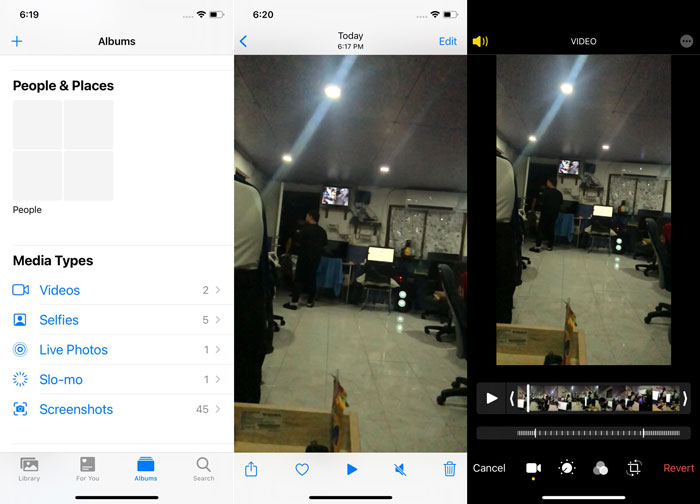
Step 1: Open the Photos app on your iPhone or iPad and go to the albums tab. Scroll to the bottom and tap Slo-mo from the Media Types section. To make a video full screen, tap on it.
Step 2: Select Edit in the upper right corner.
Step 3: A little slider with vertical white lines will appear. The slow-motion effect is represented by the lines spaced widely apart, while the tightly packed lines represent the normal-speed effect. Both parts are divided by two sliders. Drag a Slider from one end of the screen to the other. All of the wide-spaced lines will be perfectly aligned. This indicates that the video will now play at a normal speed. To see whether it is working, press the triangle play button. The once slow-motion video is now at normal playback speed. However, you can undo this action by selecting Edit, Revert, Revert to Original. You can also use the sliders to choose which parts of the footage to play at a slower or faster speed at your liking.
Related:
How to Fix Videos Not Playing on iPhone
Parte 3. Como alterar o vídeo em câmera lenta para velocidade normal no Android usando o Google Fotos
Android users may adjust the speed of a slow-motion video to normal for free, much like their iPhone counterparts. In this scenario, you will need to utilize the Google Photos application that came pre-installed on your phone, but you may alternatively use a third-party app. For the sake of accessibility and convenience, we will be using Google Photos to change the slow-motion video to normal speed on Android, and here is how:
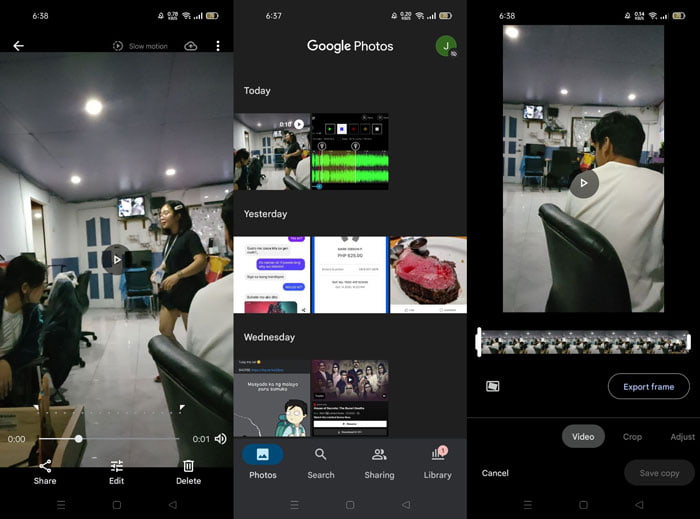
Step 1: Open the Google Photos app on your android phone and click on the video you wish to speed up. Select Edit on the bottom of the screen, and a playback speed controller will appear.
Step 2: Drag the Slider to increase the playback speed by 1.5x or 2x, depending on the rate of your slow-motion video.
Step 3: Click the triangle play button to check if the video is now at the speed of your liking. Once satisfied, select Done to save it.
Parte 4. Perguntas frequentes sobre como alterar o vídeo em câmera lenta para a velocidade normal
Como reverter um vídeo em câmera lenta?
Para mudar de ideia e transformar este vídeo em um clipe em câmera lenta mais uma vez, basta abrir o vídeo e tocar no botão Editar na parte inferior da tela. Em seguida, clique em Reverter e selecione Reverter para Original para confirmar sua decisão.
Você pode converter vídeos de baixo fps em câmera lenta usando o aplicativo Fotos?
O aplicativo Fotos não permite converter vídeos normais do iPhone gravados em 30fps ou 24fps em câmera lenta. No entanto, você pode fazer isso usando aplicativos de terceiros, como o iMovie ou outros aplicativos de edição de maçã.
O Google Fotos é o melhor aplicativo para converter vídeos em câmera lenta para velocidade normal?
Como se poderia imaginar, existem algumas desvantagens em utilizar este aplicativo gratuito. Em primeiro lugar, a velocidade de processamento de vídeo é relativamente lenta, principalmente ao editar um videoclipe longo. Além disso, se você dividir o vídeo antes de alterar a velocidade de reprodução, o áudio de fundo ou a narração de voz serão silenciados. Independentemente disso, é um ótimo aplicativo Android gratuito. Você ainda pode usar aplicativos de terceiros, mas a maioria dos convenientes de usar não é gratuita.
Conclusão
The versatility of videos can serve different needs, and merely changing the playback speed can satisfy different genres, whether for entertainment or educational purposes. The fact that it can be done easily nowadays with accessible applications and software will bring out our creativity and be of convenience to us depending on our preference. Although changing slow-motion video to normal speed online is also convenient, downloading software lessens the hassle of connectivity issues. This article can be of great help to those who are not yet well-versed with such methods and have the answers to their questions.
-
 Reprodutor de vídeo de RV - análise dos 5 melhores reprodutores de vídeo de RV em 2021
 O VLC pode reproduzir VR? Qual é o melhor player de vídeo VR? Como reproduzir vídeo em um fone de ouvido VR? Todas as suas perguntas sobre o player de vídeo VR podem ser respondidas aqui.
-
 Como reproduzir DVD no Windows Media Player em 2021
 Por que meu DVD não reproduz no Windows Media Player? Como reproduzir um DVD no reprodutor de mídia do Windows 7? Esta postagem compartilha 3 maneiras de reproduzir DVDs com ou sem WMP.
-
 Abra o arquivo MKV no Windows Media Player
 Você pode reproduzir arquivos MKV no Windows Media Player? Como converter MKV para Windows Media Player? Encontre 3 maneiras de abrir arquivo MKV no Windows Media Player aqui.
