


 Video Converter Ultimate
 Gravador de ecrã
 Reparo de vídeo
4 métodos mais fáceis de como alterar a resolução de vídeo com etapas abrangentes
There are many reasons why do you need to change the video resolution. One of the reasons could be to save some space for the video. Whatever your reason is, this guide will teach you the four methods to lessen or make the video quality high. Without any more delay, let's dig into the video resolution converters you can use to change the resolution of your video.

Parte 1. 1º Método: A Ultimate Desktop Tool para alterar a resolução de vídeo no Windows e macOS
Video Converter Ultimate is the ultimate tool for this task, as it can help you convert not only the video format but also the video quality within a few clicks. This tool supports an ultra-fast conversion process to easily convert your video quality to the highest or standard video resolution. Isn't it lovely to use this software? Want to know more? If so, this tool supports both desktop platforms. Even though it supports Windows and Mac, what you can see on Windows features are available on Mac features or vice-versa. We know the tools have something special, so we added this to this list. So now, if you want a step-by-step guide, you can follow the written tutorial below to learn how to change video resolution successfully.
Step 1. Click the appropriate button to download the program to your drive successfully. Open the downloaded file and follow the installation process that will show on your screen. After successfully installing it, open the video resolution converter and proceed to the next steps.
Free DownloadFor Windows 7 or laterSecure Download
Free DownloadFor MacOS 10.7 or laterSecure Download
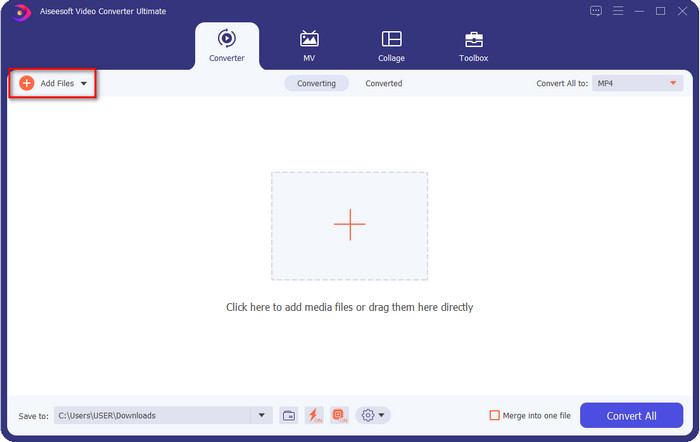
Step 2. To insert the video file you want to change the resolution, click the Add File button. Browse the file on the computer folder that will show, click it, and hit Open.
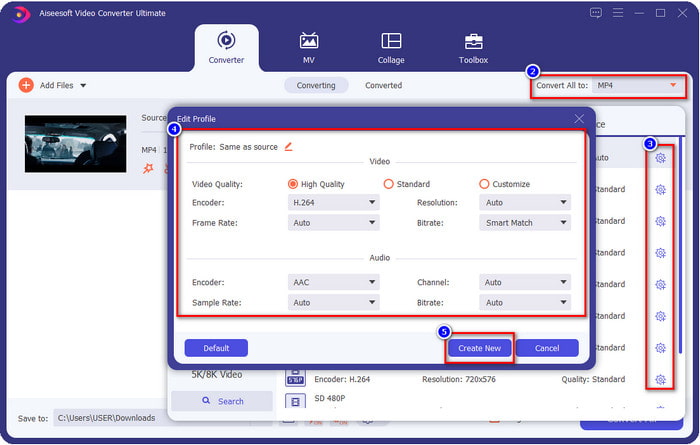
Step 3. Look at the upper-right part and click the drop-down button on the main interface. Choose the video format you want to have, MP4, MOV, AVI, MKV, FLV, and 200+ more formats are available here. After you choose the format, click the widget button to edit the profile of the format. Here you can make your resolution higher or lower change the encoder, quality, bitrate, and more to increase video resolution or not. To save the modification, click Create New.
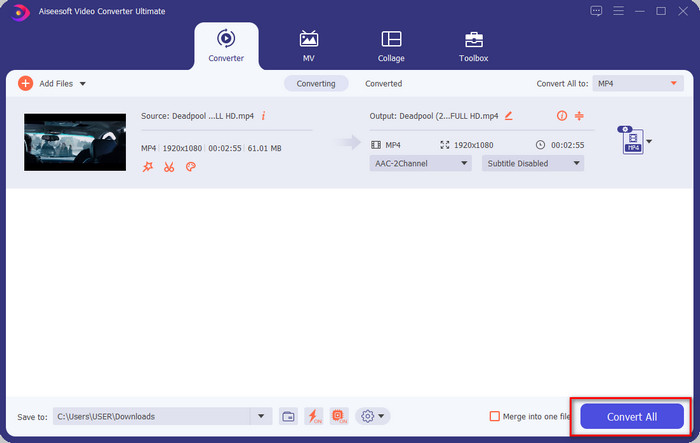
Step 4. Lastly, by clicking the Convert All, the resolution conversion will begin. With that, you have now converted the resolution of the video with the help of the Video Converter Ultimate.
Parte 2. 2º Método: O Método Simples e Gratuito de Alterar a Resolução de Vídeo Online
Want to change video resolution online? In that case, you must use the online free version of the ultimate tool, the FVC Free Video Converter Online. This tool can help you to convert the resolution of your video freely. It is an online tool, so expect it needs internet connectivity to function. Additionally, this tool doesn’t support all video formats, so there is a limitation on adding video format here. So now, let's try to use the tool to change the resolution by following the steps below.
Step 1. To open the online video resolution converter, click this link to open the tool directly.
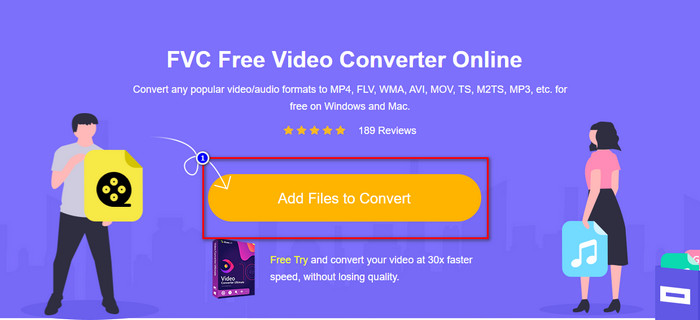
Step 2. Press Add Files to Convert to download the launcher for the first-timer, re-click it again after you've downloaded the installer. After you've clicked it, a folder will show, locate the video file on the folder and click Open.
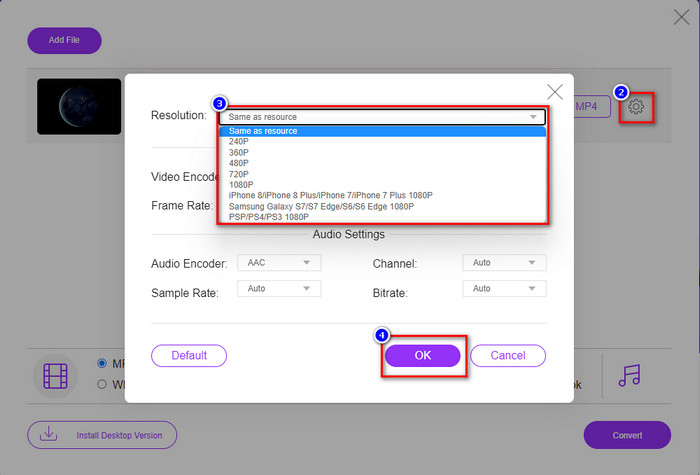
Step 3. Click the gear button to open a new window to change the video resolution on the window. At the top of the new window, click Resolution, choose the video resolution you want and click OK to save it.
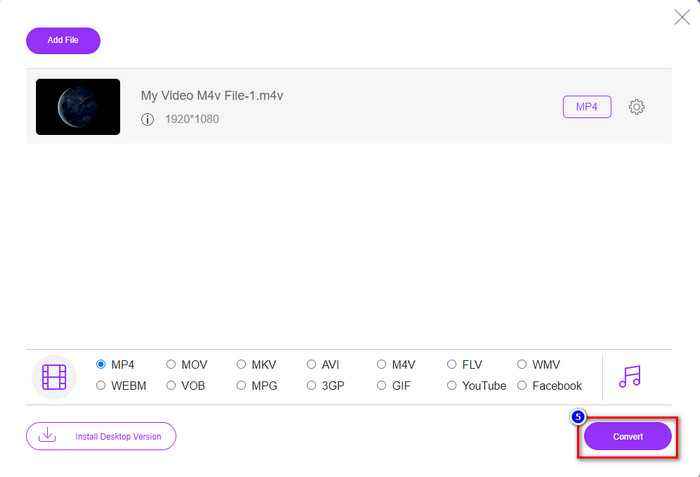
Step 4. Choose the format on the setlist and click Convert to begin converting the resolution process.
Related:
Parte 3. 3º Método: Maneira baseada em dispositivos móveis para alterar a resolução de vídeo no iPhone e Android
Esses métodos não podem converter a resolução do seu vídeo, mas você pode fazer um vídeo com resolução menor ou maior. Além disso, vamos ver como podemos alterar a resolução do vídeo enquanto filmamos o vídeo.
1. Resolução de vídeo integrada do iPhone
Se você é um usuário do iOS, pode alterar a resolução do vídeo que você deseja. No entanto, você não consegue encontrá-lo na câmera, portanto, se não conseguir encontrá-lo, siga as etapas abaixo para saber como alterar a resolução do vídeo no iPhone antes de filmar um vídeo.
Essas etapas são tiradas do modelo do iPhone X para que as etapas possam ser ligeiramente diferentes das outras versões de nomes ou funções semelhantes ao iPhone.
Step 1. Open the Settings of your iPhone.
Step 2. Under it, find the Camera and click it.
Step 3. Click Record Video and choose which resolution you want to have as you shoot the video. Go back to Home, go to your Camera, and film the video with the resolution you've set back on the settings.
2. Resolução de vídeo Android integrada
Para usuários do Android, você pode acessar diretamente a resolução de vídeo em sua câmera. As etapas que fornecemos não são tão complicadas quanto para o iPhone porque você não precisará definir as configurações. Então agora, para alterar a resolução do vídeo no Android, siga as instruções abaixo.
Essas etapas foram tiradas do Redmi 10, portanto, as etapas podem ser um pouco diferentes com alguns outros dispositivos Android, como nome ou funcionalidade.
Step 1. On your phone, click the Camera app to open it.
Step 2. After it is open, go to the Video, click the three-parallel lined, and choose the video resolution you want.
Step 3. Press the red button to record the video with the set video resolution.
Parte 4. Perguntas frequentes sobre como alterar a resolução de vídeo
Qual é a resolução do vídeo?
O número de pixels contidos por quadro é o que chamamos de resolução de vídeo. Ele também controla os detalhes que você pode ver em um único vídeo, como a nitidez da imagem. Além disso, existem diferentes variedades de resolução de vídeo; chamamos de resolução mais alta a partir de HD e acima que usa mais quadros de qualidade por segundo. Enquanto a resolução mais baixa começa a partir de SD e inferior, essa resolução de vídeo obtém menos largura de banda do que a resolução mais alta, mas possui um quadro de qualidade mais pequeno por segundo.
1080 é a melhor resolução de vídeo?
Ele produz um dos usuários de resolução de vídeo mais escolhidos, mais comumente selecionados no Youtube e outros aplicativos de streaming de vídeo. Mas nem sempre é a melhor escolha assistir a um vídeo de alta qualidade porque pode levar mais tempo para armazenar o vídeo em buffer do que o 720. Portanto, da próxima vez que você assistir a um vídeo online, preferimos usar o 720 do que o 1080 para carregar o vídeo muito mais rápido, e não há mudança significativa na qualidade se você alterá-lo.
A redução da resolução afeta a qualidade?
Sim, haverá uma mudança assim que você diminuir a qualidade do vídeo. Por exemplo, se o seu vídeo estiver em HD, você mudar para SD, a qualidade mudará drasticamente. Portanto, se você alterar a resolução do vídeo, verá uma mudança repentina, mas ainda poderá ser assistida mesmo depois disso.
Conclusão
Por fim, agora podemos alterar a resolução do vídeo de acordo com nossos desejos. Embora você possa usar muitas ferramentas diferentes para alterar a qualidade do vídeo, ainda apresentamos as melhores e mais seguras ferramentas online, offline e integradas. Esperamos que este artigo o ajude a alterar a resolução; se você tiver mais perguntas, pode deixar um comentário abaixo e, de fato, responderemos aos seus comentários.
-
 Análise dos 10 melhores softwares de conversão de vídeo HD (grátis e comercial)
 Leia e compare para obter o melhor software de conversão de vídeo HD a partir de 10 recomendações. Aqui estão as análises detalhadas de cada conversor de vídeo HD para multiplataforma.
-
 Diretrizes sobre como converter M4A em WAV [PC e Mac]
 Saiba mais sobre como converter M4A para WAV com etapas detalhadas e diferentes ferramentas à sua escolha.
-
 Excelente opção para converter MKV para um formato AVI
 Domine como converter vídeos MKV com etapas fáceis fornecidas exclusivamente para você. Você quer saber como? Então clique neste link para saber mais.
