


 Video Converter Ultimate
 Gravador de ecrã
 Reparo de vídeo
 Secure Download
Como costurar vídeos no TikTok para sucesso viral e impressão duradoura
If you want to level up your TikTok game and create stunning and shareable content, you've come to the right place. One of the most powerful features of TikTok is the ability to combine or stitch multiple videos together, allowing you to create captivating and dynamic content that can go viral in no time. In this comprehensive guide, we'll walk you through how to combine videos on TikTok like a pro, sharing expert tips and techniques to help you create seamless and visually appealing videos that stand out in the crowded TikTok landscape. Therefore, let's dive in and explore the exciting world of video stitching on TikTok!

Parte 1. Como combinar vídeos usando o TikTok
TikTok é uma famosa plataforma de mídia social que permite aos usuários criar e compartilhar vídeos curtos com música, efeitos sonoros e dublagens. Com sua interface amigável e ferramentas criativas, o TikTok se tornou um fenômeno global, atraindo a atenção de milhões de usuários em todo o mundo. Enquanto isso, vamos aprender como fazer e assistir vídeos de pontos no TikTok seguindo os passos abaixo:
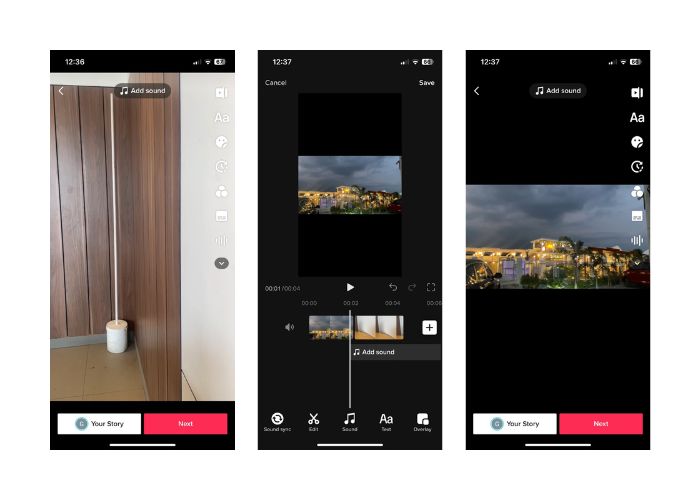
Step 1. Open the TikTok app on your mobile device and sign in to your account.
Step 2. Tap on the + icon at the bottom of the screen to create a new video.
Step 3. Choose a video you want to stitch with by tapping the Edit option on the right side of the recording screen.
Step 4. Select the video's starting point you want to stitch by moving the slider to the desired position. Record your video by adding your unique touches, such as voice overs, reactions, or additional content.
Step 5. Once satisfied with your stitched video, you can add captions, effects, and other creative elements.
Step 6. Tap on the Next button to proceed to the video's details page, where you can add a description and hashtags and choose who can see your video. Finally, tap the Post button to share your stitched video with the TikTok community.
Parte 2. Como costurar um vídeo no TikTok
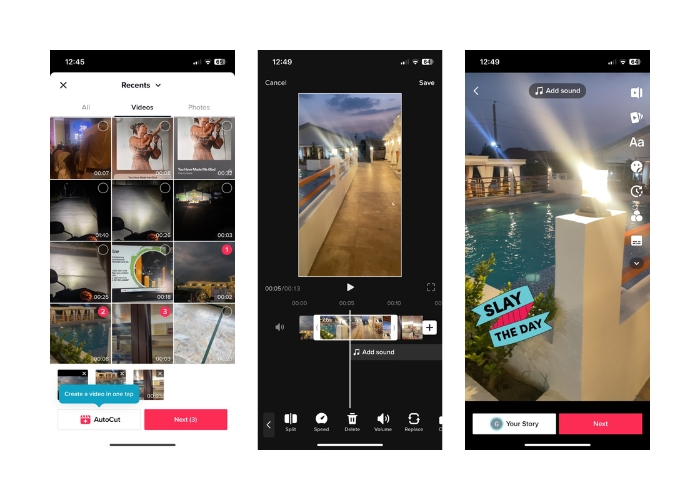
Step 1. Open the TikTok app on your mobile device and log in to your account.
Step 2. Tap the Upload button and add the videos you wish to stitch together. You can select two or multiple videos and combine them. You can select from your videos or videos from other TikTok users. Tap Next to confirm your selection.
Step 3. Once you've chosen the video, you will see a timeline of the selected videos. You can trim the video by dragging the start and end points on the timeline to select the portion you want to stitch.
Step 4. After trimming the video, you can add text, stickers, effects, and other creative elements to your stitched video.
Step 5. Tap the Next button to proceed to the video description and other settings. Add a caption and hashtags, and choose your desired privacy settings for the video.
Step 6. Finally, tap the Post button to publish your stitched video on TikTok. Your video will now be available for others to view and interact with.
Parte 3. Como combinar vídeos para o TikTok
1. FVC Video Converter Ultimate - para PC
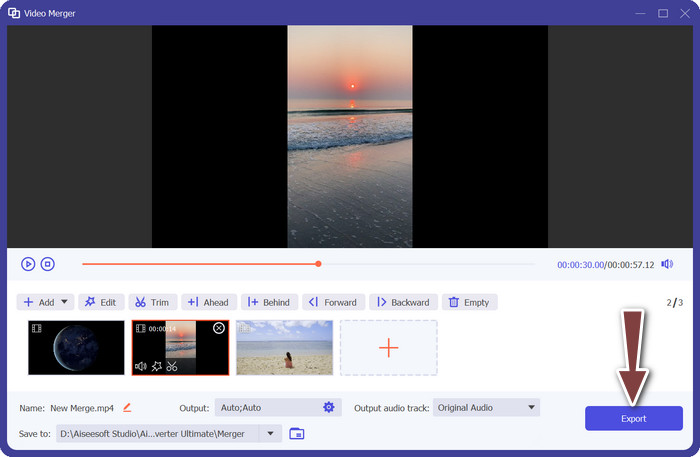
FVC Video Converter Ultimate is commonly used for video conversion and multimedia file management, providing users a convenient way to convert and edit their videos and audio for various purposes. This includes merging, splitting, and trimming videos. One of the key features of FVC Video Converter Ultimate is its ability to combine multiple videos into a single video file. This feature allows users to merge two or more video clips, creating a seamless and continuous video output. Users can choose videos in different formats, such as video to MP4, AVI, MKV, WMV, MOV, FLV, and others, and merge them into a single video file without losing quality. Now, here are the steps to learn how to merge videos for TikTok:
Step 1. Install and Launch FVC Video Converter Ultimate
Download and install FVC Video Converter Ultimate on your computer if you still need to do so. Tick the Free Download button below and launch the software to start using it.
Free DownloadFor Windows 7 or laterSecure Download
Free DownloadFor MacOS 10.7 or laterSecure Download
Step 2. Add Videos to the software
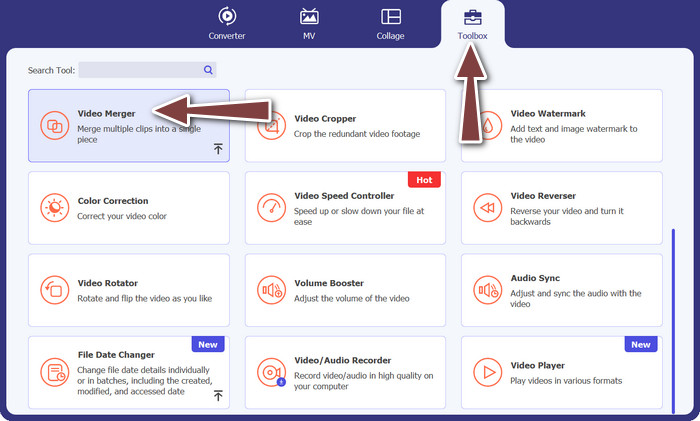
Go to the Toolbox tab and choose Video Merger from the selection. Then, hit the add button, and you can select multiple videos.
Step 3. Arrange Video Order
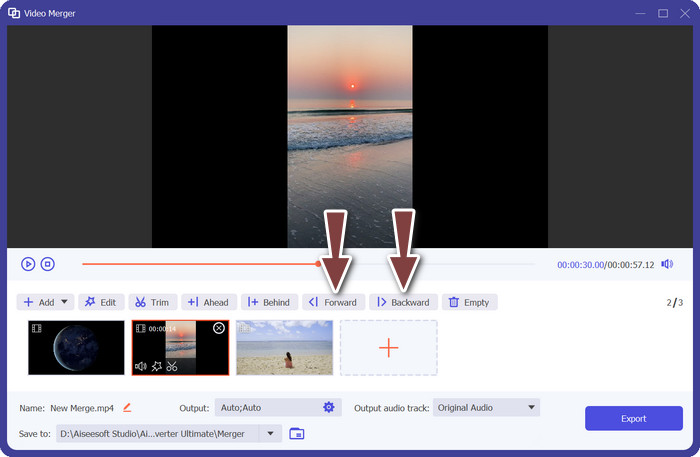
Once the videos are added, you can arrange their order in the desired sequence. Alternatively, you can use the Forward and Backward buttons. This will determine the order in which the videos will be merged in the final output video.
Step 4. Merge Videos
After arranging and editing the videos, you can proceed to merge them into a single video. Look for the Export button and tick on it. The software will start combining the selected videos according to the order you arranged and create a new video file as the output.
2. YouCut - para telefone
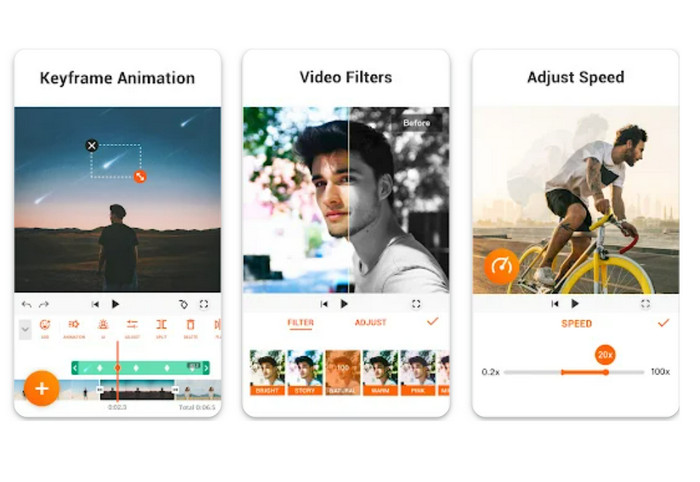
YouCut is a well-liked app for editing videos, as it lets users combine clips, add titles and soundtracks, and modify video quality, among other things. YouCut's simple layout and powerful editing features have earned it widespread acclaim. Those who want to make polished films without including any app branding will appreciate that this software has no watermark. That's why it's so impressive and why it's one of the finest free Android video merger apps. Check out the steps below to learn how to join 2 videos for TikTok with YouCut.
Step 1. First, go to the Google Play Store on your Android device and search for and install the YouCut - Video Editor & Video Creator app.
Step 2. To begin merging videos, go to the main menu and select the Video Merger option.
Step 3. Bring in the videos you wish to combine by tapping the Add button. Many videos may be chosen simultaneously.
Step 4. After importing your video clips, arrange them in the order you'd like them to play on the timeline. The order of the videos can be changed simply by dragging and dropping them.
Step 5. Hit the Export option to combine the films after you've sorted and altered them to your liking.
Parte 4. Perguntas frequentes sobre como combinar vídeos usando o TikTok
Posso costurar meus próprios vídeos no TikTok?
Sim, você pode costurar seus próprios vídeos no TikTok. Isso permite que você crie uma continuação ou resposta ao seu próprio conteúdo de vídeo ou combine vários vídeos em uma história ou sequência coesa.
Posso reagir a um vídeo enquanto o coloco no TikTok?
Não, você não pode reagir a um vídeo enquanto o monta no TikTok. O Stitching permite que você combine segmentos do vídeo de outro usuário com o seu próprio vídeo, mas não possui um recurso de reação integrado, como o dueto. No entanto, você pode adicionar seu próprio conteúdo e reações no segmento de vídeo montado para fornecer seu próprio comentário ou resposta ao vídeo original.
Posso controlar a ordem dos vídeos agrupados no TikTok?
Sim, você tem controle sobre a ordem dos vídeos agrupados no TikTok. Ao montar um vídeo, você pode escolher onde colocar seu segmento de vídeo em relação ao vídeo original. Você pode adicionar seu segmento de vídeo antes ou depois do segmento costurado, permitindo controlar a ordem na qual os vídeos são reproduzidos.
Conclusão
We know that stitching videos on TikTok is a creative and fun way to combine segments of another user's video with your own to create unique and engaging content. By learning how to combine videos on TikTok, you can collaborate with other users, respond to videos, add your own reactions, and customize the appearance of the stitched video to make it your own.
-
 3 maneiras eficazes de adicionar vídeos e fotos no Tiktok
 Quer saber como adicionar imagens nos vídeos do Tiktok? Nesse caso, clique e leia este artigo para saber como adicionar facilmente as imagens ao seu vídeo Tiktok.
-
 Como cortar um vídeo com o TikTok [Instruções detalhadas]
 Quer saber como encurtar um vídeo com o TikTok? Em seguida, forneceremos maneiras fáceis. Além disso, você aprenderá outros métodos usando aplicativos/programas offline.
-
 Corte facilitado: como cortar vídeo do TikTok para engajamento total
 Aprenda a recortar seus vídeos do TikTok com nosso tutorial simples! Você pode criar vídeos visualmente mais atraentes com apenas alguns toques e deslizar.
