


 Video Converter Ultimate
 Gravador de ecrã
 Reparo de vídeo
 Secure Download
6 ferramentas para compactar arquivos MOV: gratuitas e fáceis de usar
MOV is a popular video format developed by Apple that stores both video and audio data and can also be referred to as the QuickTime video format. Users most often encounter it on Mac devices, although Windows operating systems are currently compatible with it. The MOV format gives us high video quality, but storing too many MOV videos can put a lot of pressure on our storage space. When we want to transfer video to video, we realize that many chat apps and social networking sites have attachment size limitations, which can lead to sending failure. So ,before we start, we need to compress MOV to the desired size. The choice of tool is critical in this process. A good compressor can effectively reduce the file size without losing any quality. In the next section, we'll pick out six suitable video compression tools, including three desktop programs and three online sites. Read on and see who's best for you. Each tool is paired with a step-by-step guide on how to use it.

Parte 1. Como compactar MOV no Win/Mac
FVC Video Converter Ultimate
Let's start with the best and easiest way to compress a .mov, FVC Free Video Compressor, a platform that supports uploading more than 1,000 formats, including, of course, MOV, and where we can easily find Video Compressor in the toolbox. One of the things we like about this platform is that it allows you to customize the size of the compressed files, so we can easily make sure that the compressed files meet the size limitations of a particular platform. It also allows you to adjust the bitrate, resolution and duration of the videos. If you are not satisfied with the length or color of an existing video, you can also go to the main interface of this software and edit it as you like.
Free DownloadFor Windows 7 or laterSecure Download
Free DownloadFor MacOS 10.7 or laterSecure Download
Veja como compactar um arquivo MOV com o FVC Video Converter Ultimate.
Step 1: Download and install FVC Video Converter Ultimate on your personal computer. After launching the software and entering the main interface, choose the Toolbox tab. Find the Video Compressor among all the options. You can also navigate it with the search bar.
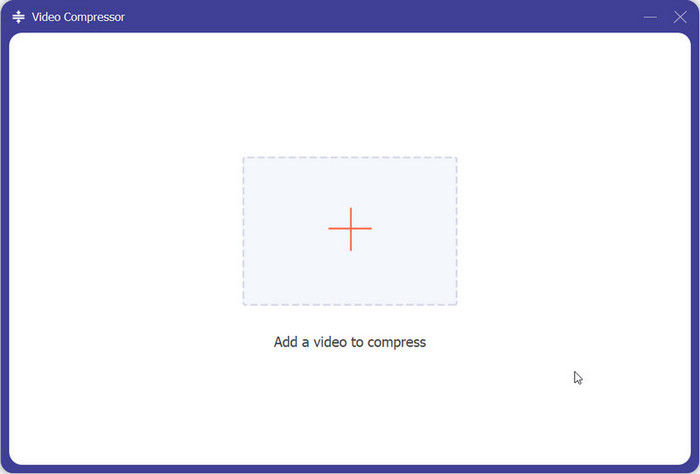
Step 2: Open Video Compressor and click the add icon in the center of the screen. Then, you can upload your prepared MOV file.
Step 3: Set your target file size under the Size option. Here are also more options for you to adjust the video quality. Finally, click Compress.
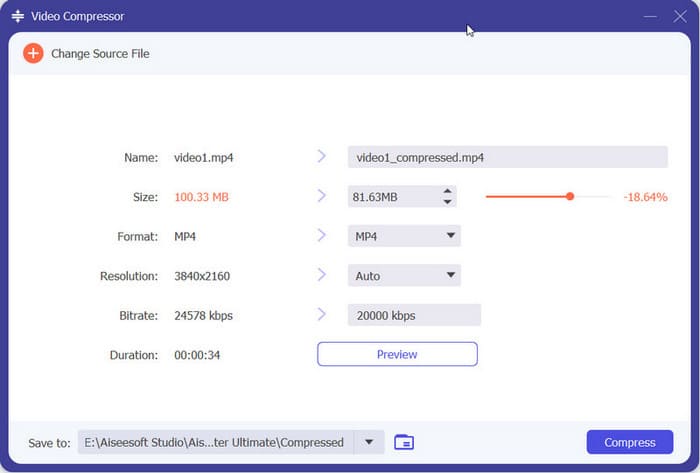
O FVC Video Converter Ultimate é muito simples de usar e todas as etapas para reduzir o tamanho do arquivo MOV são resolvidas em três etapas. É muito útil poder definir com precisão o tamanho do arquivo de saída, e o sistema também calcula a porcentagem dos nossos arquivos compactados. No entanto, esta plataforma oferece apenas cinco opções gratuitas. Após o término do teste gratuito, será necessário assinar para continuar processando os arquivos.
Travão de mão
Se você procura uma ferramenta de compactação MOV para desktop totalmente gratuita, experimente o Handbrake. É uma ferramenta de código aberto para edição, compactação e conversão de vídeos que pode ser usada em sistemas Windows, Mac e Linux.
Veja como compactar arquivos MOV gratuitamente com o Handbrake.
Step 1: Download and install Handbrake from its official website. After launching it, click File > Open > Open Source and select the MOV video you want to compress.
Step 2: Handbrake will set the output format to MP4 by default. Then go to Dimension and change the Storage Size.

Step 3: Go to the Video tab and set the Video Encoder to H.264. Finally, click Start to launch the compression.
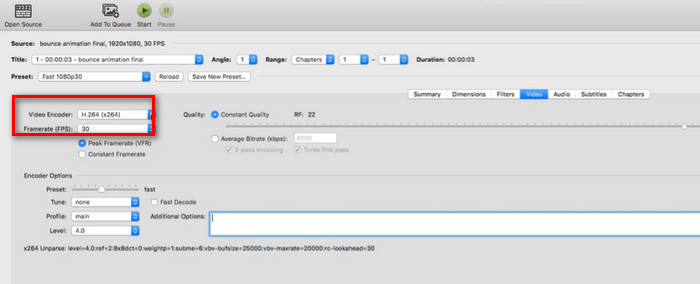
O Handbrake é totalmente gratuito para reduzir o tamanho de arquivos .mov, o que é uma surpresa agradável. Ele também oferece diversas opções de personalização de compactação. No entanto, a interface do Handbrake é complexa e alguns botões de função não são muito óbvios. Se não tivermos experiência com o uso, teremos que recorrer a tutoriais. Além disso, esta plataforma só suporta o upload de vídeos localmente e não a importação de vídeos online.
VLC Media Player
Além do Handbrake, existe também uma ferramenta de compressão MOV gratuita e de código aberto, o VLC Media Player, que costumamos usar para reproduzir vídeos e áudio em diversos formatos ou converter formatos de arquivo. No entanto, também podemos encontrar um compactador de vídeo MOV em sua interface. Na próxima parte, mostraremos como reduzir o tamanho de um arquivo de vídeo alterando os elementos de codificação de vídeo.
Veja como compactar arquivos MOV com o VLC Media Player.
Step 1: Prepare your computer for VLC Media Player. Open it and click Media > Convert/Save.
Step 2: The File menu will appear. Click +Add to upload your MOV video. Then click Convert/Save again.
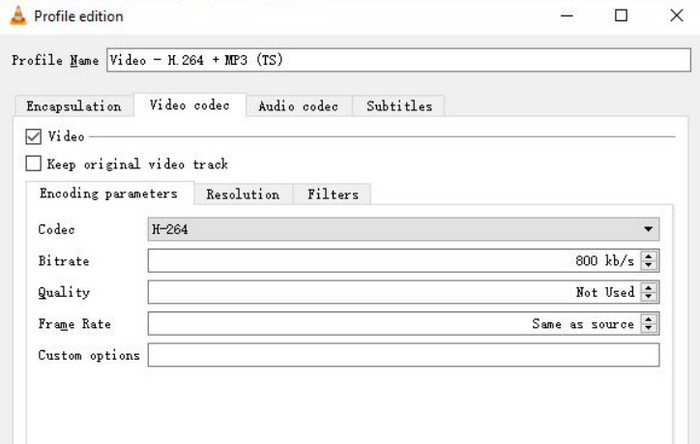
Step 3: In the Convert panel, click the wrench icon and navigate to the Profile option. Go to the Profile Edition section and choose Video codec.
Step 4: Decrease the video bitrate, frame rate and quality. After completing the above settings, your video will be significantly reduced in size.
Step 5: Choose a storage path and click Start.
O VLC Media Player tem o mesmo problema que o Handbrake. Os botões para o vídeo compactado não são fáceis de encontrar e há muitos passos para operá-los. Ele não tem a opção de executar a tarefa com um clique; só podemos compactar um arquivo .mov indiretamente, ajustando os parâmetros de vídeo manualmente.
Parte 2. Como compactar um arquivo MOV online
Após ler os passos acima, você notará que precisamos realizar as operações de instalação e download antes de usar o compactador para desktop. Esta etapa não só consumirá muito tempo, como o pacote de instalação que receberemos também ocupará muita memória. Para contornar essas duas desvantagens, recomendamos experimentar alguns compactadores MOV online.
FVC Free Video Compressor
The first online compressor we recommend is the FVC Free Video Compressor. It can easily compress a 1GB video to 10MB for free and will work at 30X faster efficiency. The platform can also batch-compress multiple MOV videos and guarantees that no watermarks will be attached to the video frames. There are no ads, viruses or malware on FVC Free Video Compressor's website, so we can be 100% sure.
Veja como compactar arquivos MOV no Mac ou Windows com o FVC Free Video Compressor.
Step 1: Open FVC Free Video Compressor online, and click Add Files to Compress to upload your MOV file. You may be asked to install a launcher.
Step 2: Set a target file size under Size. You can also change the resolution and bitrate.
You can even convert MOV to MP4 on this platform. Just choose Format > MP4.
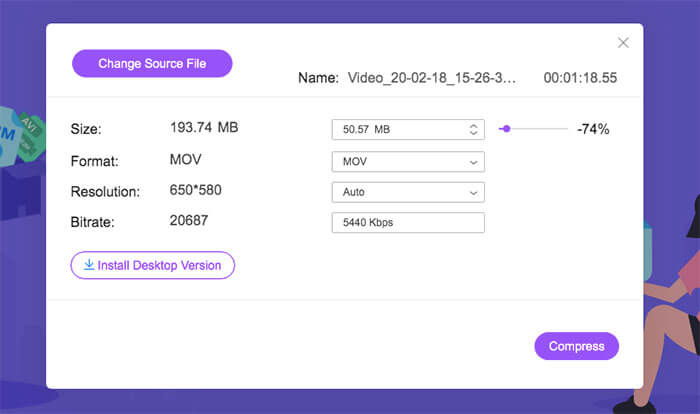
Step 3: Finally, click Compress.
Este compressor é perfeito, mas usuários iniciantes podem precisar baixar a versão desktop do plugin para usá-lo corretamente.
VEED.IO
O segundo compressor MOV online que você pode experimentar é o VEED.IO. Suas páginas têm um estilo mais moderno e a distribuição de botões na interface de trabalho está mais alinhada ao modelo de um editor de vídeo padrão.
Veja como compactar MOV com VEED.IO.
Step 1: Launch VEED.IO Online MOV Compressor. Click Upload a File to add your video.
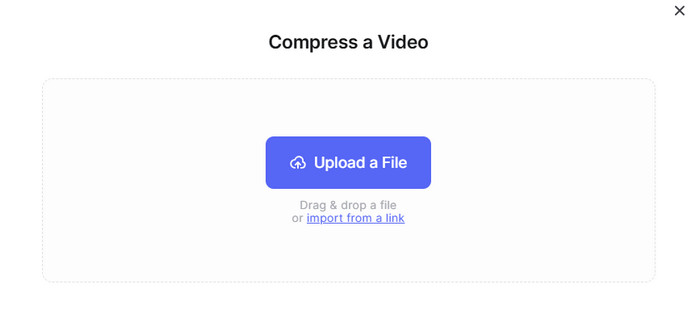
Step 2: Set the output quality and resolution. Then click Compress Video.
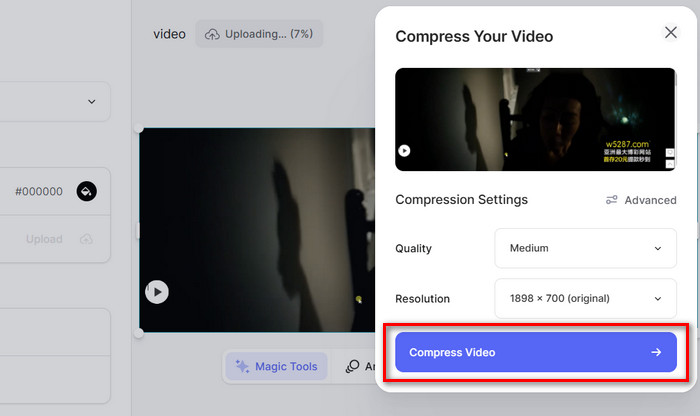
Os passos para compactar vídeos com o VEED.IO são muito fáceis. No entanto, o ambiente de rede pode afetar facilmente o carregamento das páginas desta plataforma e, às vezes, o upload de vídeos pode ficar lento.
XConvert
A última ferramenta que recomendamos é o compressor MOV online XConvert. Ele também permite que os usuários reduzam o tamanho do vídeo alterando a taxa de bits e a resolução.
A plataforma permite que os usuários selecionem arquivos da área local e adicionem vídeos para serem compactados da nuvem.
Veja como usar o compressor MOV online XConvert.
Step 1: Open XConvert online MOV compressor website with your browser.
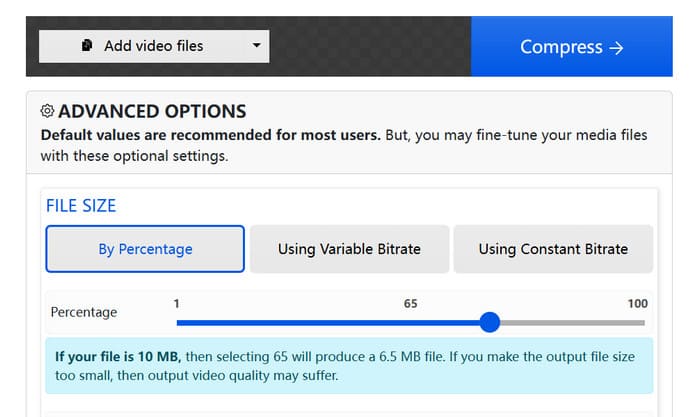
Step 2: Click Add video files and choose your original video. Select the compression mode between By Percentage, Using Variable Bitrate, and Using Constant Bitrate.
Step 3: After finishing the compression settings, click Compress.
Parte 3. Perguntas frequentes sobre compactação de MOV
Como faço para compactar um arquivo .MOV para MP4?
O Handbrake pode ajudar você a compactar arquivos MOV para MP4 automaticamente. Compressores online, como o FVC Free Video Compressor, também permitem selecionar MP4 como formato de destino diretamente ao definir os parâmetros de saída de vídeo.
Como reduzir o tamanho do arquivo de vídeo?
There are many options, such as reducing the resolution, frame rate, bitrate, etc. of the video. Editing out unnecessary parts of the video or converting the video format to a more efficient compression format can also effectively compress a video.
Como compactar um vídeo em um Mac?
iMovie, QuickTime Player e Handbrake são assistentes melhores. Várias das ferramentas online deste artigo também podem ser usadas no Mac.
Parte 4. Conclusão
This article details how to compress MOV. Three desktop-side compressors and three online sites are recommended. Use the step-by-step guide to decide which one to use based on your preferences. Comparing all the performances, we always think FVC Video Converter Ultimate is the most cost-effective choice.
-
 Como compactar um vídeo MP4 para um tamanho menor
 O vídeo MP4 é muito grande para ser enviado? Quer reduzir o tamanho do vídeo? Aqui estão 3 maneiras eficientes de compactar um arquivo MP4 em um tamanho menor sem limite.
-
 Tutorial para compactar um vídeo para e-mail no iPhone / Android / Online
 Não consegue enviar um vídeo muito grande por e-mail? Se você tiver esse problema, poderá obter maneiras viáveis de compactar um vídeo para e-mail aqui. Este artigo mostrará como reduzir em detalhes grandes arquivos de vídeo gratuitamente.
-
 Os 10 melhores compressores GIF para usuários de desktop e online
 Nesta postagem, você aprenderá sobre os melhores compressores GIF para ajudá-lo a resolver seu problema com arquivos GIF grandes. Confira e obtenha os melhores insights.
