


 Video Converter Ultimate
 Gravador de ecrã
 Reparo de vídeo
 Secure Download
De 50 MB a 5 MB - Como compactar arquivo MP4 em segundos
Depois de gravar alguns vídeos, você pode querer enviá-los para a história do Instagram ou compartilhá-los com seus amigos. No entanto, a maioria das plataformas de mídia social tem um limite de tamanho de arquivo para uploads. Portanto, quando você envia um vídeo MP4 pelo WhatsApp ou adiciona um anexo MP4 ao seu e-mail, às vezes pode achá-los grandes demais para fazer upload.
Therefore, to solve this problem, you need to compress MP4 files, or in other words, help your videos lose weight.
The following article will guide you to reduce the size of MP4 videos without compromising on display effects.

Parte 1. Como compactar vídeos MP4 online e gratuitamente
If you are looking for a free MP4 compressor online with no sign up or hidden fees, you can try FVC Free Video Compressor, which allows you to minimize any 4K, HD or SD video to a smaller file with no watermark. And unlike other free compressors, you can compress as many MP4 videos as you like for free with no limit on file size or video length.
Além do mais, como este compressor é um produto baseado na web, funciona perfeitamente no Windows, Mac e Linux. Você pode usá-lo facilmente online com um navegador, desde que esteja conectado à Internet.
Para dominar rapidamente essa ferramenta de compactação, siga as etapas abaixo.
Step 1. Navigate to FVC Free Video Compressor on your browser and click Add Files to Compress to run the launcher. But if you’re using the tool for the first time, please download the launcher in advance.
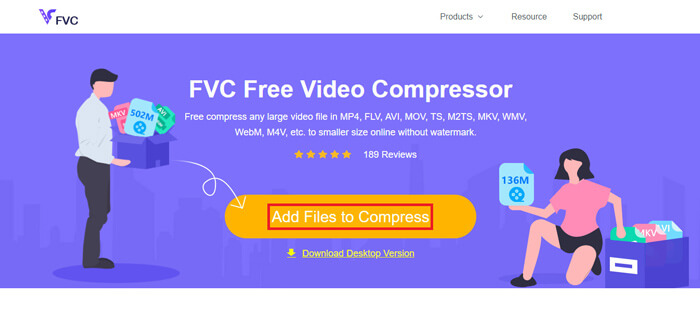
Step 2. After installing, please choose the MP4 file(s) you want to compress. Adjust the video size, format, resolution and bitrate according to your needs.
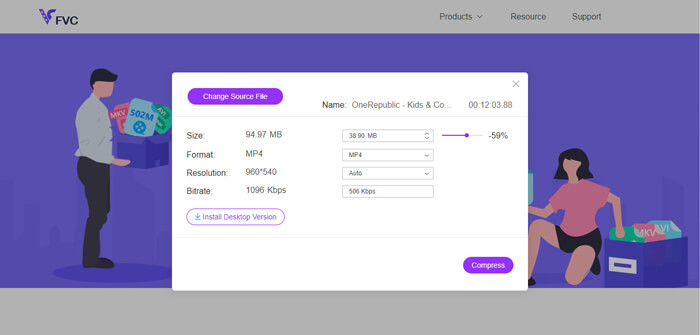
Step 3. Click Compress to start the compression.
Parte 2. Como compactar MP4 usando um freeware offline
Se sua rede não for estável, é melhor você optar por compactar o vídeo offline em sua área de trabalho, o que evita a influência do status da rede.
Video Converter Ultimate is an all-in-one freeware to compress, convert, and edit videos/audio files on your PC. It supports over 1,000 formats and there will be 10 output resolution options for you to choose. You can rename the video before compression, so that you can easily distinguish it from other MP4 files. The brand-new Video Converter Ultimate contains a large number of useful editing features and a lot of wonderful functions, such as Metadata editor, GIF maker, 3D maker, Video enhancer, etc.
Free DownloadFor Windows 7 or laterSecure Download
Free DownloadFor MacOS 10.7 or laterSecure Download
Step 1. Launch Video Converter Ultimate on your computer.
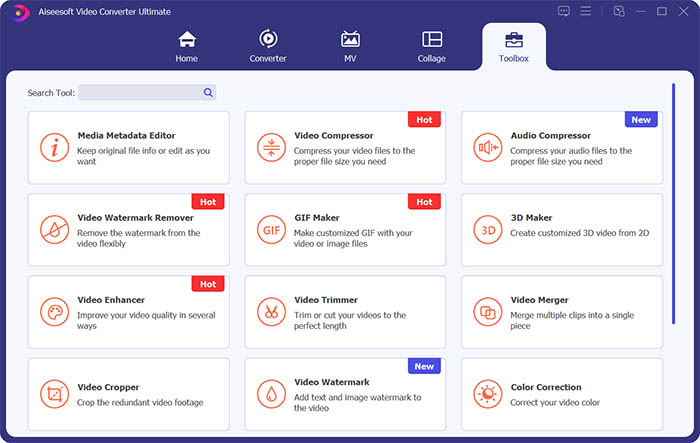
Step 2. Click Toolbox. Find Video Compressor in Toolbox. Click the + icon to add a video to compress.
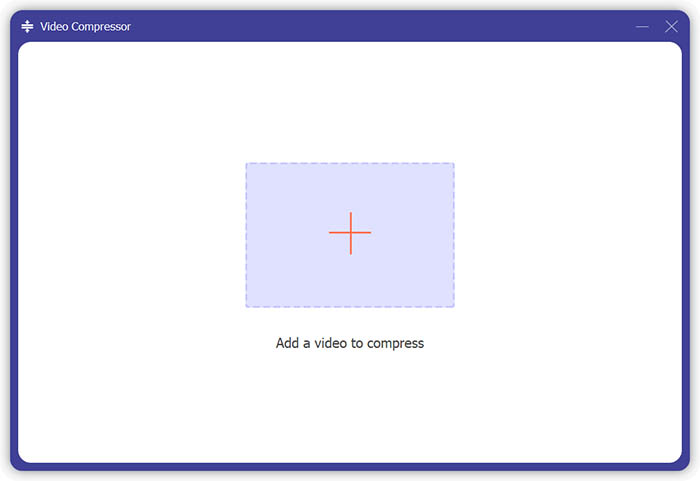
Step 3. You can adjust the size, name, format, resolution, bitrate of the output file.
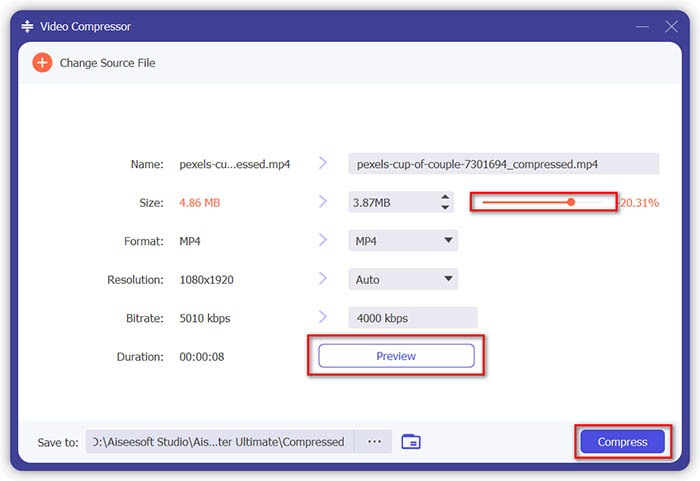
Step 4. Click the Compress button and wait to get your MP4 video.
Parte 3. Como compactar arquivos MP4 com HandBrake
HandBrake também é uma ferramenta gratuita de compressão de vídeo que pode ajudá-lo a minimizar o tamanho do arquivo MP4.
Step 1. Download and install HandBrake to your computer. Then open it and click File in the left. Select the file you want to compress.
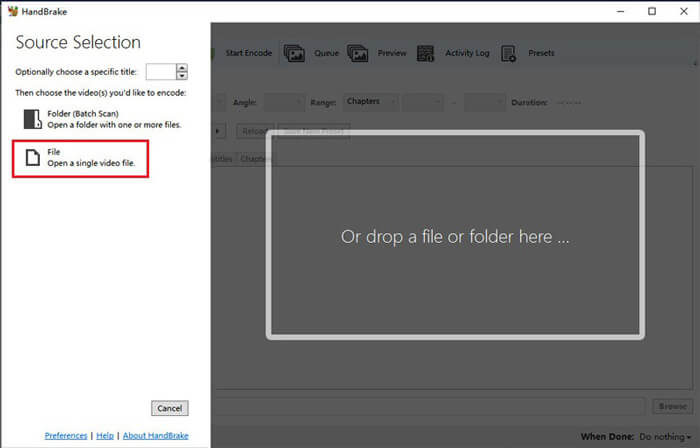
Step 2. Change the location for saving the compressed video by clicking Browse. You can also rename the video. Then choose MP4 as the output format.
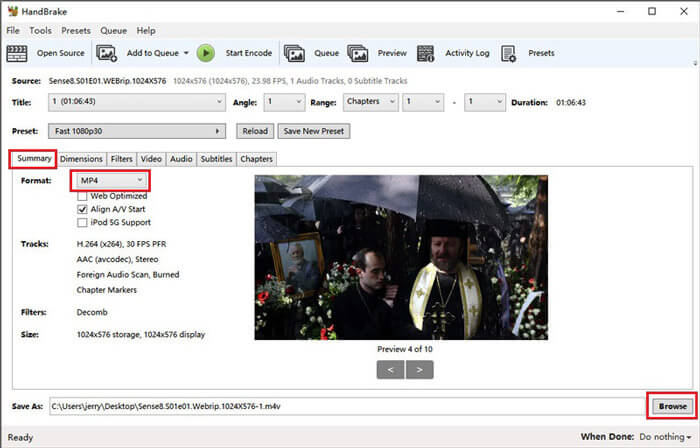
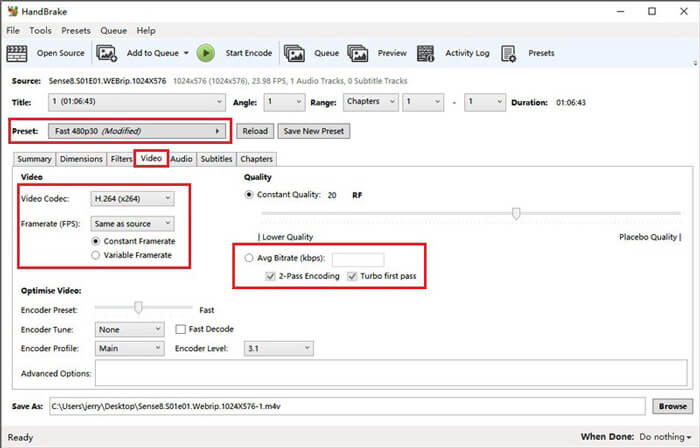
Step 3. For the Preset above, Fast 480p30 will be fine. Go to the Video tab and check if the video codec is H.264 (x264). And choose the framerate depending on your source video. If you don’t know how to choose, just pick Same as source. Tick Constant Framerate to ensure better compatibility. Enter an Average Bitrate (kbps) for the video (between 5,000 and 10,000).
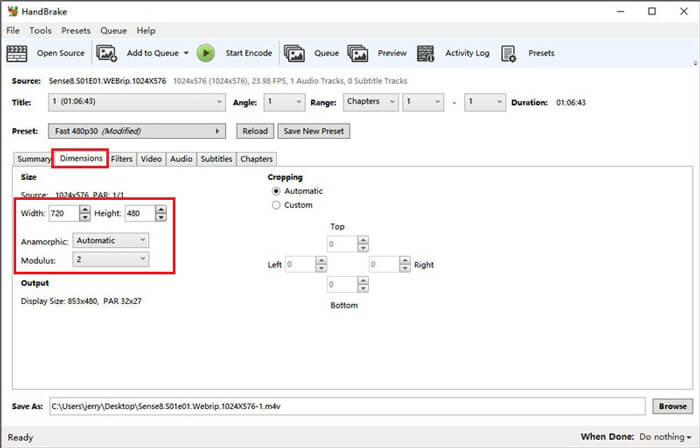
Step 4. Click Dimensions and change the video frame size or resolution. Change Anamorphic to None, and Modulus to 2. Then tick Keep Aspect Ratio. If you need, you can use the arrow down on Width to decrease the size.
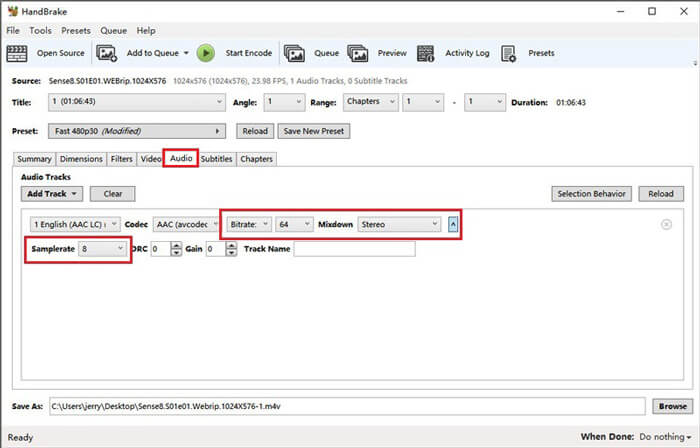
Step 5. Select the Audio tab and drop down the hidden setting menu. Choose 8 for Samplerate and choose Stereo for Mixdown.
Step 6. Hit the Start Encode button to start compressing.
Para iniciantes, na verdade não recomendamos que você use o HandBrake, porque é difícil entender e ajustar os parâmetros. E realmente leva muito tempo para obter o arquivo compactado.
Parte 4. Perguntas frequentes sobre compactação MP4
1. O ffmpeg pode compactar MP4?
Yes, you can use a following sequence of characters to compress MP4 file:
$ ffmpeg -i input.mp4 -vcodec h264 -acodec mp2 output.mp4
But some people may find it increased the size instead of decreasing when the video is small enough.
2. O HandBrake pode exportar WMV, MOV e FLV?
HandBrake only supports you in compressing videos to MP4(.M4V) and MKV, which means it cannot export files in other formats, such as WMV, MOV, FLV, AVI, etc. If you use HandBrake to get compressed videos, then you need to convert MP4 to WMV or other formats by yourself.
3. A compressão de vídeos MP4 perde qualidade?
The quality will definitely lose, more or less, when we compress MP4 from full size to a smaller size. However, with a professional video compressor like FVC Free Video Compressor and Video Converter Ultimate, you can maintain the original image quality as far as possible. Also using a good MP4 player to play MP4 files may help you get high-quality output.
Conclusão
So far, we have introduced you 3 methods to compress MP4 to smaller size. If you hate to install too much software to your computer, you can try FVC Free Video Compressor which is online and free to use. But if you need a mighty video processor, Video Converter Ultimate is your best choice. Hope you find this post helpful and don’t forget to leave us a message to express your opinions.
-
 Como converter MP4 em WMV para Mac / Windows
 Esta postagem mostra como converter vídeo MP4 para o formato WMV no Mac ou Windows. Também ofereceremos várias opções, incluindo software de desktop e conversores on-line baseados na web. Pronto para conhecer as melhores ferramentas de conversão de MP4 em WMV?
-
 Como converter seus arquivos de vídeo MP4 em imagens GIF animadas sem perda de qualidade
 Procurando a melhor maneira de converter seu vídeo MP4 em GIFs animados? Aqui está um guia detalhado para fazer isso no Photoshop, Windows Movie Maker, conversor de vídeo online e muito mais.
-
 MOV VS MP4 - Qual é o melhor
 MOV VS MP4, qual é o melhor? Este post mostra a diferença entre MP4 e MOV, para que você tenha a melhor escolha para usar em seus arquivos de vídeo.
