


 Video Converter Ultimate
 Gravador de ecrã
 Reparo de vídeo
 Secure Download
Maneiras notáveis de como cortar um vídeo no Snapchat [incluindo modo offline]
The Snapchat app is a different one that has gained popularity recently. The main focus of Snapchat was exchanging private, personalized photos. But you may now use it for various tasks, such as sending films and participating in live video conferences. On the other hand, you can also use this application to cut your videos. As we all know, Snapchat only accepts up to 60 seconds videos. Trimming the video is the best solution if you plan to upload or post a video on this mobile application. In that case, read this post to see the detailed methods you can try on how to trim a video on Snapchat and cut videos for Snapchat.

Parte 1. Como cortar um vídeo para o Snapchat usando o PC
Snapchat has a limit when posting a video. One of the best solutions to this kind of problem is to shorten a video. This way, when you trim or cut a video, you can already add the video on Snapchat. If you want the best video editing software to cut a long video for snapchat, use Video Converter Ultimate. This program has an excellent splitting feature to split your video into parts. Also, the procedure of splitting videos is perfect for non-professional users. You can split videos in just a few clicks. Its layout is also user-friendly, wherein you can easily understand each option. Moreover, it has more great features besides splitting videos. Video Converters Ultimate lets you crop, rotate, and enhance your videos based on your preference. Also, it supports various video formats. It includes MP4, MOV, MKV, AVI, and more. Furthermore, both Windows and Mac users can access the program since it is available on both Mac and Windows computers.
Step 1. Click the Download button below to download Video Converter Ultimate. Since the program is available on Mac and Windows computers, there are two buttons below. Click the button based on the device you use. After that, launch the program.
Free DownloadFor Windows 7 or laterSecure Download
Free DownloadFor MacOS 10.7 or laterSecure Download
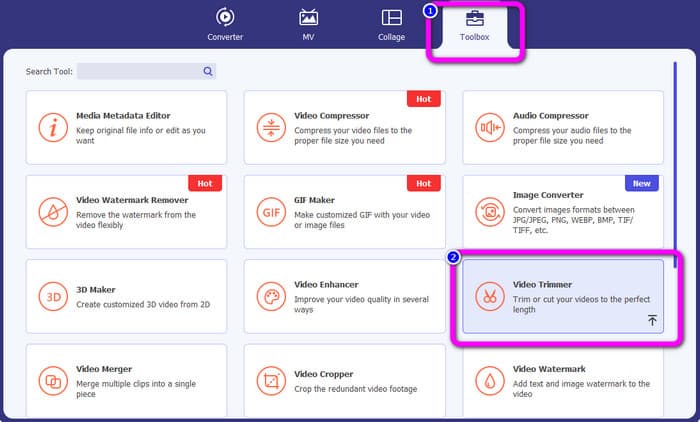
Step 2. Click the Toolbox panel on the upper interface. When the tools appear under Toolbox, select the Video Trimmer tool.
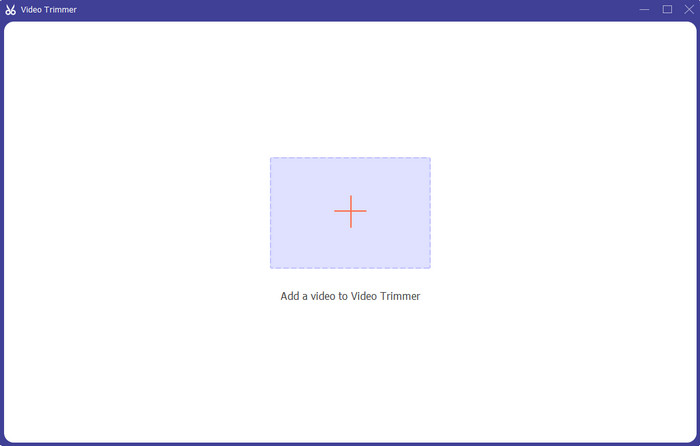
Step 3. Click the Plus symbol on the center part of the interface. Afterward, select the video you want to cut from the file folder.
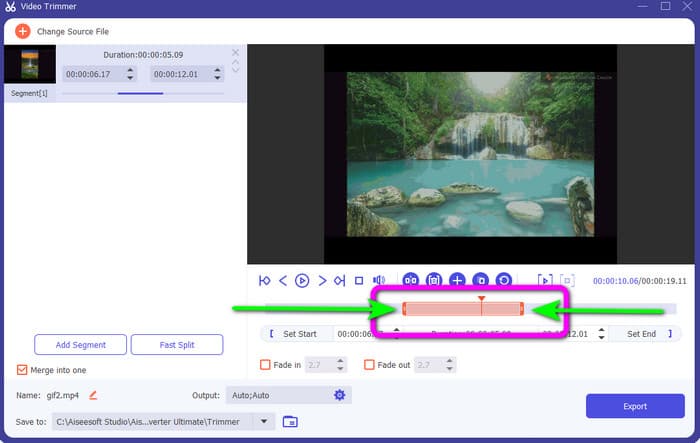
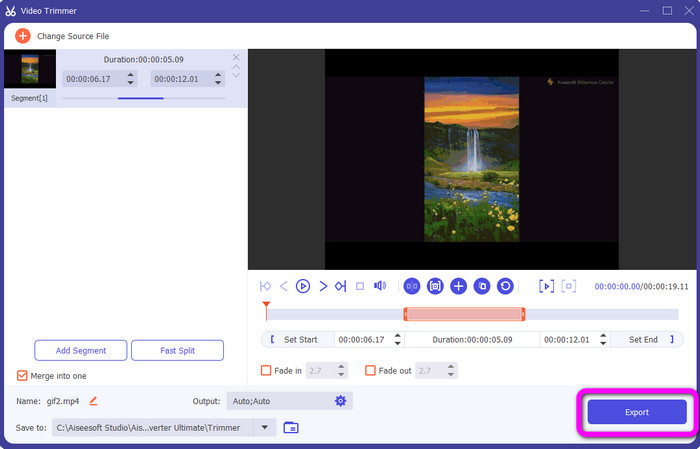
Step 4. You can cut the video by adjusting the orange bar you see on the lower part of the video. This bar has an edge to both sides. Adjust the bar's edge to trim the video you want to edit.
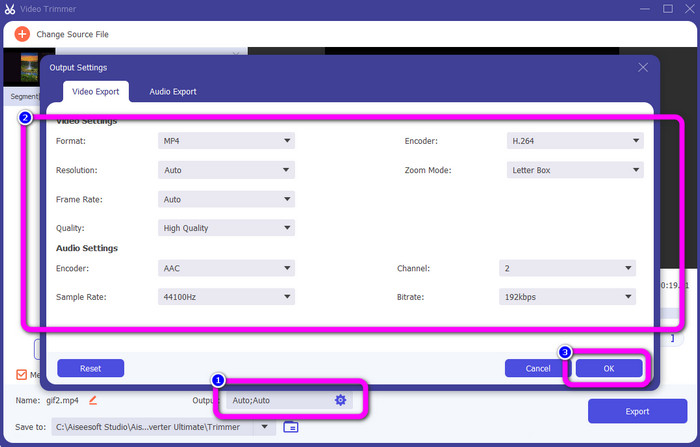
Step 5. By clicking the Output Settings option, you can modify the video’s frame rate, quality, resolution, and zoom mode for additional changes. Also, you can change the audio’s sample rate and bitrate. Then click OK.
Step 6. For the final step, click the Export button. Wait for the final process, and after a few seconds, you can save the final and edited video on your computer.
Parte 2. Como cortar um vídeo no Snapchat
Nesta parte, você aprenderá como cortar um vídeo no Snapchat. Este aplicativo móvel é excelente para capturar fotos e vídeos. Oferece muitos efeitos para aprimorá-los e satisfazer os usuários. Também é considerado uma plataforma de comunicação para outras pessoas. Além disso, o Snapchat não é apenas capaz desse tipo de coisa. O aplicativo móvel também permite cortar ou aparar um vídeo facilmente. Além disso, o Snapchat permite que você edite seu vídeo alterando filtros, adicionando efeitos, recortando e muito mais. No entanto, como outros aplicativos, o Snapchat se concentra na captura de fotos e vídeos. Portanto, você não pode usar ferramentas de edição avançadas do aplicativo. Além disso, aceita apenas vídeos curtos, o que é insatisfatório para os usuários que desejam enviar vídeos longos. Veja os procedimentos abaixo sobre como encurtar um vídeo no Snapchat.
Cortar um vídeo após a gravação
Step 1. Download Snapchat from your App Store or Google Play Store. After installing the mobile application, open it on your phone.
Step 2. After that, record a video using your Snapchat. When you are done recording, a mini clip will appear on the lower part of the screen. Click it to start the trimming process.
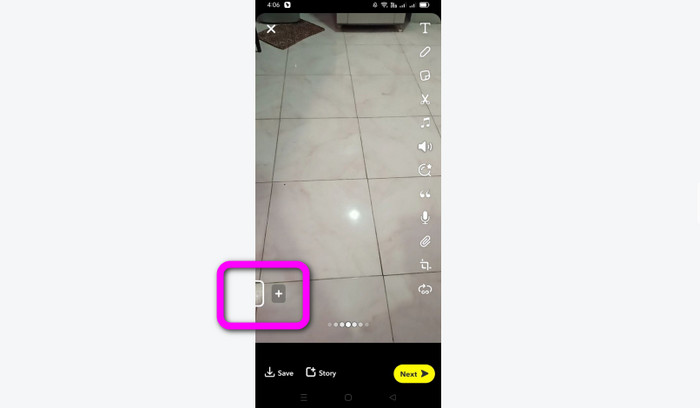
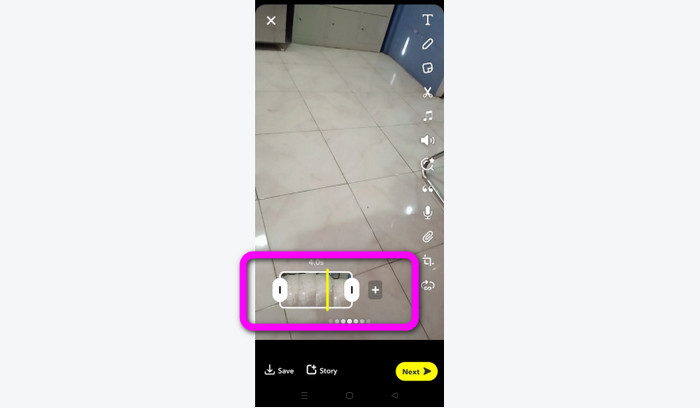
Step 3. You can proceed with the process when the clip appears on the screen. Drag the edges of the clip and trim the video based on your preferences.
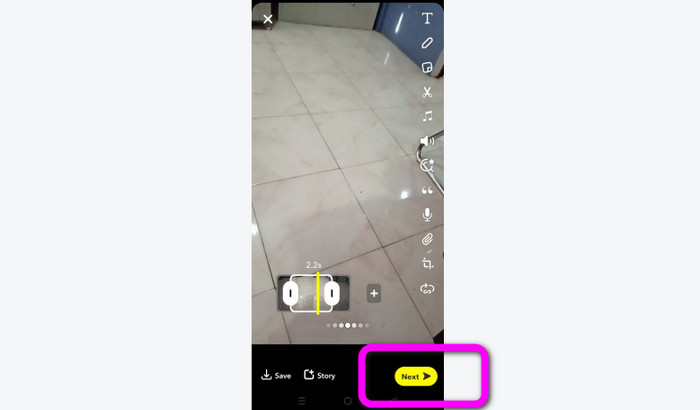
Step 4. Then, when you are satisfied with the final result, press the Next button on the lower left corner of the interface. This way, you can save your trimmed video.
Cortar um vídeo de memórias
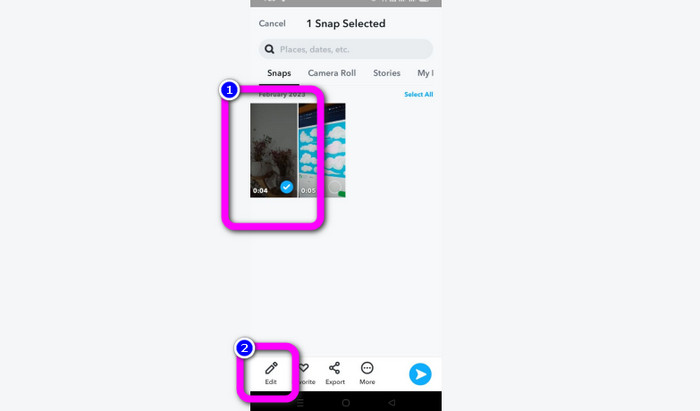
Step 1. Open your Snapchat application from your phone. After that, proceed to the Memories. In that part, you can see your videos. Hold the video for just a few seconds and click the Edit option.
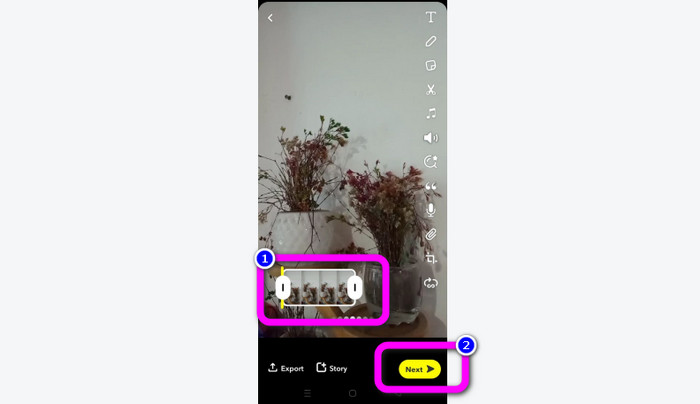
Step 2. Then, you will see the video on the lower part of the screen. This video lets you adjust the edge part of the video to start trimming. After that, when you are done trimming, click the Next button to save your final video.
11 Remarkable Video Trimmers to Use [Free and Paid]
Excellent Ways about How to Cut Video Online Conveniently
Parte 3. Perguntas frequentes sobre como cortar um vídeo no Snapchat
1. O que significa cortar um vídeo no Snapchat?
Cortar um vídeo é fazer um corte que estabeleça uma seção específica como o início e uma seção específica como o final do videoclipe. Esta opção permite escolher as posições inicial e final de um vídeo no Snapchat. Essa opção é ideal se você deseja carregar partes de um vídeo que inicialmente durou mais de 10 segundos.
2. Você pode usar o recurso de divisão no Snapchat?
Você não pode usar esse recurso se tiver carregado um vídeo do rolo da câmera. Se você usou a câmera do Snapchat para capturar, pode. Você pode usar a ferramenta Dividir para separar o filme em partes editáveis e remover as partes que não deseja preservar.
3. Qual é o tamanho máximo de vídeo para um único vídeo do Snapchat?
Se você transmitir fotos ou vídeos do rolo da câmera para o Snapchat, poderá enviar apenas um vídeo de até 2,5 MB. Seus arquivos são compactados antes de serem entregues.
Conclusão
If you use Snapchat to trim a video, this article is for you. This article provided you with the best way on how to trim a video on Snapchat. Also, if you prefer trimming your video for Snapchat on a computer, there is a program you can use. Video Converter Ultimate is an excellent program for trimming videos using a computer. It has an intuitive interface and is absolutely free.
-
 6 Filtros de Snapchat Animados do Snapchat de Escolha Favorita no Snapchat
 Quer saber as melhores maneiras de adicionar filtros nos vídeos do Snapchat? Bem, você pode clicar aqui e aprender os diferentes filtros que você pode usar para aplicar nos vídeos do Snapchat.
-
 Como desacelerar um vídeo no Snapchat facilmente em qualquer dispositivo
 A melhor maneira de desacelerar um vídeo no Snapchat já está aqui. Para saber quais são essas técnicas para desacelerar um vídeo, siga-o cuidadosamente.
-
 Maneiras mais fáceis de como remover o texto do Snapchat da captura de tela
 Vamos remover o texto do Snapchat de fotos e vídeos usando ferramentas confiáveis online e offline. Vamos oferecer-lhe maneiras fáceis. Experimente agora e vamos tentar!
