


 Video Converter Ultimate
 Gravador de ecrã
 Reparo de vídeo
Veja todo o potencial do Final Cut Pro na criação de vídeos em câmera lenta
Final Cut Pro is a powerful post-production video editing tool available for Mac users only. Video and audio editing, advanced color grading, closed captioning, and more are all possible with this program. Similar to other editing and delivery software, Final Cut Pro includes everything you'll need from beginning to end. This software is also great in making slow-motion videos, thanks to one of its tools that can adjust the playback speed of the video. In order to achieve the slow-motion effect you desire; continue reading to know all the details to make slow-motion videos using Final Cut Pro. Continue reading for further knowledge.

Parte 1. Como fazer vídeos em câmera lenta no Final Cut Pro?
Quando usada em vídeo ou filme, a câmera lenta pode ajudar a chamar a atenção para uma ação específica ou aumentar o impacto dramático ou emocional do trabalho em questão. Diminuir a velocidade de um clipe parece legal, não importa para que você o esteja usando. Mostraremos como criar efeitos de câmera lenta do Final Cut Pro em apenas alguns passos simples. Vamos a isso, vamos?
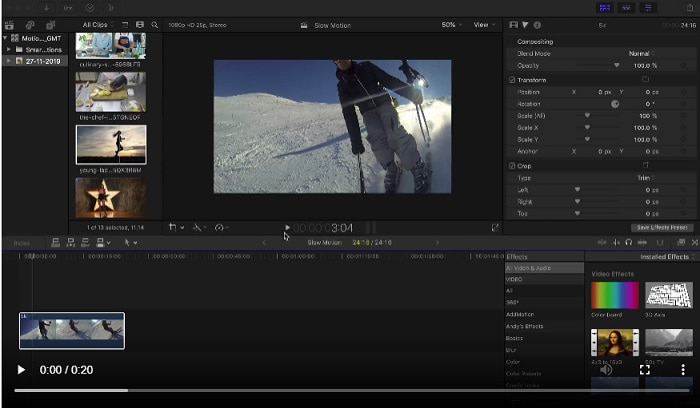
Step 1. In the Timeline, find and click on the clip you want to edit.
Step 2. To access the Retime menu, either click on the Speed Meter icon in the viewer window or press Command + R on your keyboard.
Step 3. Select between two-speed levels: Slow and Fast. Alternatively, press Command + R on your keyboard to bring up a drop-down menu above your clip.
Step 4. Changing the clip's timing is as simple as adjusting the speed percentages found under each option. It will shorten the clip if you speed it up and lengthen it if you slow it down when using this effect. The duration of the clip will change depending on the speed.
Parte 2. Excelentes opções para usar em câmera lenta no Windows
Método 1. Use Video Converter Ultimate
Supposed that Final Cut Pro is very difficult software to use in order to make a slow-motion video, then we recommend using Video Converter Ultimate. This software is free to download and available on both Windows and Mac, so you don't have to worry about downloading it. It has different kinds of tools available that can edit your video like what the Final Cut Pro can do.
Among these tools, there is a Video Speed Controller that can make slow-motion videos by adjusting the playback speed of a normal speed video. Unlike the Final Cut Pro, this software is accessible to use and it doesn't take time to learn in using every tool. In addition, it supports various video formats so that you will not have a hard time looking for the best software for the video format you need to convert. Now that you have the idea of how great the Video Converter Ultimate is, let's dig into the procedures on how to make a slow-motion using this software.
Step 1. You must first download and install the software before you can use it. In order to do this, simply click on the Free Download button that's located below. Download it to your desktop and start installing it by clicking on the Start Now button.
Free DownloadFor Windows 7 or laterSecure Download
Free DownloadFor MacOS 10.7 or laterSecure Download
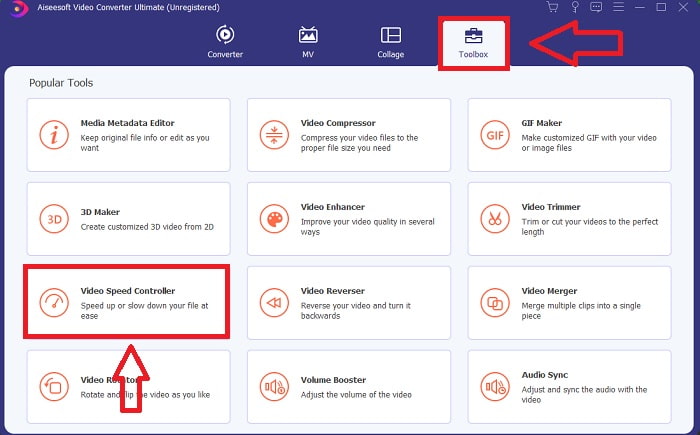
Step 2. Once the program has been installed, you will be able to see the start-up menu on the main software interface after it has been completed. By clicking the Toolbox tab in the menu tab, you can quickly and easily view all the featured tools this software can offer. And if you want to slow down your video or change the speed, choose Video Speed Controller from the list of available tools.
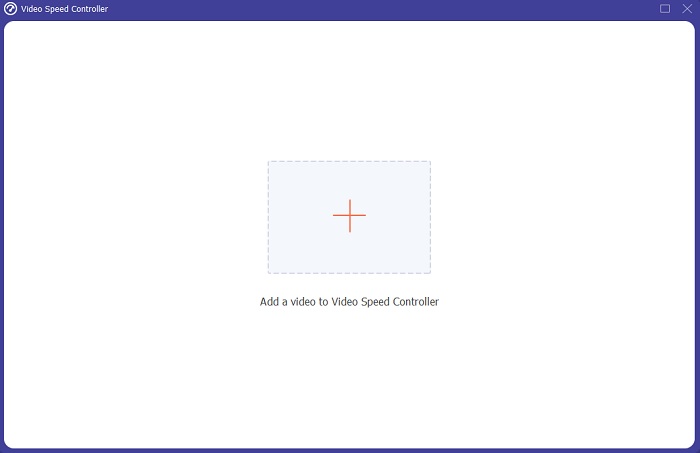
Step 3. In the event that you choose to proceed, another window will appear on your computer's display screen. You can begin uploading your video and start modifying its playback speed by selecting the plus sign +.
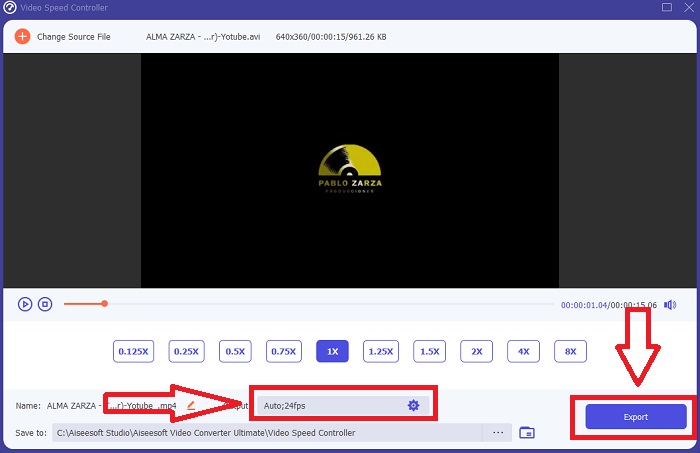
Step 4. Unlike the Final Cut Pro you can make the normal speed video to slow motion with one click. To create a slow-motion video out of this tool, you will now decrease the playback speed of your video by clicking all the values below 1, these integers will serve as the multiplier of how low are you going to decrease the frame rate of your video.
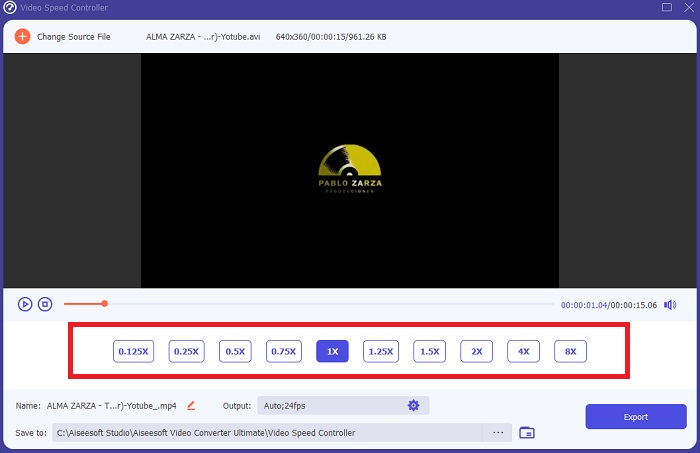
Step 5. You can now fine-tune the quality of your video by adjusting its format, resolution, frame rate, and other parameters if you're satisfied with its overall speed. You will also have the option of renaming your video output if you so desire. You can save your work by selecting Export from the File menu and browsing to a location on your computer's file system.
Método 2. Use o Movimento 5
Motion é uma poderosa ferramenta de gráficos em movimento projetada para editores de vídeo que simplifica a criação de títulos 2D e 3D cinematográficos, transições fluidas e efeitos realistas em tempo real. Motion é projetado para editores de vídeo. O Motion também é outra alternativa ao Final Cut Pro na criação de vídeos em câmera lenta, pois também está disponível no Mac. Com suas ferramentas úteis, agora você pode fazer vídeos em câmera lenta facilmente. Para saber mais sobre como fazer câmera lenta usando o Motion 5, aqui estão as etapas fornecidas.
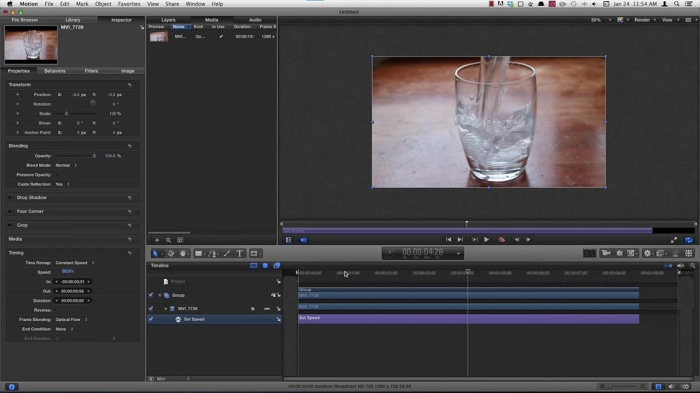
Step 1. Open the Motion 5, and drag the video file to the Timeline.
Step 2. Select the movie clip, and locate the Gear icon on the editing tools above the video track. After that, click Retiming and proceed with Set Speed.
Step 3. After you proceed, at the left corner of the interface, click the Properties and locate the Inspector window. And you will see the Retiming setting at the bottom. Set the speed to below 100 to achieve the slow-motion effect. And in order to make your slow-motion video play smooth, click Frame Blending and choose Optical Flow.
Related:
Parte 3. Perguntas frequentes sobre o Final Cut Pro
Como você equaliza o áudio no Final Cut Pro?
Selecione o vídeo na linha do tempo no Final Cut Pro. Selecione uma configuração de equalização diferente no menu pop-up Equalização na seção Aprimoramentos de áudio do inspetor de áudio. Escolha a opção Flat se quiser remover todo o EQ.
Como estabilizar o vídeo no Final Cut Pro?
O inspetor de vídeo pode ser acessado selecionando um clipe na linha do tempo no Final Cut Pro e clicando no botão do inspetor. Alterne entre Estabilização e Rolling Shutter marcando a caixa apropriada. Você pode usar o recurso de estabilização do Final Cut Pro marcando a caixa, e o Final Cut Pro procurará o melhor método de estabilização com base em sua análise.
Como você equilibra o áudio esquerdo e direito no Final Cut Pro?
Selecione Stereo Left/Right no menu pop-up Mode na seção Pan do inspetor de áudio. Um dos seguintes fará com que o som se mova para a esquerda ou para a direita: Pan Amount é onde você coloca seu dinheiro. Apenas certifique-se de não ultrapassá-lo.
Conclusão
In the final analysis, Final Cut Pro makes the best software available on Mac. It has different kinds of tools that can make your post-editing process a bit extraordinary. But it is only available on Mac, how are you going to make slow-motion videos, if you're using Windows? Video Converter Ultimate is the answer to your problem, all the details about this software are already given above. And how great this software is that it can turn your videos to slow motion.
-
 3 maneiras de acelerar o vídeo no iPhone [comprovado]
 Está com problemas para ajustar a velocidade de reprodução do seu vídeo porque está usando um iPhone? Este é um excelente artigo para ajudá-lo com seu problema.
-
 Como diminuir a velocidade de um vídeo: dicas perfeitas [Desktop/Celular]
 Você está cansado de procurar as melhores ferramentas que ajudam a desacelerar um vídeo online? Leia este artigo específico para você se iluminar com as informações listadas abaixo.
-
 Windows Media Player | Aprenda a acelerar vídeos [Comprovado]
 Você deseja desacelerar seu videoclipe usando o Windows Media Player, mas está tendo problemas para saber como fazê-lo? Este artigo é ideal para leitura e pode esclarecer seu ponto de vista sobre como acelerar vídeos usando o Windows Media Player.
