


 Video Converter Ultimate
 Gravador de ecrã
 Reparo de vídeo
 Secure Download
Como editar o brilho do vídeo no PC, iPhone e online
Have you captured a video and are unsatisfied with the result due to the poor lighting? The lighting of a video affects our video-watching experience. Thus, it is vital to find the perfect balance between the darkness and brightness of a video. Suppose you have a video and wish to edit its brightness for specific reasons; we can help you. In this guidepost, we have provided several workarounds that you can perform. Learn how to change video brightness easily and professionally.

Parte 1. Melhor maneira de ajustar o brilho do vídeo
Video Converter Ultimate is a flexible video conversion and editing solution for Windows and Mac. Besides its primary function, converting media files, Video Converter Ultimate is infused with a Toolbox kit. It boasts over twenty video editing tools, including the Color Correction feature. Color Correction feature allows you to edit video brightness, contrast, saturation, and hue to achieve your desired output. After modifying the necessary video effects, it lets you configure video settings before saving it. You can save your video in a new format, like MP4, MOV, WMV, AVI, MKV, and GIF. To ensure that your video is still of good quality, it provides an option to save the video in 4K resolution.
Step 1. Download the Tool on PC
To start with, get a Free Download of Video Converter Ultimate. Launch it on your computer after completing the installation process.
Free DownloadFor Windows 7 or laterSecure Download
Free DownloadFor MacOS 10.7 or laterSecure Download
Step 2. Go to the Toolbox tab
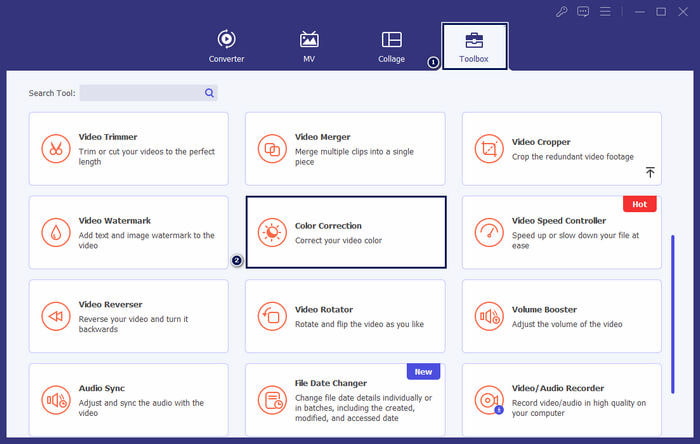
Choose the Toolbox option from the upper menu tab on the tool's main interface. From there, look and select the Color Correction tool.
Step 3. Add the Video
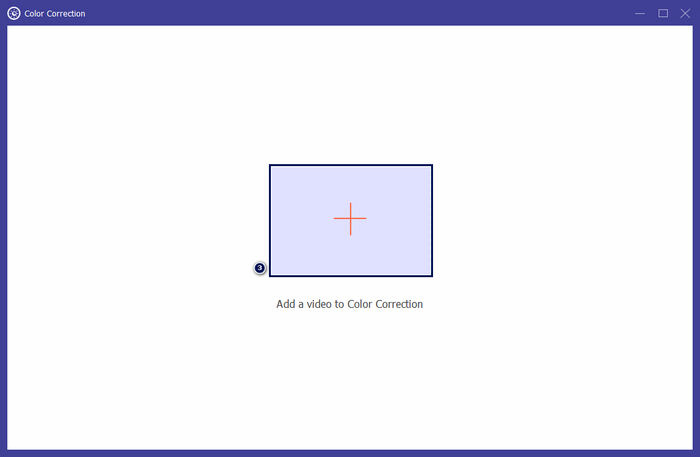
In the window that appears, click the + button to add the video you wish to modify the brightness.
Step 4. Adjust Video Brightness
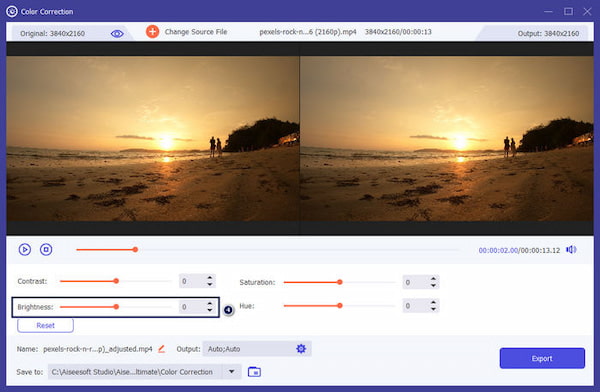
Move the Slider in the Brightness section until you achieve the desired effect. Optionally, modify other video effects like Contrast, Saturation, and Hue. Once done, click Export to save the progress of your creation.
Video Converter Ultimate é uma solução viável para usuários que buscam uma solução simples para ajustar o brilho do vídeo. É um programa completo com tudo que você precisa para sua edição. Explorar a ferramenta lhe dará mais opções para suas necessidades de edição.
Parte 2. Ajustar o brilho do vídeo online
Kapwing é uma ferramenta de edição de vídeo baseada em navegador que permite aos usuários realizar várias tarefas de edição de vídeo. Ele permite ajustar o brilho do vídeo online e outros efeitos de vídeo sem baixar software. Kapwing fornece várias ferramentas e recursos para suas necessidades de edição, incluindo aparar, recortar, adicionar texto, etc.
Step 1. Go to the Kapwing official website using a browser.
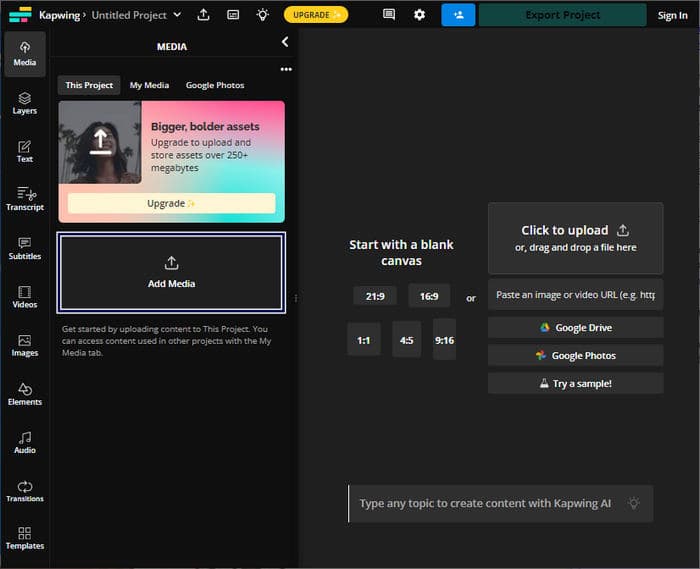
Step 2. Click Add Media to add the video you wish to adjust brightness.
Step 3. Drag the uploaded video into the timeline and click the video to display the tools.
Step 4. In the right-hand panel, adjust the Brightness slider.
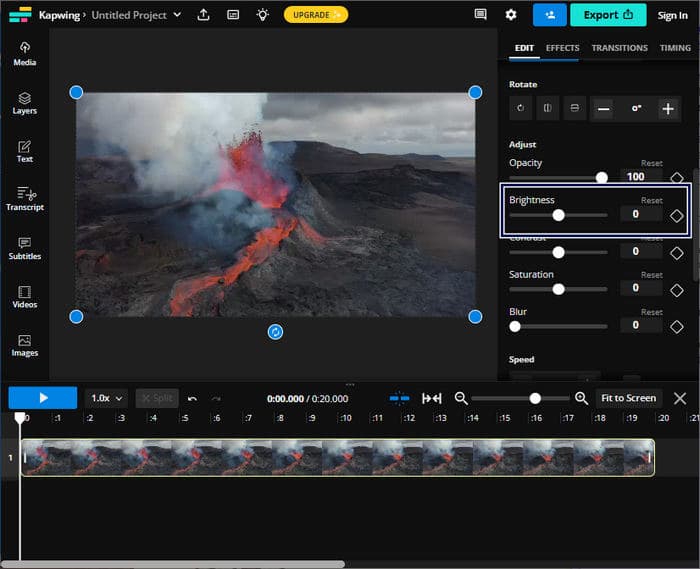
Step 5. After adjusting the video brightness, click Export Project to save the file.
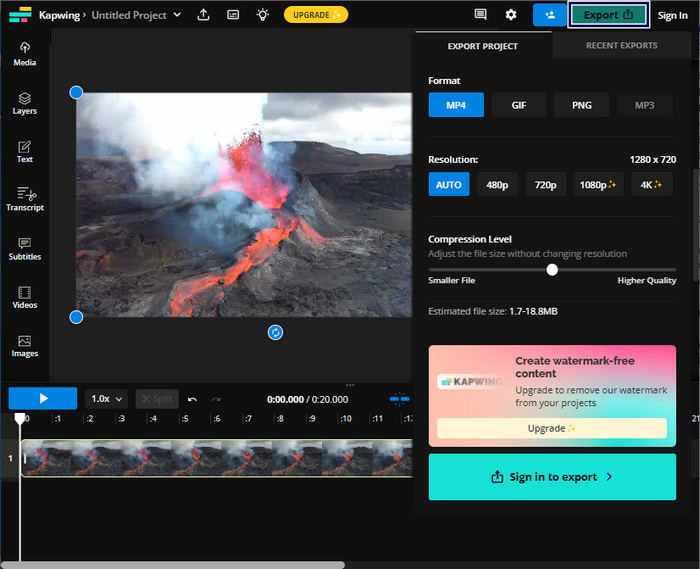
Kapwing é a melhor opção para ajustar o brilho do vídeo sem baixar software no seu computador. Não requer nenhum download dos usuários, pois é uma plataforma online. No entanto, não permite que você use os recursos avançados da versão gratuita.
Parte 3. Ajustar o brilho do vídeo no iPhone
O aplicativo Fotos é uma opção conveniente para ajustar o brilho do vídeo no iPhone. Ele permite que você faça ajustes básicos de vídeo sem precisar de aplicativos de terceiros. Esta ferramenta integrada é útil para ajustes rápidos para melhorar ou diminuir a iluminação em seus vídeos. Após a edição, o vídeo editado permanecerá na biblioteca do Fotos, permitindo fácil acesso e compartilhamento.
Step 1. Locate and open the Photos app on your iPhone.
Step 2. Navigate to the video you want to adjust and tap on it.
Step 3. In the upper-right corner, tap the Edit button.
Step 4. Tap the Adjust button and look for the Brightness option.
Step 5. Slide the parameter until you get the desired lightning.
Step 6. Once done with the brightness adjustment, tap Done.
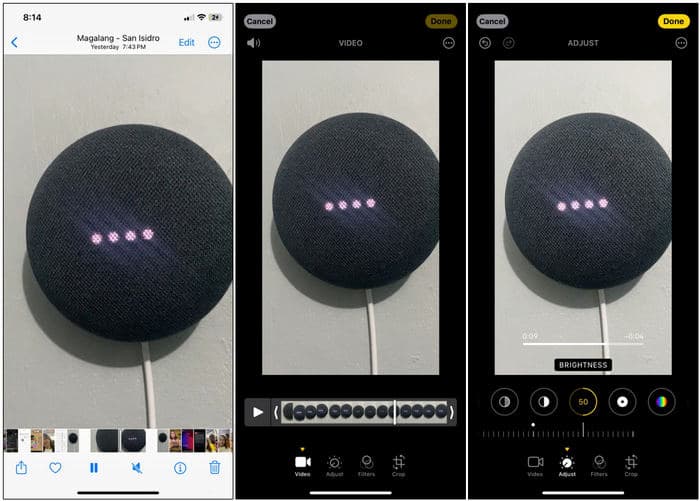
O aplicativo Fotos no iPhone é uma opção conveniente para ajustes básicos de brilho de vídeo. No entanto, se precisar de recursos avançados de edição de vídeo, pode ser necessário usar um aplicativo de edição de vídeo de terceiros.
Parte 4. Ajustar o brilho do vídeo com o Premiere Pro
Premiere Pro é uma plataforma de edição de vídeo que oferece ferramentas avançadas para edição de vídeo, correção de cores e efeitos visuais. Ao ajustar o brilho do vídeo no Premiere Pro, você pode controlar a exposição, melhorar a aparência da sua filmagem e corrigir problemas de iluminação. Ele fornece controle refinado sobre o brilho e outros elementos de vídeo.
Step 1. Launch Premiere Pro and import the video you want to adjust. In the Project panel, select New Sequence From Clip to create a sequence that matches the clip's settings.
Step 2. In the Effects panel, search for Lumetri Color. Drag the Lumetri Color effect into your video clip in the Timeline panel.
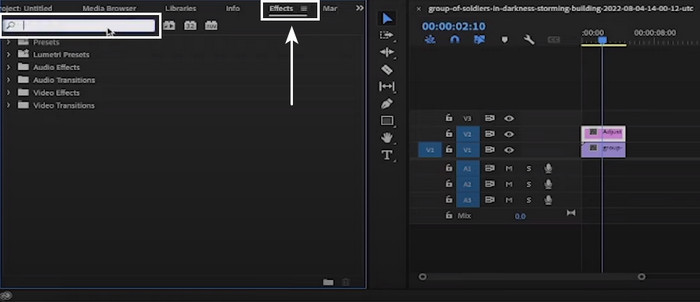
Step 3. In the Effects Control panel, click the Arrow next to Basic Correction to expand the options. Use the Exposure slider to increase or decrease the brightness of the video.
Step 4. Once done with the adjustments, export the video by going to the File. Then, select Export, followed by Media, and configure the export settings.
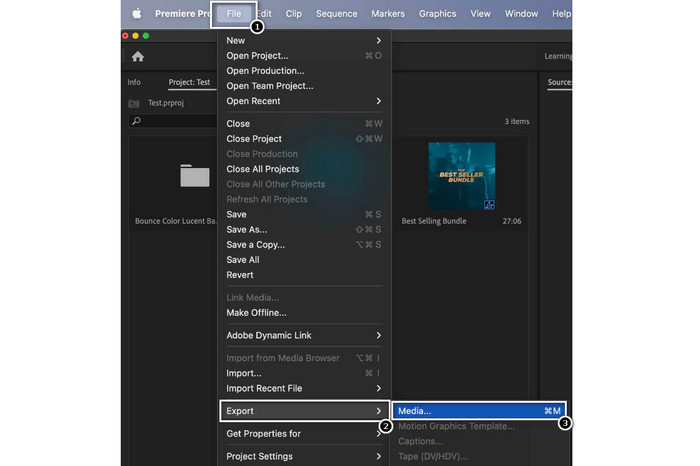
Premiere Pro é uma ferramenta notável para ajustar o brilho do vídeo e oferece várias ferramentas de edição profissional. Observe que o Premiere Pro pode ser complexo para iniciantes e pode levar algum tempo para você se familiarizar com ele.
Further Reading:
Top 3 Ways on How to Colorize Video (All Platform Edition)
How to Change the Hue of Video? Exploring the Creative Possibilities
Parte 5. Perguntas frequentes sobre como ajustar o brilho do vídeo
Como alterar o brilho e o contraste de um vídeo no After Effects?
No Adobe After Effects, você pode ajustar o brilho e o contraste de um vídeo aplicando o efeito Brilho e Contraste à camada de vídeo. Este efeito permite controlar os parâmetros de brilho e contraste para obter a aparência desejada para o seu vídeo.
Como faço para melhorar um vídeo escuro no meu iPhone?
Você pode usar o aplicativo Fotos para aprimorar um vídeo escuro no seu iPhone. Abra o videoclipe no aplicativo Fotos, toque em Editar e selecione o ícone Luz. Você pode personalizar a exposição, realces e sombras para iluminar o vídeo.
Por que o vídeo é mais escuro que as fotos?
Os vídeos geralmente parecem mais escuros do que as fotos devido às diferenças na forma como são capturados e processados. Os vídeos têm uma taxa de quadros mais baixa e um tempo de exposição por quadro mais longo do que as fotos. Isso pode resultar na captura de menos luz em cada quadro, resultando em imagens mais escuras.
Conclusão
There you have it! The ability to adjust video brightness is now relatively easy with the tools and techniques provided. You are now equipped with the idea to enhance the visual quality of your videos. Also, to correct exposure issues and effectively convey the desired mood or message. Whether you’re using professional-grade software for precise control, mobile apps for quick adjustments, or online editing platforms for convenience, the process of modifying video brightness is essential in video production.
-
 Soluções eficientes para iluminar vídeos em menos de um minuto
 Não lute mais com vídeos escuros, aprendendo como tornar vídeos escuros visíveis usando os melhores programas para iluminar vídeos. Leia.
-
 O que há por trás da paleta de correção de cores de vídeo? O Guia Ulitmate
 Desbloqueie os segredos da correção de cores de vídeo! Este guia revela as ferramentas, processos e técnicas por trás das paletas de correção de cores de vídeo.
-
 Filtro de vídeo: aprimore seu vídeo com filtros e efeitos na área de trabalho
 Quais são os melhores filtros de vídeo? Como adicionar filtros de vídeo? Todas as suas dúvidas terão resposta neste post. O que você está esperando? Clique aqui.
