


 Video Converter Ultimate
 Gravador de ecrã
 Reparo de vídeo
 Secure Download
Como tornar um vídeo escuro mais claro sem esforço - Tutorial definitivo
Gravar vídeos em um ambiente ou ambiente com pouca iluminação pode ser difícil. Com isso, o assunto da filmagem precisa ser destacado ou alguns detalhes importantes que deveriam aparecer no vídeo não poderão ser alcançados. Na verdade, podemos associar um ambiente com pouca iluminação a um vídeo de baixa qualidade. Gravar vídeos com boa iluminação é importante.
Now, picture this: You have reviewed the footage you shoot and found out that there are dark videos you accidentally have taken. Fortunately, there are programs that could be of great help in making dark videos bright. Therefore, you feel less stress in case you are put in a challenging situation, such as taking dark videos. Here, we will guide you on how to brighten a dark video.

Parte 1. Ilumine o vídeo no computador
1. Video Converter Ultimate
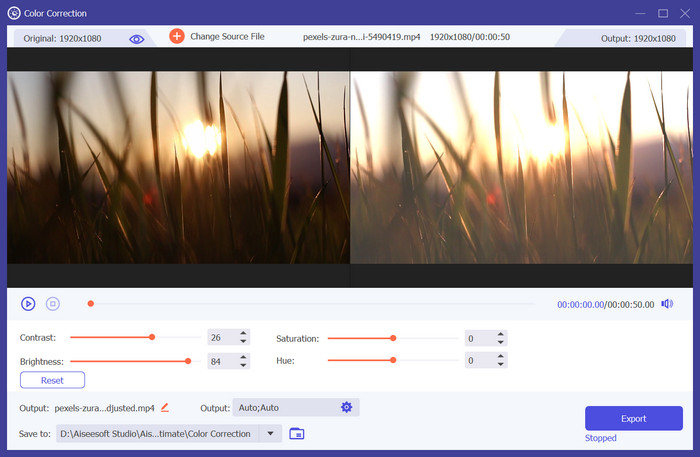
Video Converter Ultimate is a great and professional tool to help you brighten videos on your Windows and Mac computers. While it is primarily used for converting video and audio files, it is quite useful when it comes to editing videos, such as changing the lighting according to your preference. In particular, the tool offers a color correction feature that enables users to edit settings like contrast, brightness, saturation, and hue with simple slider buttons. If you have a specific number in mind for setting your preferences, you can also type in the desired amount of contrast, saturation, etc. Anyway, a reset option exists when you want to start over the editing. Master how to make a video brighter using this tool by looking at the steps below:
Step 1. Get the app and install
To get started, tick the Free Download button corresponding to your operating system. After that, it will download the installer on your computer. Run the installer and follow the setup wizard to install the tool.
Free DownloadFor Windows 7 or laterSecure Download
Free DownloadFor MacOS 10.7 or laterSecure Download
Step 2. Access the Color Correction
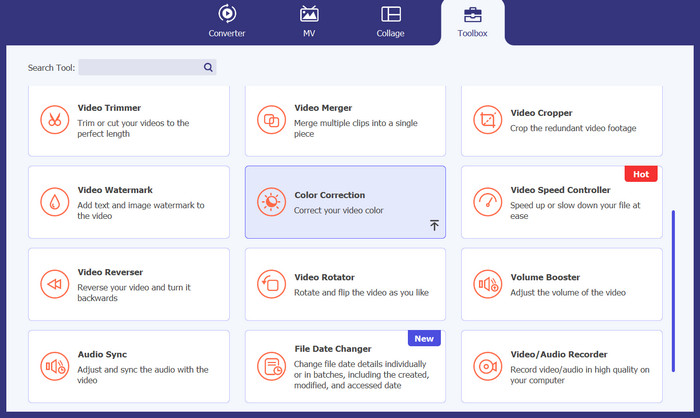
Next is to launch the app on your computer. From the main interface, you will notice the four major tabs. Tick on the Toolbox tab to see all the tools offered by the tool. Next, look for Color Correction and select it. You may also look for it in the search bar.
Step 3. Add a video file to brighten
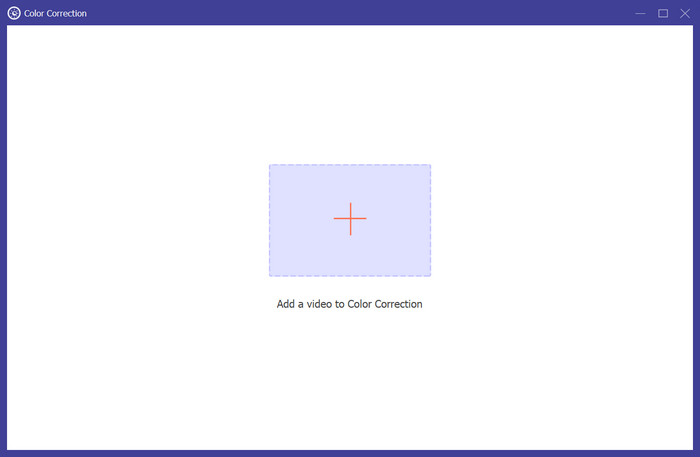
Ao marcar a opção de correção de cores, a área de upload aparecerá. Agora, clique no ícone + e selecione o vídeo que deseja iluminar. Em seguida, ele irá direcioná-lo para a interface de correção de cores.
Step 4. Brighten the dark video
Finally, move the slider for the Contrast to the left slowly and move the Brightness slider to the right. Play around those options until you get your desired lighting and brightness for your video. You should see changes afterward. At last, save the final output by hitting the Export button at the bottom right corner.
2. Estreia
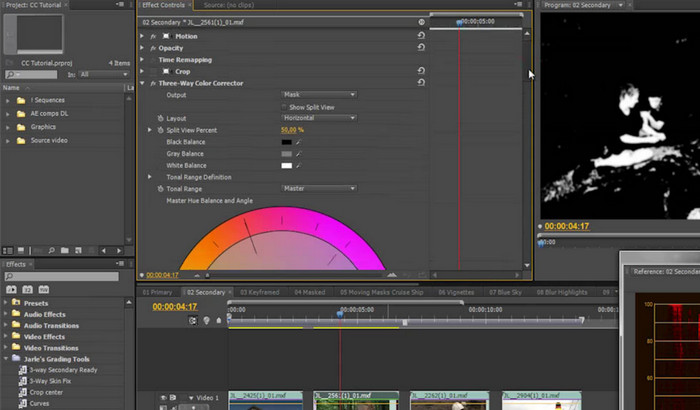
O Premiere é provavelmente o mais popular, senão o melhor, para edição profissional de vídeos. Além das ótimas ferramentas que oferece, um dos recursos mais procurados é a opção de correção de cores. Este aplicativo serve para iluminar vídeos com muita facilidade usando o recurso de correção rápida de cores. Além disso, é possível adicionar riqueza e intensificar a cor do vídeo com as configurações de nível de cor. Você pode seguir as etapas abaixo para aprender como iluminar um vídeo no Premiere Pro.
Step 1. First of all, load the video you wish to color-correct into the program. Once the video is loaded, you may now have some layer of adjustment, particularly in brightening the video.
Step 2. Access the Lumetri color Option in the Effects panel. Then, drag and drop to the adjustment layer you added.
Step 3. Next, proceed to the primary correction tab, where an auto button resides. Likewise, it depends upon the user whether he/she will stick to the automated results or modify them according to liking. Finally, hit the checkbox to apply the changes.
3. Da Vinci Resolve
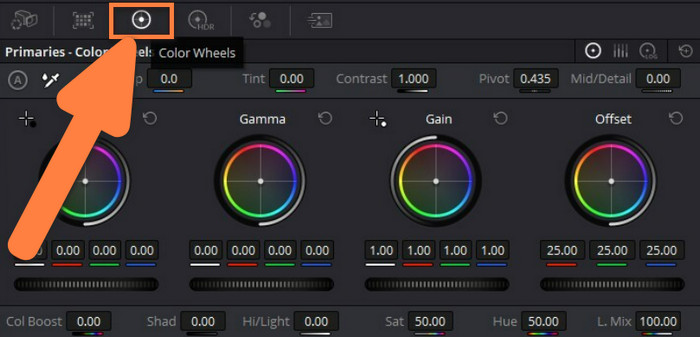
Da mesma forma, o DaVinci Resolve ilumina vídeos com grande facilidade. Na verdade, este programa é um dos padrões quando se trata de edição de vídeo na indústria de vídeo. Existem várias ferramentas, como rodas de cores, correspondência de cores, janelas e curvas das quais você pode se beneficiar. Veja como iluminar um vídeo no DaVinci Resolve:
Step 1. Have this program installed and launched on your computer.
Step 2. Next, go to the Color Wheels located in the bottom left-hand corner of the program's interface.
Step 3. Increase the brightness of the shadow in the picture by adding value to the Shad property. For the highlights, modify the Hi/Light property.
Parte 2. Como iluminar um vídeo em um iPhone
Os dispositivos iPhone vêm com um aplicativo Fotos que não apenas armazena imagens, mas também oferece a capacidade de editar vídeos. Com isso, os usuários podem alterar o brilho e até a escuridão dos vídeos. Então, se você tem experiência em edição de fotos, esta ferramenta é um ótimo programa. De qualquer forma, há muitas dicas online mostrando a combinação de propriedades de correção de cores para obter resultados impressionantes. Por outro lado, vamos nos concentrar hoje em como iluminar um vídeo em um iPhone usando o aplicativo Fotos:
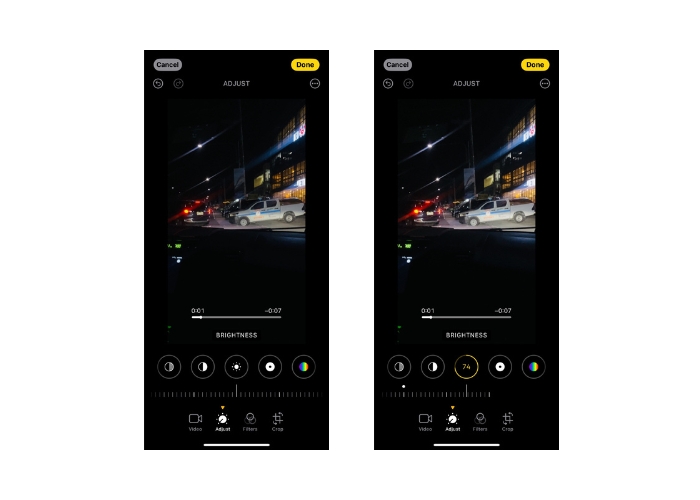
Step 1. Open your Photos app on your iPhone device. Then, select the video you wish to brighten. After selecting, tap the Edit button at the top of the interface.
Step 2. At the bottom of the app, you will see buttons for editing videos. Choose the Adjust option and swipe left until you reach the BRIGHTNESS option.
Step 3. Next, drag the slider to get your desired brightness. Once done, tap Done at the top right corner. That is how to make dark videos brighter and clearer on the iPhone.
Parte 3. Como iluminar um vídeo no Android
Se houver um aplicativo Fotos no iPhone, os dispositivos Android permitem editar o brilho com o aplicativo Galeria. A única desvantagem é que não há opção de edição específica para brilho. A solução alternativa, porém, é o aplicativo de filtro. Você pode aplicar filtros para iluminar o vídeo no Android. De certa forma, é muito mais fácil e rápido. No entanto, aqui está como iluminar um vídeo escuro no Android:
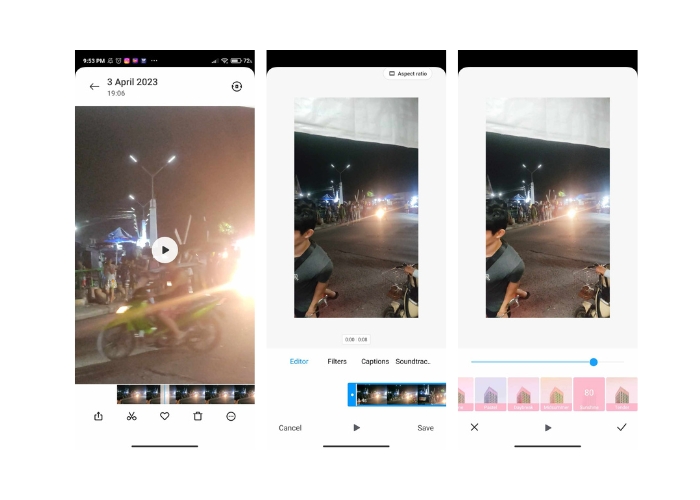
Step 1. Go to the Gallery app on your device and choose the video you wish to brighten.
Step 2. Tap the scissors icon that represents the edit option. Then, select the Filters tab.
Step 3. From here, select filters, like Sunshine and Pastel to brighten the video. Lastly, tap the check mark to apply the changes.
Parte 4. Ilumine vídeos online
Se desejar fazer o processo de tornar os vídeos escuros mais claros na página da web, você pode usar o FlexClip. É um utilitário baseado na web capaz de dar vida aos seus vídeos, alterando a cor e o ambiente geral. Para ver como iluminar vídeos online, confira as etapas abaixo:
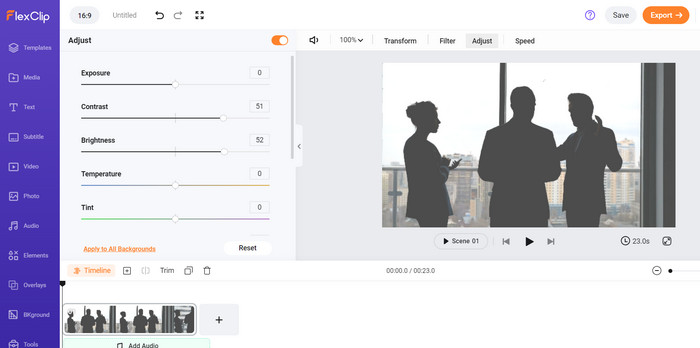
Step 1. Open your preferred browser and visit the official site of FlexClip. Then, upload your video to brighten.
Step 2. Hit the Adjust tool button and make some adjustments with the Highlights option by moving its slider. Making changes to the highlights and contrast may help in making dull scenes lighter and brighter.
Step 3. If you are done, download the video to your hard drive.
Further Reading:
How to Make a Time-Lapse Video on iPhone Perfectly
How to Make A Picture Clearer on Computer and Phones
Parte 5. Perguntas frequentes sobre como tornar vídeos escuros mais brilhantes
Como você conserta vídeos com pouca luz?
Para corrigir vídeos com pouca luz, você pode: Aumentar a configuração ISO da sua câmera (se disponível) para tornar o sensor mais sensível à luz. Use uma abertura maior (número f menor) para permitir a entrada de mais luz. Adicione fontes de iluminação externas ou use a luz ambiente existente. Pós-processe o vídeo usando um software de edição de vídeo para aumentar o brilho e reduzir o ruído.
Por que minha tela de vídeo está tão escura?
Uma tela de vídeo escura pode ser causada por vários fatores: iluminação insuficiente durante a gravação, configuração baixa de ISO da câmera, abertura pequena da câmera (número f alto), configurações inadequadas da câmera ou ajustes de exposição e baixo brilho da tela do seu dispositivo.
Como faço para iluminar um vídeo no Photoshop?
Para iluminar um vídeo no Photoshop, siga estas etapas: Abra o Photoshop e vá em Arquivo > Importar > Quadros de vídeo para camadas para importar seu vídeo. Em seguida, selecione a camada do quadro de vídeo que deseja ajustar. Em seguida, vá em Imagem > Ajustes > Brilho/Contraste. Aumente o controle deslizante de brilho para iluminar o quadro do vídeo.
Conclusão
Coisas incertas acontecem, como gravar vídeos sombrios e sombrios. A boa notícia é que já temos tecnologias para resolver esses problemas, permitindo-nos aprender como tornar visíveis vídeos escuros. Preparamos as soluções para usuários de desktop, dispositivos móveis e online. A escolha da ferramenta certa dependerá muito de suas preferências.
-
 Tudo que você precisa saber sobre como fazer vídeos em câmera lenta
 Você deseja fazer vídeos em câmera lenta com um editor profissional, mas não sabe quais softwares ou aplicativos? Leia este artigo para todos os detalhes.
-
 3 métodos sobre como tornar um vídeo mais longo no iPhone e outros dispositivos
 Fazer um vídeo mais longo é bastante desafiador. Felizmente, encontramos três métodos sobre como tornar um vídeo mais longo no iPhone e em outros dispositivos.
-
 Redimensionar vídeo sem esforço: revisão abrangente de redimensionadores de vídeo
 Obtenha a foto perfeita com nossa ferramenta de redimensionamento de vídeo fácil de usar. Com apenas alguns cliques, você pode redimensionar os vídeos para o tamanho perfeito para o seu projeto.
