


 Video Converter Ultimate
 Gravador de ecrã
 Reparo de vídeo
 Secure Download
Soluções para cortar vídeos online [tutoriais passo a passo]
How do you make your long video shorter? If you don’t know the best methods you can do, then there is a reason for you to read this guidepost. While reading this article, we will give you all the essential information about decreasing the length of your video. Also, we will introduce online and offline video editing software you can utilize. This way, you will have more of an opportunity to achieve your goal. So, without anything else, read this post and learn how to cut video online.

Parte 1. Métodos excelentes para cortar vídeos online
1. InVideo
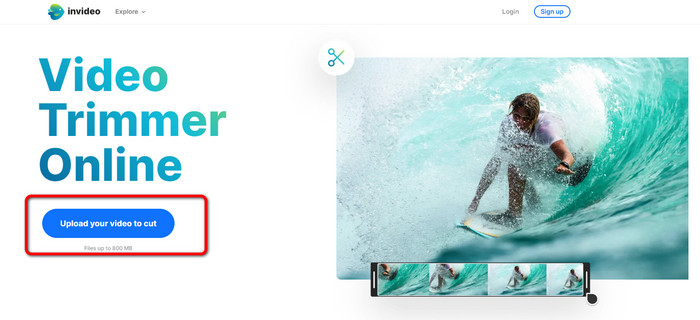
Uma das ferramentas úteis de edição de vídeo que você pode encontrar online é o aparador de vídeo InVideo. Este software baseado na web oferece um layout fácil de usar. Depois de visitar o site, você não precisa instalar a ferramenta. Tudo o que você precisa fazer é adicionar o vídeo e já pode proceder ao corte. Além disso, por ter um layout simples, também haverá um método compreensível. Dessa forma, seja você um usuário profissional ou não profissional, você pode usar o InVideo. Além disso, o InVideo pode ser acessado em quase todas as plataformas da web. Você pode usar a ferramenta no Google Chrome, Mozilla Firefox, Internet Explorer e muito mais. No entanto, o InVideo tem algumas desvantagens. Ao usar a versão gratuita, o InVideo não pode oferecer alta qualidade de vídeo. Além disso, só pode oferecer baixa qualidade de vídeo, o que é insatisfatório. Se você deseja uma excelente qualidade de vídeo, deve adquirir um plano de assinatura. Siga as etapas abaixo para cortar/aparar seu vídeo usando o aparador de vídeo InVideo.
Step 1. Open your browser and navigate to the official website of InVideo. Then, if you are already on the webpage, click the Upload your video to cut button. When the file folder shows up on the screen, select the video you desire to trim/cut and open it.
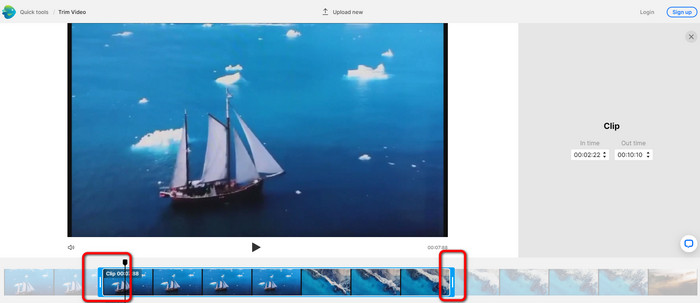
Step 2. After selecting a video, you will be directed to the section where you may trim it. To trim your movie, move the sliders on either end of the video to the timestamp you want.
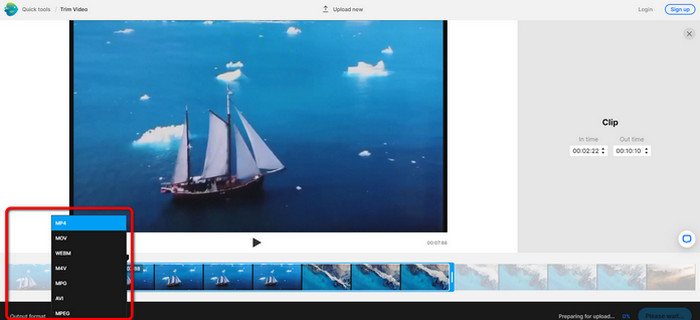
Step 3. When you trim your video, you can save it in various formats. Go to the Output Format option on the bottom left part of the interface. Then, select the preferred output format when the format options appear. Then click Done.
Step 4. You must register for an account with InVideo or sign in with an already-established account before you can save your video. Your video will be available for saving in a few seconds after you have only filled in your credentials.
2. Ezgif
Another video trimmer online free is Ezgif. It has easy procedures to shorten a video. Ezgif is a free online tool, so you don’t need to think about spending a penny. In addition, you can access the online tool on all browsers. It includes Google, Edge, Firefox, Explorer, and more. However, online-only supports GIF. So, if you plan to cut a video with another format, Ezgif is not the right tool. Also, many disturbing ads appear on the screen when using the tool. So, it will become disturbing while editing a video.
Step 1. Go to the website of Ezgif and select the Cut option.
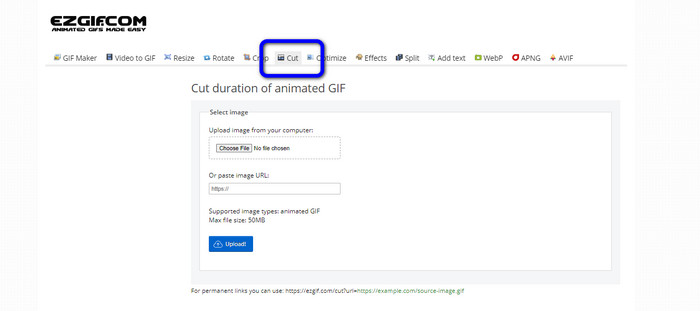
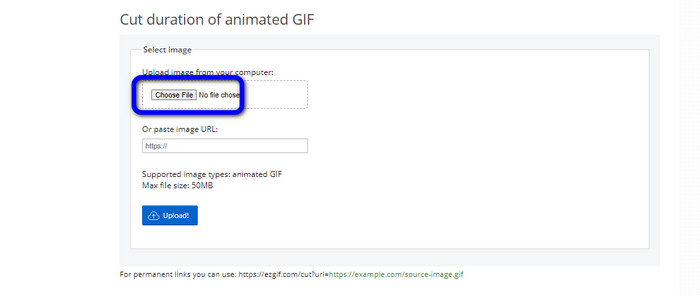
Step 2. After that, click the Choose File button. Then, add the GIF file you want to upload from the computer folder.
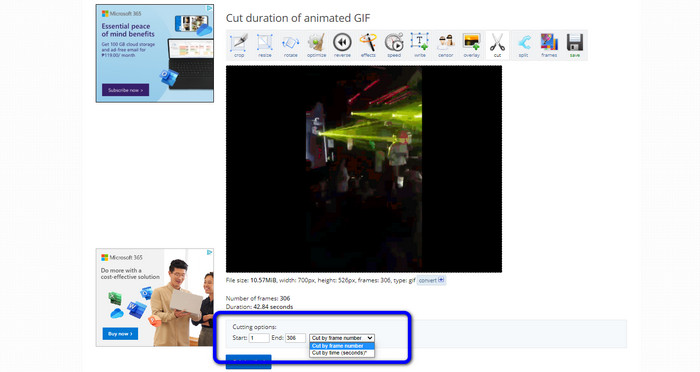
Step 3. After uploading the GIF file, you can already cut it. There are two ways to cut the GIF file. You can cut by frame number or cut by time. Cut it based on your preferred way.
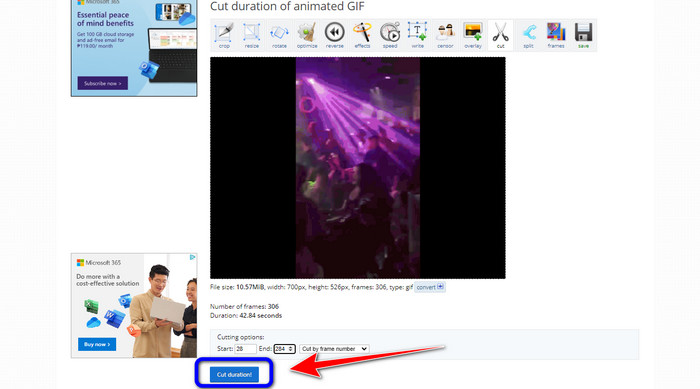
Step 4. Click the Cut Duration button to start the cutting process.
Step 5. After that, the edited one will show up. Click the Save option to download the final output on your computer.

3. Kapwing
To cut the video, you can also utilize the Kapwing video trimmer. This web-based tool is capable of cutting a video with a hassle-free method. In addition, you can access the tool on various website platforms. It includes Chrome, Mozilla, Edge, and more. Moreover, Kapwing supports different video formats, such as MP4, MOV, AVI, FLV, WEBM, and more, making it convenient for all users. However, Kapwing has some disadvantages. It has disturbing ads always appearing on the screen. In addition, it only allows you to upload a video with 720p video quality when using the free version. Also, it puts annoying watermarks after editing the video. If you want to get the video without watermarks and enjoy more great features, purchase a subscription plan.
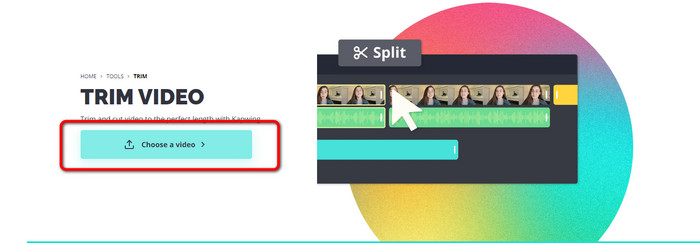
Step 1. Go to the Kapwing website. Then, click Choose a video option to proceed to the tool's main interface.
Step 2. Click the Click to upload button to insert the video from the file folder.
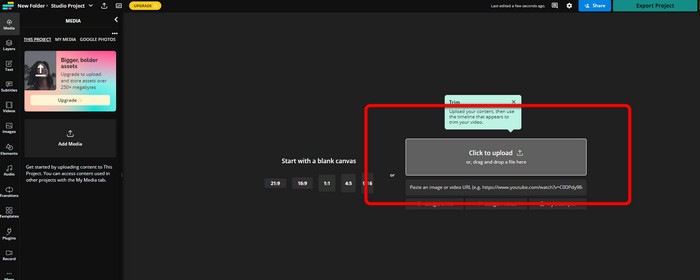
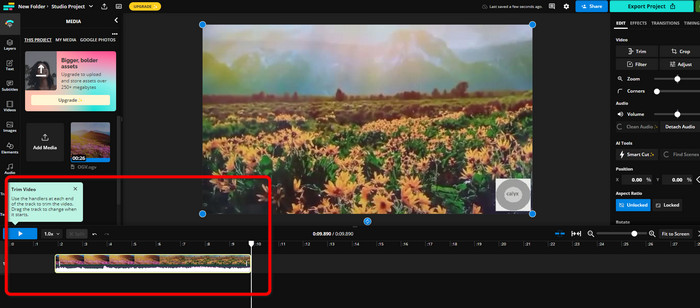
Step 3. When the video is already on the timeline, you can click the handlers of each side to start trimming the video.
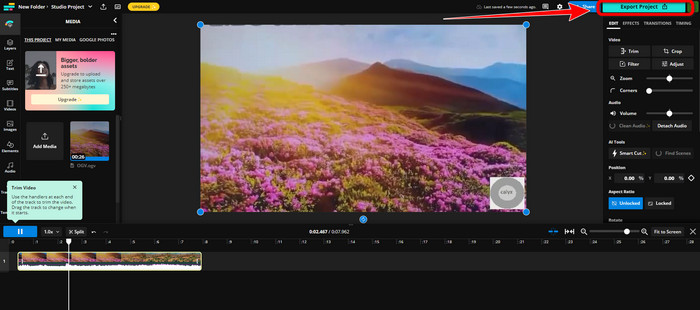
Step 4. If you are done, go to the upper right corner of the interface and click the Export Project button. This way, you can save the edited video on your desktop.
Parte 2. Maneira alternativa de cortar vídeo offline
Use Video Converter Ultimate to edit videos offline in the best possible way. This tool makes it simple to clip and/or trim your video. It also has a simple interface with straightforward navigation, making it ideal for all users. Your finished product can also be saved in a variety of formats. Among them are MOV, AVI, MP4, MKV, and others. There are more things you can do when cutting videos. You can make various adjustments by navigating to the Output options. You can alter the video's frame rate, resolution, encoder, quality, etc. Additionally, Video Converter Ultimate won't add watermarks to the edited video. In this manner, you can still view the edited film without any annoying elements. Also, both Windows and Mac users can access Video Converter Ultimate. That signifies that the program is convenient for both Windows and Mac users. Follow the detailed instruction below to start cutting the video.
Step 1. Click the Download button below to access Video Converter Ultimate on your computer. Open the program after the installation process.
Free DownloadFor Windows 7 or laterSecure Download
Free DownloadFor MacOS 10.7 or laterSecure Download
Step 2. On the interface, click the Toolbox menu and select the Video Trimmer tool.
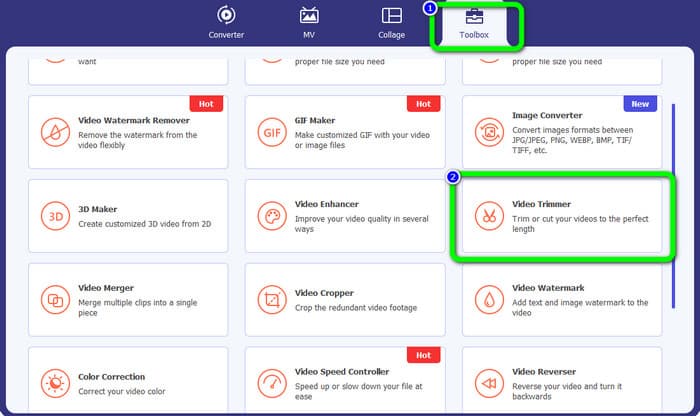
Step 3. When the new interface appears on the screen, click the Plus sign to insert the video that you desire to edit.
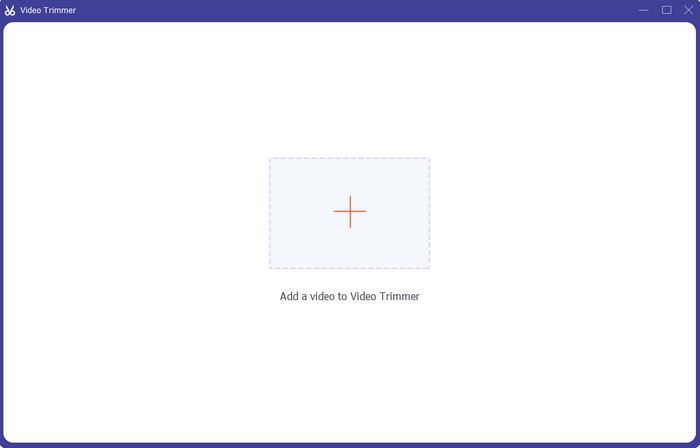
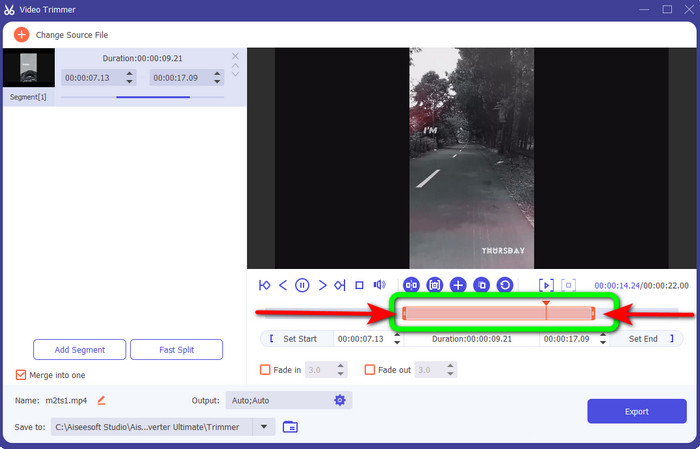
Step 4. Then, you can already start editing your video in his part. You can move the edge part of the video to control how you want to cut/trim the video. You can move the right and left edges based on your needs.
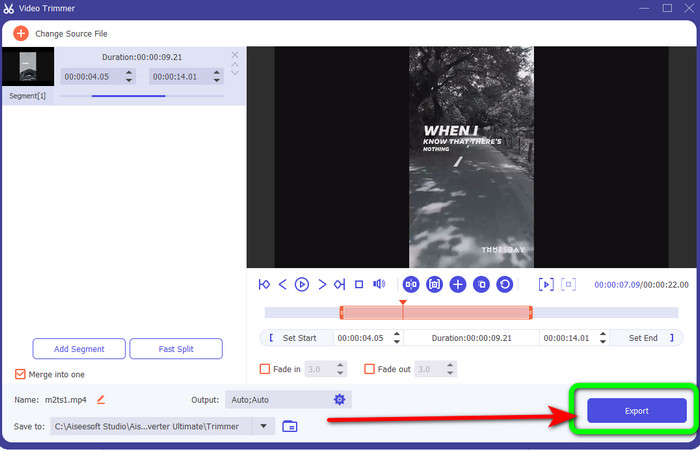
Step 5. When you are satisfied with the video, click the Export button to proceed with exporting. Then, save your final and edited video.
Parte 3. Perguntas frequentes sobre como cortar vídeos online
Como cortar um vídeo em um iPhone?
Depois de iniciar, toque no vídeo que deseja editar no aplicativo Imagens. Clique em Editar. Altere os horários de início e término arrastando os controles deslizantes em cada lado da linha do tempo do vídeo. Use o botão play para ver uma prévia do seu vídeo editado. Escolha Salvar vídeo ou Salvar vídeo como novo clipe após selecionar Concluído.
Como cortar vídeos no Shotcut?
Arraste o arquivo de vídeo para a linha do tempo após importá-lo para o Shotcut. Coloque o indicador de reprodução no início do segmento que deseja cortar. Em seguida, pressione a tecla de atalho I. Pressione a tecla O após avançar o indicador de reprodução para a conclusão da seção. O segmento agora seria separado do resto do vídeo.
Qual é o melhor software para cortar arquivos MP4 offline?
If you want to cut MP4 files offline, use Video Converter Ultimate. This free download program allows you to cut MP4 files hassle-free.
Conclusão
These are the best methods to cut video online. You can use all the video editing tools mentioned above for cutting a video. However, when using an online tool, there are times that it won’t perform well due to poor internet connection. In that case, use Video Converter Ultimate. It is a downloadable program that lets you edit videos without an internet connection.
-
 [4 maneiras] Como acelerar facilmente seus vídeos online
 Quer acelerar um vídeo online? Leia este artigo para saber mais sobre como acelerar um vídeo das diferentes maneiras possíveis.
-
 Como recortar e mesclar músicas online - 4 maneiras que você deve conhecer
 Quando você deseja cortar e mesclar músicas online para criar uma peça musical, você pode aprender mais sobre as 4 melhores ferramentas online para recortar as músicas e combinar os arquivos do artigo.
-
 Descubra o Melhor Aparador MP4 com Procedimento e Informações
 Quer aprender a cortar vídeos como os vloggers que você assiste? Então continue lendo este post para saber quais aparadores de MP4 você pode usar.
