


 Video Converter Ultimate
 Gravador de ecrã
 Reparo de vídeo
 Secure Download
Learn How Can Canva Enhance Video Quality & Best Alternative
For sure, you’re also one of those who wonder if Canva can really enhance video quality, well, the answer is yes. Video editing has long existed, and as technology continues to evolve, more tools now make video creation and enhancement easier than ever. Canva is one of these tools. While it is widely known as an online design and publishing platform, it also offers built-in video editing features that allow users to improve video quality through basic enhancements such as adjustments, filters, and presets.
However, Canva’s video enhancement capabilities come with limitations, especially for users who need more advanced control over video quality. That’s why this article will walk you through how Canva enhances video quality, what it can and cannot do, and the best alternative you can use for more professional-level results.

Part 1. Can Canva Enhance Video Quality?
Let’s dig deeper into what Canva is. Probably, most of you are familiar with this tool, especially during the pandemic where the majority has shifted online, so the demand for online platforms, whether for work, school, or leisure rose. Canva is an online graphic design and content creation platform that allows users to create visuals with ease, even without prior design experience.
Can Canva enhance video quality? The answer is yes, Canva does offer simple tools that can help improve the overall look of a video. These include basic adjustments like brightness, contrast, saturation, trimming, resizing, and applying filters or templates. Through these features, users can make videos look cleaner, more balanced, and visually appealing.
However, it’s important to note that Canva does not truly enhance video quality in a technical sense. It cannot upscale resolution, reduce heavy noise, fix blurriness, or restore lost details. Instead, it focuses more on visual improvement and presentation rather than deep video enhancement. This makes Canva suitable for quick edits and content-ready videos, but not ideal for advanced video quality enhancement.
Part 2. How to Enhance Video Quality on Canva?
Now that you know what Canva can do, it’s time to see how you can actually use it to improve your videos. In this part, we’ll guide you through the simple steps to enhance video quality on Canva using its built-in editing and adjustment tools.
Step 1. First, you need to open the Canva on your computer and start a new project by choosing a video template or creating a blank design.
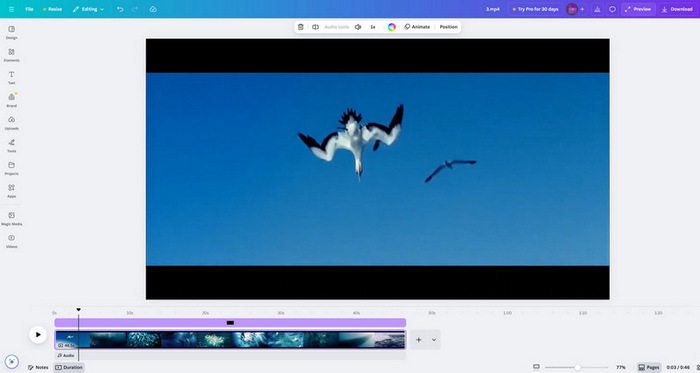
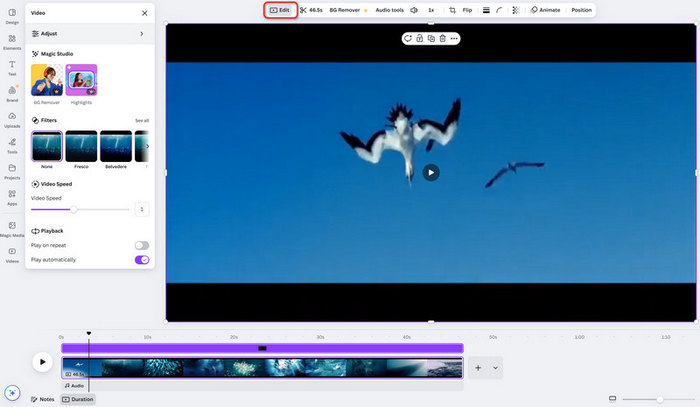
Step 2. After that, upload your video, select it on the canvas, and click the Edit option at the top.
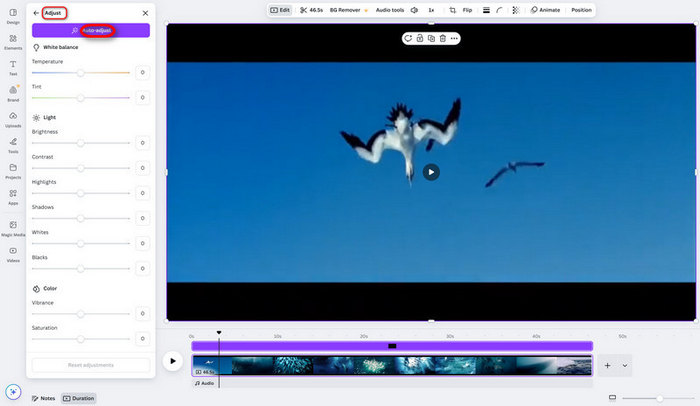
Step 3. Go to the Adjust settings, then tweak the brightness, contrast, and saturation using the sliders or by entering values manually. You can also use Auto Adjust to let Canva enhance the video automatically.
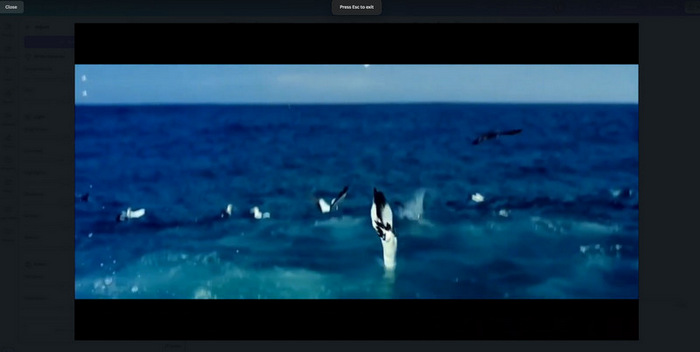
Step 4. Preview the video to see if the enhancements match your expectations.
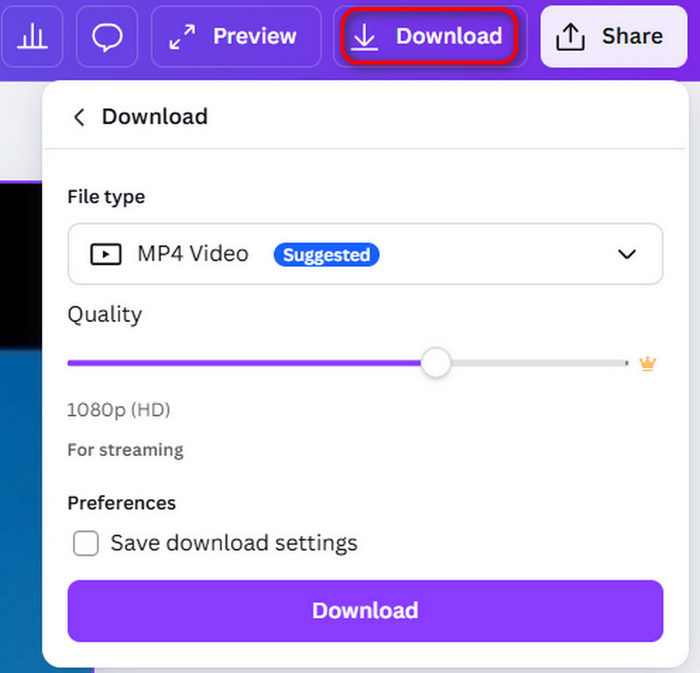
Step 5. Once you’re happy with the result, download the video by clicking the Download button or share it directly from Canva.
While Canva can enhance video quality to a certain extent, it is best suited for quick improvements and basic visual adjustments. Its easy-to-use tools make it ideal for simple edits and content creation, but it may fall short for users who need advanced video enhancement features. If you’re aiming for more precise control and higher-quality results, exploring a dedicated video enhancer can be a better option.
Part 3. Best Alternative to Canva to Enhance Video Quality with AI
If you need more powerful video enhancement than what Canva offers, relying on basic adjustments alone may not be enough. While Canva works well for quick edits and improving visual presentation, it lacks advanced technology for truly enhancing video quality. This is where AI-driven tools come in, as they are designed to analyze and improve videos automatically at a deeper level.
One excellent alternative for Canva video enhancement is the FVC Video Converter Ultimate, which features an advanced AI video enhancer that can intelligently improve your video. With this tool, you can upscale resolution, reduce noise, adjust lighting, and sharpen details.
Main Features:
- • AI-powered video enhancement for automatic quality improvement.
- • Video upscaling to increase resolution and clarity.
- • Noise reduction to remove grain and visual distortion.
- • Brightness and contrast optimization for better lighting.
- • Video sharpening to enhance details and edges.
- • Supports multiple video formats for flexible editing.
- • Simple, user-friendly interface suitable for beginners and professionals.
Here’s How to Enhance Video Quality with FVC Video Converter Ultimate:
Step 1. First, you need to download and install the tool on your computer.
Free DownloadFor Windows 7 or laterSecure Download
Free DownloadFor MacOS 10.7 or laterSecure Download
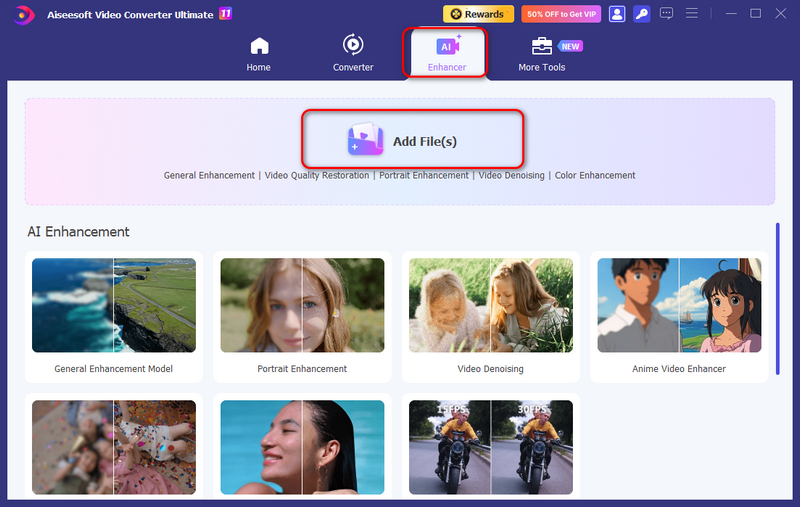
Step 2. Next, click the Enhancer tab and from there, Click Add File and upload your video.
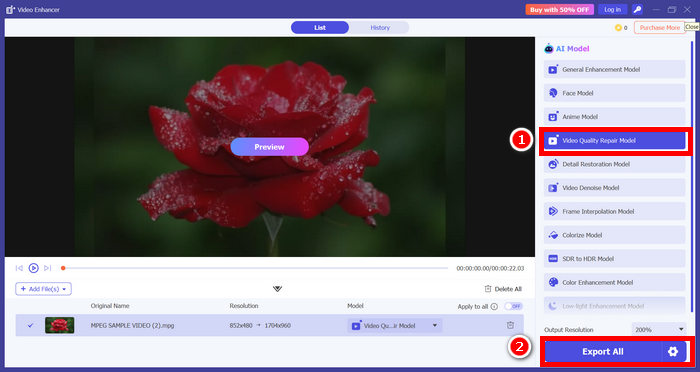
Step 3. Now, choose the AI model you want to use according to the video problem. After that, click the Export All and wait for a few seconds, the enhanced video will be saved on your computer.
FVC Video Converter Ultimate is truly a powerful alternative to Canva video enhancement. Unlike Canva, which focuses on basic visual adjustments, FVC leverages AI technology to intelligently enhance videos by upscaling resolution, reducing noise, optimizing lighting, and sharpening details. Its user-friendly interface and wide format support make it suitable for both beginners and professionals. With just a few simple steps, you can transform ordinary videos into high-quality, polished content ready for sharing or professional use.
Part 4. FAQs about Enhancing Video Quality on Canva
Can Canva fix blurry or low-resolution videos?
No, Canva is limited to visual improvements. It cannot fix blurriness or upscale low-resolution videos. For these advanced enhancements, an AI-driven tool like FVC Video Converter Ultimate is recommended.
What types of videos can I edit on Canva?
Canva supports most common video formats like MP4, MOV, and GIF, making it suitable for social media, presentations, or personal projects.
Do I need a paid Canva account to enhance videos?
No, you can enhance videos using Canva’s free plan, but some premium templates, filters, or elements may require a Pro subscription.
Is Canva suitable for restoring old or low-quality videos?
Canva is not ideal for technical restoration. For old or low-quality videos, AI-powered tools like FVC Video Converter Ultimate are recommended for better results.
Conclusão
Canva is a great tool for enhancing video quality through simple adjustments and visual improvements, making it ideal for quick edits and content creation. However, enhancing video quality on Canva is limited to basic enhancements and may not be enough for videos that require deeper quality improvement. If you need more advanced results, using an AI-powered tool like FVC Video Converter Ultimate can help you achieve clearer, sharper, and more professional-looking videos.
Try it today and take your video quality beyond Canva’s limits.
-
 Guia de como converter MP4 para MXF sem problemas
 Converter MP4 em MXF é fácil! Aprenda como mudar os formatos de vídeo sem complicações. Obtenha orientação passo a passo para uma transição tranquila.
-
 Como reparar arquivo MP4: restaure seus vídeos em minutos
 Desvende os segredos do reparo de MP4! Siga nosso tutorial fácil de entender para solucionar problemas e corrigir. Não deixe que vídeos danificados estraguem sua experiência de mídia.
-
 [Resolvido] Como consertar MP4 sem som em reprodutores de mídia
 Está tendo problemas com o som MP4? Aqui está um guia passo a passo sobre como consertar áudio MP4 sem som no Windows Media Player, Adobe Premiere e OBS Recording.
