


 Video Converter Ultimate
 Gravador de ecrã
 Reparo de vídeo
 Secure Download
How to Enhance Video with DaVinci Resolve (Full Guide)
You might be someone who is currently working with editing video at this moment. For sure, as the video editor, you also need to ensure that the quality of the video you are editing is crisp and quality in resolutions. Thus, if it happens that you have some blurry videos because of some unfortunate events, then you are in need of a tool that can turn your low resolutions into a high-quality video.
In line with that, DaVinci Resolve possesses professional features and results on any media you are working on with it. Without further ado, this article exists in order to help you understand the process on how to enhance video with DaVinci Resolve. Let us dive in now as you continue to read this guide post.

1. How to Enhance Video with DaVinci Resolve 19 and 20
Method 1: Via the the Sharpen Tool
Let us give you the most easy way to use DaVinci Resolve to enhance your video. For simple changes made straight on the Edit page with the Sharpening Tool, this approach is quicker. See it below:
Step 1. To start please click the Edit tab after selecting your clip from the timeline. If it's not already open, kindly access the Effects panel or Inspector in the upper left corner.
Step 2. Locate the Sharpen Effect by searching for sharpen under OpenFX. In the timeline, drag the Sharpen Effect straight onto your clip.
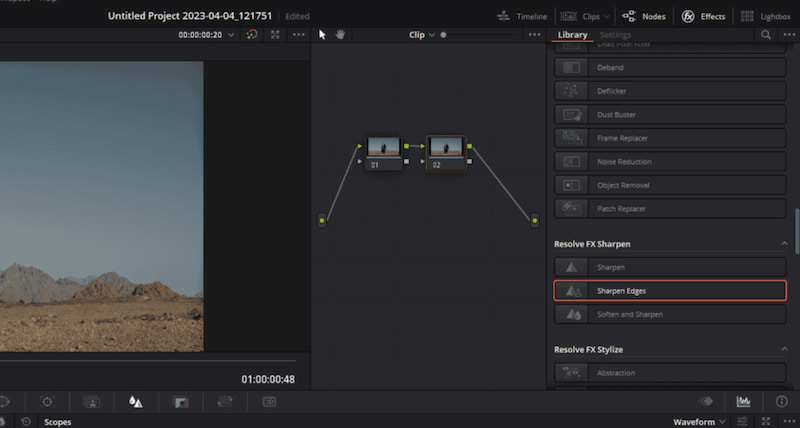
Step 3. You can also locate the Inspector panel in the upper right corner after selecting the clip. To adjust it with ease, scroll down to the Effects section to find the Sharpen settings and adjust the Sharpen Amount slider.
Method 2: Via the Super Scale function
The actual process of applying Super Scale is also direct. Only a few clicks in the Inspector panel are required. Thus, here is the second method we have to enhance video using DaVinci Resolve’s Super Scale feature.
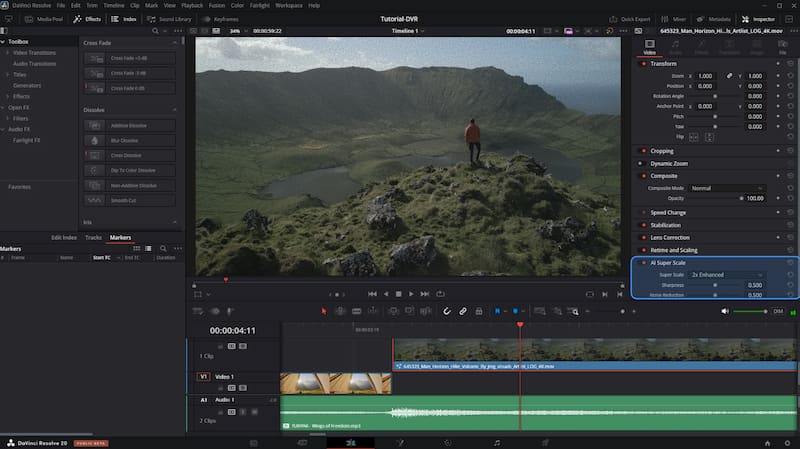
Step 1. The first thing we need to do is to choose a clip. To upscale a clip in your timeline, click on it. Next, please open the Inspector: To see the attributes of the clip, click the Inspector button located in the upper-right area of the interface. Make sure the Video tab is selected.
Step 2. Kindly, scroll down until the Super Scale settings appear. The amount of image upscaling is controlled in this area.
Step 3. At this moment, please decide how much you want such as, 2x, 3x, 4x, or more. Finally, select the factor that most closely corresponds to the difference between the resolution you require and your source footage.
2. Enhance Video Quality with AI Upscale Node (Fusion) in Davinci Resolve 20
The one that we did above is something more considered as a straightforward process. On the other hand, DaVinci Resolve Studio's Fusion features can be used for detail improvement and sharpening. Compared to the Super Scale option, this is typically more complicated and manual. Yet, allow us to guide you in using this feature.
Step 1. To navigate to the Fusion Page, please right-click your clip on the timeline of the Edit page and choose Open under Fusion Page.
Step 2. On the next step, we need to add nodes. The clip will show up as a MediaIn Node that is linked to a MediaOut node.
Step 3. Next, include Sharpening or Enhancement Tools. To improve details, use Fusion tools such as Resolve Studio 20's Sharpen node. Thus, to enter Sharpen in the tool selection menu, use Shift + Spacebar. Between MediaIn and MediaOut, add the node. On the other hand. You can manage the sharpening effect, change the Inspector's fine, medium, and big detail parameters.
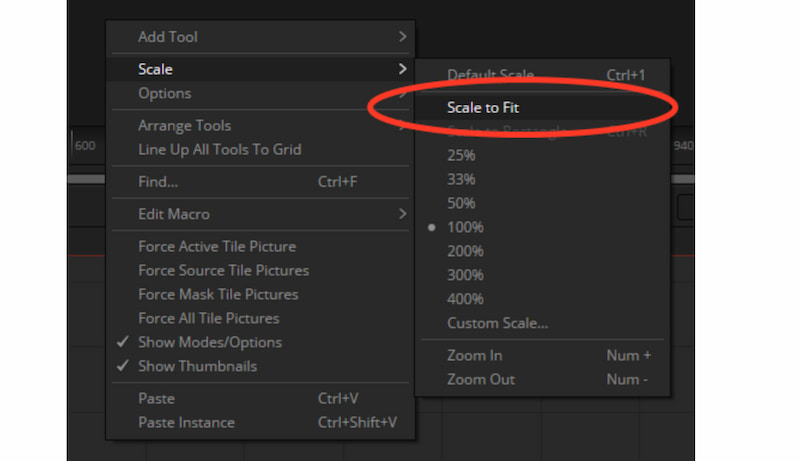
Note: In accordance with the professional, the most efficient native technique in DaVinci Resolve is the Super Scale feature, which is specifically created for this task using the Neural Engine for the best AI upscaling.
3. Best Alternative to DaVinci Resolve to Enhance Video Quality
We all understand that DaVinci Resolve is a tool that might be complicated with other users, specially with the novice one. That is why, if you need an alternative tool to use, FVC Video Converter Ultimate is the perfect tool for you. This tool's main purpose is to help us get the best quality of the video that we have by converting a specific video format into an accurate one that you need. More than that, it also offers a video enhancement features that directly enhances your
Características principais
- • Convert video formats with ease.
- • Enhance resolução de vídeo up to 4K.
- • Do some simple editing tools to make the video better.
Free DownloadFor Windows 7 or laterSecure Download
Free DownloadFor MacOS 10.7 or laterSecure Download
Steps to Use FVC Video Converter Ultimate
Step 1. Download FVC Video Converter Ultimate on your computer for free. Then, immediately open it to access the Video Enhancer feature.

Step 2. Select the video you want to enhance. And choose the specific enhancement you want for your video. In this situation, let us choose the General Enhancement Model feature. Then, proceed with the Export All button. Wait for a while, and your video will be ready.

4. FAQs about How to Enhance Video with DaVinci Resolve
Is DaVinci Resolve hard to use?
If you are planning to use DaVinci Resolve in enhancing your video, the features it possess might be overwhelming. Therefore, novice users can find it very hard to use.
Does DaVinci Resolve produce a high-quality result?
Yep. DaVinci Resolve is known for its great features and high-quality outputs. That is why, many professional users are using it and love to use it in heavy projects like film or advertising.
Is DaVinci Resolve free to use?
DaVinci Resolve includes two versions: a premium edition called DaVinci Resolve Studio, which costs $295 as a one-time purchase, and a free version with professional editing tools. DaVinci Resolve Studio is more affordable for long-term consumers than Adobe Premiere Pro because there are no monthly or annual membership fees.
Conclusão
With DaVinci Resolve we can see that you can improve video quality regardless of your preference for sophisticated workflows or fast repairs. The software provides adaptable solutions for varying skill levels, from basic sharpening tools to AI-powered Super Scale and Fusion upgrades. Although it may be difficult for novices, the results are unquestionably professional. Tools like FVC Video Converter Ultimate offer a more straightforward route to increasing resolution and overall video quality without a high learning curve for those looking for a less complicated option.
-
 Easiest Way to Enhance Video Quality in Premiere Pro
 Learn how to enhance video quality in Premiere Pro with simple steps, the best export settings, and an AI alternative for pro-quality results.
-
 Learn How CapCut Can Enhance Video Quality: 3 Easy Methods
 Do you want to enhance your video quality using CapCut but are not sure where to start? Read this article and learn how CapCut enhances video quality easily.
-
 Como aprimorar o vídeo com Topaz Video AI – Guia 2024
 Procurando maneiras de aprimorar seus vídeos? Neste artigo, aprenda como usar o Topaz Video AI para elevar a qualidade de seus vídeos com este guia passo a passo.
