


 Video Converter Ultimate
 Gravador de ecrã
 Reparo de vídeo
 Secure Download
Guia abrangente sobre como inverter vídeos para obter efeitos visuais impressionantes
Inverter ou espelhar um vídeo pode criar um efeito visual exclusivo e adicionar uma nova dimensão à sua filmagem. Se você deseja criar uma revelação dramática ou adicionar um toque divertido ao seu conteúdo, inverter um vídeo pode adicionar um elemento dinâmico ao seu projeto. Essa técnica pode ser obtida usando uma variedade de softwares de edição de vídeo, desde opções gratuitas como iMovie e Shotcut até ferramentas mais avançadas como Final Cut Pro e Sony Vegas.
With the ability to flip videos horizontally, vertically, or even in 3D space, there are endless creative possibilities when it comes to flipping or mirroring your footage. So why not experiment with this technique and see where it takes your next video project? In this guide, we'll cover the basics of video flipping and the best tools and apps to mirror video and edit your favorite footage. By the end of this post, you'll have all the knowledge and skills you need to master the art of video flipping and create stunning visuals that captivate your audience.

Parte 1. Maneira Simples e Eficaz de Virar Vídeos
Video Converter Ultimate by FVC is a comprehensive video conversion software that can not only convert video and audio files between various formats but also provides powerful editing tools to enhance your media files. One of its outstanding features is its ability to flip videos quickly.
Se você deseja girar um vídeo que foi gravado na orientação errada ou girá-lo horizontal ou verticalmente para fins artísticos, o Video Converter Ultimate pode ajudá-lo a fazer isso sem esforço. Com sua interface intuitiva e etapas simples, você pode virar vídeos com apenas alguns cliques. Além disso, o aplicativo suporta processamento em lote, permitindo que você inverta vários vídeos de uma só vez para economizar tempo e esforço. Siga o guia abaixo para inverter vídeos com este programa.
Step 1. Grab the program and install it
First of all, you need to grab a copy of the program's installer by hitting the Free Download button below. Then, set it up with the help of the installation wizard. Right after, launch it on your computer and circumnavigate it.
Free DownloadFor Windows 7 or laterSecure Download
Free DownloadFor MacOS 10.7 or laterSecure Download
Step 2. Access the video flipper
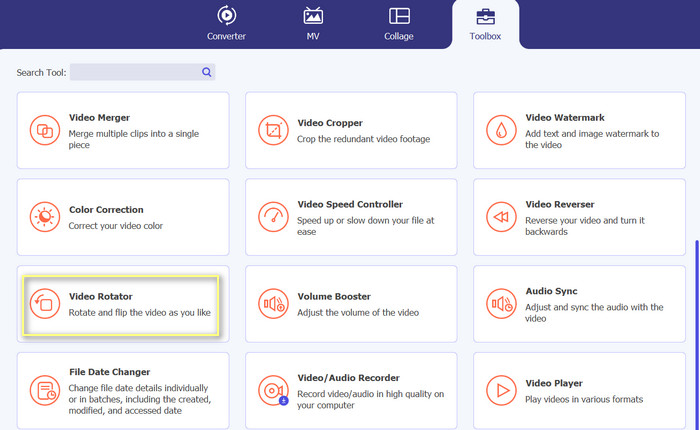
Now that the tool is launched, you should see four major tabs from the main interface. Select Toolbox > Video Rotator. Alternatively, you can search for the tool using the search bar to quickly retrieve the option.
Step 3. Add a video file
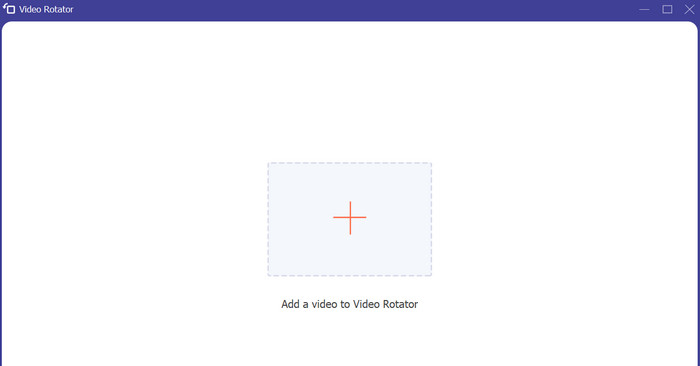
You can tick the plus sign button from the Video Rotator's upload panel. After that, it will bring you to the flipping interface.
Step 4. Flip the video
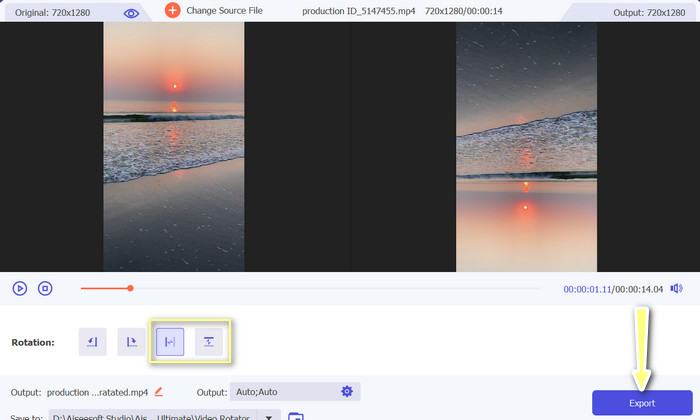
After the flipping interface has shown, you have now access to its flipping buttons. There you have options to flip the video horizontally or vertically. Simply select the appropriate button and tick the Export button to finish the process.
Parte 2. Como inverter vídeos no Premiere
Adobe Premiere Pro oferece suporte a uma ampla variedade de formatos de arquivo de vídeo, incluindo MP4, FLV, MOV, WMV, etc. A capacidade do Premiere Pro de inverter vídeos é apenas um dos muitos recursos que o destacam da concorrência. Esse recurso permite criar efeitos únicos e visualmente impressionantes em seus vídeos com apenas alguns cliques. Ele inclui os efeitos Inversão horizontal e Inversão vertical integrados. A função Horizontal Flip permite fazer um vídeo que é uma imagem espelhada do original. O vídeo é invertido ao usar Vertical Flip.
Another standout feature of Premiere Pro is its integration with other Adobe Creative Cloud applications, such as After Effects and Photoshop. This integration allows you to quickly move between applications and work seamlessly across different projects. Additionally, Premiere Pro offers a wide range of plugins and third-party integrations, making it a highly customizable and versatile video editing solution, such as speeding up videos, adding transitions, and more.
Domine como inverter um vídeo no Premiere, consulte as etapas abaixo.
Step 1. Open Adobe Premiere Pro and start a new project
Click the File menu and choose New from the main menu bar.
Step 2. Bring in the video you want to rotate
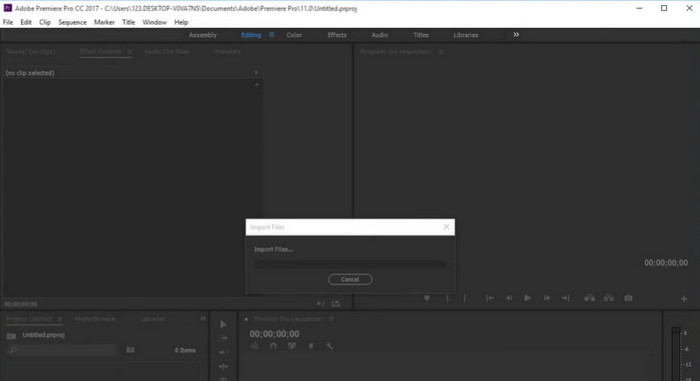
Select Import from the File menu on the menu bar. Then, use your file browser to choose the video and click Open.
Step 3. Put the video in the Timeline Panel
The video you just imported will now show up in the Project panel. Drag and drop the clip into the Timeline panel to add it to the timeline.
Step 4. Choose the video from the Timeline
To turn the video, you'll need to pick it. Click on the video in the Timeline panel to choose it.
Step 5. Turn your video around
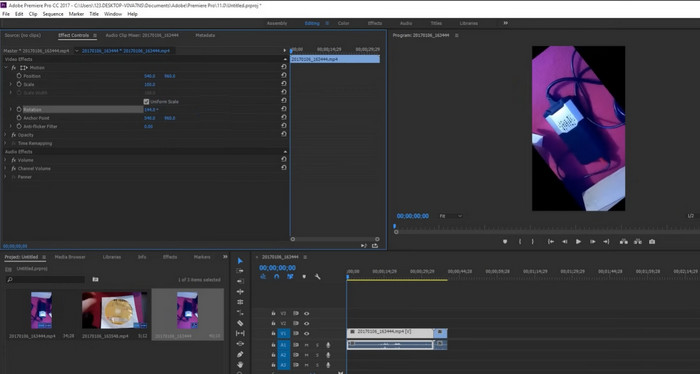
Click the Motion dropdown on the Effect Controls tab. This will show the dropdown menu for Rotation. Click on the number (the blue text that shows degrees) next to Rotation and type in the number of degrees you want. The video can be turned to 90, 180, or 270 degrees.
Step 6. Turn the video around
Go to the Effects tab in your Project panel, click on the Distort dropdown, and then double-click Transform from the dropdown menu that appears. Then, uncheck the box that says Uniform Scale. To flip your video horizontally or vertically, change the number next to Scale Width or Scale Height to -100.
Parte 3. Como inverter um vídeo no iMovie
Você pode adicionar um toque criativo ao seu projeto iMovie invertendo um clipe. Os resultados podem ser realmente impressionantes. Ou talvez você precise inverter um vídeo para reproduzi-lo corretamente. Seja qual for o caso, o iMovie torna simples girar, girar e inverter o vídeo no Mac, iPad e iPhone. A capacidade do iMovie de trabalhar com outros produtos da Apple, como iPhones e iPads, é um de seus melhores recursos.
Isso facilita muito a importação de vídeos e o trabalho em projetos em diferentes dispositivos. O iMovie também possui uma variedade de modelos e temas que facilitam a criação de um vídeo com aparência profissional com apenas alguns cliques. Além de virar um clipe vertical ou horizontalmente, você também pode girá-lo para a esquerda ou para a direita. Embora o iMovie não tenha tantos recursos avançados quanto alguns de seus concorrentes mais profissionais, é uma ótima opção para pessoas que desejam uma maneira fácil de usar e barata de editar vídeos. Uma das muitas coisas que o tornam uma escolha popular entre os usuários de Mac é que ele pode inverter vídeos.
Portanto, abra o iMovie no seu Mac e siga as instruções abaixo para aprender a inverter um vídeo no Premiere.
Step 1. Pop open iMovie and access cropping
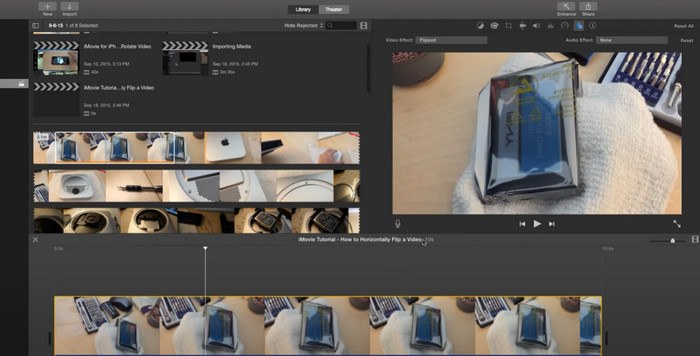
Launch iMovie and drop the media files onto the timeline to begin editing. Choose the videos you want to flip in the timeline, and then select the Cropping symbol from the toolbar above the video window.
Step 2. Crop the video
When you're in the viewer for the cropping tool, drag the rectangular box to the size you want. To find a plus sign, move the pointer to a corner. You can resize the video by dragging the slider. In order to maintain a border around your movie, you can utilize the allow black option. This is a great alternative if you want a virtual frame in your final video.
Step 3. Rotate the video
To rotate the image, use the cropping tool's Rotate button. Turning the video to the left or right is as simple as rotating the clips either clockwise or counterclockwise. Video clips may be easily flipped or mirrored in iMovie. Simply select the Filter button. Then, in the resulting window, choose the Flipped filter by clicking the Clip Filter button.
Step 4. Flip the footage
As soon as you've achieved the desired appearance, select the Apply button to commit your selections. The completed work can be viewed in this area. When you're satisfied, press the Finish button. Your video will be saved mechanically.
Looking for an iMovie app for Windows?
Parte 4. Tutorial em vídeo do VLC Flip
O reprodutor de mídia VLC é um reprodutor de mídia versátil e amplamente utilizado que ganhou a reputação de ser um dos reprodutores de mídia mais confiáveis e repletos de recursos disponíveis atualmente. Com sua capacidade de reproduzir uma ampla variedade de formatos de mídia e codecs, incluindo arquivos de áudio e vídeo, tornou-se uma escolha obrigatória para usuários em todo o mundo. Além disso, este aplicativo é compatível com computadores Mac e Windows. O VLC para Windows pode ser baixado se você ainda não o tiver.
Mas o que realmente diferencia o media player VLC é seu compromisso com a diversidade e acessibilidade. Está disponível em várias plataformas, incluindo Windows, macOS, Linux e até mesmo dispositivos móveis como Android e iOS, tornando-o acessível a uma ampla gama de usuários. Além disso, ele oferece suporte a vários idiomas, tornando-o uma escolha popular para usuários que falam outros idiomas além do inglês.
Siga as etapas abaixo para usar o recurso de vídeo flip do VLC:
Step 1. Pull up the video file
To flip a video, you've recorded in VLC on Windows, open the program and press Media to click on the open file option.
Step 2. Access Filters and effects
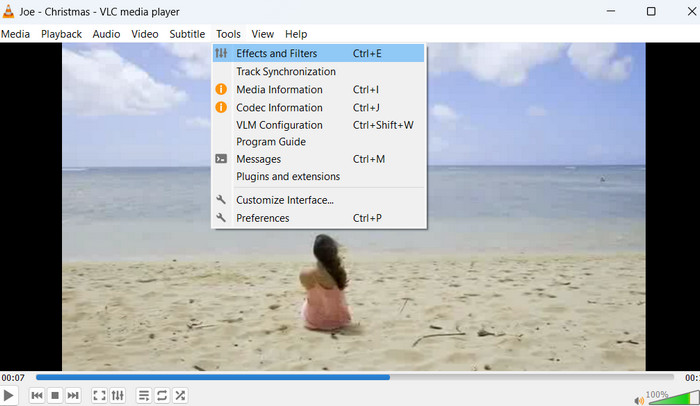
By pressing the Tools icon, you can quickly get to VLC's tools for editing videos. From there, you can access a variety of Effects and Filters.
Step 3. Launch video effects
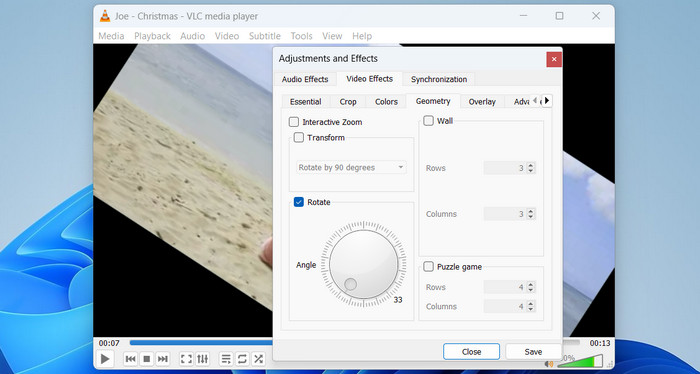
By tapping on the Adjustments and Effects window, you can now get to the Video Effects tab.
Step 4. Go to Video Effects and Geometry
Click on the Geometry option, which is one of the sub-tabs for video effects.
Step 5. Flip options in the Transform box
Você pode girar o vídeo de duas maneiras diferentes. Você pode fazer o mesmo procedimento para dominar como inverter vídeos no Windows 10.
Method One. Rotate it a certain amount
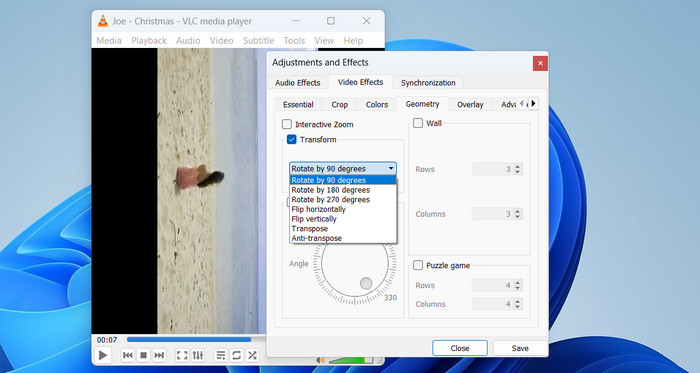
Uma maneira é girar 90, 180 ou 270 graus ou girar o vídeo horizontal e verticalmente. Para fazer isso, clique na caixa Transformar e escolha uma das opções no menu suspenso, como girar 90 graus.
Method Two: Move the circle by hand
Você também pode girar o vídeo escolhendo o ângulo de rotação manualmente. Para fazer isso, marque a caixa ao lado de girar. Você pode mover o ícone do círculo para encontrar um bom ângulo. No canto inferior direito, você encontrará o ângulo de rotação.
Parte 5. Como Inverter Vídeos no Final Cut Pro
O Final Cut Pro é um software de última geração para edição de vídeos que foi feito para atender às necessidades dos profissionais. A capacidade de inverter vídeos é uma das melhores coisas do Final Cut Pro. Esse recurso muito útil permite que os usuários adicionem efeitos especiais aos seus vídeos que são únicos e bonitos de se ver. Este inversor de vídeo facilita fazer um vídeo parecer uma imagem espelhada ou apenas invertê-lo horizontal ou verticalmente.
But that's just the iceberg's tip regarding Final Cut Pro's capabilities. It offers a wide range of advanced tools and effects that allow users to create high-quality videos with ease. Final Cut Pro has everything you need to create professional-level videos, from color grading and audio editing to watermark removing and special effects.
Step 1. Choose a Clip from the Timeline
Inicialmente, você deve importar clipes para o programa. Agora, na parte inferior do Final Cut Pro está a linha do tempo. Depois de colocar os clipes na linha do tempo, você pode dar a eles títulos e texto antes de colocá-los em seus vídeos.
Step 2. Click on the Transform button
You can get the Transform tool from a pop-up menu. It's in the bottom left corner, so it should be easy to see. You can also use the shortcut, which you can do by pressing (shift-T). Or, Control-click in the viewer and select Transform.
Step 3. Flipping video clips
Click the video clips you want to flip in the timeline and make sure they are highlighted. Then, click the Inspector icon on the right to open the Inspector panel, where you will see the Transform option.
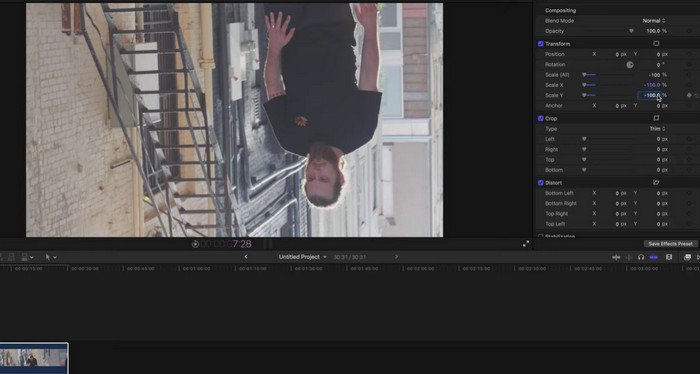
O botão Escala permite alterar o tamanho da imagem. Se você clicar na pequena seta ao lado dela, verá X e Y como opções. Digite 1,00 na barra lateral X e pressione a tecla Enter para virar o videoclipe. Então você verá que o clipe selecionado na linha do tempo foi invertido horizontalmente. Se você colocar -100 na barra lateral Y, o clipe será invertido verticalmente ou virado para cima.
Parte 6. Como Inverter Vídeos no DaVinci Resolve
Se você está cansado de usar um software de edição de vídeo que simplesmente não funciona? Não procure mais, DaVinci Resolve, o software padrão da indústria para edição de vídeo profissional. O DaVinci Resolve também é incrivelmente versátil, com compatibilidade em vários dispositivos e plataformas, incluindo Windows, Mac e Linux. Isso o torna a escolha ideal para editores de vídeo que precisam trabalhar em vários dispositivos ou que desejam colaborar com outras pessoas em um projeto.
A capacidade de inverter vídeos é um dos melhores recursos do DaVinci Resolve. Com esse recurso, você pode adicionar efeitos impressionantes aos seus vídeos que os farão se destacar. O DaVinci Resolve facilita virar um vídeo horizontal ou verticalmente ou criar um efeito de imagem espelhada. Quer saber como inverter vídeos no DaVinci Resolve? Siga os passos indicados:
Step 1. Open DaVinci
On your computer, open DaVinci. In the first window, you can open some old projects. Click on New Project if you want to do a new project. Enter the project's name and then click on Create.
Step 2. Put the video in
Click on Media after you go to File > Import. You can also use the Ctrl+I shortcut on your keyboard. Choose a video from your computer and then click Import. The video you imported will be in the media pool. Now, just drag the video onto the timeline.
Step 3. How to reflect the video with DaVinci
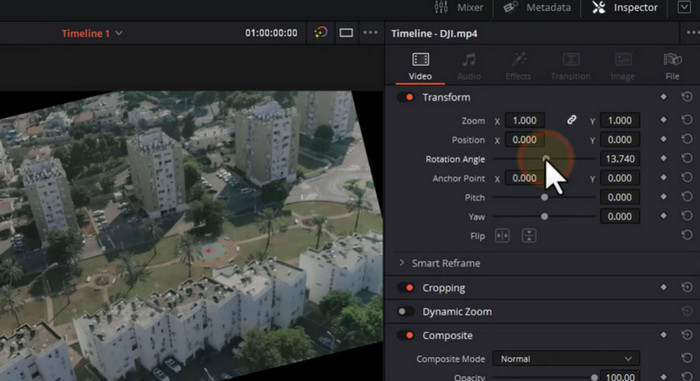
You can find the flip setting in the Inspector panel. You can flip the video by clicking on the Inspector button in the top right corner of the screen. The panel will be on the right. Find the option to Flip. There will be flips to the left and to the right. You can click on any flip you like.
Step 4. Modify the video
Cabe a você decidir quando quiser ajustar ainda mais o vídeo. Com o DaVinci, um editor de vídeo completo, você pode dar um toque profissional aos seus vídeos. Use esta ferramenta para polir seu trabalho em um pixel fino.
Step 5. Save the video for sharing or later viewing
Simply select Quick Export from the File menu. After customizing the video to your liking, hit the Export button.
Parte 7. Perguntas frequentes sobre vídeos invertidos
Existe um limite para o tamanho do arquivo ou duração de um vídeo que pode ser invertido no OpenShot?
Não, você pode usar o OpenShot para virar vídeos sem quaisquer limitações específicas no tamanho do arquivo ou duração de um vídeo que pode ser virado. No entanto, vídeos maiores e mais longos podem levar mais tempo para processar e podem exigir mais poder de processamento e memória no computador do usuário.
É fácil virar vídeos no PowerDirector?
Sim, inverter vídeos no PowerDirector é um processo simples. Os usuários usam o PowerDirector para inverter vídeos rapidamente, selecionando o videoclipe que desejam inverter e escolhendo a ferramenta Girar e Inverter na barra de ferramentas. A partir daí, eles podem selecionar a opção Inverter horizontalmente ou Inverter verticalmente para inverter o vídeo.
O Shotcut pode exportar vídeos em diferentes formatos e resoluções?
Após a função ShotCut flip video, você pode exportar seus vídeos editados em uma variedade de formatos e resoluções, incluindo HD, 4K e até resoluções personalizadas. Os usuários também podem escolher entre uma variedade de predefinições de exportação com base no uso pretendido do vídeo, como YouTube, Vimeo ou mídia social.
Que outros recursos de edição de vídeo o Sony Vegas oferece além de inverter vídeos?
O Sony Vegas oferece uma infinidade de recursos de edição de vídeo, incluindo corte, divisão e fusão de vídeo, além de recursos avançados, como gradação de cores, efeitos especiais e edição 3D, além do recurso de vídeo flip do Sony Vegas. Ele também possui um poderoso conjunto de edição de áudio com ferramentas para redução de ruído, equalização e mixagem de som surround.
Conclusão
In summary, flipping videos can add an exciting and unique element to your video content, providing a fresh perspective and a dynamic visual effect. Whether you're creating a fun social media post or professional production, the ability to flip your footage horizontally, or vertically. Besides, there is a wide range of video editing software options available, so it is simple and easy to flip videos, allowing you to experiment with different techniques and find the perfect style to suit your project.
-
 Como compactar vídeos gratuitamente / Experimente estes 7 compressores de vídeo online
 Leia e obtenha 7 maneiras de compactar vídeos gratuitamente em seu computador ou telefone. Você pode reduzir vídeos grandes em tamanhos de arquivo pequenos para e-mail, Twitter, Instagram, YouTube, WhatsApp e muito mais com facilidade.
-
 4 maneiras incríveis de adicionar um filtro a um vídeo no Windows e macOS
 Quer saber a melhor forma de colocar filtros nos vídeos? Felizmente, encontramos os três editores de vídeo que você pode usar nessa tarefa; continue lendo este post para saber mais.
-
 Como encurtar um vídeo facilmente usando as melhores ferramentas
 Aprenda a encurtar um vídeo usando a melhor e mais usada ferramenta. Leia este artigo para saber os detalhes completos sobre as ferramentas e como usá-las.
