


 Video Converter Ultimate
 Gravador de ecrã
 Reparo de vídeo
Easiest Way to Make Horizontal Videos Vertical [2026]
If you’re creating a video and you want to post it across social media platforms like YouTube and TikTok, for sure, one of your concerns is editing the same content based on the platform’s aspect ratio. Well, you’re not alone with this, as many content creators and videographers had to edit their videos twice accordingly. But what if you already have that horizontal video and it needs to be vertically produced? The answer to this is that there are easy ways to turn them vertical.
In this article, learn various tools that can help you make horizontal videos vertical. Whether you’re using a desktop or a mobile device, you’ll discover simple methods that let you resize, crop, or reframe your footage without starting from scratch. So instead of re-recording or spending hours re-editing, you can quickly transform your existing horizontal videos into vertical formats that are ready for platforms like TikTok, Instagram Reels, or YouTube Shorts. Let’s explore the easiest ways to get it done.

Part 1. Method 1: Using Desktop Softwares
If you’re someone who prefers editing videos on a desktop, you’ll find that it offers more flexibility and control when converting horizontal videos to vertical. Desktop software is ideal for handling detailed adjustments, allowing you to precisely crop, resize, and reframe your video without compromising quality.
Tools like FVC Video Converter Ultimate and Adobe Premiere Pro make this process much easier by providing built-in features for aspect ratio adjustment, framing, and exporting videos in formats suitable for platforms like TikTok, YouTube Shorts, and more.
FVC Video Converter Ultimate
FVC Video Converter Ultimate is a reliable tool that allows you to easily convert horizontal videos to vertical without sacrificing video or audio quality. It lets you adjust the aspect ratio, width, and height of your footage to match the requirements of different platforms.
With its user-friendly interface, you can quickly resize or reframe your videos, whether you’re aiming for a specific aspect ratio or customizing dimensions based on your project and the platform where you’re going to upload it.
Steps on How to Make Horizontal Video Vertical with FVC Video Converter Ultimate:
Step 1. First, you need to download and install the tool on your computer. FVC is available for Windows and macOS.
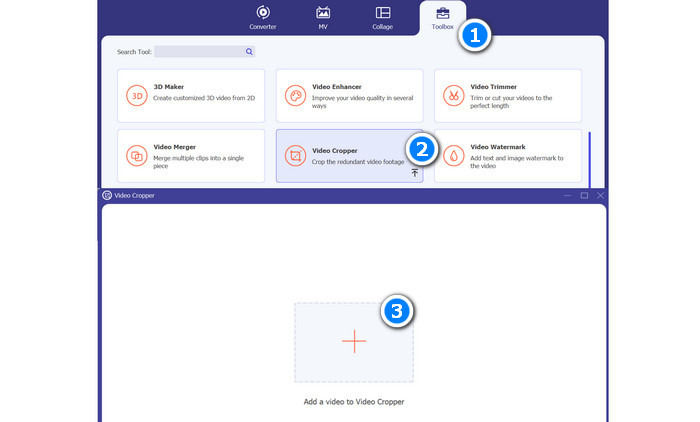
Step 2. Next, open the tool and select the Toolbox menu option. From there, choose the Video Cropper and click the plus sign button in the upload field.
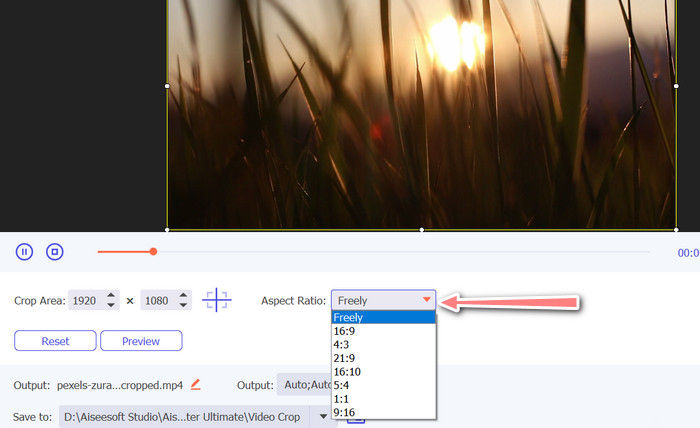
Step 3. Now, to make your horizontal video vertical, click the aspect ratio below and choose 9:16. Once done, click the Export button below.
Adobe Premiere Pro
Adobe Premiere Pro is a professional video editing software designed for creators who want full control over their videos. When it comes to converting horizontal videos into vertical, it offers precise tools for cropping, reframing, and adjusting aspect ratios without compromising quality.
With its advanced timeline editing and customizable settings, you can easily reposition subjects, maintain important details within the frame, and export videos accordingly. While it may take some time to learn, its powerful features make it a top choice for those who want a polished and high-quality vertical video.
Steps on How to Make Horizontal Video Vertical with Adobe Premiere Pro:
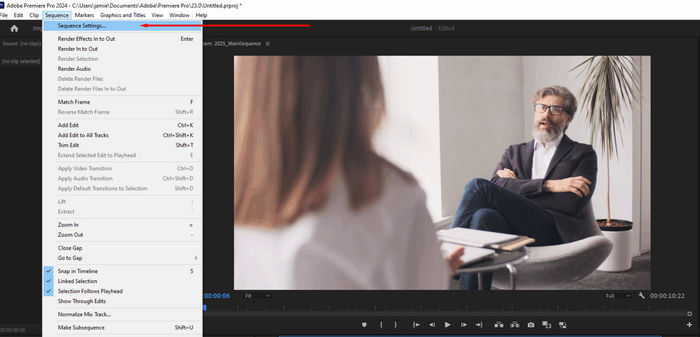
Step 1. Start by opening your project, then head to the top menu, select Sequence, and click Sequence Settings.
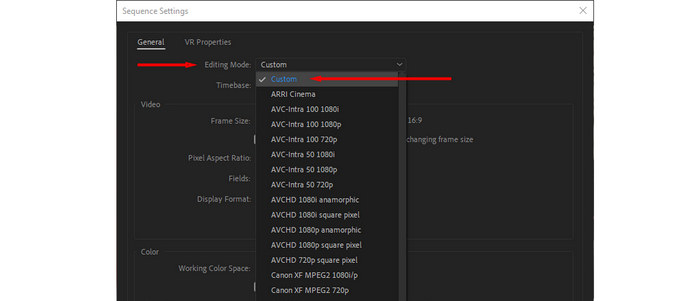
Step 2. After that, a Window will pop up, from there find the Editing Mode dropdown and switch it to Custom so you can manually adjust the video dimensions.
Step 3. In the same window, locate the Frame Size section, then change the values to 1080 for the width and 1920 for the height to achieve a vertical 9:16 aspect ratio. Also, ensure the Pixel Aspect Ratio is set to Square Pixels, then click OK to apply the changes.
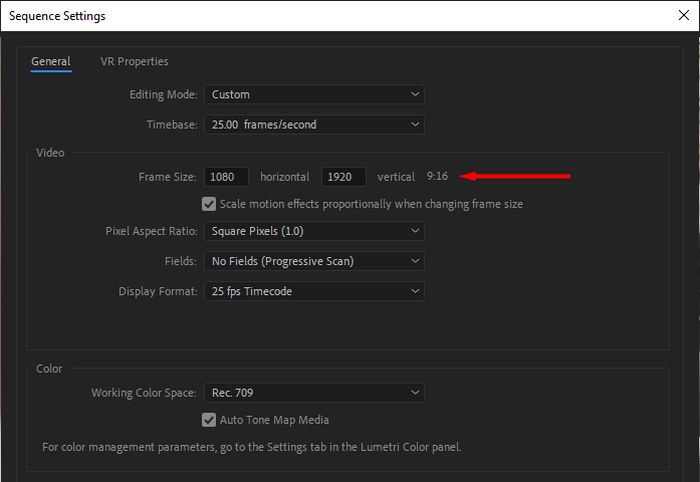
The 1080 × 1920 resolution is the standard for vertical HD videos and works across platforms like TikTok, Instagram, and YouTube, so there’s no need to change settings for each one.
Part 2. Method 2: Using Mobile Apps
If you prefer editing on your phone, converting horizontal videos to vertical is just as easy with the help of mobile apps. These apps are designed for quick and convenient editing, allowing you to resize, crop, and adjust your videos directly from your device.
CapCut
CapCut is a beginner-friendly mobile editing app that makes it easy to convert horizontal videos into vertical videos. With its simple interface, you can quickly adjust the aspect ratio, crop your footage, and reposition elements to fit a vertical frame. It also offers extra features like effects, transitions, and auto-reframing, making it a great choice for creating engaging content for social media.
Steps on How to Make Horizontal Video Vertical with CapCut:
Step 1. Open the CapCut app and tap New project to begin. After that, select the video that you want to convert into vertical.
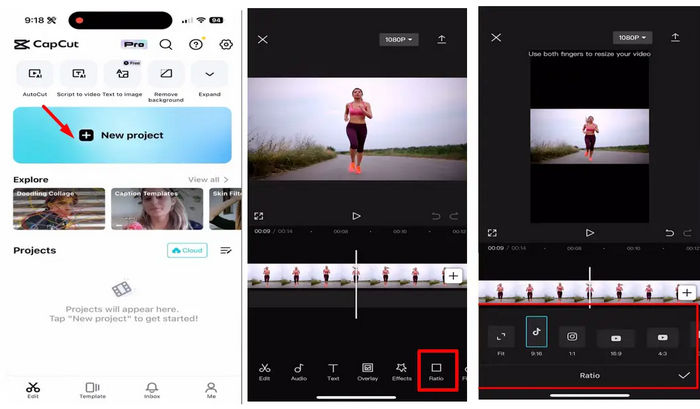
Step 2. After that, tap the Aspect ratio option located at the bottom of the screen. Select your preferred vertical aspect ratio.
Step 3. Once the aspect ratio is set, you can reposition, resize, or rotate your clips to fit within the vertical frame. Use the pinch-to-zoom gesture to ensure key elements of your video are centered and visible.
Step 4. Lastly, tap on the Export button in the top-right corner to save the video to your device. You can also share it directly on social media platforms from within the app.
InShot
InShot is a versatile mobile video editor that allows you to make a horizontal video vertical with just a few taps. It provides easy-to-use tools for cropping, adjusting aspect ratios, and adding borders or backgrounds to fit vertical formats. With its straightforward controls and practical features, it’s ideal for users who want quick and clean edits directly from their phone.
Steps on How to Make Horizontal Video Vertical with InShot:
Step 1. First, click Video on the homepage, select your video, and click the green checkmark.

Step 2. After that, click Canvas on the bottom menu to select your aspect ratio, 16:9 in this case.
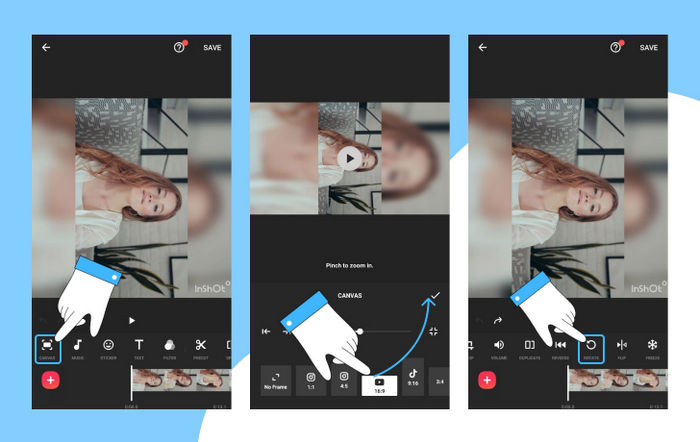
You can either pinch and zoom in or use the scroll wheel to zoom in to make your shot fill the screen within the new aspect ratio. then click
Part 3. FAQs about Making a Horizontal Video Vertical
Can I convert a horizontal video to vertical without losing quality?
Yes. Tools like FVC Video Converter Ultimate, Adobe Premiere Pro, CapCut, and InShot allow you to convert horizontal video to vertical without significantly affecting video or audio quality. Proper resizing and reframing ensure your content remains sharp and clear.
Do I need different settings for TikTok, Instagram, or YouTube Shorts?
No. The standard vertical resolution of 1080 × 1920 pixels or 9:16 aspect ratio works across TikTok, Instagram Reels, and YouTube Shorts, so you can use the same settings for all these platforms.
Do I need to adjust the audio when converting a horizontal video to vertical?
No. Converting horizontal video to vertical only affects the video frame. The audio remains unchanged unless you choose to edit it separately.
Conclusão
Now that you know how to convert horizontal video to vertical, it will be easier for you to edit your videos and upload them on platforms that require a 9:16 aspect ratio. You can choose the method that best fits your workflow, either desktop software like FVC Video Converter Ultimate or Adobe Premiere Pro for precise control, or mobile apps like CapCut and InShot for quick edits on the go.
With your videos properly formatted, they’ll look great on TikTok, Instagram Reels, YouTube Shorts, and other vertical-focused platforms, helping you reach your audience more effectively and create content that stands out.
-
 Learn How CapCut Can Enhance Video Quality: 3 Easy Methods
 Do you want to enhance your video quality using CapCut but are not sure where to start? Read this article and learn how CapCut enhances video quality easily.
-
 Como cortar um vídeo no QuickTime para remover partes indesejadas
 Quer saber como cortar um vídeo no QuickTime? Aprenda os segredos, como usar o QuickTime Pro e as melhores alternativas para Mac para enquadrar vídeos perfeitamente.
-
 Corte facilitado: como cortar vídeo do TikTok para engajamento total
 Aprenda a recortar seus vídeos do TikTok com nosso tutorial simples! Você pode criar vídeos visualmente mais atraentes com apenas alguns toques e deslizar.
