


 Video Converter Ultimate
 Gravador de ecrã
 Reparo de vídeo
Dicas e truques para aumentar o volume no seu Windows/Mac/iPhone/Android
Most of the PC, Mac, Android or iPhone are capable only of fair loud volume. Although it is not good enough to be used to feel the shivers crawl to our skin or even enjoy it. Moreover, we can fix it by increasing the volume of it to the max. Although you make it louder, some of the videos we watch are still low. So now, we present different techniques for you to choose from to help you to listen to a good video with your own devices only. And if you are ready to start then let's proceed and explore how to increase volume easily on different platforms.

Parte 1. Como aumentar o volume no Windows/Mac/iPhone/Android
1. Janelas
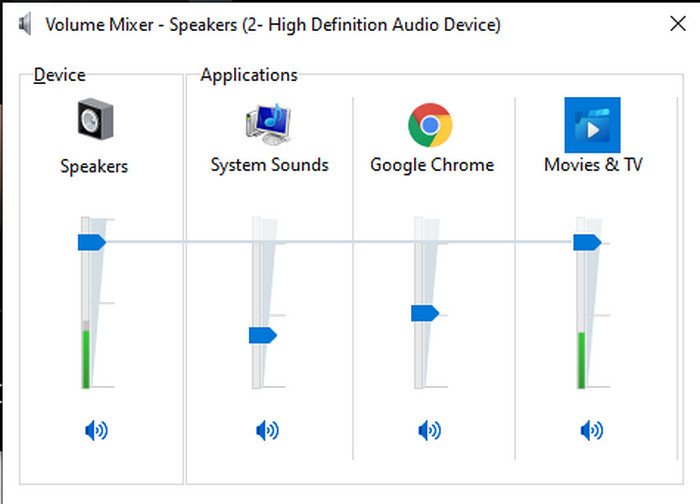
Aumentar o volume do MP3 no Windows PC é muito mais fácil, mesmo que você não precise usar um terceiro. No entanto, se você quiser aumentar o áudio aqui, não espere algo especial. Porque este sistema operacional não fornece nenhum equalizador para ajudá-lo a manipulá-lo. Mas você pode ajustar o volume dos outros aplicativos que deseja aumentar ou diminuir o som. Então, agora, vamos prosseguir nas etapas abaixo para determinar como tornar o som do seu vídeo mais claro no PC com Windows.
How to Increase the Volume of the Video on Windows:
Step 1. On the interface of your Windows PC locate on the lower right side the Speaker.
Step 2. Press the right click on your mouse and click Open Volume Mixer.
Step 3. Adjust the Device to make it higher or lower all of the volume. However, if you want to adjust a single sound only then you can do it by dragging it up or down.
2. Mac
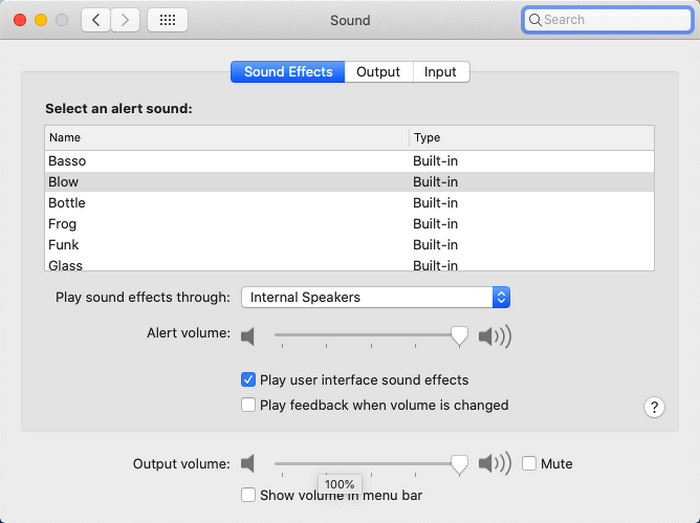
Assim como no Windows, você pode manipular e aumentar facilmente o volume do seu vídeo no Mac. Além disso, se você deseja aumentar a saída de áudio no seu Mac, essa deve ser sua escolha para executá-lo facilmente. No entanto, como dito anteriormente, é como o Windows, mas em um programa diferente, este sistema operacional não possui equalizador embutido para fazer com que o volume mude drasticamente. E agora, se você quiser aprender como aumentar o volume, siga esta etapa indicada abaixo.
How to Increase the Volume of the Video on Mac:
Step 1. Open your mac and click the apple shaped button at the top.
Step 2. Then click the System Preference under it. Press the Sound to proceed to the last step.
Step 3. Adjust the Output Volume by dragging the slider to increase or decrease the sound.
3. iPhone
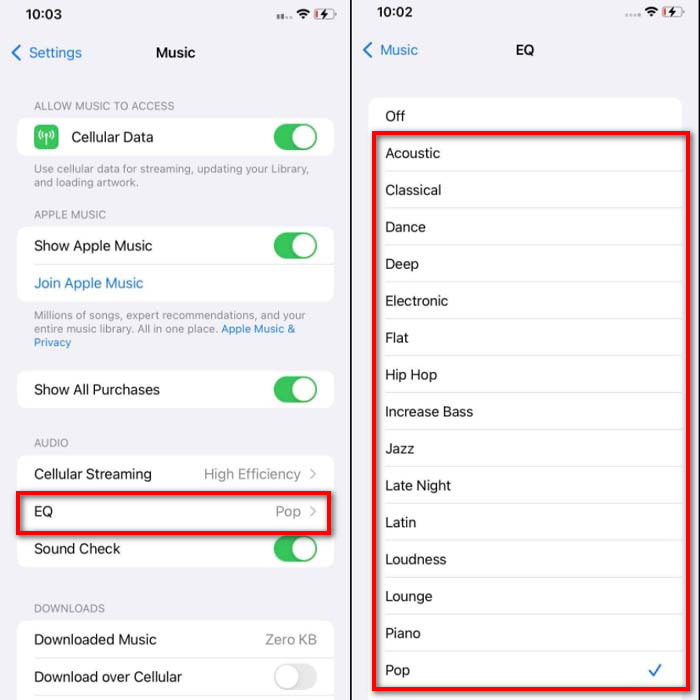
Se você tiver um iPhone, poderá aprender facilmente como aumentar e melhorar o volume. Porque este dispositivo possui um equalizador integrado que certamente o ajudará. Além disso, a capacidade de aumentar o áudio neste telefone ainda nos surpreende. Porque não sabíamos que havia um equalizador portátil que os usuários do iOS poderiam usar. Então, agora, se você não tem uma idéia de como usá-lo, as etapas a seguir o ajudarão a fazê-lo.
How to Increase the Volume of the Video on iPhone:
Step 1. Go to the Settings and locate the Music then click it.
Step 2. Press the EQ and choose on the list below, after choosing go back to Home.
Step 3. Click Music now the Music and play the music there. Then increase the volume by clicking the volume up or down button on the side of your iPhone.
4. Android
O Android nunca decepcionará seu usuário porque este dispositivo móvel também possui um equalizador embutido. Embora se você aumentar a qualidade e o volume em si com o equalizador disponível aqui, ainda não é tão eficaz como no iPhone. No entanto, se você usá-lo e ajustar o volume com fones de ouvido ou alto-falantes, sentirá a mudança drástica do volume. Mas observe que as etapas podem variar de acordo com a marca e o modelo do seu dispositivo. Além disso, essas etapas funcionaram no Realme 7 pro, Android versão 11 e superior. Então, se você está se perguntando, como faço para aumentar o volume no meu telefone Android, siga as etapas abaixo.
How to Increase the Volume of the Video on Android:
Step 1. Go to the Settings and locate the Sound & Vibration.
Step 2. Scroll it down to locate the Dolby Atmos and click it to proceed.
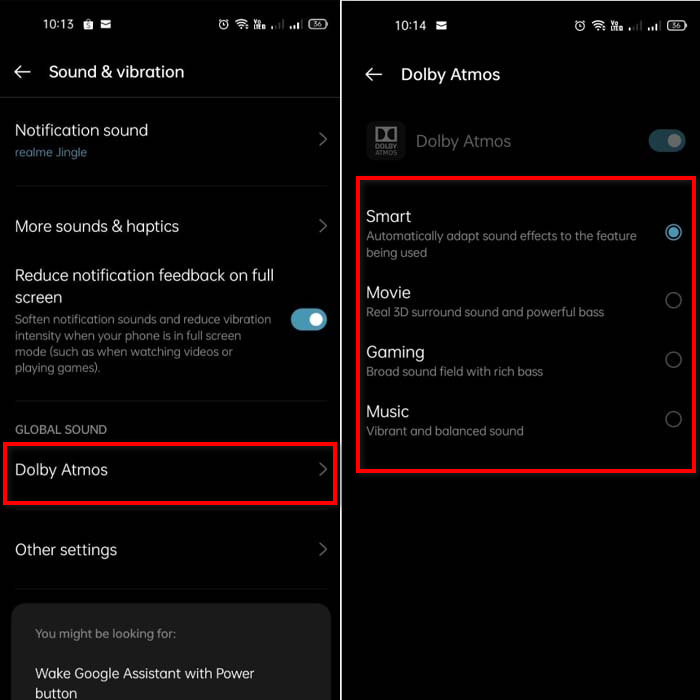
Step 3. Change the equalizers by choosing from the list. If you want to make your sounds better then insert a headphone to make much louder and better sounds. Then adjust the volume up and down on the side of your Android phone to make it sound higher or lower.
Parte 2. Ainda não consegue ouvir o volume dos vídeos? Tente Impulsioná-lo com o Video Converter Ultimate
Although the steps provided above are great to help, still it lacks some of the increasing intensity of the volume. So now, we present to you the phenomenal volume booster you can use to convert your low volume and boost them in here, Video Converter Ultimate. This software has already been used by +10 million users over the entire globe. Also, you can't access this tool on your mobile devices because it is not supported. However, you can use this software on your PC or Mac then save it directly first on your drive and later transfer it to your phone. Without further ado, let's determine how to use the volume booster available in this tool and learn how to make your volume louder than ever.
How to Boost the Volume of the Video with the Help of Video Converter Ultimate:
Step 1. Before you can use the Video Converter Ultimate you must download it first on your hard drive. Then install the tool and do the set-up then click Start Now to launch it.
Free DownloadFor Windows 7 or laterSecure Download
Free DownloadFor MacOS 10.7 or laterSecure Download
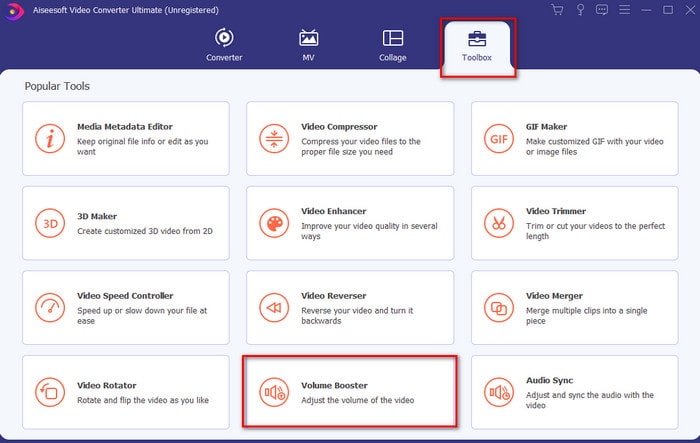
Step 2. After launching the tool, proceed to the next step, then go to the Toolbox and find the Volume Booster.
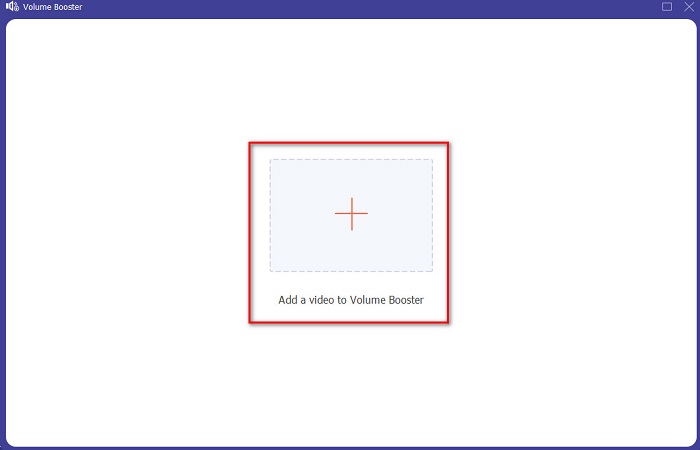
Step 3. Click + sign to add the video you want to be boosted. Locate the file on the folder that will show next on your display then click open to continue.
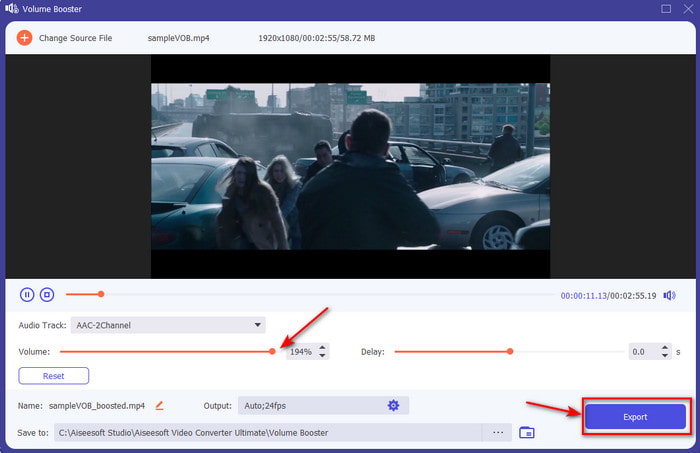
Step 4. On the tool interface you adjust the volume slider of the volume to the max or on your specific preference. If you are now satisfied with the volume, you've set click now Export to download the file.
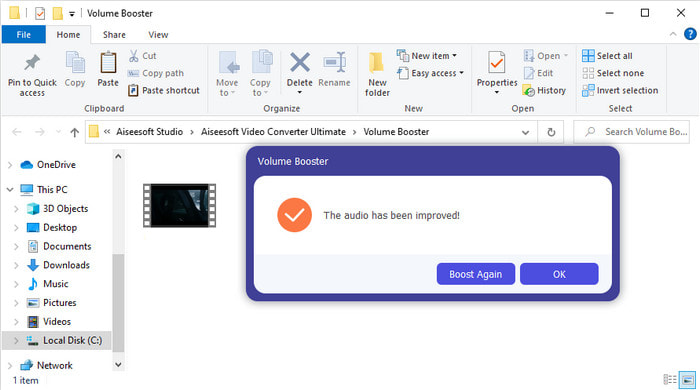
Step 5. Wait for a couple of seconds to be processed. If the file is already done a folder will automatically be shown to your screen, then click the file to listen to the volume of the video you've adjusted.
Parte 3. Perguntas frequentes sobre aumentar o volume
Posso aumentar o volume no VLC?
Na verdade sim, em vez de usar um amplificador de volume você pode usar o VLC Player para aumentar a saída de áudio do seu vídeo. Além disso, em vez de limitar o áudio a 100%, você pode estender o volume até 125%, se desejar.
A conversão de vídeos reduz a qualidade do vídeo e do áudio?
Well, it depends on what format you want to convert. For example, if you convert an AVI to MP4 then expect some quality changes because the AVI format is uncompressed. However, we can avoid this by reading upon this article and to proceed just click this link. So, if you're about to convert a compressed file into an uncompressed or into another compressed format. Expect some changes as well if you do it regularly but if you do it once then quality will not be going to change.
Como corrigir um atraso de vídeo e áudio?
Actually, there are two ways on how to fix it. The first one is to delete it and re-download the video if it is available on the web. And don't let the process be interrupted and have a stable internet connection to avoid missing some files. However, if this file is for you only then it is a must to choose a software that will help you to sync the audio and video. So now, to have an idea of the available software and how to sync audio and video easily then click the link and read the write-up. As we accumulate different software you can choose one.
Conclusão
As we now know how to fix the low audio on our video, this is now the right time to do it. Just by following the simple steps provided above to make your volume even better than before. Although the step is not all about how to increase the audio by pressing or increasing it. But with the help of the other techniques, you can easily perform. However, if you feel that the audio on your PC, Mac, Android or iPhone are still low then boost it with the Video Converter Ultimate. So now, increase volume to the next level and experience a much louder and better audio.
-
 7 etapas fáceis sobre como corrigir problemas de atraso de áudio OBS [Resolvido]
 Você tem dificuldade para assistir ao seu videoclipe após a gravação devido ao atraso do áudio ao usar o OBS Studio? Leia o artigo abaixo para saber como corrigir o áudio fora de sincronia de forma eficaz.
-
 Excelentes Maneiras Possíveis | Como corrigir o atraso de áudio do VLC [2021]
 Você tem dificuldade em assistir seu filme favorito em seu reprodutor de mídia VLC por causa da incerteza de áudio? Continue lendo este artigo para saber todas as maneiras possíveis de corrigir o atraso de áudio do VLC.
-
 Melhores maneiras de aumentar o volume de MP4 online e offline
 Você tem dificuldade para ouvir os sons do seu videoclipe? Leia o artigo abaixo para saber como aumentar o volume do mp4 de diferentes maneiras.
