


 Video Converter Ultimate
 Gravador de ecrã
 Reparo de vídeo
 Secure Download
Guia simples sobre como fazer parte de um vídeo em câmera lenta de forma eficaz
Most filmmakers use an overcranking to make the video play in a slow-mo, but mainly it is used in sports for instant replay. Due to the artistic effect it brings to the table; everyone changes the video speed to their desired pace. In other words, the demand for a slow-motion editor became widely spread in the entire internet world, and the need for a perfect video speed controller became higher and higher each time. To reach your demand for the best speed controller, we will review the top 3-speed controller we found on the market that provides a highly applaudable for editing the speed of the video. In addition that we will also include a tutorial on how to make part of a video in slow motion on each tool, we select only for you.

Parte 1. Melhor maneira de fazer parte de um vídeo em câmera lenta [altamente sugerido]
With the demand of having the best speed controller to slow down a clip, FVC Video Converter Ultimate provides the assistance you will need to finish this task. This ultimate converter offers a unique feature to make your video slow down or play into a high-speed motion and then apply it in less than a few clicks. You can’t go wrong using the software, for it is one of the easiest to understand the software you can have, and it has a clean GUI to make everything for you understand and organize.
Além de seu controlador de velocidade, você também pode usar este software para dividir e mesclar vários vídeos de uma só vez. Muitos usuários ficaram encantados com este software por causa dos recursos e funções multifuncionais que ele oferece a você. Então, suponha que você queira fazer parte da comunidade encantada e ficar impressionado com este software. Nesse caso, você pode ler o tutorial abaixo sobre como desacelerar parte de um vídeo, mas primeiro você precisará baixar e instalar o software e depois abri-lo para começar.
Free DownloadFor Windows 7 or laterSecure Download
Free DownloadFor MacOS 10.7 or laterSecure Download
1. Corte a parte do vídeo que você deseja em câmera lenta
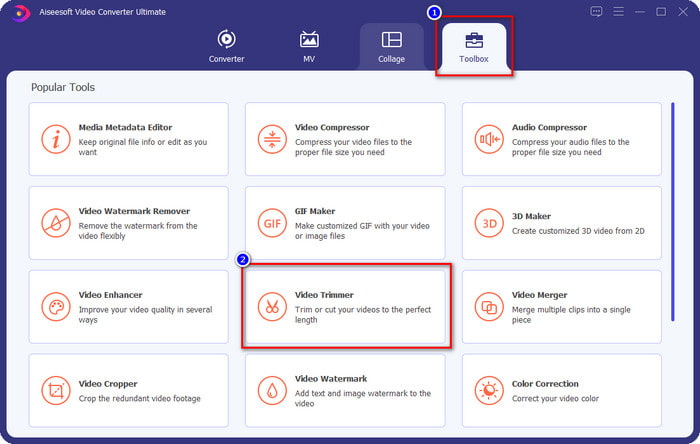
Step 1. After you launch the software, go to Toolbox and find there the Video Trimmer.
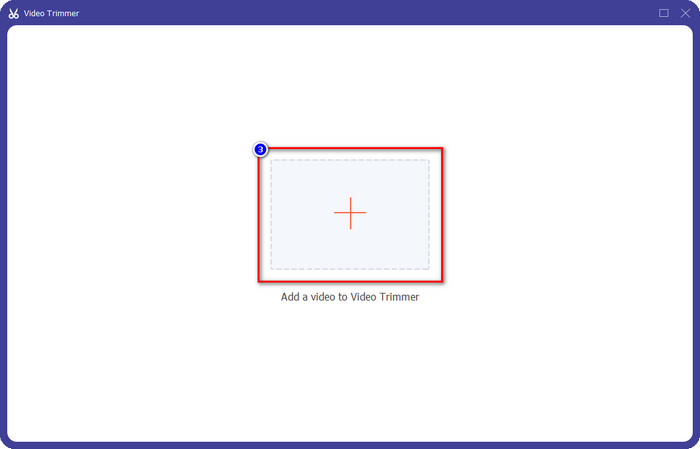
Step 2. Press the + icon to add the video you want to split, find it in your folder and click Open.
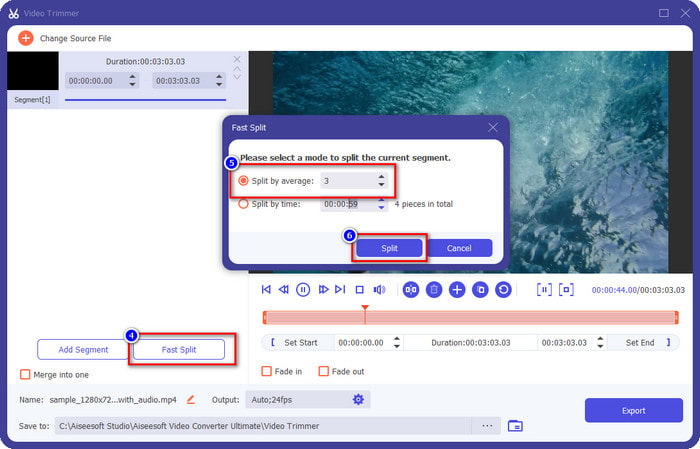
Step 3. On the trimmer, click Fast Split to cut the video you add into segments and change the number of splits into your desired video. After you set the segments of the video, click Split.
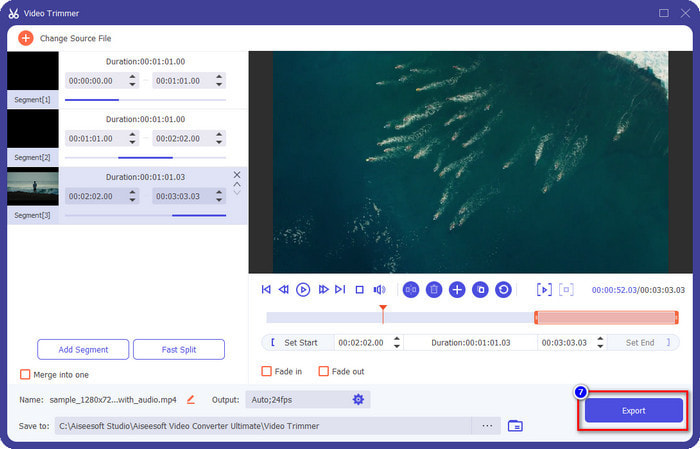
Step 4. Click each video to see if these are the right segments you want to slow-mo, and click Export to save the video in your drive.
2. Altere a velocidade do segmento que você exportou
Step 1. Look for the Video Speed Controller to slow down the segment you cut earlier on the Toolbox.
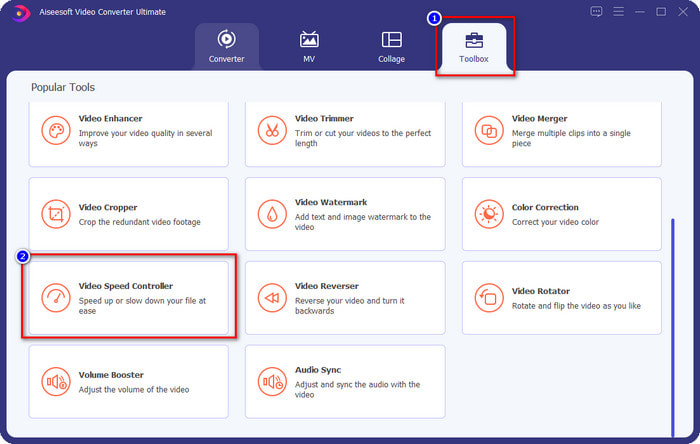
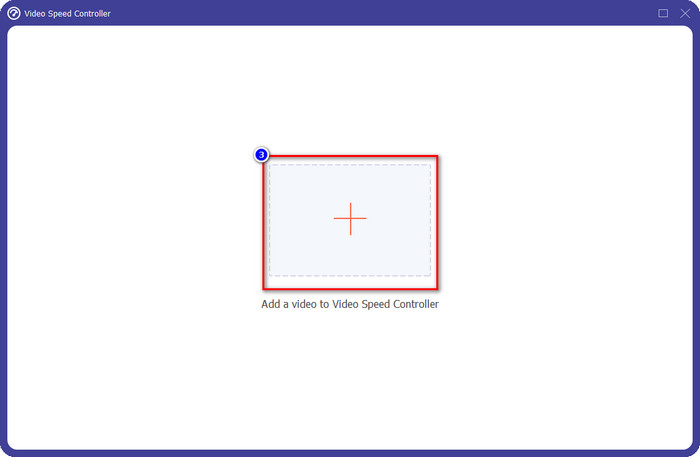
Step 2. Press the + button to add a video file, locate the video file you split and want to slow down, and click Open to upload it.
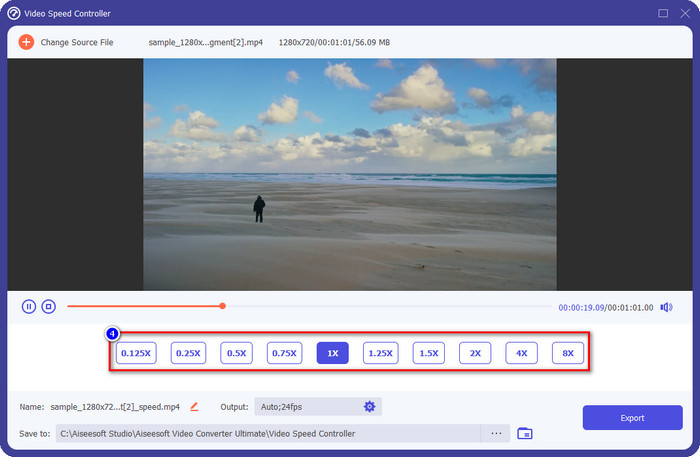
Step 3. After inserting the video, choose the slow-mo effect you want to apply to the video you cut. Several speed options will show on your screen. Try them all out to see if that is the slow-mo you want to achieve.
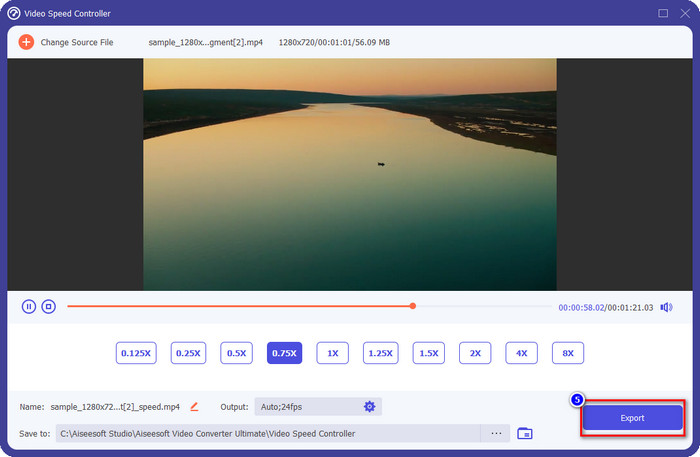
Step 4. To save the video, you slow down click Export.
3. Mescle o vídeo que você cortou anteriormente com a câmera lenta
Step 1. After you cut and add a slow-mo effect to the video, click the Video Merger to combine all of the videos, you can find it on the Toolbox.
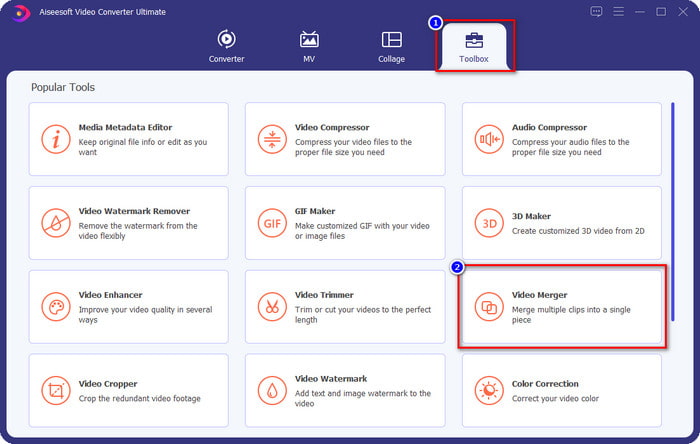
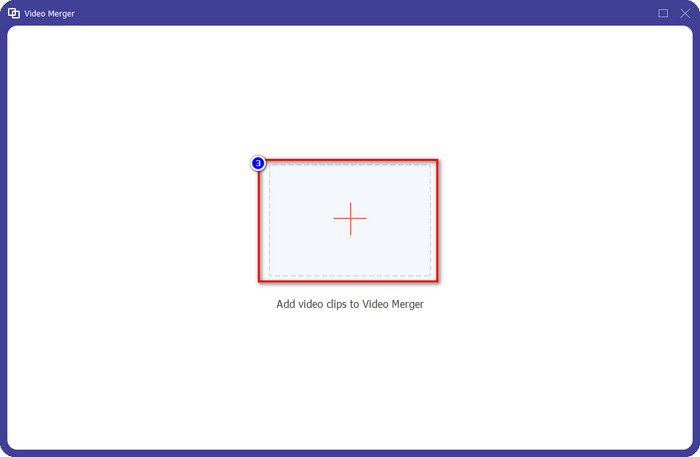
Step 2. By clicking the + button, a folder will show on your screen; click the file you want to add, then press Open.
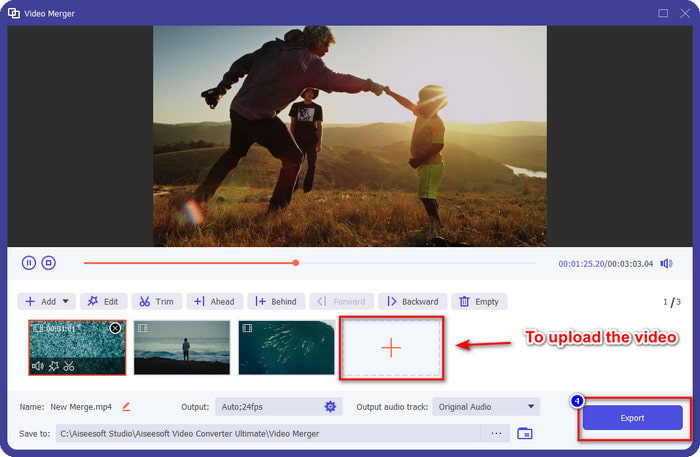
Step 3. To add the other segment you split, click the + button to add them all. Arrange them properly by dragging each segment, and if everything is settled, click Export to save the video with the part in a slow-mo.
Parte 2. Outros softwares online e offline que você pode usar para alterar a velocidade do vídeo para câmera lenta
Cortador de vídeo online - Controlador de velocidade
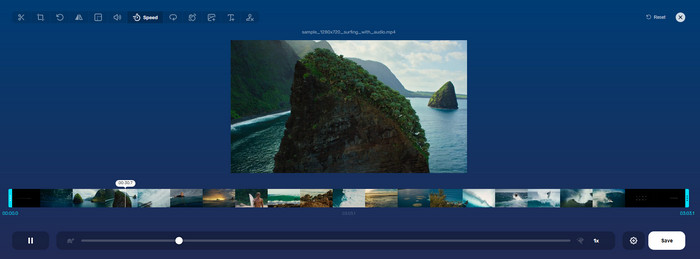
Online Video Cutter – Speed Controller, isn’t the tool you will need to download because it is web-based. With a video speed controller like this online, you can use this tool right away, even if you don’t download additional resources or files to launch the software. Also, the web tool supports basic editing features you will need in time. Although this tool isn’t as professional as the editor we mentioned above, it is still great to use to slow down a video. To know how to make part of a slow video motion, you can copy the steps below.
Step 1. To access the web tool, you can search it in the browser of your choice.
Step 2. Click Open File and upload the video file or the segment you want to slow-mo.
Step 3. Drag the slider to the left to slow down the video and click Save.
Vídeo de velocidade grátis
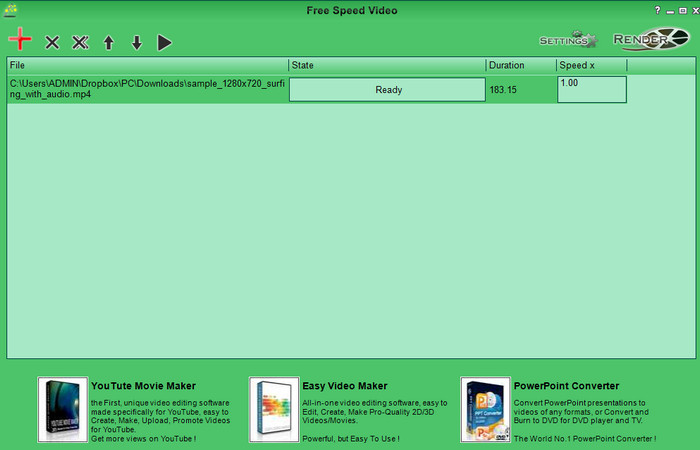
Another speed controller you can download on your desktop is the Free Speed Video. This tool is straightforward, so learning how to use it is stress-free. Although it has a simple GUI, it needs to have an update for a better design and help the user determine the available options. If the design of the GUI doesn’t bother you, then you can use this software to adjust the speed of the video based on your needs for free. To help you slow down the video, the steps below will guide how to slow down part of a video.
Step 1. Download the follow the set-up process to have it on your computer.
Step 2. Click the + button to add the video you want to slow down.
Step 3. Under Speed x, type the number of the speed you want to have.
Step 4. Click Render to save the final output on your desktop.
Parte 3. Perguntas frequentes sobre como fazer parte de um vídeo em câmera lenta
Por que a parte do vídeo com câmera lenta congela?
A transição entre a desaceleração e a velocidade normal do vídeo congela devido às diferentes velocidades de ambos os vídeos. Você não deve experimentar uma transição congelada e lenta, apesar das diferenças, se usar a ferramenta definitiva.
O que torna a transição de vídeo de câmera lenta para velocidade normal mais suave?
Não há uma resposta específica, mas é melhor fazer uma parte de vídeo em câmera lenta se a ferramenta que você possui puder acelerar a velocidade. Para uma transição mais suave entre o vídeo em velocidade normal e desaceleração, você deve tentar mesclar o vídeo como fizemos com o software definitivo.
É difícil aplicar um efeito de desaceleração na parte do vídeo?
Pode ser que nem todo o software que você pode usar possa alterar uma certa parte da velocidade do vídeo. A maioria dos controladores de velocidade ajusta a velocidade de todo o vídeo em vez da parte específica. Portanto, se você deseja alterar a parte da velocidade de reprodução dos clipes, leia a parte 1 para saber tudo.
Conclusão
At last, we have enough idea on how to make part of a video in slow motion with the help of the steps and your dedication to finishing this article. Although the software can change the speed of the video, it is still a problem if you want to change a part of it. So, to change the part of the clip into a slow-mo version to add spice to your video, you must use the FVC Video Converter Ultimate. You can have this software by downloading and installing it on your desktop and following the steps we add earlier to change only the part of the clip and not the whole video speed.
-
 Evidências sólidas para fazer vídeos em câmera lenta usando efeitos posteriores
 Quaisquer pensamentos ou sentimentos podem ser gerados ou intensificados observando algo em câmera lenta. Leia este artigo para saber como criar câmera lenta no After Effects.
-
 Abordagens comprovadas para criar vídeos em câmera lenta no Adobe Premiere
 Um dos melhores softwares da Adobe é o Premiere; ele funciona mais para melhorar os vídeos para o próximo nível, como fazer vídeos em câmera lenta. Leia este artigo para saber mais sobre o Adobe Premiere e seus recursos úteis.
-
 Maneira fácil de fazer um vídeo em câmera lenta no Windows Movie Maker
 Você quer dar um efeito dramático em seu vídeo para enfatizar ou pelo menos fazer um clipe se destacar do resto em câmera lenta, e você não sabe como? Continue lendo este artigo para saber mais.
