


 Video Converter Ultimate
 Gravador de ecrã
 Reparo de vídeo
 Secure Download
Como ingressar em arquivos MOV (QuickTime) gratuitamente
Depois de coletar muitos materiais de vídeo MOV, você pode organizar os materiais e juntá-los em um arquivo completo. No entanto, para iniciantes ou produtores de vídeo amadores, usar uma ferramenta técnica como o Adobe Premiere Pro pode ser muito complicado. Talvez você passe dias ou até meses estudando como operar o programa.
In fact, if you only want to merge video clips, you can use a simple and effective video joiner to solve your problem, which only takes a few minutes to merge two or more MOV files together.
With the following steps, you can easily combine MOV files on both Mac and Windows. So, please read on and try the methods yourself.

Parte 1. Como mesclar vídeos MOV no QuickTime
MOV, also known as QuickTime File Format (QTFF), is a digital video container with MPEG-4 codec. It was introduced by Apple in 1998 to support QuickTime Player. Therefore, if you have a Mac, you can actually use QuickTime Player to join mov files with ease.
Surpreendentemente, QuickTime não é apenas um reprodutor de mídia, mas também um editor de vídeo que permite mesclar vídeos separados, editar videoclipes e até mesmo gravar áudio ou vídeo em seu Mac. Além disso, é fácil de usar e mantém a qualidade original dos vídeos.
Aqui estão as etapas sobre como juntar videoclipes no QuickTime.
Step 1. Find the videos you want to merge and open one of them with QuickTime Player. (You can move them to one folder or to desktop first to save trouble.)
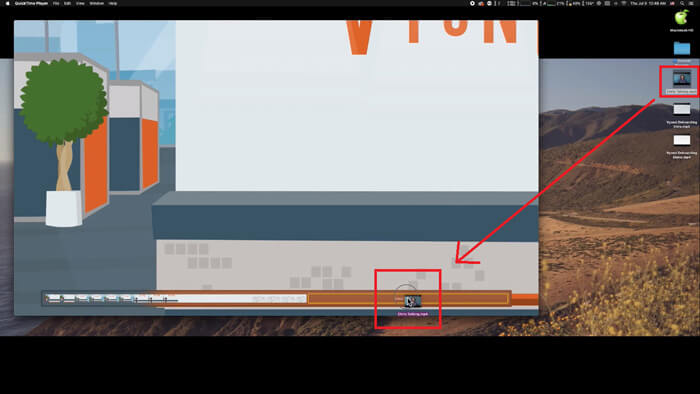
Step 2. After opening the file, there will be player window showing up on the screen. Now drag the other video clip into the QuickTime Player. You can hold and drag the video clip to the right order. When you release the mouse, there will be a Done button next to your video clips. Click it.
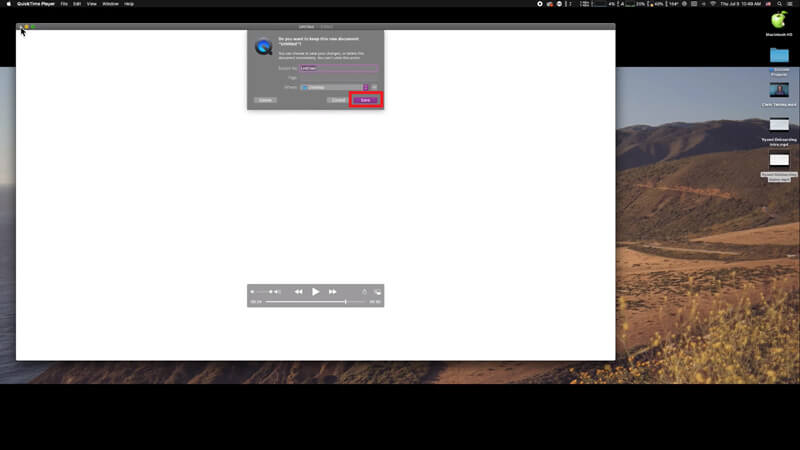
Step 3. Exit QuickTime and you will get a prompt immediately to remind you save the merged video. Just input a new name and select a destination before clicking the Save button.
Parte 2. Como mesclar arquivos MOV online e gratuitamente
However, QuickTime cannot help you merge various video files in different formats, such as MP4, MOV, AVI, WMV, FLV, etc. into one MOV file. In this case, you need to use a more professional video merger that supports multiple video formats.
So, meet FVC Free Online Video Merger, the best video joiner to merge videos for free. Using this tool, you can upload as many videos as you like with no limit. Besides MOV, you can export other popular video formats, which is very convenient for you to share the video to streaming sites like YouTube.
Em vez de instalar um programa sério e caro em seu PC, você pode juntar quaisquer vídeos para produzir um vídeo incrível online com este combinador de vídeo fácil de usar, que também permite criar um vídeo sem marca d'água. Não importa qual sistema você usa, Windows, Mac ou Linux, ele pode funcionar bem. Tudo que você precisa é um navegador e uma rede estável.
As etapas a seguir irão guiá-lo sobre como operar esta ferramenta de mesclagem de vídeo.
Step 1. Click the link above to open the website of FVC Free Online Video Merger on your browser.
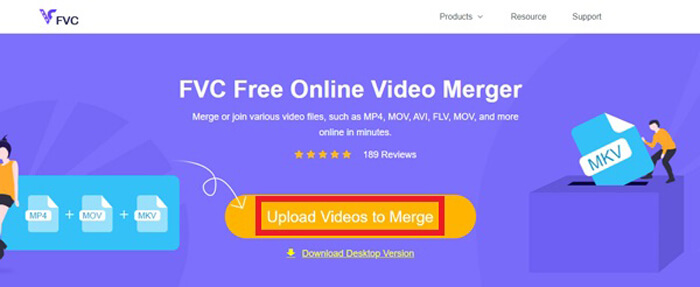
Step 2. Click the Upload Videos to Merge button in the banner first. Then you need to follow the on-screen instructions to download and install a launcher to your computer.
Step 3. Once the installation is over, a window will pop up immediately. Now, you can select and add all the MOV files you want to join to the video merger.
Step 4. After uploading, please check if the order of video clips is right. Then change the Resolution as you need and the Format to MOV or any other format you want.
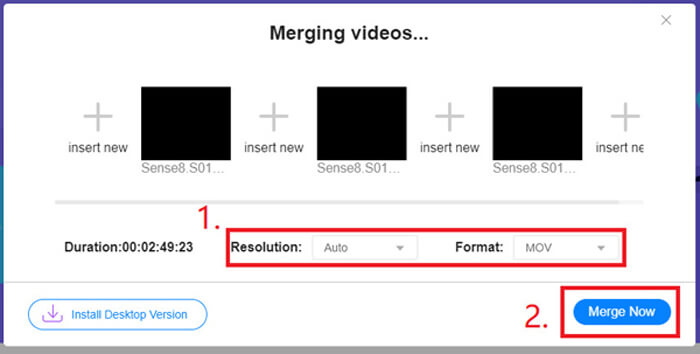
Step 5. Click Merge Now to start the combination.
Parte 3. Como mesclar arquivos MOV no Windows 10
Se você não tem um Mac, mas possui um PC com Windows 10, pode tentar as seguintes etapas para juntar os arquivos MOV.
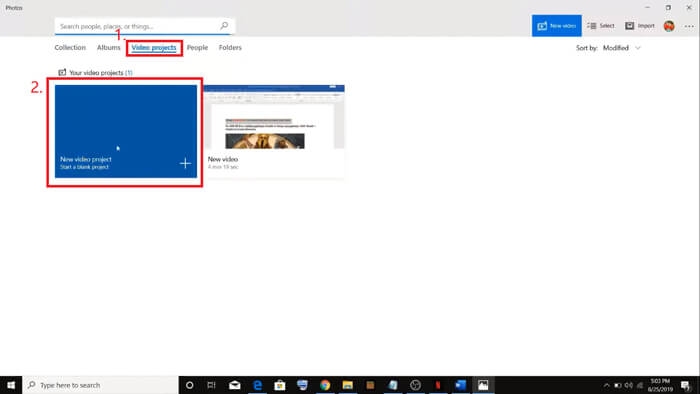
Step 1. Open the Photos app on your PC. You can find it by searching it in the Search bar. Then select the Video projects tab above and click on New video project. Name the video project.
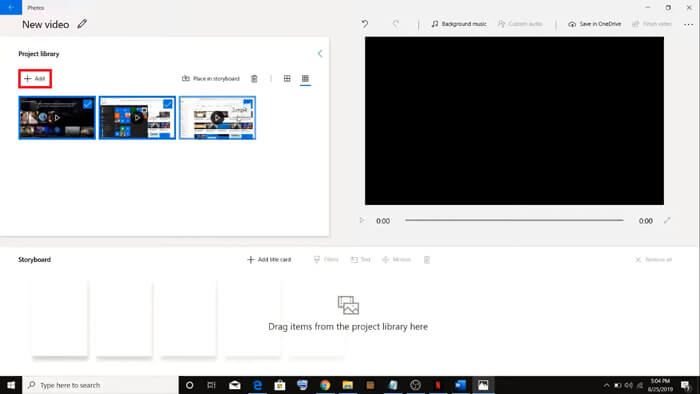
Step 2. Click the Add button in the top left corner and select all the videos you want to convert from your PC.
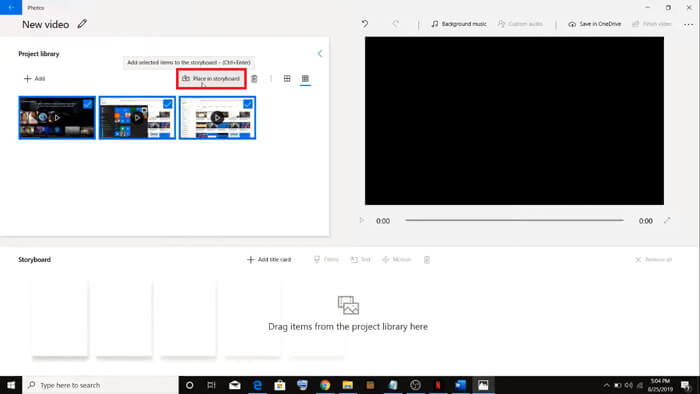
Step 3. Then click the Place in storyboard button to combine all your MOV files.
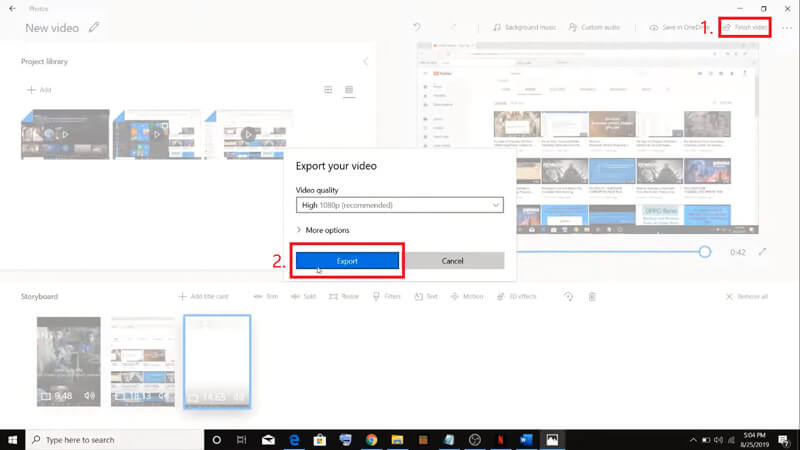
Step 4. After adjusting the video order, click Finish video in the top right corner. Then Export the merged video to your PC.
Parte 4. Perguntas frequentes sobre a fusão de MOV
1. Posso usar o QuickTime Player no Windows?
Even though Apple doesn’t support QuickTime for Windows any more, you can still find the installation package of QuickTime on the Internet. However, you should notice that you can only use it to play videos. So, it’s basically a normal player that helps you little.
If you are a Windows user who wants to merge MOV files, you can just use the powerful FVC Free Online Video Merger.
2. O que é melhor para YouTube, MOV ou MP4?
After producing a wonderful video by merging all your video materials, you may want to upload it to YouTube, Facebook, Instagram, or other platforms. If so, MP4 will be a better choice. Because it is smaller in size and easier to share over the Internet.
Maybe you want to know more differences between MOV and MP4.
3. O QuickTime Player pode exportar vídeo MP4?
No and yes. Because QuickTime itself does not support users in exporting MP4 files. But if you have paid and upgraded your QuickTime to QuickTime Pro, then you can enjoy merging MOV files and get the converted MP4 file automatically. If you don’t want to pay a penny but still want to convert MOV to MP4 on Mac, you can try a free online converter called FVC Free Online Video Converter which is compatible with both Mac and Windows.
Conclusão
So, these are the methods you can adopt when you need to merge MOV files into one. If you are using Mac, you can use the built-in software, QuickTime Player, directly to obtain the merged MOV file. Windows 10 users can give Photos a try. As for other Windows computers, users can choose FVC Free Online Video Merger and experience a fantastic video merging journey with no restriction, no ad and no virus.
Se você gostou deste post e o achou prático, você pode compartilhá-lo com seus amigos. E não hesite em nos deixar o seu comentário. Agora é sua vez de experimentar os métodos e mesclar seus arquivos.
-
 Como converter QuickTime para MP4 no Windows / Mac / Online / iOS / Android
 Leia e obtenha 4 maneiras de converter vídeos QuickTime em MP4 gratuitamente em seu telefone ou computador. Você pode alterar o formato do arquivo de MOV para MP4 no Windows / Mac / iPhone / Android / online com facilidade.
-
 Quatro maneiras de converter gratuitamente MP4 em MOV
 Como converter MP4 para MOV no Mac? Existe alguma maneira gratuita de converter MP4 em MOV sem perda de qualidade? Este post compartilha 4 maneiras simples de ajudá-lo a fazer a conversão de vídeo MP4 para MOV no Mac, PC com Windows e online.
-
 Como converter M2TS em MOV no Windows / Mac (online / offline)
 Precisa converter M2TS em MOV para reproduzir arquivos de vídeo em vários reprodutores e plataformas? Este artigo o ajudará a encontrar o melhor método Online / Offline para converter M2TS em MOV no Windows / Mac.
