


 Video Converter Ultimate
 Gravador de ecrã
 Reparo de vídeo
Como alterar metadados de arquivos MOV no Mac com etapas sem esforço
We all know that MOV is one of the top-notch formats you can ideally use on video playback on your Apple devices and for editing. But what makes MOV unique? It supports a video compression that is preferably used by pro. Although it can store multiple elements on a single file, it is still possible that the MOV can have mixed-up tags that could lead to a problem. It would help to edit them accordingly to have proper metadata to fix it immediately. With the helpful tool, this task is a piece of cake. So today, we will present the best ways to edit MOV file metadata instantly.

Parte 1. Como editar metadados MOV com o Ultimate Tag Editor no Mac
FVC Video Converter Ultimate is your one-stop solution regarding this metadata problem that supports more than 1000+ formats on Mac and Windows. With this tool, you can instantly remove, edit or add the metadata on your MOV file. What's more? You can do multiple edits on your MOV, such as cutting, trimming, merging, cropping, and a thousand more, even if you are not a pro on editing. Indeed, it is impressive to have this tool by your side, and there are many more things you can do with this tool within a few clicks away. But today, we present to you the detailed instruction we've added that you can follow to edit your MOV files metadata successfully.
Step 1. You can attain the ultimate converter on your Mac or Windows by tapping the download button below. Proceed to the installation process by clicking the file you've downloaded, and click Start Now to launch the tool immediately.
Free DownloadFor Windows 7 or laterSecure Download
Free DownloadFor MacOS 10.7 or laterSecure Download
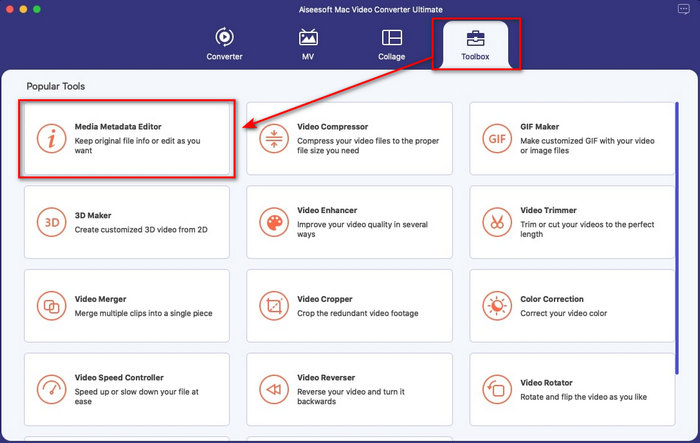
Step 2. The tool's interface will show on your display; go to the Toolbox part and open the Media Metadata Editor.
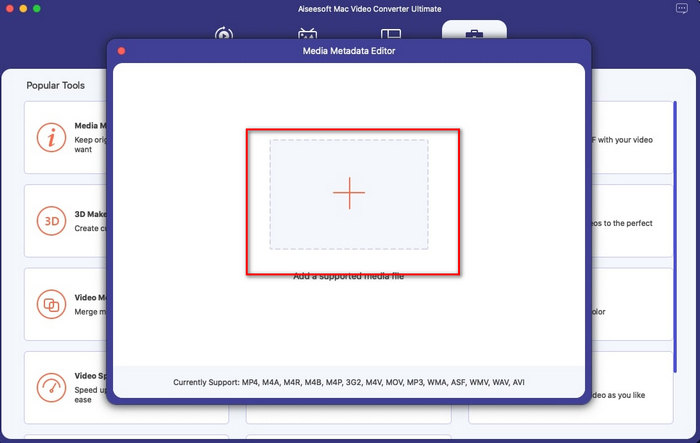
Step 3. Once you've already opened the editor, a mini window will show; tap the + button to open a folder on where you can locate the file, and to insert it click Open.
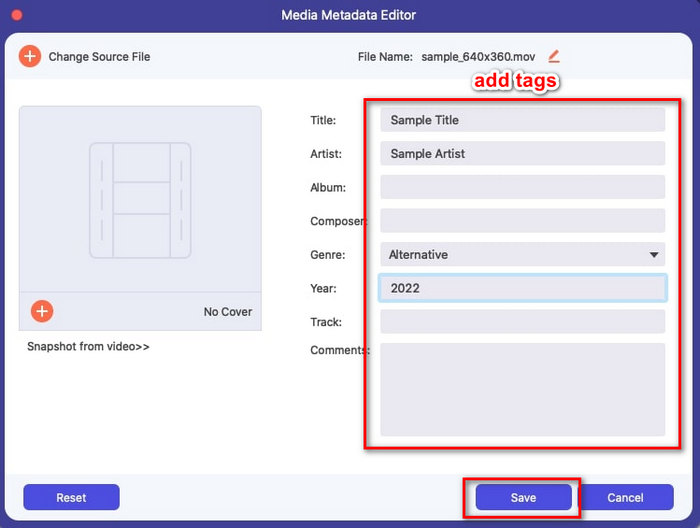
Step 4. This time you can now add, edit or remove the tags on your MOV file here in the text box. If you've finished it all, click the Save button. You have now edited the metadata on your MOV files as quickly as that.
Related:
Parte 2. 3 dos melhores editores de tags MOV para alterar metadados MOV
VLC Media Player
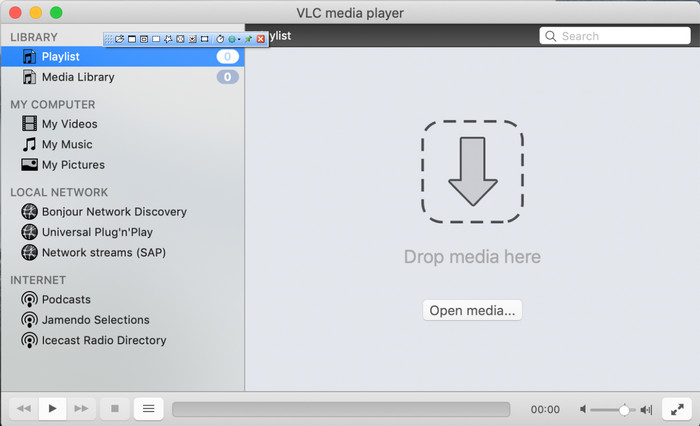
VLC Media Player is a famous media player available on Mac and Windows. Although it can play different video formats, it can change the metadata of your media file, like on MOV. Moreover, if you want to view your file's metadata, you can easily use this to view it. However, it is not as effective as the other dedicated metadata editor you can use on Mac or Windows. Yet, it is still doable with the media player to edit the MOV file metadata.
Step 1. Download the media player on the official website of the VLC, then open it.
Step 2. Press Command + I on your keyboard, and the media information will show where you can add or delete the metadata of your MOV file.
Step 3. Click Save Metadata if you've done applying the tags on your MOV.
iTunes
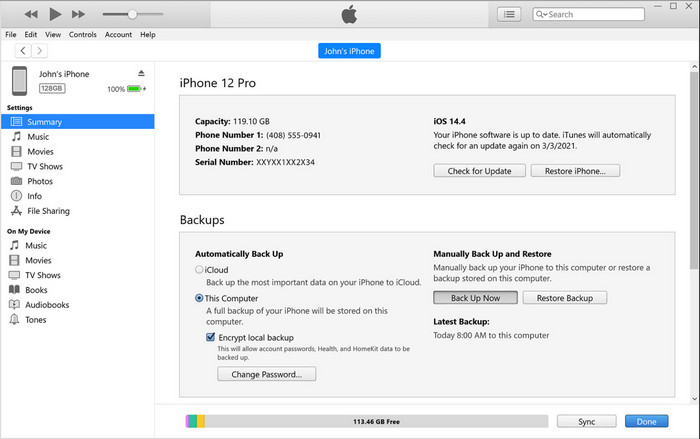
iTunes is the best built-in streaming app you can access on any Apple device. This tool is jam-packed with different features such as the music player and store for music, movies, podcast, and many more protected with DRM to avoid copy-right issues. Despite being a great built-in app, the competition for metadata editors is too stiff for iTunes to join. But we still reconsider this app because it can change the MOV metadata on Mac.
Step 1. Open then import the MOV file on iTunes library.
Step 2. Then right-click the .mov file you've added and select Get Info. After you've clicked it, there are different options you have to change the metadata, such as details, artwork, lyrics, options, sorting, and file, adjust them according to your needs.
Step 3. Press OK to save the changes.
MetaZ
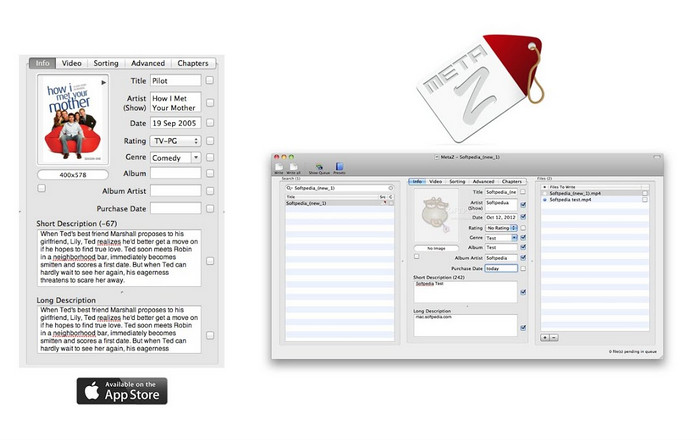
Para o macOS X, você pode baixar gratuitamente o Metaz para alterar facilmente os metadados dos seus arquivos. Este editor de metadados pode ajudá-lo a alterar suas tags de vídeo na maioria dos formatos, como o MOV. Com este aplicativo, você pode fazer o truque facilmente e organizar os MOV em sua biblioteca. No entanto, muitos relatos vêm acontecendo ultimamente com o aplicativo; os usuários encontram muitos problemas problemáticos ao usar o aplicativo. Mesmo que possam ocorrer problemas, ainda é um dos editores de metadados MOV mais escolhidos que você pode baixar no seu Mac.
Step 1. Download the app on your Mac, launch it, then three sections of the tools' interface will show on your display, where you can add the file, edit the tags, and search the tags.
Step 2. Drag and drop the MOV file to the left side; on the left side of it, you will see that it will automatically go to search tags for your MOV file based on its title, but you can modify them in the middle section if you want to.
Step 3. Press Write, and the tags will add to the MOV file.
Parte 3. Perguntas frequentes sobre o MOV Metadata Editor
Posso usar o editor de metadados QuickTime para alterar tags?
Infelizmente, você não pode porque esta ferramenta só pode reproduzir o formato de mídia, editar os vídeos e gravar. Mas você pode visualizar livremente os metadados do seu arquivo no Quicktime seguindo estes passos simples. Primeiro, abra o arquivo MOV no Quicktime e reproduza-o. Você verá diferentes opções na parte superior; clique em Janela e, abaixo dela, clique em Exibir Inspetor, então uma nova janela será exibida na tela para ver as poucas informações sobre seu arquivo MOV.
A alteração das tags MOV afeta a qualidade?
Felizmente não vai porque você ajustou as tags, não a resolução ou qualidade do arquivo MOV. Portanto, se você estiver preocupado que a resolução do vídeo possa diminuir após a alteração das tags, repetiremos; não vai.
A adição de metadados no MOV aumentará o tamanho do arquivo?
Em qualquer arquivo, depois de adicionar metadados a esse arquivo, você verá a diferença entre o arquivo que não possui tag e aquele que possui. No entanto, essas tags não são tão grandes quanto o conteúdo do arquivo. Portanto, se você adicionar metadados ao seu MOV, espere que ele aumente um pouco de tamanho porque você adicionou informações sobre o arquivo de vídeo.
Conclusão
Now that we've finished teaching you how to change MOV file metadata, this is now the time for you to choose which tutorial you'll go to follow. If you want to download a free tool on your Mac, you can download the VLC and Metaz to fix or edit the metadata of your MOV. But if you don't want to, you can use iTunes to edit the metadata easily. Although these tools are great to use, there is still no tool with powerful editing features on metadata that you can download on Mac, like what the FVC Video Converter Ultimate can bring to you. So, if you are still wondering what to use, we would highly recommend that you use the ultimate tool regarding this task because it is easy to use but has the ultimate package you will need on any given day.
-
 O que são metadados: aprenda as informações básicas sobre metadados
 O que são Metadados? Isso é importante? Quais são as partes dos metadados? Você tem a mesma dúvida? Neste artigo, você aprenderá as informações básicas sobre metadados.
-
 4 do Melhor Visualizador de Metadados Online e Offline [Atualizado em 2022]
 Posso verificar os metadados do meu arquivo? Sim, você pode, com a ajuda deste post, apresentaremos os diferentes visualizadores de metadados que você pode usar.
-
 Os 4 principais editores de tags WMV mais escolhidos na área de trabalho [Atualização 2022]
 Precisa de um editor de tags WMV confiável para editar as tags WMV? Bem, este artigo fornece conhecimento suficiente sobre a ferramenta que suporta WMV.
