


 Video Converter Ultimate
 Gravador de ecrã
 Reparo de vídeo
Aprenda a usar o Premiere Pro para acelerar um vídeo com 2 alternativas ao Premiere
Premiere pro is one of the top-of-the-line Adobe developed software to be used on professional video editing. Also, the performance of this tool has been praised by a lot of users who already use this. In fact, we will teach you to speed up your videos with the help of this tool. So that, you will not go through a lot of set-ups or whatever you will be going to do first. And now, let us teach you on how to speed up video in Premiere Pro and what are the alternatives for it.

Parte 1. Como acelerar um vídeo no Premiere Pro
The top-of-the-line video editor that you would love to buy and use is the Adobe Premiere Pro. This tool is the total package a pro would definitely love to use. Because this software can handle a heavy duty of editing that you would love to do if you are a pro. Also, if you want an impressive output then you must learn how to use this tool. But learning how to use the Premiere Pro will definitely take a lot of your time, so if you are a busy person then this must be your last resort. However, if you are eager to learn and have a lot of free time then you must try this.
Além disso, se você deseja usar essa ferramenta, deve gastar uma grande quantia de dinheiro porque é literalmente caro em comparação com as outras ferramentas de edição de vídeo. Então, agora, se você quiser aprender como usar o Adobe Premiere Pro cc 2018 ou versão superior para acelerar o vídeo, siga as etapas simplificadas abaixo.
Steps on How to Speed Up a Video on Adobe Premiere Pro:
Step 1. Buy and download the Adobe Premiere Pro on its official website. Then launch the tool to start the speed up.
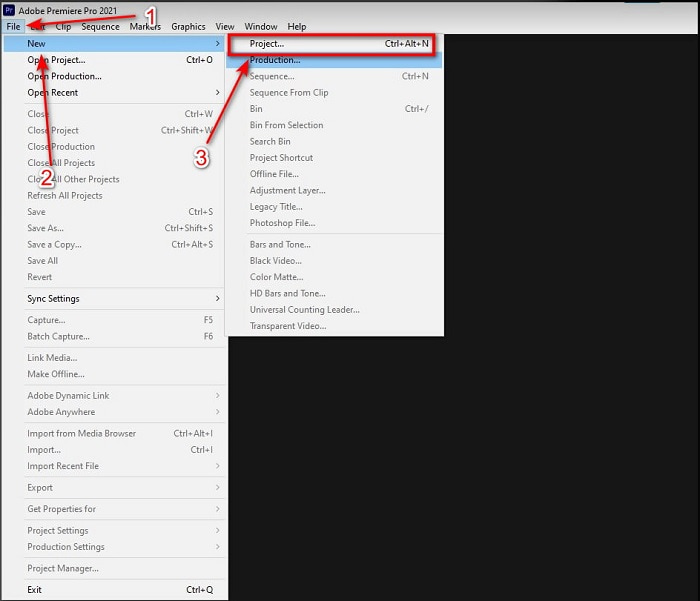
Step 2. Click the File, then proceed to the New and Project wait for an interface like this will show up and click the OK to proceed. Open the folder and locate the video, drag and drop the file in the Media Browser to paste it next to the Timeline.
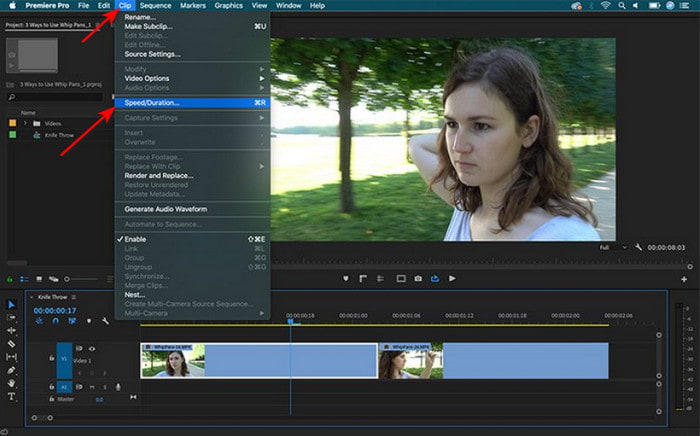
Step 3. Click the video you insert on the Timeline and click Clip at the top. Then under it is the Speed/Duration and hit it. Change the speed percentage according to your wants and click OK to save the speed-up and to save the file click the Export button.
Parte 2. 2 das melhores alternativas do Premiere Pro para acelerar vídeos
1. Video Converter Ultimate
If speeding up is your problem then this must be the solution for it, presenting to you is the Video Converter Ultimate. Unlike any video editor this phenomenal tool is the best in all kinds of editing, converting, GIF maker, booster, reverse, speed-up and more. Also, a lot of users already love this software as it provides advanced features like the Adobe Premiere Pro but in a form of simplified version. Other than that, we can't find a tool that provides advanced features that are very simple to use. Basically there is nothing like the Video Converter Ultimate. Although this tool is paid, it is still worth every penny you are going to spend and it is very cheap. So now, if you want to know how to speed up video in premiere pro alternative then follow this step accordingly below.
Steps on How to Speed Up Videos with the Help of Video Converter Ultimate:
Step 1. Download the software on your computer drive, next install it to proceed.
Free DownloadFor Windows 7 or laterSecure Download
Free DownloadFor MacOS 10.7 or laterSecure Download
Step 2. Start the tool then click the Toolbox and find the Video Speed Controller.
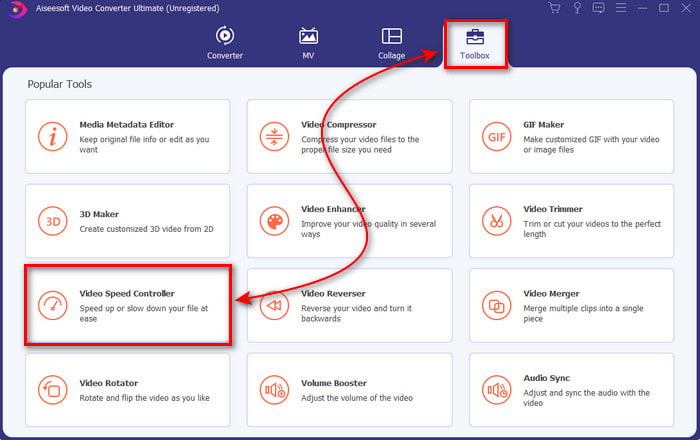
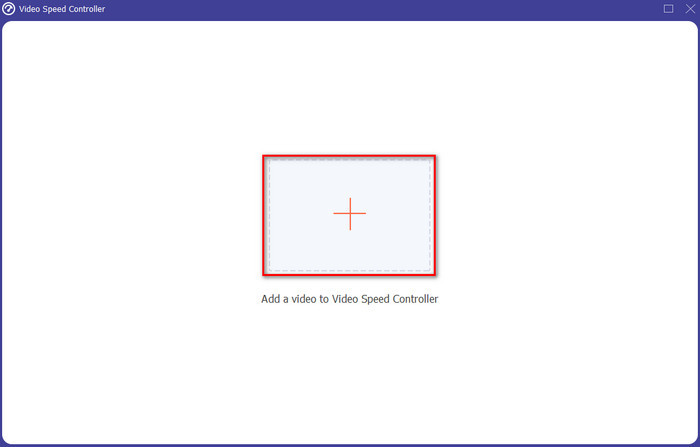
Step 3. To add the video, you want to speed up click the + button. Then locate the file on the folder and click Open to insert the video file.
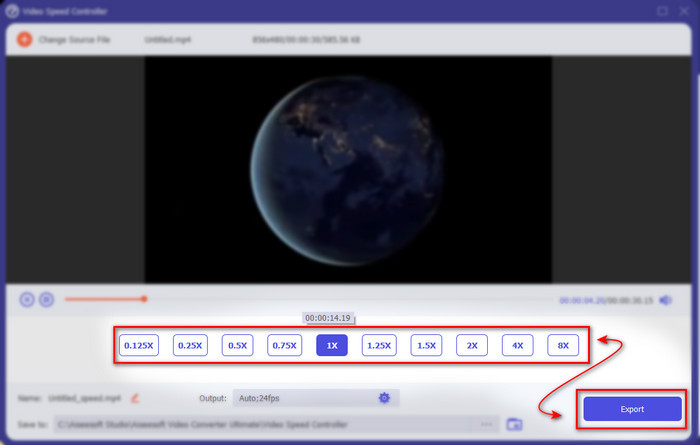
Step 4. Then choose the speed you want to have on your video by clicking the box options. If you are now content with the speed of your video then click Export to save it directly on your computer.
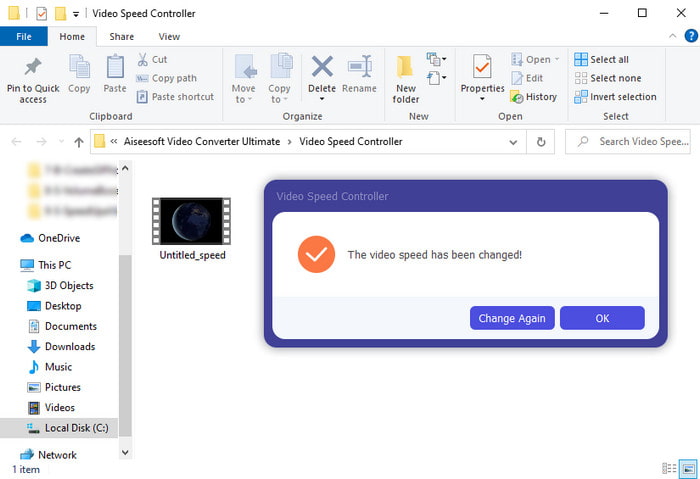
Step 5. A folder will pop-up if the exporting process is done. Click the file you've sped up earlier and be amazed with the no quality loss of your video speed up.
2. iMovie
If you have a Mac then it is a must to use this tool because it is already pre-installed into your Mac. iMovie is one of the popular video editors you would love to use because of the free features this tool provides. If you are a Windows user then don't expect that you can use this tool because it is not available on your PC. Although the tool is free to use still there are some setbacks like major editing features you would like to use that are not available in this tool. However, if you are on a tight budget then this must be your go to Mac users. Also, if you want to achieve something like Premiere Pro speed up video then follow the steps below.
How to Speed Up Videos on iMovie:
Step 1. Open the iMovie on your Mac and click File then Import Media choose the file to proceed.
Step 2. Drag the video you inserted earlier to the Timeline. Then click the video file on the Timeline to be able to adjust the speed. On the right side click the Speed then choose on the drop-down list which speed you want to apply.
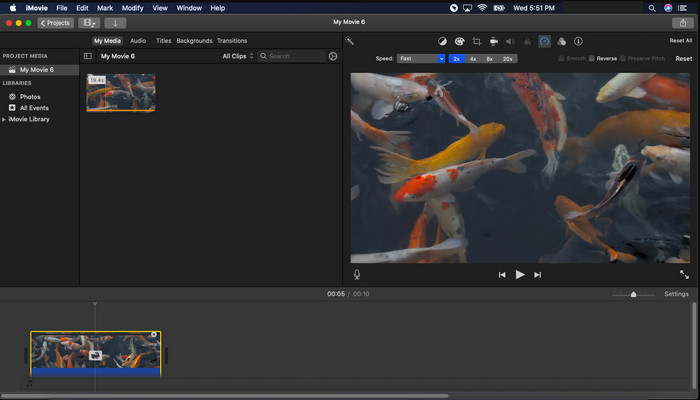
Step 3. After applying the speed up click Export and Export File to save the speed up version of the video.
Parte 3. Perguntas frequentes sobre o Premiere Pro Speed Up
Posso desacelerar um vídeo no Premiere Pro?
Absolutely yes, just follow the same procedure we did at the top but now the percentage changes to lower than a hundred to make it slower. Or you can click here to learn how to slow down a video in detail.
Com que rapidez posso definir o vídeo no Premiere Pro?
A porcentagem máxima que você pode definir na velocidade do vídeo é 10.000% por cento. Portanto, se você quiser saber se é real, verifique você mesmo e defina a velocidade para 10.000%.
O Adobe Premiere Pro tem um requisito de sistema?
Na verdade, sim, existem requisitos mínimos que o software Adobe precisa para poder usar a ferramenta corretamente. Como, nesta lista abaixo: GPU: Intel® i5-4590 / AMD FX 8350 equivalente ou mais recente; RAM: 8 GB de RAM ou até mais; sistema operacional: Microsoft Windows ou macOS; a exibição deve ser 1920 x 1080 ou superior.
Conclusão
À medida que chegamos ao fim, agora está mais claro para nós que até mesmo uma simples aceleração pode ser feita com o Premiere Pro. No entanto, o Premiere Pro é super caro, então listamos alguns softwares acessíveis que você adoraria usar para acelerar. Como o Video Converter Ultimate, porque este software fornece recursos de edição de ponta, mesmo que seu computador seja de baixo custo. Portanto, se você quiser saber como acelerar um vídeo no Premiere Pro facilmente, baixe o Video Converter Ultimate para experimentar o mesmo recurso, mas em uma versão fácil.
-
 [4 maneiras] Como acelerar facilmente seus vídeos online
 Quer acelerar um vídeo online? Leia este artigo para saber mais sobre como acelerar um vídeo das diferentes maneiras possíveis.
-
 Maneiras mais fáceis de acelerar vídeos no formato MP4 [Offline e Online]
 Quer acelerar o seu vídeo, mas está no formato MP4? Este artigo pode ajudá-lo a saber as diferenças em como acelerar seu vídeo online ou offline.
-
 Os 4 principais reprodutores de vídeo com controlador de velocidade em 2021
 Você não notou a velocidade de reprodução de cada reprodutor de mídia sempre que você reproduz um vídeo? Este artigo é adequado para você aprender tudo sobre players de vídeo com controle de velocidade.
