


 Video Converter Ultimate
 Gravador de ecrã
 Reparo de vídeo
 Secure Download
Remova a marca d'água Animotica em vídeos sem esforço
Animotica is a popular Windows video editor everyone loves to use for it provides a spectacular output once you use it. With its user-friendly interface and function, even if you are an amateur in video editing, you can create a fantastic output like what professionals can do on their videos. We can’t argue why the name of this tool has been among the top video editors you can use on Windows. Regardless of how good it is, many users still encounter a problem while using it, and the watermark left on the video is the major concern of many. Instead of worrying, why don’t you read this article to remove the Animotica watermark? Did we catch your attention? Then read the details below to learn more about how to do it effectively.

Parte 1. Como remover a marca d'água do vídeo Animotica usando as 3 maneiras que você deve conhecer
FVC Video Converter Ultimate [Removedor de marca d'água de vídeo mais recomendado]
The FVC Video Converter Ultimate provides the best output for removing the watermark on your video. Even though you aren’t as good as the other video editor, you can still have a fantastic output once you get the hang of it—no need to worry because you can be a pro user of this tool in no time. This performance is incomparable compared to another watermark remover you can download or use on the internet. So, if you want to see how to remove the watermark from the Animotica video using this tool, you can follow the tutorial we added below for you to follow.
Step 1. First, download the software on your desktop, and choose which version suits your OS. Then, follow the installation process, and open the tool to proceed.
Free DownloadFor Windows 7 or laterSecure Download
Free DownloadFor MacOS 10.7 or laterSecure Download
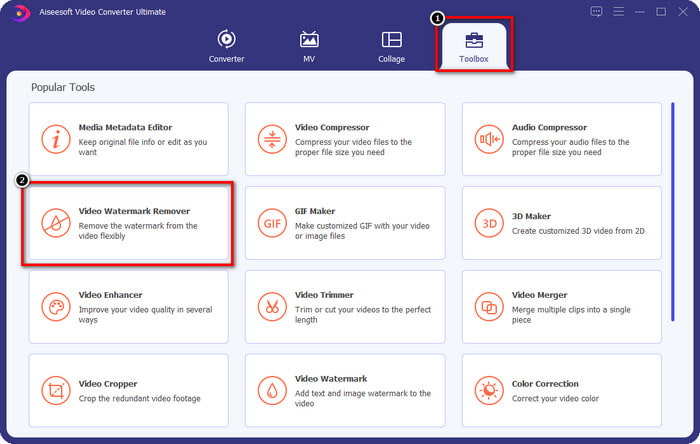
Step 2. Once you’ve opened the app, go to the Toolbox and open the Video Watermark Remover. There are more features and functions you can use under the Toolbox; you can check them out later if you want to.
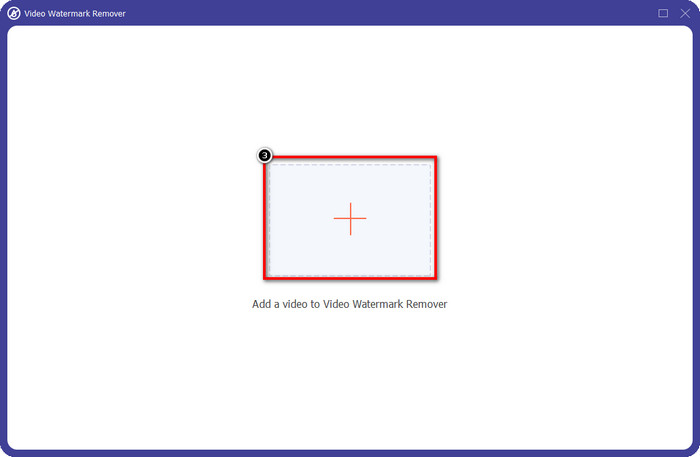
Step 3. Click the + icon to upload the video you edit on Animotica. Find the video file you export with a watermark on the folder that will show on your screen, then click Open to upload it.
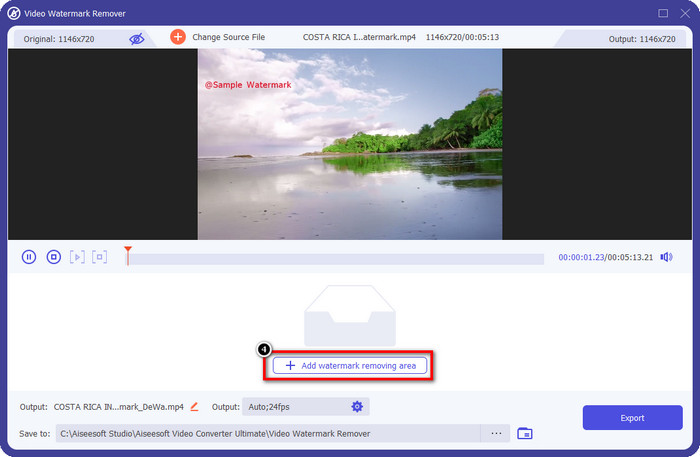
Step 4. On the window that will show, click Add Watermark Removing Area to launch another window where you will trace the watermark.
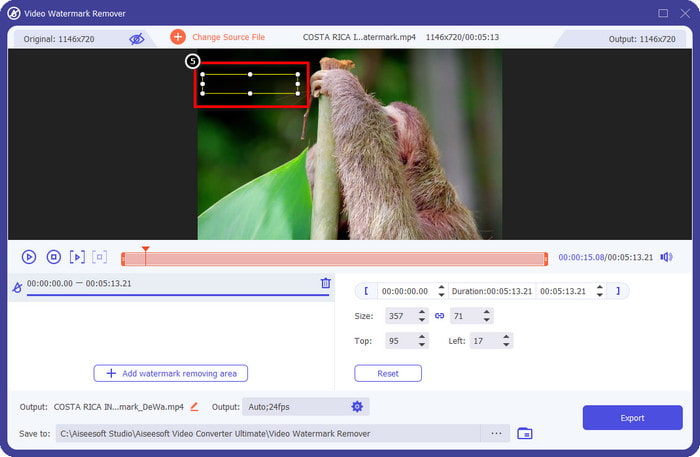
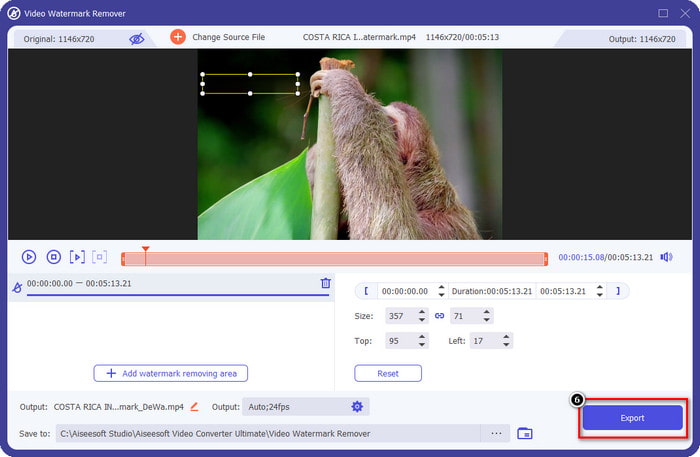
Step 5. Here, place the rectangular to the watermark to cover it, and ensure that the watermark is covered. You can simply resize the selection box if it is small or big on the watermark.
Step 6. You can now save the video on Animoto without a watermark by clicking the Export button near the lower right side of the interface.
Related:
Removedor de marca d'água de vídeo UkeySoft
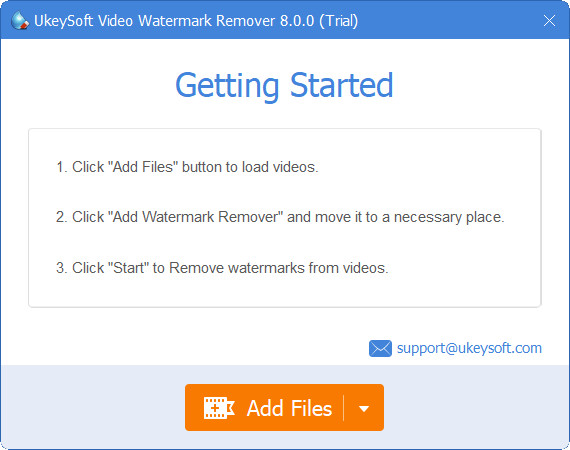
You can download for free the UkeySoft Video Watermark Remover to cancel out the watermark in your video. This tool is available on Windows, meaning if you are a Windows user, you can freely download and use the advantages of this tool to remove the watermark. Like other watermark removers, this tool provides the best output and doesn’t lower the quality of the imported video once it is exported.
No entanto, se você usar a versão acessível desta ferramenta, algumas limitações podem impedi-lo, como você não pode enviar um vídeo aqui por mais de um minuto gratuitamente. Aqui está um guia completo sobre como remover a marca d'água do Animotica gratuitamente.
Step 1. To download the software on your desktop, go to its official website and click the download button to have it on your Windows.
Step 2. Open the watermark remover, then click Add Files to upload the video that has a watermark.
Step 3. Click Add Watermark Remover and place the selection box to the watermark. Then click the check icon to start removing the watermark on your video.
Step 4. To save the changes you’ve made and the Animotica no watermark, click Next.
Removedor de marca d'água Apowesoft Online
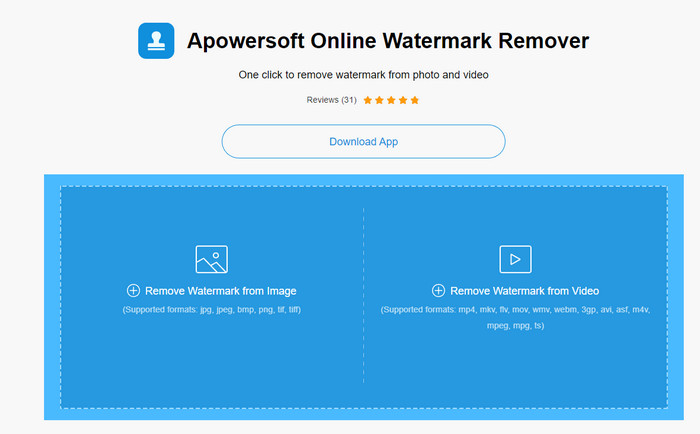
Apowersoft Watermark Remover Online is a dedicated watermark remover you can access online if you don’t like to download a watermark remover software on your device. Because it is accessible on the web, the tool's compatibility is far the most compatible on different OS. However, the tool is accessible online, and its performance is still as good as the other watermark remover you can use or download on your computer. Like other great tools, this tool has a drawback, like the limited supported video format, internet dependence, and more.
Mas se essa ferramenta chamou sua atenção, abaixo está um tutorial sobre como remover rapidamente a marca d'água Animotica em seu vídeo com a ferramenta online.
Step 1. To access the online watermark remover, you can search over the tool on your web browser, then open it.
Step 2. Press Remove Watermark From Video, then select the video file that has a watermark on video. Wait for the uploading process because it will take a lot of time, especially if you have a slow internet connection.
Step 3. After uploading the video file, place the rectangular shape on the watermark to cover the watermark on the video.
Step 4. Now that the target watermark is selected, click Erase to remove the watermark inside the rectangular area.
Parte 2. Perguntas frequentes sobre como remover a marca d'água do Animotica
Quanto custa Animotica Light?
O preço do Animotica Light é $6,99. O preço ainda dependerá da região da Microsoft Store. Ele inclui alguns recursos menores que você pode usar que não estão incluídos na versão gratuita, como saída HD total, sem marca d'água, todas as transições, taxa de quadros ilimitada e outros.
É uma excelente escolha para aproveitar o Animotica Pro?
Para $15.99, esta ferramenta é uma boa escolha para iniciantes que desejam fazer edição básica que oferece recursos e funções extraordinárias que você pode desfrutar. Com a versão pro, você pode exportar vídeos com qualidade de até 2160 (4k) com 60 FPS, recursos completos de edição e muito mais.
Por que a marca d'água do Animotica fica embaçada?
A maioria das ferramentas desfoca a marca d'água em seu vídeo para torná-lo invisível. No entanto, se você olhar por mais tempo, notará que deixa resíduos que podem piorar o visual. Portanto, use um removedor de marca d'água que não borre a marca d'água depois de exportar, como o FVC Video Converter Ultimate produz.
Conclusão
De fato, todas as ferramentas que mencionamos neste artigo têm diferentes pontos fortes e fracos na remoção da marca d'água do Animotica. Antes de terminarmos este artigo, qual ferramenta você usará como removedor de marca d'água? Suponha que você ainda não tenha decidido o que usar. Nesse caso, sugerimos que você escolha o melhor removedor de marca d'água, pois é a ferramenta mais potente para remover a marca d'água em qualquer vídeo e realizar várias tarefas em um único download. Esperamos responder às suas dúvidas com este artigo. O tutorial acima ajudará você a remover a marca d'água do seu vídeo para que você possa assistir a um vídeo de alta qualidade sem marca d'água.
-
 Aprenda a remover a marca d'água Movavi gratuitamente [obrigatório!]
 Exportar um vídeo ou imagem no Movavi deixará uma marca d'água, mas é possível removê-la? Para ensinar como remover a marca d'água de graça leia isso.
-
 3 maneiras fáceis de remover a marca d'água Fiverr no Windows e Mac
 Você está na página certa se estiver procurando por um aplicativo que possa remover a marca d'água do Fiverr. Leia este post para saber como você pode remover facilmente a marca d'água Fiverr.
-
 Como remover a marca d'água Lomotif usando essas ferramentas incríveis
 Quer aprender como remover a marca d'água Lomotif do seu vídeo? Leia este artigo para conhecer os métodos mais destacados para removê-lo online e offline.
