


 Video Converter Ultimate
 Gravador de ecrã
 Reparo de vídeo
 Secure Download
Maneiras magníficas de remover o logotipo de um vídeo usando seus dispositivos
Watching your favorite videos is satisfying, not until the video has an unnecessary object, like logos, watermarks, texts, etc. If you are looking for the most excellent and useful methods, then you need to read this article to get an idea. Using excellent applications, you can try many ways to remove logos from videos offline and online. With the help of these logo removers, you can enjoy watching your favorite movies, video clips, slideshows, and more. In this way, you can never reencounter the same problem. If you want to learn effective ways to remove a logo from your videos, don’t skip reading this informative article.

Parte 1: Melhor método para remover o logotipo de um vídeo
Suppose you are looking for a free logo remover. The best application you can utilize is the Video Converter Ultimate. This application can help you remove a logo from your video. Not only a logo but any other unnecessary objects on your videos, such as watermarks, texts, images, etc. Also, you can remove the logo easily because it only has simple steps that even a beginner can follow.
Além disso, o Video Converter Ultimate possui um processo de remoção rápido, diferente dos outros aplicativos que consomem muito tempo para remover logotipos de um vídeo. Usando este aplicativo, você pode remover o logotipo em duas ferramentas fáceis, o removedor de marca d'água de vídeo e o cortador de vídeo. Além disso, possui recursos que você pode desfrutar, como conversor de vídeo, controlador de velocidade de vídeo, compressor de vídeo, correção de cores, cortador de vídeo, criador de colagens e muito mais. Se você deseja conhecer essas duas maneiras de remover os logotipos usando o Video Converter Ultimate, siga os passos abaixo.
1. Usando a função Removedor de marca d'água de vídeo
Step 1: For the first step, you must proceed to the Video Converter Ultimate website and download the software. After downloading, move to the installation process and launch the Video Converter Ultimate on your Desktop.
Free DownloadFor Windows 7 or laterSecure Download
Free DownloadFor MacOS 10.7 or laterSecure Download
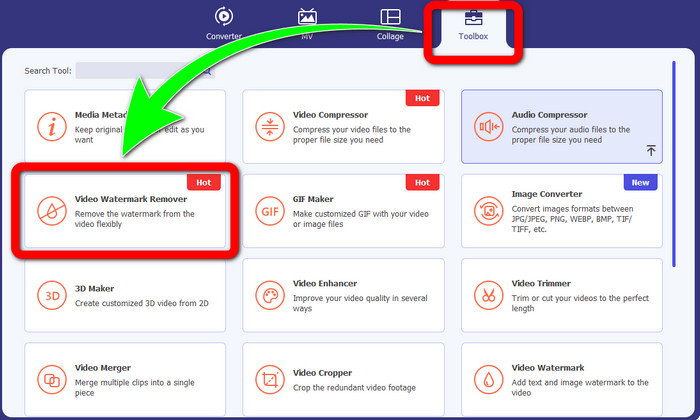
Step 2: After launching the software, proceed to the Toolbox panel. Next, look for the Video Watermark Remover, and click it.
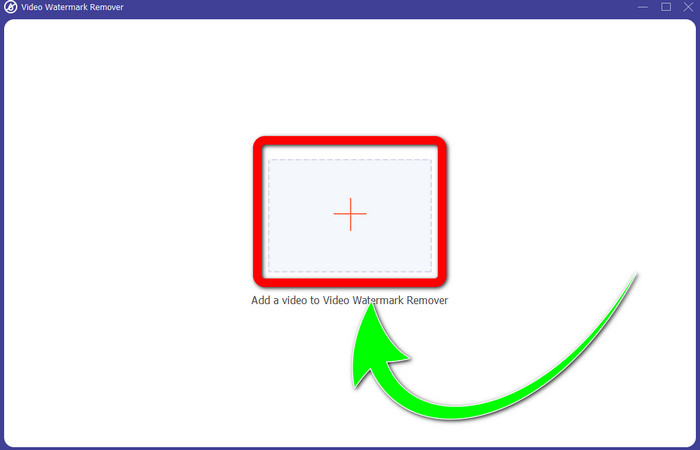
Step 3: When you are done clicking the Video Watermark Remover, another interface will pop up on your desktop. Select the Plus sign button and import your video with a logo.
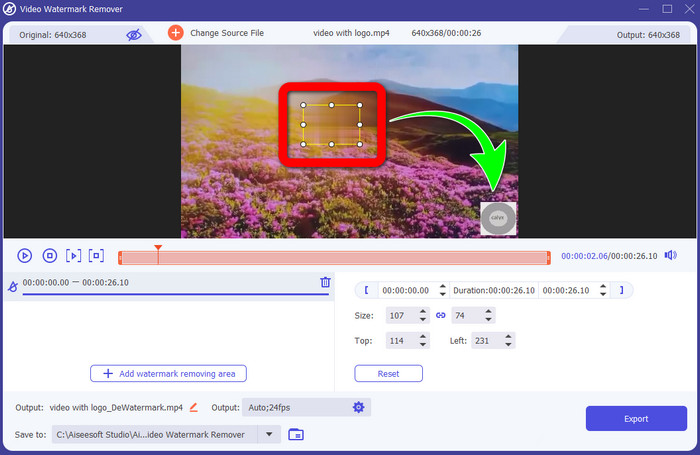
Step 4: Select the Add Watermark Removing Area button. The small box will show up on your video. Move the box to the logo to cover it.
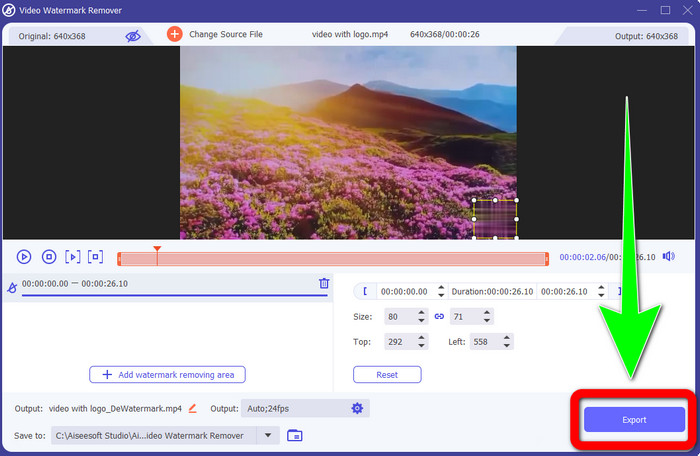
Step 5: When you are finished moving the box to cover the logo, select the Export button to save your final video.
1. Usando a função Video Cropper
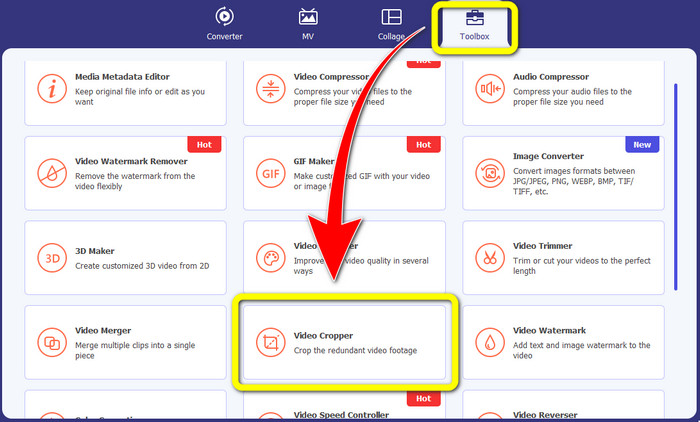
Step 1: Open the Video Converter Ultimate, proceed to Toolbox, and click the Video Cropper button. Then another interface will pop up on your screen.
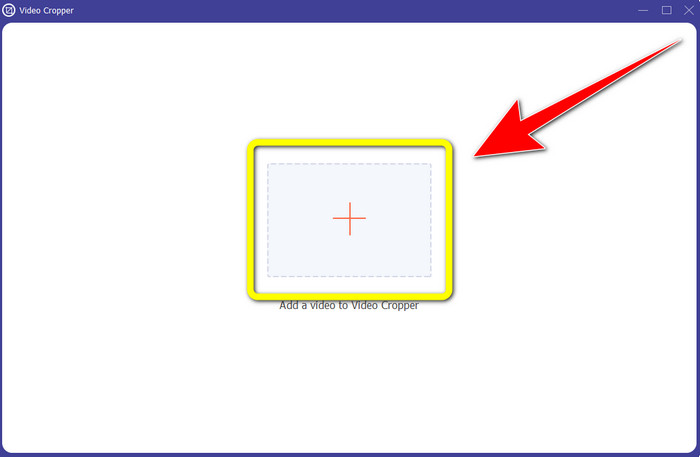
Step 2: When another interface already shows up on your screen, select the Plus sign button to and import your video with a logo.
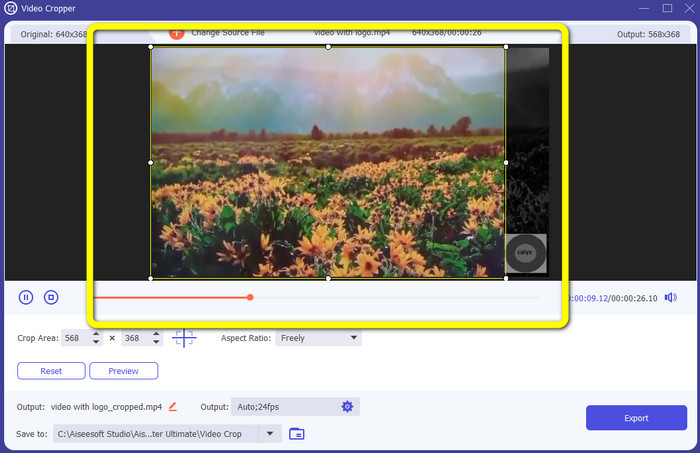
Step 3: After importing the video, you can crop your video to eliminate the logo on.
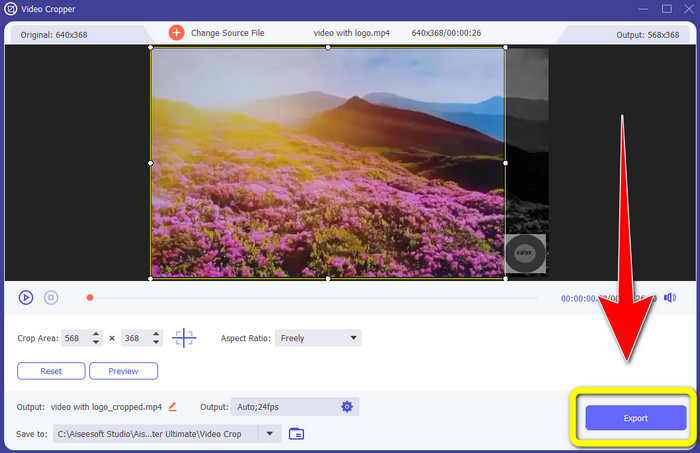
Step 4: Click the Export button after cropping the video.
Parte 2: Como remover o logotipo do vídeo online
If you are looking for a fantastic application you can use to help you on how to remove the logo from the video; you can use 123APPS. This application can assist you in removing a logo from your video quickly and effortlessly, which is perfect and suitable for beginners. In addition, this online tool is free, so you don’t have to worry if you will purchase it or not. Also, in this application, one of its good functions is to eliminate irritating objects on your videos, like watermarks, texts, images, etc. Moreover, it supports various file formats, like MOV, WMV, AVI, MP4, and more. However, every time you upload a file, it takes a long time to be uploaded. Also, the removal process is too slow. If you want to remove a logo from your videos, follow these simple steps.
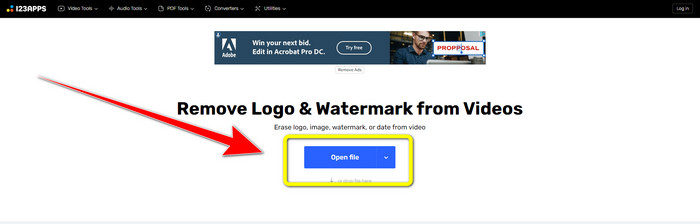
Step 1: Go to the 123APPS website. Click the Open file button and add your video with a TikTok logo.
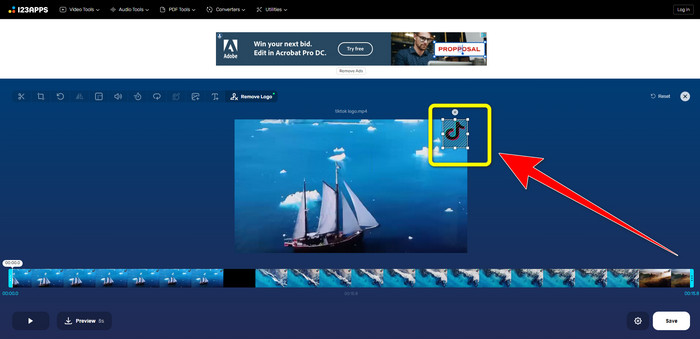
Step 2: After you attach your video, create a box using your mouse on the screen and cover it to remove the logo.
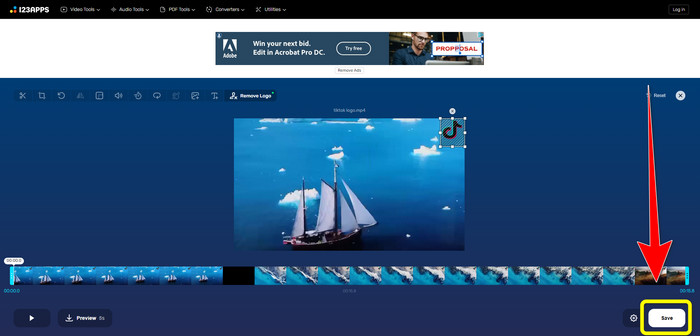
Step 3: After covering the logo, you can now click the Save button to save your final video output without a logo.
Parte 3: Como remover o logotipo do vídeo no iPhone e Android
Como apagar o logotipo do vídeo no Android
If you want to know how to remove the logo from a video using android, Remove and Add Watermark is the application you can utilize. This software can help you to remove a logo from your videos instantly. Also, this is not only reliable for removing unnecessary objects from your videos. You can also remove or eliminate logos from your images, which is convenient for users. In addition, this remover is simple and easy to use. Lastly, it is fast for saving your videos. If you want to eliminate the logo from your videos, follow the simple steps below.
Step 1: Download the Remove and Add Watermark on your android.
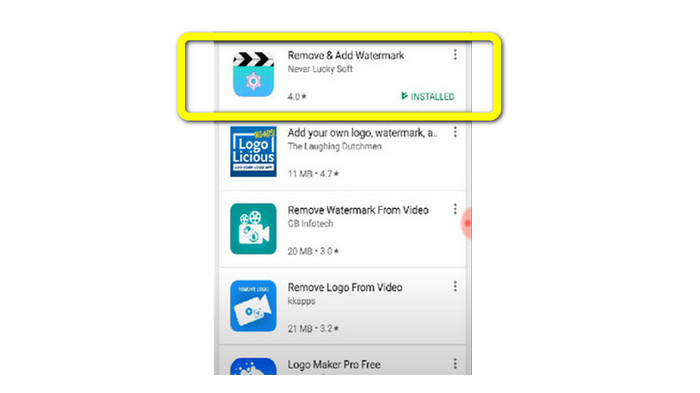
Step 2: After downloading the application, click the Select Video > Remove Logo button to add your video with a logo.
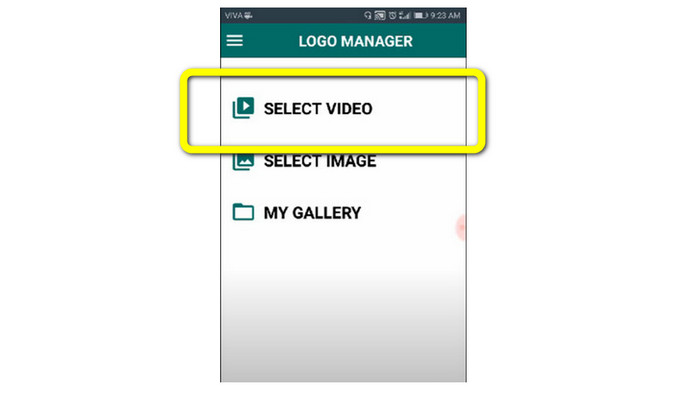
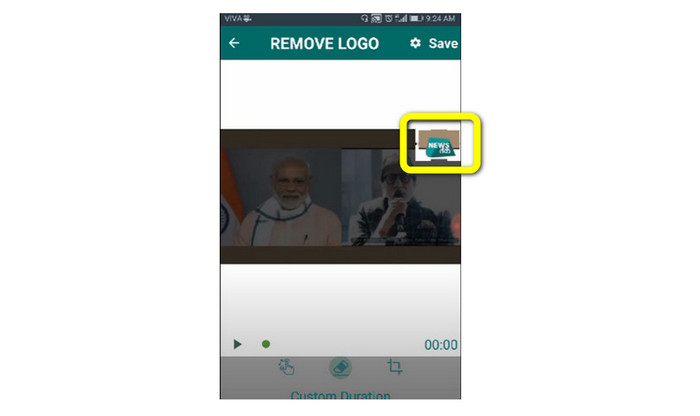
Step 3: A mini box will appear on your screen when you have already added your video. Use the box to remove the logo.
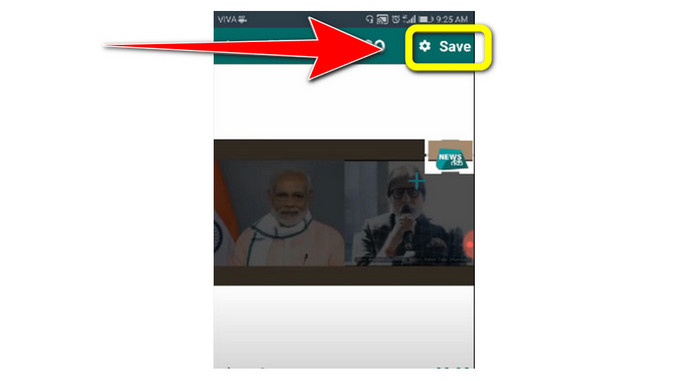
Step 4: If you are done covering the logo, click the Save button to save your video without a logo.
Como excluir o logotipo do vídeo no iPhone
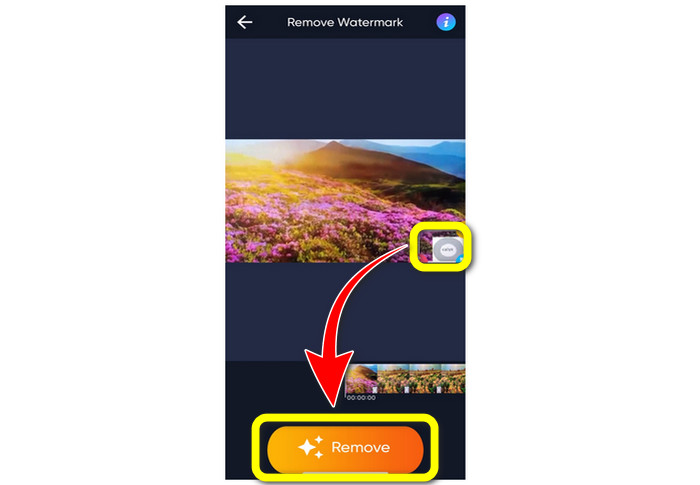
If you want to efface a logo from your videos using your iPhone, the best application you can use is the Watermark Remover Retouch. This application lets you remove unnecessary objects from your videos, like logos, watermarks, texts, images, etc. Also, you can remove them quickly, which is suitable for new users. Moreover, it has a simple interface so you can use this application easily. If you want to use this application to remove logos from your iPhone video, follow the simple steps below.
Step 1: Download the Watermark Remover Retouch on your iPhone. Then launch the application and add the video with a logo.
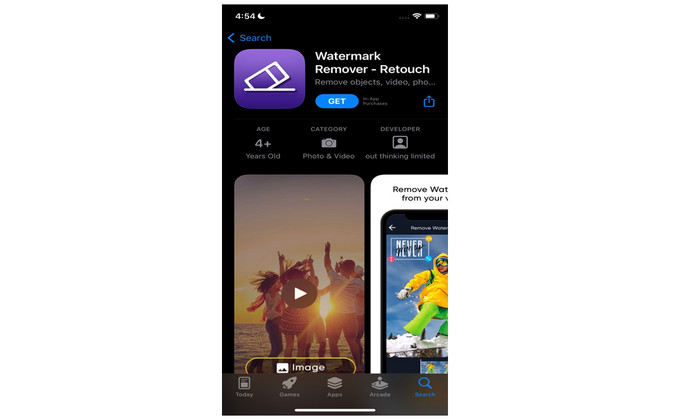
Step 2: A small box will appear on the video when the video is already added. Use this box to cover the logo. Then, click the Remove button and save your video without a watermark.
Related to:
How to Remove Filmora Watermark on Your Videos or Projects for Free
Quickest Trick to Remove the Adobe Stock Watermark From a Video [Tutorial[
Parte 4: Perguntas frequentes sobre como remover o logotipo do vídeo
É seguro remover o logotipo online?
É sim! Os aplicativos online são seguros e seguros de usar. A melhor coisa que você precisa fazer é procurar um aplicativo que o ajude a remover logotipos e utilizá-los.
É possível remover assinaturas dos meus vídeos?
Yes, of course. You can remove the signatures from your videos using Video Converter Ultimate. Signatures, watermarks, logos, and texts, can easily be removed using this excellent application.
Qual é o melhor aplicativo que posso usar para remover logotipos usando meu Mac?
The best application you can use to remove logos using your Mac is Video Converter Ultimate. This application is available not only for Windows but also for Mac, which is convenient for users.
Conclusão
This article provided you with an effective and reliable way to remove logos from your videos. This way, you can enjoy watching your favorite videos without a logo. Lastly, if you want the most straightforward and effortless method to remove logos from your videos, you must use Video Converter Ultimate.
-
 Como remover a marca d'água do Animaker sem custo [maneiras comprovadas]
 Como remover a marca d'água Animaker? Com as melhores ferramentas que listamos neste blog, você pode usá-las para se livrar da marca d'água.
-
 Tutorial sobre como remover a marca d'água do gráfico de origem [100% funcionando]
 Para remover a marca d'água do Origin Graph, você precisará de ajuda. A assistência que você precisa está incluída neste artigo, você pode ler isso para saber.
-
 Como remover a marca d'água no SmartDraw com facilidade [2 maneiras comprovadas]
 Como remover a marca d'água no Smart Draw? Se você tiver a mesma dúvida, pode confiar neste artigo, pois nós o cobrimos!
