


 Video Converter Ultimate
 Gravador de ecrã
 Reparo de vídeo
 Secure Download
Métodos mais fáceis de como remover o logotipo ManyCam no seu dispositivo
Would you like to learn how to remove the Manycam logo on your Windows and Mac? In that case, this post will provide you with different ways to remove a logo from your videos that you must try. Playing your favorite videos with watermarks or logos is a little irritating. You can’t enjoy your videos, and it becomes a distraction. You can’t even see some parts of the videos because of the watermarks, pictures, text, or logos. Fortunately, you can use excellent software applications with watermark remover to remove those unnecessary objects from your videos.
Com a ajuda desses aplicativos, você nunca mais ficará desapontado. Se você estiver interessado em conhecer os melhores métodos para remover o logotipo da ManyCam, sua melhor escolha é ler este artigo.

Parte 1: Como remover o logotipo ManyCam ativando a assinatura
Suppose you want to learn how to remove watermarks from ManyCam; this is the right place. ManyCam is live streaming software that is accessible on both Windows and Mac. This application lets you create a unique broadcast on your platforms, create tutorials, business presentations, game streaming, and more. Moreover, it has more great features you can enjoy, like adding music, recording your screen, adding a green screen, streaming games, and more. For content creators, ManyCam is valuable and helpful. It has essential tools they need, like screencasting and screen recording, making it convenient for them.
No entanto, toda vez que você cria ou edita seu vídeo, há um logotipo de muitas câmeras na parte inferior do vídeo, o que é perturbador. Felizmente, você pode remover esse logotipo ativando a assinatura do ManyCam. Siga estas etapas abaixo para saber como remover o logotipo da manycam ativando a assinatura.
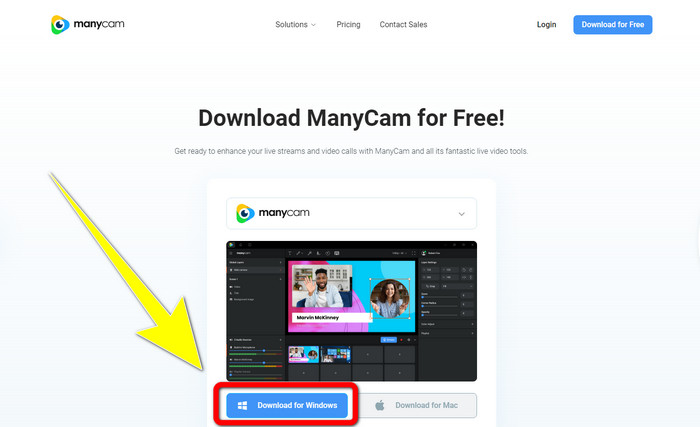
Step 1: To download the ManyCam, click the Download for Windows button. Then, proceed to the installation process.
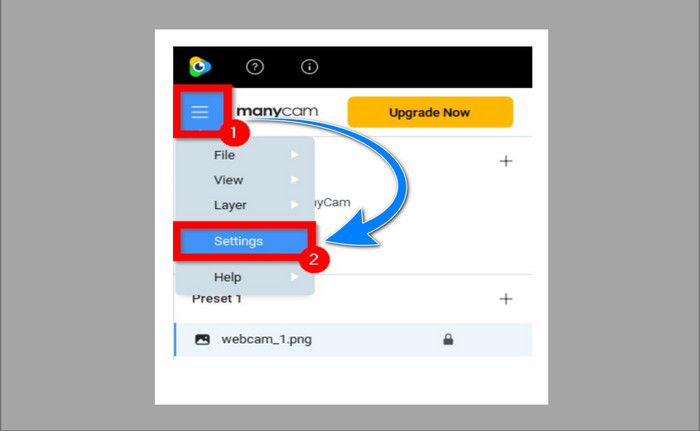
Step 2: Launch the application on your computer and click the sandwich icon of the ManyCam, then proceed to Settings > Account and log into the account you created after you purchased the subscription.
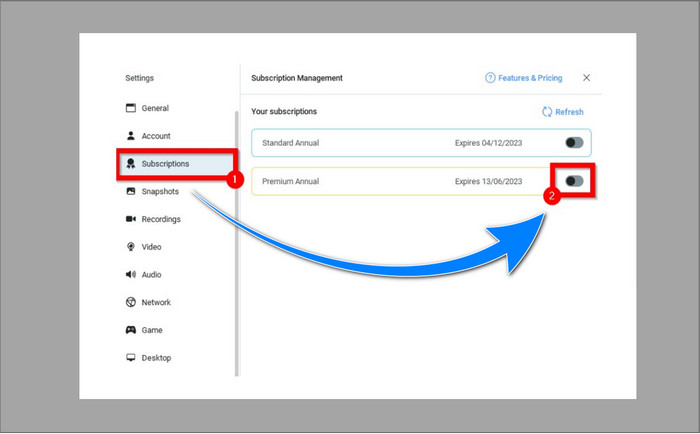
Step 3: Proceed to the Subscription tab to ensure the subscription is enabled.
Step 4: If the subscription is already enabled, the Pop-up message will appear, and you’re done.
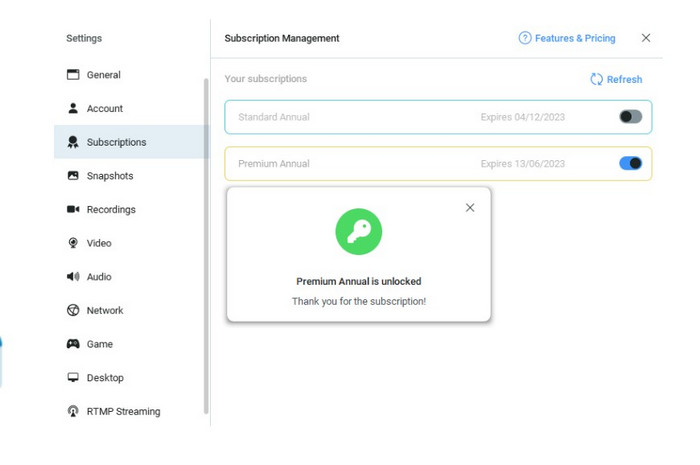
Se o seu aplicativo ManyCam já estiver ativado, as marcas d'água ou o logotipo em seus vídeos serão removidos automaticamente. Você pode assistir seus vídeos favoritos sem encontrar marcas d'água neles.
Parte 2: Como remover o logotipo da ManyCam sem assinatura
Do you want to remove the watermark from manycam for free? Besides the ManyCam application, you can also use another application to remove the logo from ManyCam. The best application you can utilize is the Video Converter Ultimate. This application can remove unnecessary objects on your videos, such as text, watermarks, logos, etc. In addition, Video Converter Ultimate has many editing tools you can enjoy, like a video speed controller, video enhancer, adding and removing watermarks, color correction, volume booster, and more. The best tool you can use to remove watermarks using Video Converter Ultimate is the Video Watermark Remover.
Esta ferramenta irá ajudá-lo a eliminar marcas d'água com facilidade. Além disso, este aplicativo está disponível para Windows e Mac. Além disso, você não terá dificuldade em utilizar este aplicativo. Ele também suporta vários formatos de arquivo de áudio e vídeo, como MP4, FLV, MOV, MKV, MP3, AAC e muito mais. Se você deseja remover o logotipo do ManyCam usando o Video Converter Ultimate, este artigo mostrará duas maneiras. Essas maneiras estão usando o cortador de vídeo e o removedor de marca d'água de vídeo.
1. Usando o cortador de vídeo
Step 1. Download the FVC Video Converter Ultimate and proceed to the installation process.
Free DownloadFor Windows 7 or laterSecure Download
Free DownloadFor MacOS 10.7 or laterSecure Download
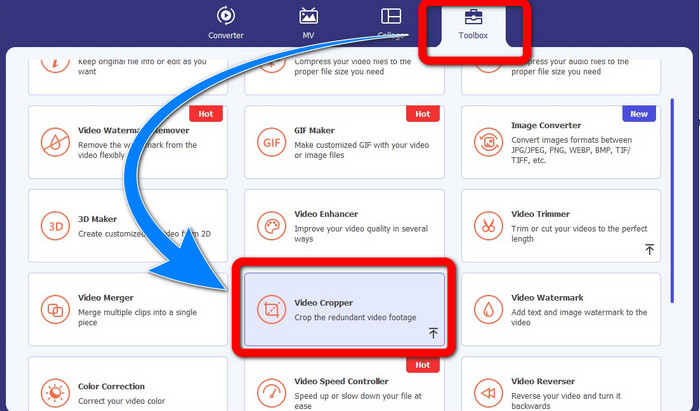
Step 2: After installation, launch the application. Click the Toolbox > Video Cropper.
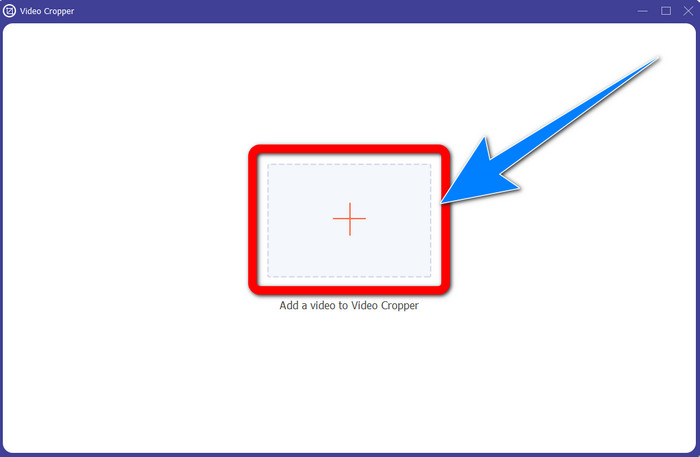
Step 3: After clicking the Video Cropper, another interface will pop up. Click Plus sign button and add your videos with a watermark from ManyCam.
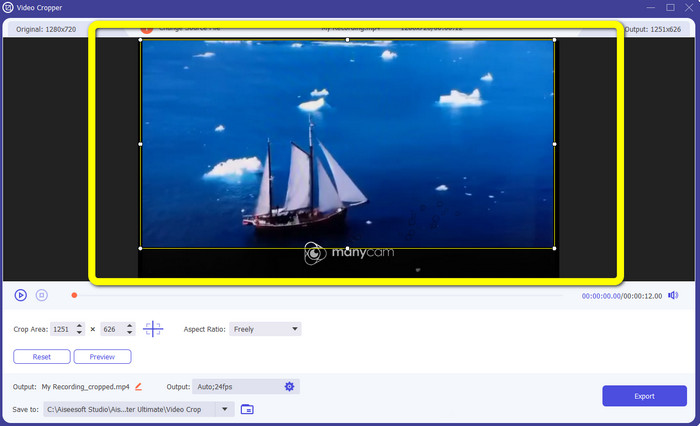
Step 4: You can crop your video and remove the watermark when your file is already added.
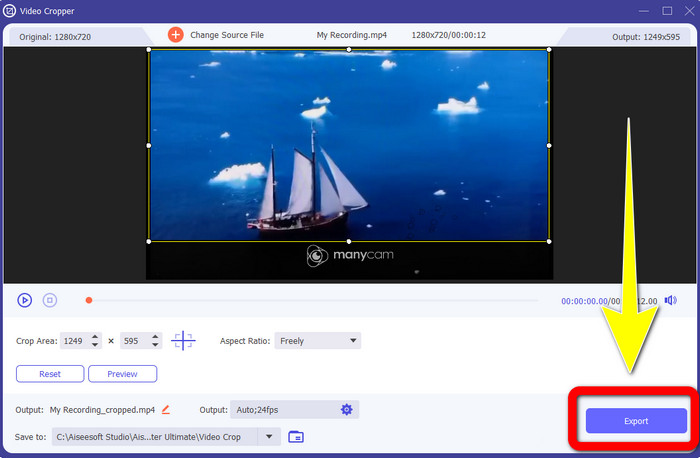
Step 5: When the watermark is removed, click the Export button to save your final output. You can now play your favorite video without a watermark.
2. Usando o removedor de marca d'água de vídeo
Step 1: Open the application. Proceed to Toolbox > Video Watermark Remover.
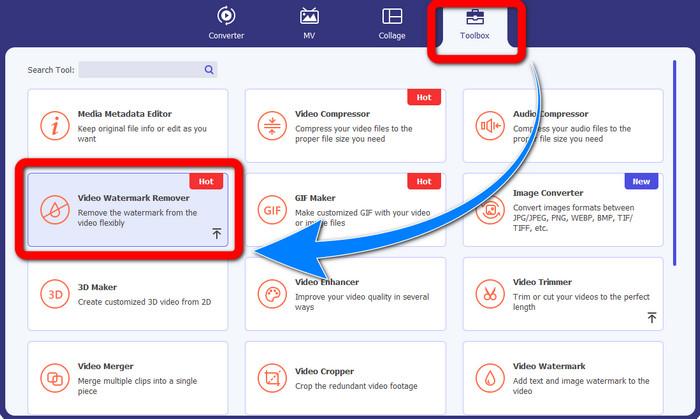
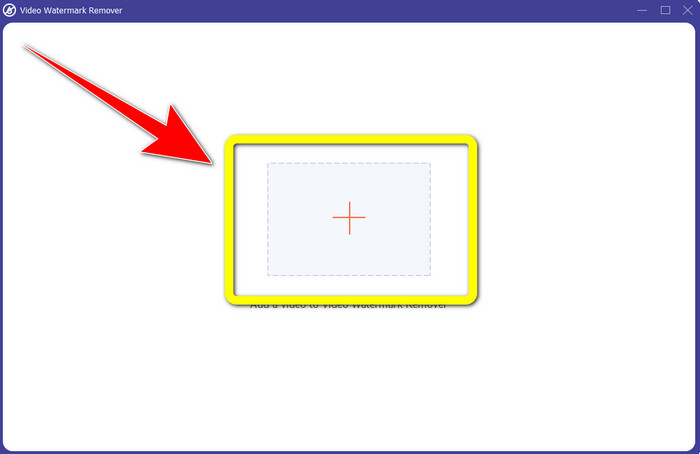
Step 2: Another interface will appear after clicking the Video Watermark Remover. Click the Plus sign button to attach your video with watermarks from ManyCam.
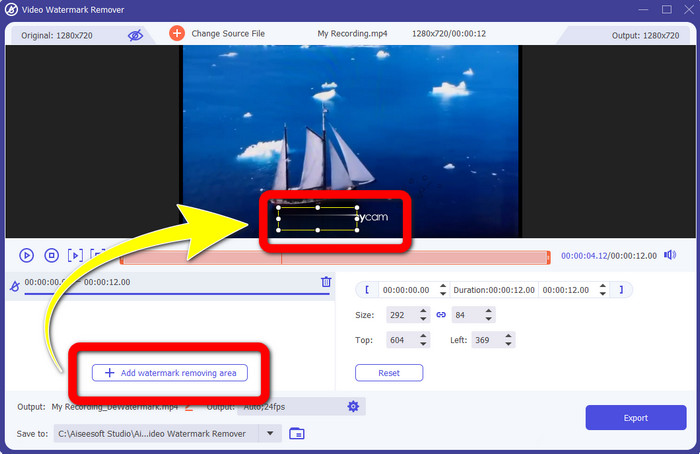
Step 3: If you have already attached your video, click the Add Watermark Removing Area, then a box will appear in your video. Drag the box to the watermark to cover it.
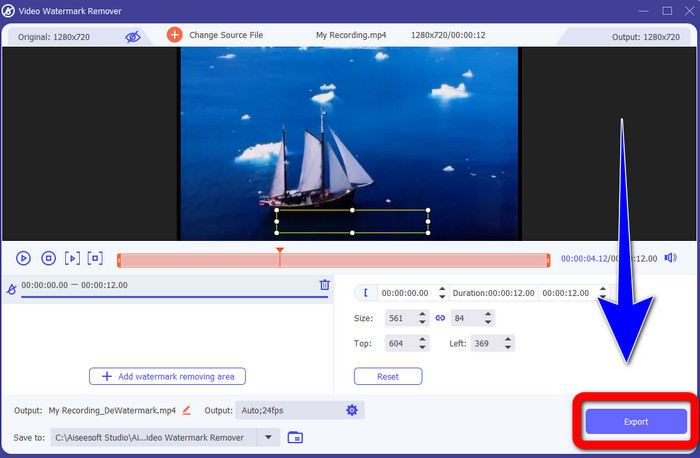
Step 4: If you are done removing watermarks from your videos, click Export to save your output. This is the best way to remove the ManyCam logo for free.
Parte 3: Perguntas frequentes sobre como remover o logotipo da ManyCam
Quanto tempo levará para remover o logotipo?
Você não precisa esperar mais porque o processo de remoção do logotipo ou de quaisquer objetos desnecessários levará apenas alguns segundos.
Posso remover o logotipo ManyCam do meu telefone?
Sim! Você pode remover o logotipo ManyCam em seus Androids ou iPhone usando diferentes aplicativos de software com removedores de marca d'água. Procure o aplicativo na sua loja de jogos ou loja de aplicativos e tente usar os aplicativos que você pode ver nos principais resultados.
Existe uma melhor maneira de remover marcas d'água no meu Mac?
Certainly, Yes! You can use an excellent application with a watermark remover to remove watermarks on your Mac. This application is the Video Converter Ultimate. It is perfect on both Windows and Mac. This software can help remove unnecessary objects on your videos, like logos, watermarks, pictures, and text.
Posso usar a ferramenta de corte do aplicativo ManyCam para remover o logotipo da ManyCam?
Unfortunately, No! Using the cropping tool to remove the logo from ManyCam is ineffective. Even if you try cropping the video to remove the logo, it will still show up. The only solution to remove the logo is to activate the subscription on ManyCam.
Além do ManyCam, existe uma maneira alternativa de remover marcas d'água nos meus vídeos?
Sim existe! Além do ManyCam, existem mais aplicativos com removedor de marca d'água que você pode usar sem comprar. Um dos melhores aplicativos que você pode usar para remover marcas d'água em seus vídeos é o Video Converter Ultimate. É simples e fácil de usar, adequado para iniciantes.
Conclusão
Based on the information above, you can learn how to remove the ManyCam logo on your Windows and Mac. You can use the ManyCam application to remove the logo easily after activating your subscription. In addition, if you want to use an application with a watermark remover for free, you must use the Video Converter Ultimate. This application will be a great help in terms of effacing unnecessary objects on your videos.
-
 Métodos mais fáceis sobre como remover marca d'água de fotos
 Você está irritado com as marcas d'água em suas fotos? Não se preocupe! Este artigo fornecerá métodos simples e fáceis para remover marcas d'água de suas fotos.
-
 Como remover a marca d'água Powtoon usando 4 métodos eficazes
 Leia este artigo para saber como remover a marca d'água Powtoon usando as melhores ferramentas que incluímos aqui e um tutorial.
-
 Revisão do removedor de marca d'água da Apowersoft – Recursos, prós e contras e preços
 Apowersoft Watermark Remover é um dos melhores removedores de marcas d'água que suporta online e offline, clique aqui para saber mais!
