


 Video Converter Ultimate
 Gravador de ecrã
 Reparo de vídeo
 Secure Download
Remove Subtitles from MP4: Turn Off, Delete, or Hide Them
If your MP4 video is showing subtitles by default, getting rid of them may not be as easy as erasing a text file. What you're going to do in any case is a function of how the subtitles were added to the video. Here, you will study different procedures for removing subtitles from MP4 videos that include just turning them off, deleting, or hiding the subtitles, which are part of the video itself. We'll walk you through each option step-by-step so you can choose the best approach for your file.

Part 1. Understanding Soft vs. Hardcoded Subtitles in MP4s
In order to successfully remove subtitles from an MP4, one must first be familiar with the manner in which the subtitles were incorporated during the editing stage, since this knowledge alone will allow a person to simply switch off subtitles or will require editing the video file itself.
Soft Subtitles
Soft subtitles are different subtitle tracks that are enclosed in the MP4 file. As they aren't a permanent part of the video scene, you can mostly switch them on/off, modify the subtitle track, or delete the subtitle track completely without harming the video.
Hardcoded Subtitles
Hardcoded subtitles are directly integrated with the video frames at a technical level. Being part of the video image already, they aren't like regular on-screen subtitles where one just hits a button to hide or change the language. In fact, to change or get rid of them, you have to do some serious editing of the video, like cropping, blurring, covering, or manipulating the section that has the subtitles.
Quick way to tell: If you are able to enable and disable the subtitles, then they are almost certainly soft subtitles. Otherwise, if they are always visible regardless of what you do, then they are probably hardcoded.
Part 2. How to Remove Subtitles from MP4
Turn Off Soft Subtitles in Your Media Player (VLC)
If the subtitles are kept separately, you don't have to change the MP4 file to hide the subtitles. With VLC Media Player, you have an option to hide the subtitle track from the video being played. It is perhaps the fastest and easiest way of watching the video if you do not prefer subtitles and do not want to switch between video and text.
Step 1. Using VLC Media Player, open the MP4 video. Under the top menu of the program, choose Subtitles.
Step 2. Open Subtitle Track under the Subtitles menu.
Step 3. Find the option to Disable and select it. If you play the video once more and observe that the subtitles are gone, you've successfully removed the subtitles.
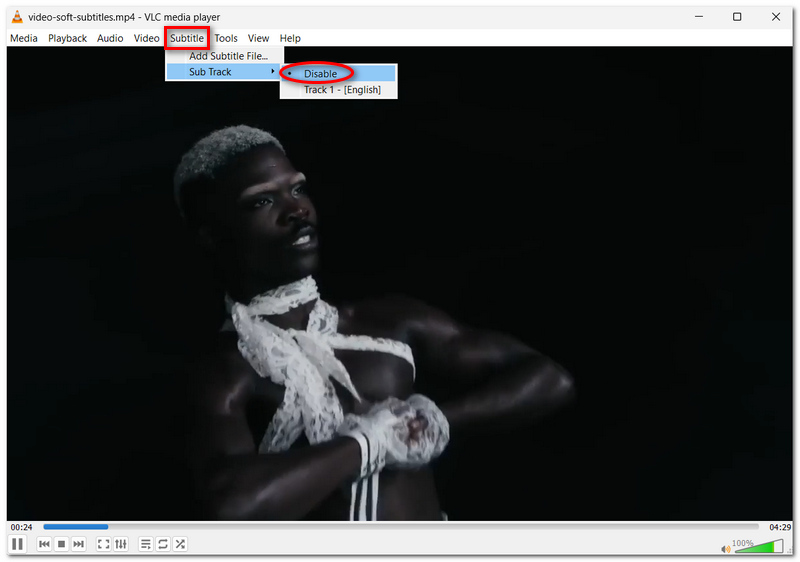
In other words, this way of doing things simply disables the subtitle track. It cannot permanently delete the subtitle stream from the MP4 file. Yet, you might still find what you're looking for online if you just want to remove embedded subtitles from an MP4. Still, to achieve it, you have to actually do some kind of video editing or video processing on the source file.
Permanently Remove Soft Subtitle Tracks from MP4 Using FVC Video Converter Ultimate
If subtitles have been added as an external track, it is possible to eliminate them without affecting the video. FVC Video Converter Ultimate will handle this task automatically by giving you the option to select or exclude the subtitle track you want to include or exclude at the MP4 export stage.
Main Features
- • Allows you to access all available subtitle tracks within the video.
- • Lets you delete bars we don’t want in our movie.
- • Import and export easily using MP4 and other popular video formats.
- • Allows for reviewing the video before saving the final edit.
- • Maintains the video quality of bitmapped images during conversion and editing.
Free DownloadFor Windows 7 or laterSecure Download
Free DownloadFor MacOS 10.7 or laterSecure Download
Here’s how to remove subtitles from MP4, follow these steps:
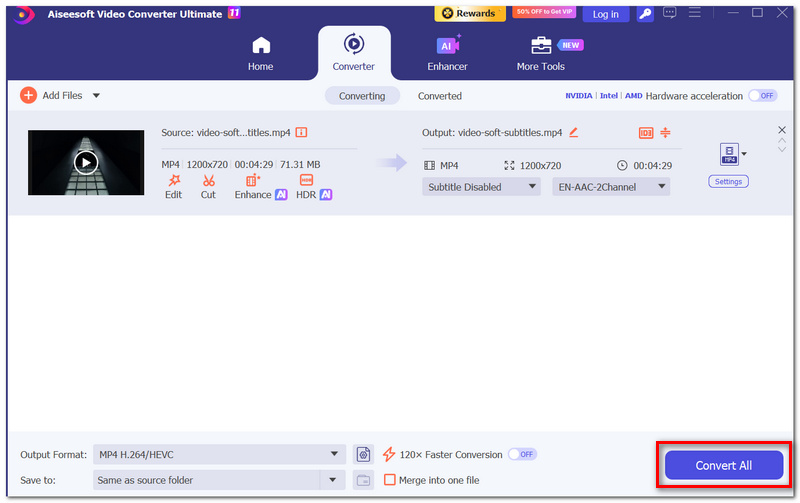
Step 1. Start with the Open FVC Video Converter Ultimate, and click the Add Files + button to import your MP4 video.
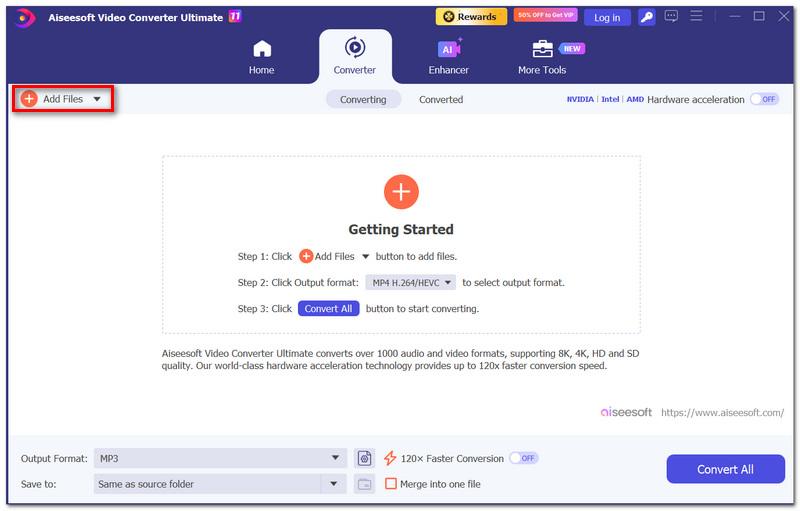
Step 2. Click the Subtitle button that appears next to your uploaded video. Click on it.
Step 3. Check out the existing subtitle track. Either disable it by selecting Subtitle disabled.
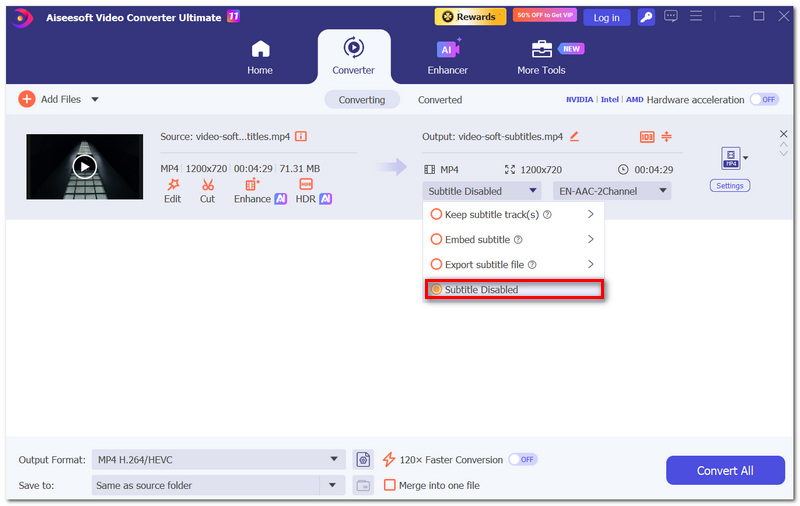
Step 4. Clicking OK will make these changes. Set MP4 as the output format and decide the folder where the video should be saved.
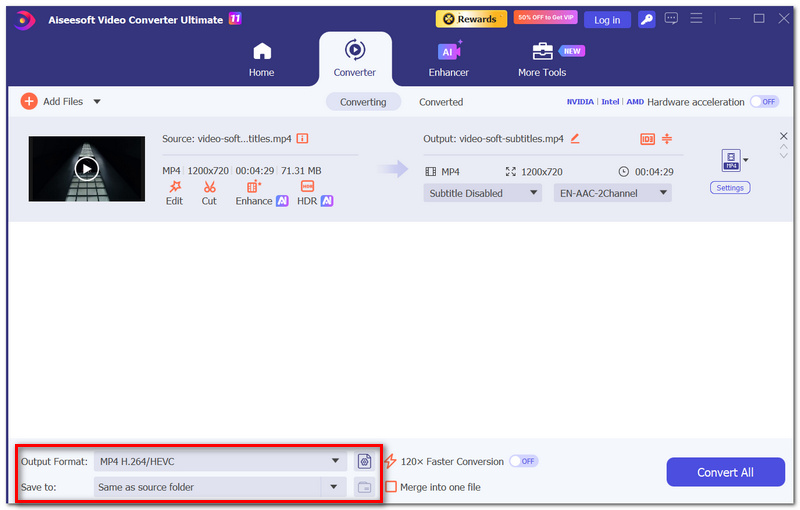
Step 5. Click Convert All if you want to run the video file quickly. Then open your edited MP4 and make sure that the subtitle track has been excluded.
Part 3. How to Remove Embedded Subtitles from MP4
Crop Out Hardcoded Subtitles with HandBrake
If they are displayed throughout the video, it is not possible to switch them off. A simple solution to this problem is to crop the section of the frame in which they are displayed. This is most effective if they are low down on the frame.
If you want to remove hardcoded subtitles from MP4, follow these steps with HandBrake:
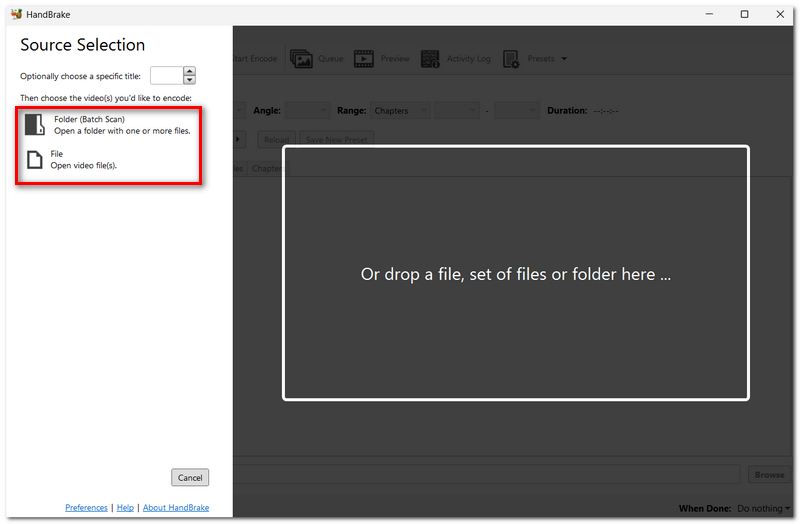
Step 1. Open HandBrake and select File to load your MP4.
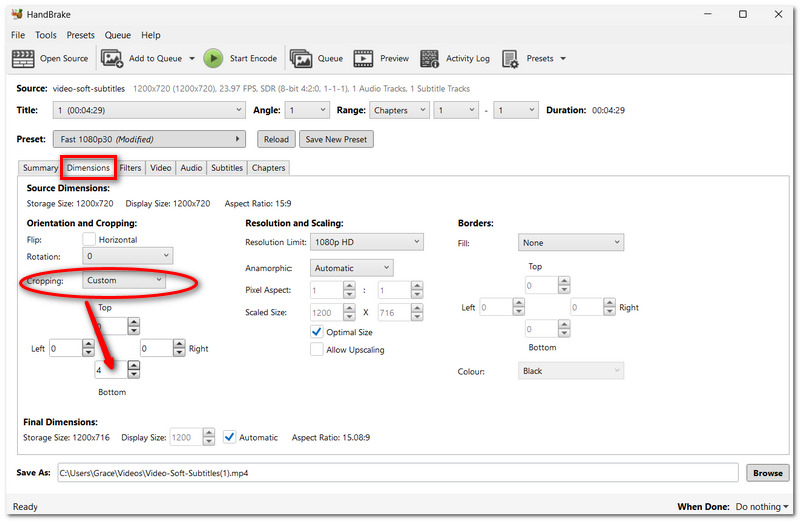
Step 2. Choose the Dimensions tab and locate the Cropping section.
Step 3. Select Custom if HandBrake isn't selecting the cropping area on its own. Upscale Bottom to increase the bottom crop value until the hardcoded subtitles are eliminated from the preview.
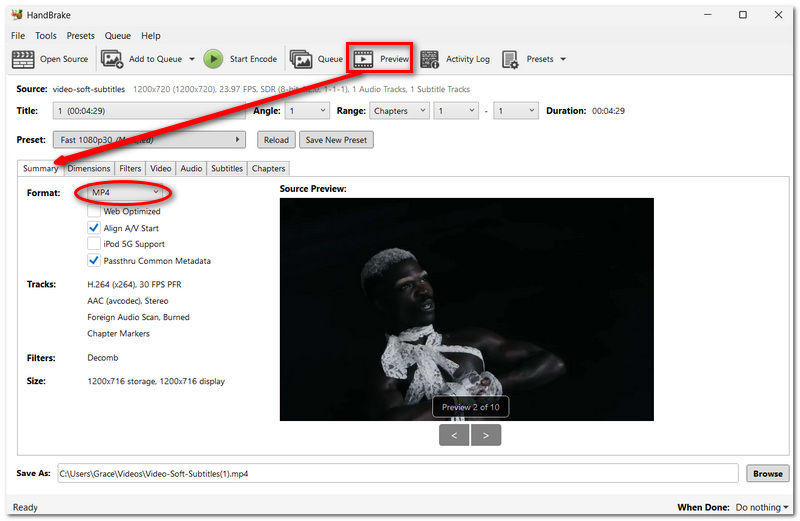
Step 4. Preview the video to verify that it isn't clipping significant sections of the motion. Then head to the Summary tab and select MP4 as the file format.
Step 5. Indicate the output file name and location and click Start Encode. Open the exported video and confirm that the subtitles are not visible.
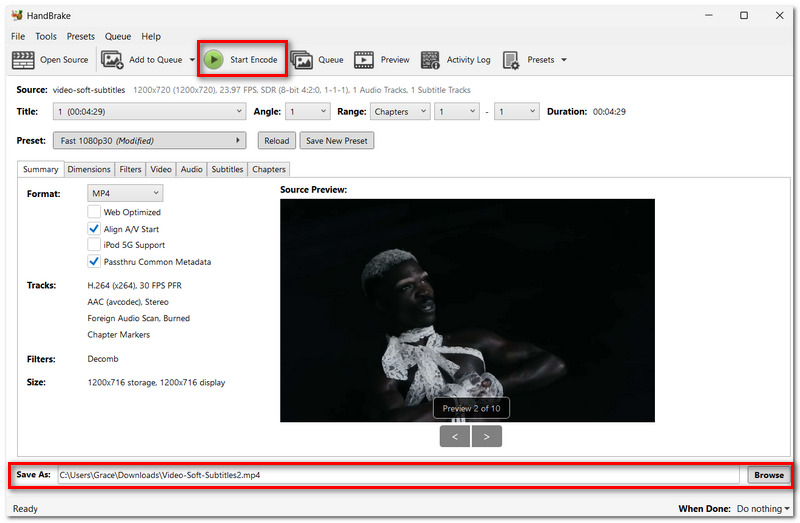
Cropping videos permanently affects the number of frames in the video, so be sure to crop only what is needed!
Blur or Cover Hardcoded Subtitles with FVC Video Converter Ultimate
Cropping may not always be the best solution when subtitles are burned into the video, as it alters the aspect ratio of the video frames. FVC Video Converter Ultimate has a handy tool called Video Watermark Remover to help you mask out incorporated hot captions by overlaying or blurring the area, without cropping the video frame.
Main Features
- • Hide and remove all undesired text and marks.
- • Choose the region to modify.
- • Preview the output before exporting.
- • Keep the dimensions of the original video.
- • Export the edited video in a supported format.
Free DownloadFor Windows 7 or laterSecure Download
Free DownloadFor MacOS 10.7 or laterSecure Download
How to Remove Hardcoded Subtitles with FVC Video Watermark Remover
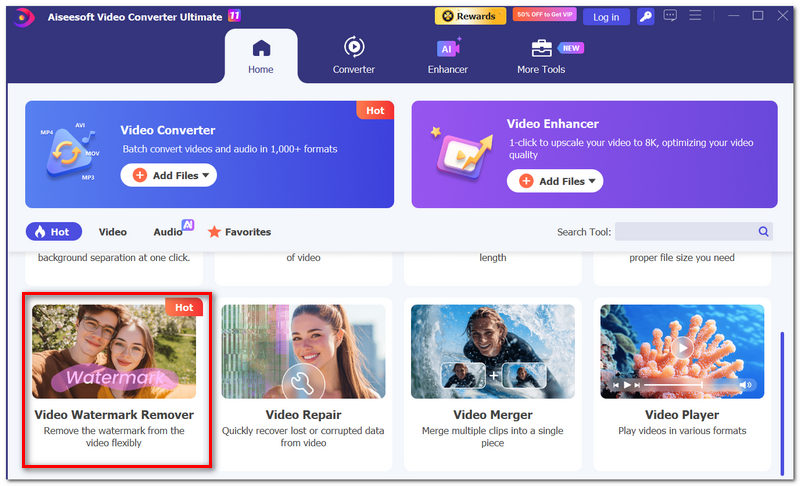
Step 1. Open FVC Video Converter Ultimate and click the Toolbox. Choose Video Watermark Remover.
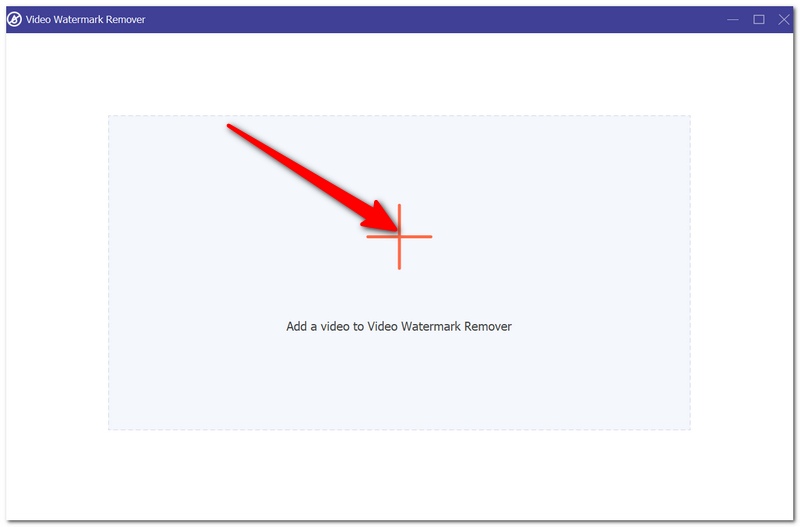
Step 2. Click + to import your MP4 video.
Step 3. Click + Add Watermark Removing Area and select, drag, and indicate the hardcoded subtitles.
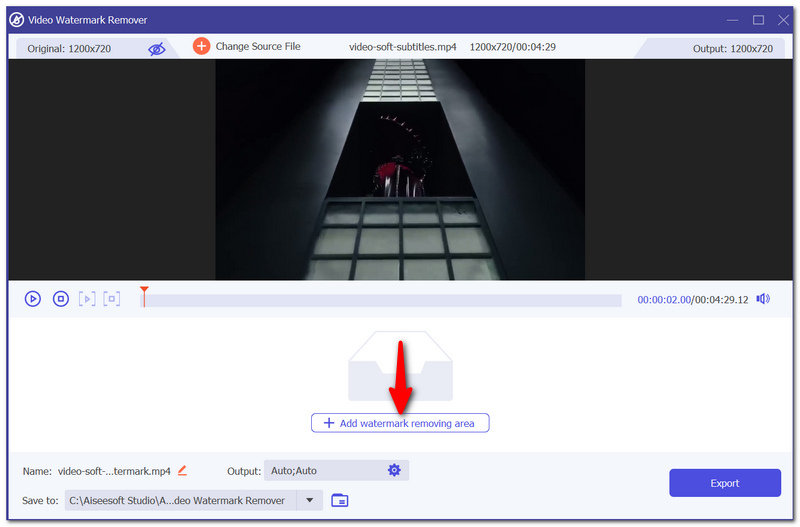
Step 4. Adjust the size and move the box so that it always covers the whole subtitle area. After that, select the available removal option to mask or remove the selected area.
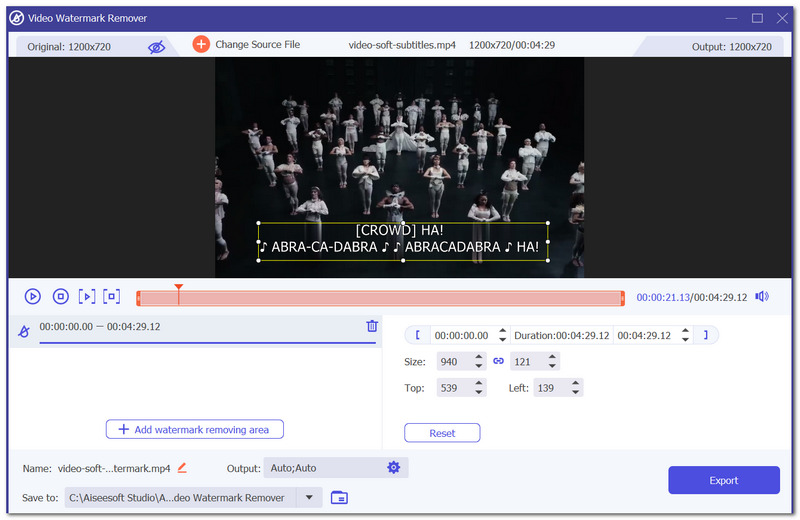
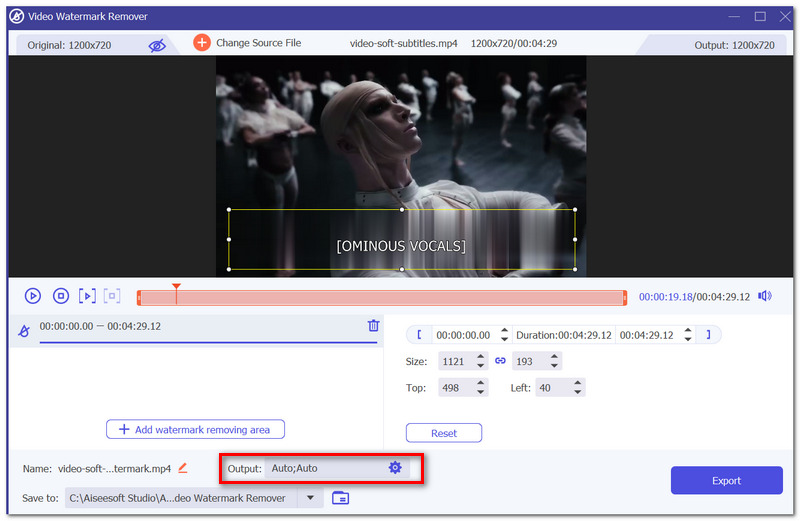
Step 5. Play the video to preview and see if the subtitles are gone. Select the style of image output and the destination folder to save the image to.
Step 6. Use the Export button when you are done editing the video.
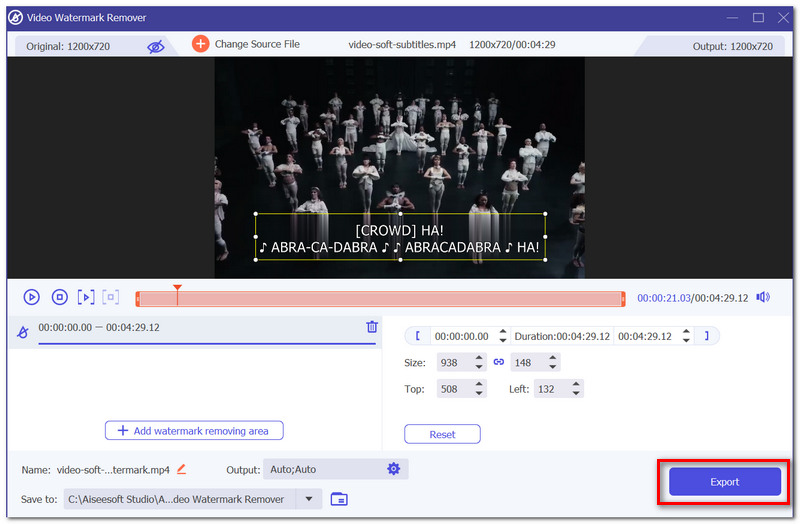
Here's another easy approach to remove hardcoded subtitles from MP4 video files that preserves the entire video frame if you prefer not to crop the image.
Part 4. FAQs about Removing Subtitles from MP4
By deleting the subtitles, will the MP4 file size become much smaller?
This will also compress MP4 a little if the MP4 has a subtitle track, but generally the improvement over the size of the video and audio when compressed is quite small.
What about having an MP4 with hardcoded and softsubs?
You might have to add some steps to modify them separately. With the subtitle track, you can simply either turn the subtitles off or extract this track and remove it, yet the hardcoded subtitles will still be visible since it is just part of your image already.
Why does some hardcoded subtitle leave a visible impression when deleted?
Since the subtitles are burned into the MPEG, the two original pixels underneath the subtitles are already replaced. Only avoiding them from being present is enough for covering or blurring; restoring the original background exactly may be impossible.
Conclusão
The one thing to keep in mind is this. Not all subtitles are removed the same way. Distinguishing one from the other helps to prevent you from attempting the incorrect approach, which could not only affect the finished quality of the film but also the dimensioning of the shot. To remove embedded subtitles from an MP4, follow the appropriate method, and you'll receive a much more refined result.
-
 Obtenha seu melhor reprodutor MP4 para reproduzir arquivos MP4 com alta qualidade visual
 Leia e obtenha o seu melhor reprodutor MP4 com os 10 softwares reprodutores de vídeo MP4 mais recentes. Você pode reproduzir MP4 no Windows e Mac sem problemas e sem atrasos.
-
 Análise do MP4 Editor: as melhores ferramentas gratuitas para edição fácil de vídeos
 Procurando um editor de MP4 gratuito? Este artigo analisa detalhadamente oito ferramentas, onde você pode descobrir o que elas fazem de melhor e o que não fazem. Continue lendo para saber mais!
-
 6 Amazing MP4 Recorder tools [Cost-Free & Premium]
 A melhor forma de fazer a gravação é escolher o melhor gravador de tela. Aqui estão alguns dos melhores gravadores de tela MP4 da web.
