


 Video Converter Ultimate
 Gravador de ecrã
 Reparo de vídeo
 Secure Download
2 métodos sobre como remover facilmente o banner de marca d'água do AVS Video Editor
How to remove the watermark banner from AVS Video Editor? If you’ve used the free version of this software, you will have a watermark banner at the end of the output. Everyone doesn’t like having a product watermark on the video they’ve spent editing, especially if you want to present it professionally. Watermark makes the final output less appealing and unprofessional in many areas. In today’s blog, we will introduce two methods you can use, so you better read this to know more. Here’s how to remove the watermark that the AVS Video Editor attached to the video you created to make it look seamlessly beautiful at first glance.

Parte 1. Como remover marca d'água do AVS Video Editor sem comprar licença [método de baixo custo]
How to remove the AVS Video Editor watermark that doesn’t cost much? FVC Video Converter Ultimate supports an AI-technology watermark remover that you can use to erase anything that you want on your video. It is one of the tech giants that support video editing that you can use to have a professional output within a few clicks. Inexperienced or pro, you can enjoy using this software to remove watermarks and do major video editing, converting, creating MV or collage, and more.
Mesmo que o software seja pago, você não precisa se preocupar porque não custa muito, e podemos garantir que você pode maximizar esse software a todo custo. Comprá-lo é uma ótima opção, portanto, se você quiser tentar usar este software, siga as etapas que incluímos abaixo.
Steps on How to Remove AVS Video Watermark Using FVC Video Converter Ultimate:
Step 1. To have the video editor on your desktop, click the download button we added below. After that, click the file to install the software, follow the WinRAR set-up, and launch it.
Free DownloadFor Windows 7 or laterSecure Download
Free DownloadFor MacOS 10.7 or laterSecure Download
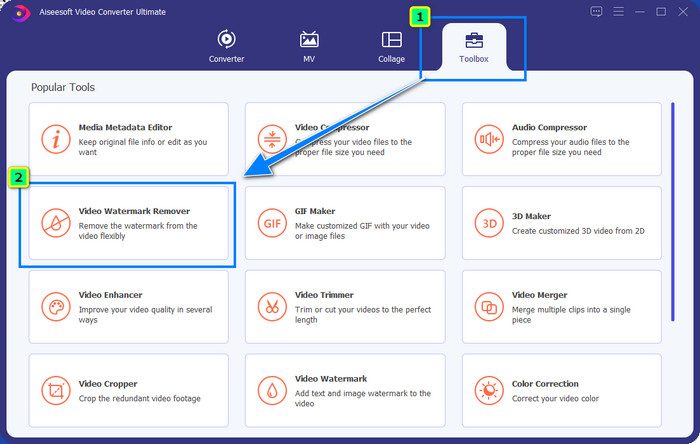
Step 2. Next, open the Toolbox and locate the Video Watermark Remover to use this feature and erase the AVS banner watermark that’s added to the video you’ve created.
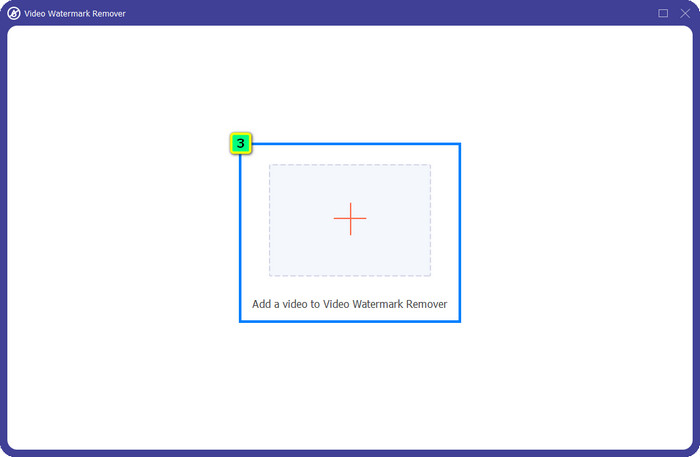
Step 3. A new window will appear on your screen; press the + sign to upload the video you wanted to edit.
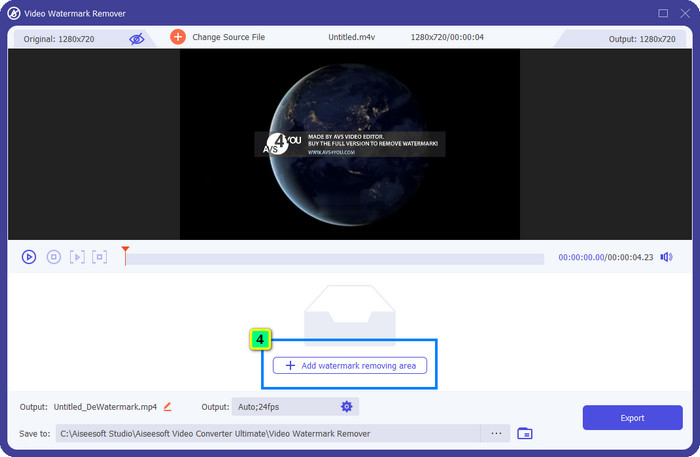
Step 4. After that, click Add Watermark Removing Area, then place the selection box tool to the watermark so that it will be removed when you export the final output.
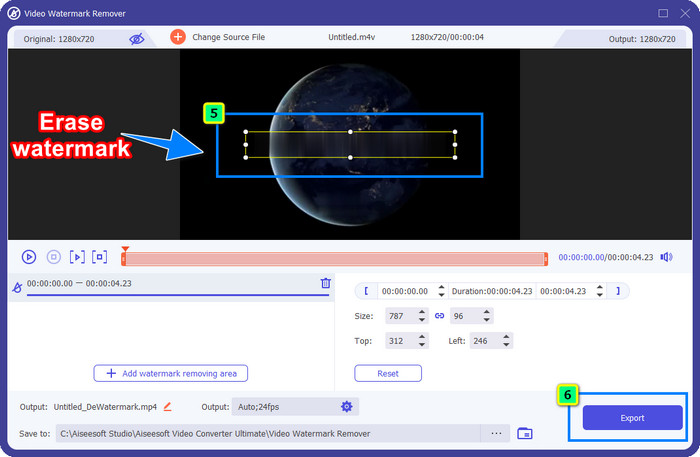
Step 5. Tap this to change the location of the final output, and press Export to have the video downloaded to your folder without the watermark on it.
Parte 2. Como remover a marca d'água do AVS Video Editor com a compra de uma chave de ativação [Método caro]
AVS Video Editor is a Windows-based video editor you can use to create an outstanding video from scratch. This method is more expensive than the first one because you will need to purchase a plan so that when you export the video, it will not add a watermark. Howbeit, when the video is already exported, you can’t remove it unless you use a watermark remover like what we introduced first in this article. Before you export, you will need to learn how to remove the AVS Video Editor watermark by purchasing the official version of this software.
Steps on How to Purchase and Activate AVS Video Editor:
Step 1. After downloading it, visit the official website of AVS Video Editor again.
Step 2. On the main website, click Buy Now at the upper portion.
Step 3. Here you have two options: you can be subscribed for a year for $ 49.00 or access it by purchasing the $ 79.00. Choose one and click Buy Now.
Step 4. Add the billing information and your official e-mail. Wait for several hours or days to process the payment, and you will receive an e-mail from AVS with the code.
Step 5. Open the software, and activate it by inputting the activation key sent to your e-mail.
Parte 3. Perguntas frequentes sobre como remover o banner de marca d'água do AVS Video Editor
O AVS Video Editor oferece garantia de devolução do dinheiro?
Se você deseja restaurar sua compra no AVS Video Editor, você terá 30 dias para reembolsar o dinheiro. Se você não pagou o dinheiro que usou para comprar este aplicativo, não há uma política estendida que ofereça margem adicional para um reembolso garantido.
Posso salvar o vídeo editado no AVS Video Editor como HD?
By tweaking some parameters, you can achieve the high resolution you want to have here. Does the video quality still low? If that is the case, you better increase video resolution with the best video editor across the platform.
O AVS Video Editor tem uma versão para Mac?
É realmente triste dizer, mas o AVS Video Editor está disponível apenas no Windows 11/10/8/7/XP/Vista. No entanto, se você deseja ajustar seu vídeo, como o que oferece o AVS Video Editor, tente baixar a versão para Mac do FVC Video Converter Ultimate. Ele possui vários recursos e funções de edição de vídeo que você usaria e que você vê principalmente no AVS Video Editor.
Posso converter o vídeo para MP4 com o AVS Video Editor?
Yes, you can use the AVS Video Editor to convert your video into an MP4, yet the video input it supports isn’t broad. Mostly, the video format that this editor supports are popular. So, what should you do if your video file isn’t supported on AVS Video Editor? Actually, you can simply convert video into MP4 without hassle.
Conclusão
So the question is, which do you prefer to use to remove the AVS Video Editor watermark on the video? If you haven’t exported the project yet, you can purchase an activation key so it will not embed any banner watermark on the final output. However, the price of the activation key isn’t as low as you think. Considering the cost and performance, we can say that the FVC Video Converter Ultimate performs the best in erasing the watermark on any video you have saved on your desktop.
Além do recurso de remoção de marca d'água deste software, você também pode converter, criar MV, colagem, rampa de velocidade, adicionar câmera lenta e muito mais aos seus vídeos. Então, o que você está esperando? Baixe este aplicativo em sua área de trabalho para resolver todos os problemas que você provavelmente encontrará.
-
 Como remover a marca d'água Weibo em vídeos e imagens facilmente
 Tendo problemas para remover a marca d'água Weibo em vídeo e imagem exportados? Nesse caso, você deve um removedor de marca d'água que listamos abaixo que pode ajudá-lo.
-
 5 maneiras de remover a marca d'água B612 usando as melhores ferramentas
 Quer saber como remover marcas d'água B612 de suas fotos? Você pode remover sem esforço a marca d'água B612 de suas imagens usando essas ferramentas excelentes.
-
 Remova a marca d'água StarUML usando a versão gratuita e paga que você pode usar
 Deseja remover a marca d'água StarUML na saída final? Bem, existem duas maneiras de fazer isso, e vamos discuti-las aqui.
