


 Video Converter Ultimate
 Gravador de ecrã
 Reparo de vídeo
 Secure Download
Ótima maneira de remover a marca d'água do Camtasia 9 que você deve tentar
If you are looking for the simple and best way to remove the watermark in Camtasia 9, this is the best place. There are many excellent videos that we want to watch. However, some of them have a large watermark, making them more irritating and unable to appreciate the content of the video itself. Moreover, with these unnecessary objects, there are some parts of the video that you can’t see, which makes the viewers more disappointed. Luckily, there are some software applications with watermark removers you can use to remove watermarks on your videos so you can enjoy watching your favorite movies without disturbance. If you want to learn more about quickly removing watermarks on your videos, read this article from beginning to end.

Parte 1: Melhor maneira de remover marca d'água do Camtasia
Usando o Video Converter Ultimate
If you are looking for a great and reliable application with watermark remover tools, Video Converter Ultimate is an excellent software you can utilize. You can remove watermarks on your videos using this application. You can also use this application if your video has watermarks from other apps like Camtasia. Furthermore, it is easy to use and simple, which is suitable for beginners. In addition, it has different editing tools you can enjoy, like Video Compressor, Video Enhancer, Video Trimmer, Audio Compressor, Video Reverser, Video Rotator, and more. This article will show two ways to remove watermarks on your videos using Video Converter Ultimate.
1. Usando o removedor de marca d'água de vídeo
Step 1: Download the Video Converter Ultimate on your desktop. Then proceed to the installation process.
Free DownloadFor Windows 7 or laterSecure Download
Free DownloadFor MacOS 10.7 or laterSecure Download
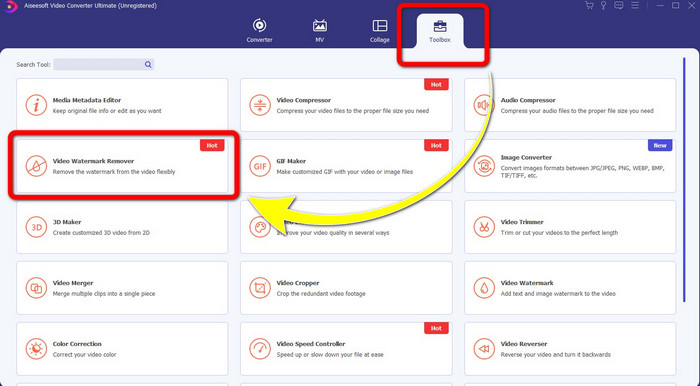
Step 2: When the installation is done. Open the application and go to Toolbox > Video Watermark Remover. Then, another interface will appear on your screen.
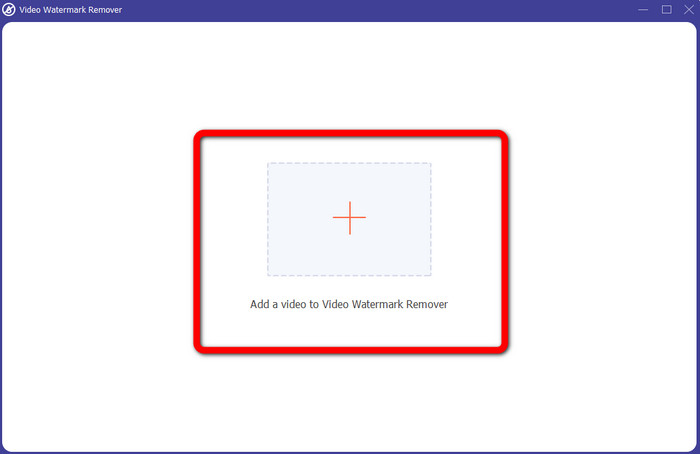
Step 3: When another interface has already shown up, click the Plus sign button and add the video with the watermark.
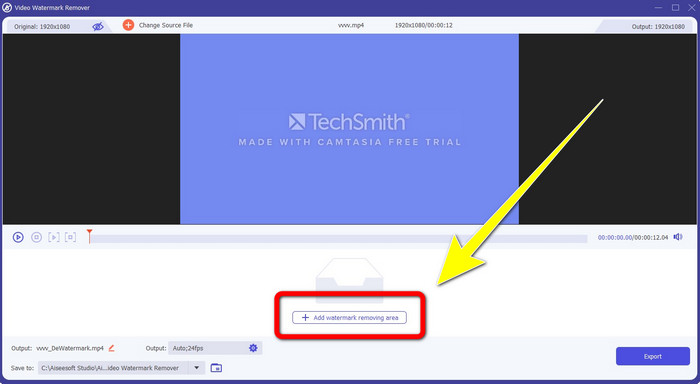
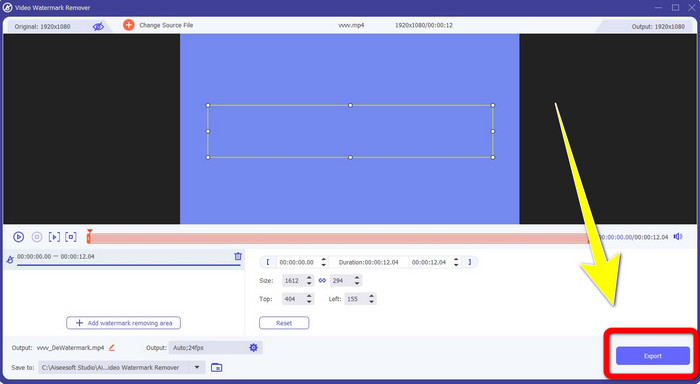
Step 4: After adding your video with a watermark, click Add Watermark Removing Area.
Step 5: There will be a box-shaped screen that will show on your screen. Use the box to cover the watermark on your video.
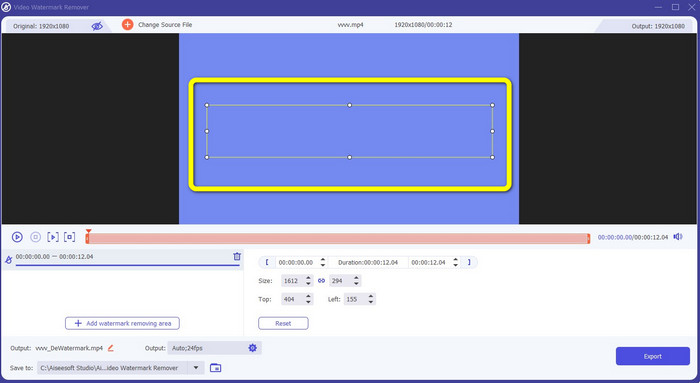
Step 6: When the watermark has been covered, the watermarks will be gone on your video. Click Export to save your video. This way, you can now remove the video with a watermark from Camtasia.
2. Usando os recursos de corte
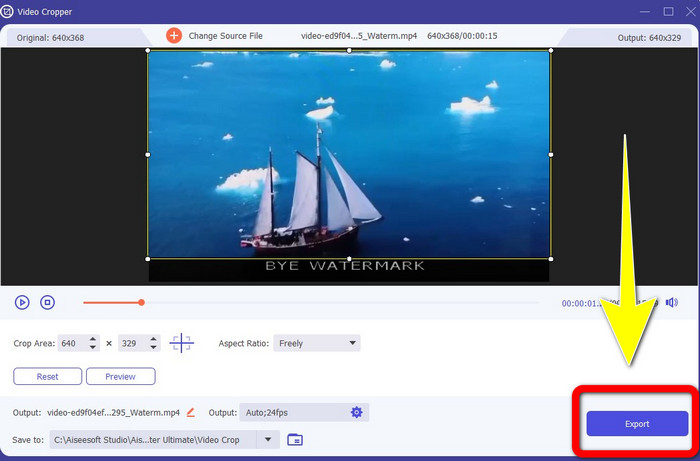
Another way you can try is the cropping features of Video Converter Ultimate. It is one of the easiest ways to remove watermarks on your videos, especially if the watermark is only at the corner or edge of your videos. By cropping your videos, you can instantly efface the unnecessary objects on your video. Follow these simple steps to remove watermarks using a cropping tool.
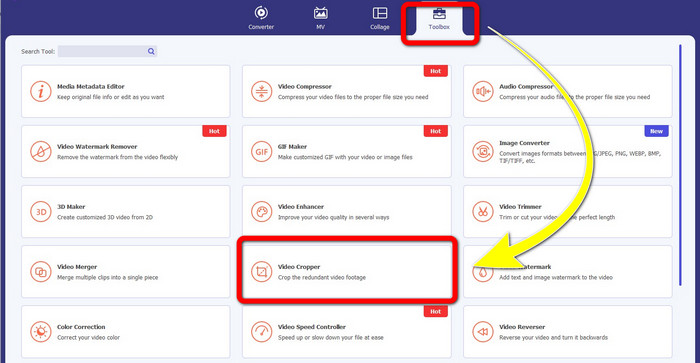
Step 1: Open the Video Converter Ultimate. Click Toolbox > Video Cropper. Then, another interface will appear on your screen.
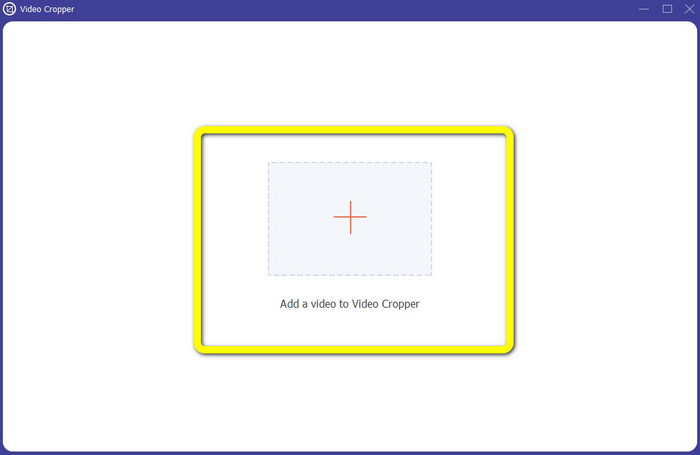
Step 2: Click the Plus sign button and add your video with a watermark you want to remove.
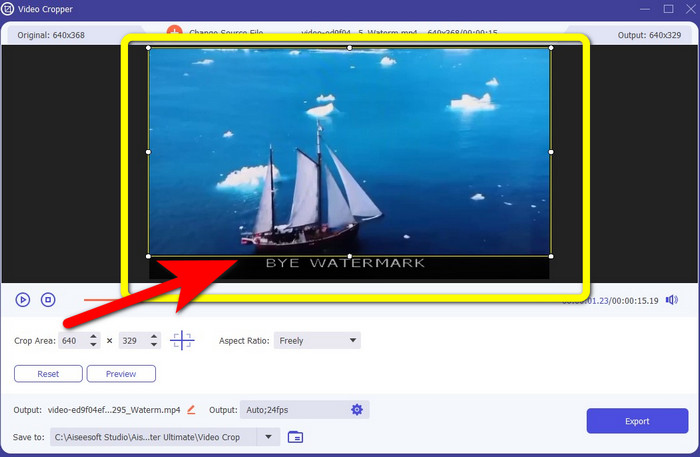
Step 3: When you have already attached your video with a watermark, you can now crop the edge of your video to the area of watermarks. This way, you can remove the watermarks.
Step 4: If you have already cropped your video and saw that the watermark is gone, click Export to save your edited video. Now, you can enjoy watching your video without any watermarks on your screen.
Parte 2: Como produzir vídeos no Camtasia sem marca d'água
Do you desire to learn how to produce a Camtasia video without watermarks? First, let’s define what Camtasia is. Camtasia is a simple and helpful editing tool you can use. Moreover, it is also a screen recording software you can have. In addition, it has various editing features that you can enjoy, such as annotations, transitions, animations, audio effects, video effects, and more. Also, you can make a slideshow on this application.
Com a ajuda deste aplicativo, você pode tornar seus vídeos mais atraentes e exclusivos para os espectadores. No Camtasia, você pode produzir belos vídeos que você pode desfrutar. No entanto, este aplicativo tem uma marca d'água depois que você exporta seu vídeo, a menos que você compre o aplicativo. Siga estes passos simples para aprender muitas coisas neste aplicativo, especialmente criando vídeos no Camtasia.
Com a ajuda deste aplicativo, você pode tornar seus vídeos mais atraentes e exclusivos para os espectadores. No Camtasia, você pode produzir belos vídeos que você pode desfrutar. No entanto, este aplicativo tem uma marca d'água depois que você exporta seu vídeo, a menos que você compre o aplicativo. Siga estes passos simples para aprender muitas coisas neste aplicativo, especialmente criando vídeos no Camtasia.
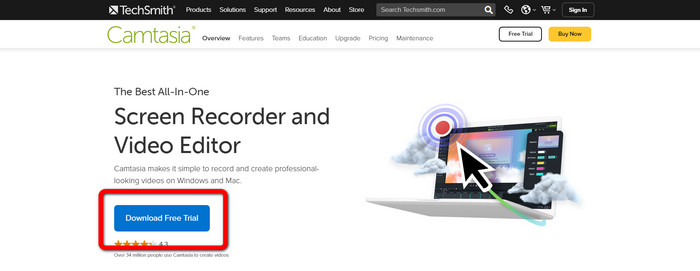
Step 1: You have to download Camtasia on your Windows. Click the Download Free Trial button to get the application. Then, open the application after the installation process.
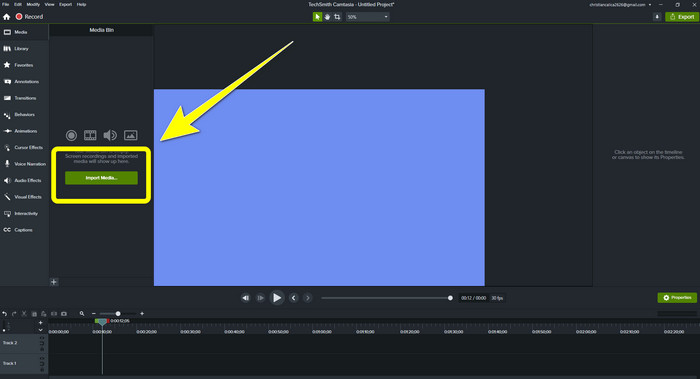
Step 2: After launching the application, click the Import Media button to add the file you want to edit.
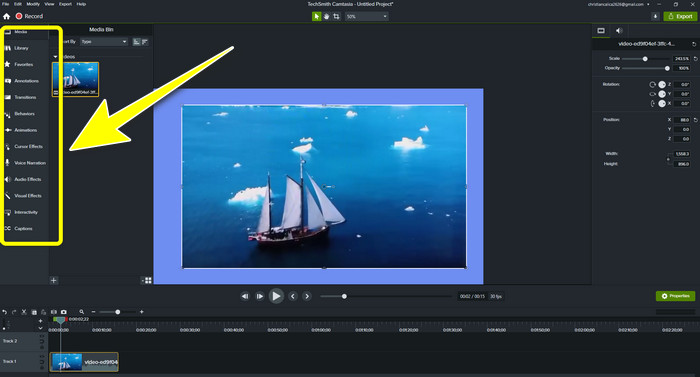
Step 3: You can now edit your files in this application using editing tools, such as adding captions, transitions, animations, annotations, behaviors, and more.
Step 4: If you are done and satisfied with editing your videos, you can now click the Export > Local File button to save your output.
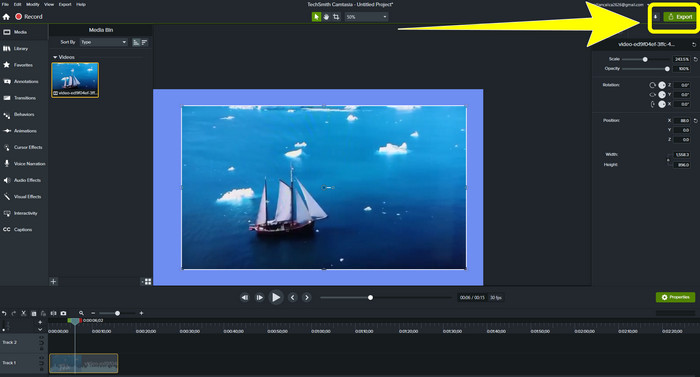
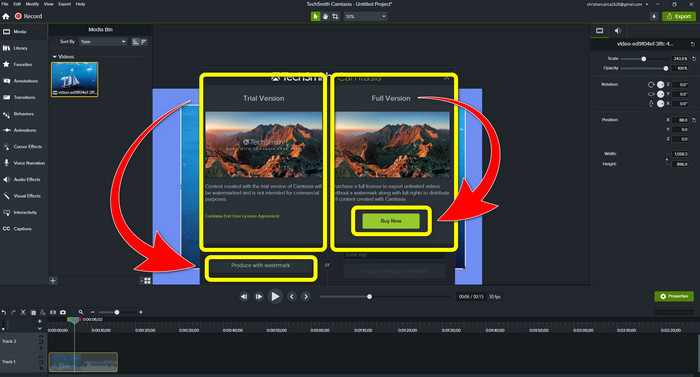
Step 5: After clicking Export > Local File Button, another interface will appear. If you want to purchase the application, click the Buy button to produce a video in Camtasia without a watermark. However, if you only use a free trial version, your video will have a watermark after exporting and saving.
Related to:
How to Remove Filmora Watermark on Your Videos or Projects for Free
Quickest Trick to Remove the Adobe Stock Watermark From a Video [ Tutorial ]
Parte 3: perguntas frequentes sobre como remover marcas d'água
Existe um excelente removedor de marca d'água que eu possa usar no meu Mac?
Definitely, Yes! You can use applications with watermark removers like Video Converter Ultimate. It is capable of removing watermarks on your videos. In addition, this application is accessible on both Windows and Mac, which makes it more convenient.
Existe uma maneira de remover marcas d'água das fotos?
Absolutamente sim! Você pode usar muitos aplicativos em seu dispositivo para remover marcas d'água de fotos. A melhor coisa que você precisa fazer é pesquisar em seus navegadores sobre ferramentas de remoção de marca d'água e procurar os 10 principais resultados na página de resultados.
Posso remover marcas d'água usando meu telefone?
Sim você pode! Alguns dos aplicativos com removedores de marca d'água agora estão acessíveis em Mac e Windows e em celulares como telefones Android e iPhones.
Como posso remover marcas d'água usando uma ferramenta de corte?
Remover marcas d'água em suas fotos ou vídeos usando uma ferramenta de corte é muito fácil, especialmente se a marca d'água estiver na borda da imagem. Tudo o que você precisa fazer é cortá-lo, eliminar a marca d'água e pronto.
Conclusão
As you can see, this article shows the best ways to remove the watermark from Camtasia 9. Also, it provides an excellent and reliable application with two methods to remove unnecessary objects from your videos. This application is the Video Converter Ultimate.
-
 5 maneiras de remover uma marca d'água de um vídeo de maneira profissional
 Precisa remover uma marca d'água de um vídeo para torná-lo profissional? Bem, leia este artigo enquanto adicionamos um tutorial sobre como fazer isso!
-
 3 dos mais recentes removedores de marca d'água da Shutterstock que você precisará
 Não gosta da marca d'água da Shutterstock anexada ao vídeo exportado? Você pode usar um removedor de marca d'água da Shutterstock para apagá-la de forma eficaz.
-
 Métodos mais fáceis sobre como remover marca d'água de fotos
 Você está irritado com as marcas d'água em sua foto? Não se preocupe! Este artigo fornecerá métodos simples e fáceis para remover marcas d'água de suas fotos
