


 Video Converter Ultimate
 Gravador de ecrã
 Reparo de vídeo
 Secure Download
Melhores maneiras de como remover marcas d'água do vídeo no After Effects
Removing watermarks from a photo is easy using Adobe Photoshop. But do you know how to remove watermarks from video in Adobe After Effects? Some people say that it is challenging because there are only a few applications you can use to remove watermarks from a video. You are lucky. Using Adobe After Effects, this article will offer great methods to remove unnecessary objects from your videos or movies, such as watermarks, logos, texts, stickers, etc. Also, you will discover the best alternatives you must try, so you have many choices about what apps you prefer. Read the article for more details.

Parte 1: Como remover marcas d'água do vídeo no After Effects
Adobe After Effects pode facilmente remover marcas d'água e outros elementos frustrantes de seus vídeos. Além disso, você pode fazer mais coisas com suas inúmeras ferramentas. Um dos programas de edição de vídeo mais populares e avançados da Adobe, o After Effects eleva seu trabalho a um novo nível. Essa ferramenta é usada para o processo de pós-produção de produção de filmes, produção de televisão e videogames. Além disso, você pode contar com este aplicativo para animação, compostagem, rastreamento e digitação.
Além disso, designers visuais, animadores, agências de publicidade, editores de vídeo, designers gráficos em movimento, especialistas em mídia social, produtores de vídeo, editores de vídeo, especialistas em UX e animadores usam o After Effects. No entanto, o Adobe After Effects não é perfeito para usuários não profissionais. Possui muitas ferramentas, processos complicados e recursos avançados, o que é confuso. Além disso, você só pode usar a avaliação gratuita por até sete dias. Você deve adquirir o software para utilizá-lo continuamente. Siga as etapas simples abaixo para remover marcas d'água de um vídeo.
Step 1: Download Adobe After Effects and install it on your device. Launch the apps, and go to File > Open to insert your video with a watermark.
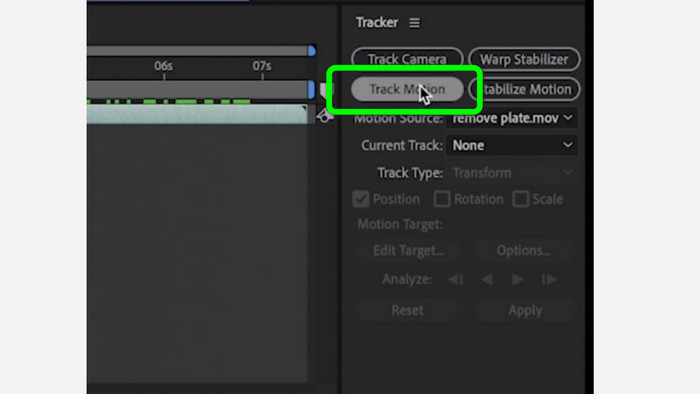
Step 2: Go to the Tracker tab and hit the Tracker motion. Place the tracking box on the area of the watermark and hit the track forward arrow.
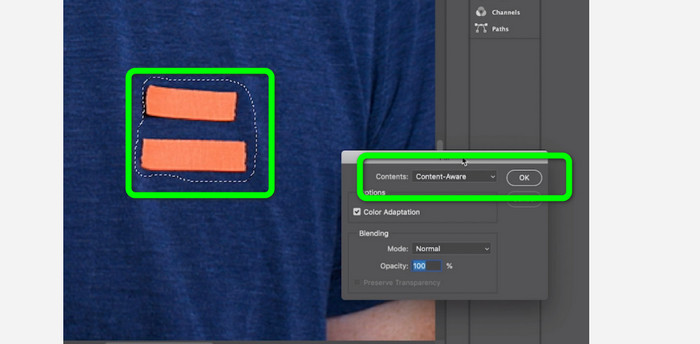
Step 3: Select the watermark using the Marquee tool and choose Edit > Fill. When the dialogue box appears, select Content-aware and press OK.
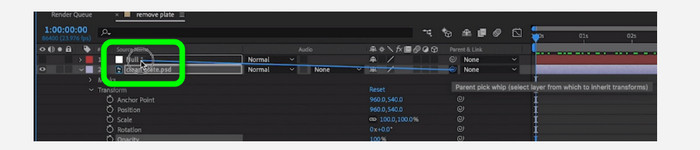
Step 4: Link the tracked Null object to the masked still frame using the pick whip. It will then become associated with the moving Null object. Your video should now have an undetectable watermark when you play it.
Parte 2: Métodos mais fáceis para remover marca d'água de um vídeo
Usando o Video Converter Ultimate
As we know, Adobe After Effects is difficult to use, especially for beginners. In this case, the most effective and easiest application to remove watermarks from your videos is the Video Converter Ultimate. It has a simple interface and comprehensible methods, which is perfect for everyone. Aside from watermarks, you can also remove other disturbing elements, like logos, stickers, emojis, texts, and more. The removal process of this tool is fast, so you don’t have to wait a little longer.
Além disso, tem mais recursos do que você imagina. Se outros dispositivos não suportarem seu vídeo, você pode convertê-lo em outro formato de arquivo. Esta ferramenta pode converter formatos de arquivo de vídeo e áudio. Além disso, se o seu vídeo for muito rápido e você quiser desacelerá-lo, ainda pode confiar neste aplicativo porque ele oferece um recurso de controlador de velocidade de vídeo, no qual você pode ajustar a velocidade do vídeo de 0,125x até 8x mais rápido.
Para remover marcas d'água de seus vídeos, use os guias detalhados abaixo.
Usando o removedor de marca d'água de vídeo
Step 1: You can download the Video Converter Ultimate on your Windows and Mac by clicking the Download button below. After the installation process, you can instantly launch it.
Free DownloadFor Windows 7 or laterSecure Download
Free DownloadFor MacOS 10.7 or laterSecure Download
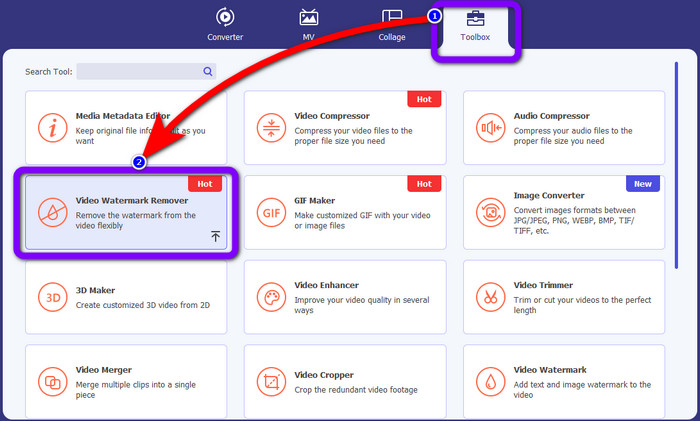
Step 2: Select the Toolbox panel from the four options on top, and click the Video Watermark Remover. Expect that another interface will show up.clicking the Download button below. After the installation process, you can instantly launch it.
Step 3: Click the Plus icon. Your folder will appear, then choose the video with a watermark you want to eliminate.
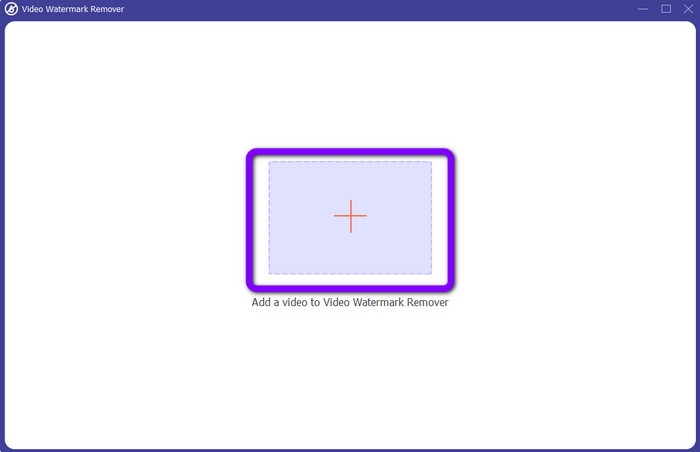
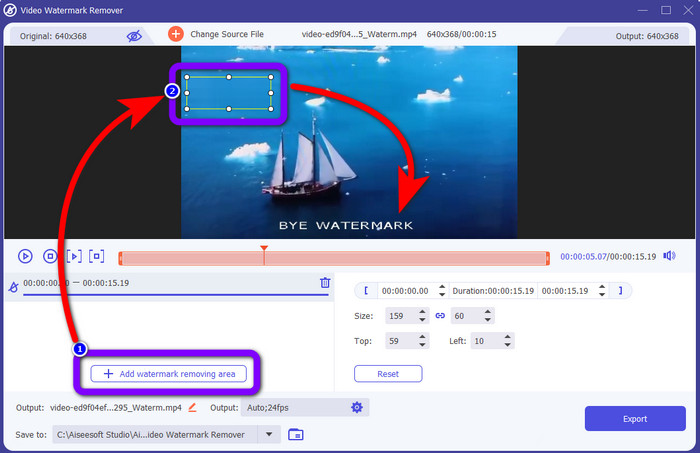
Step 4: Press the Add Watermark Removing Area button after attaching your video with a watermark. A small square will show up on your video. Use this to cover the watermarks.
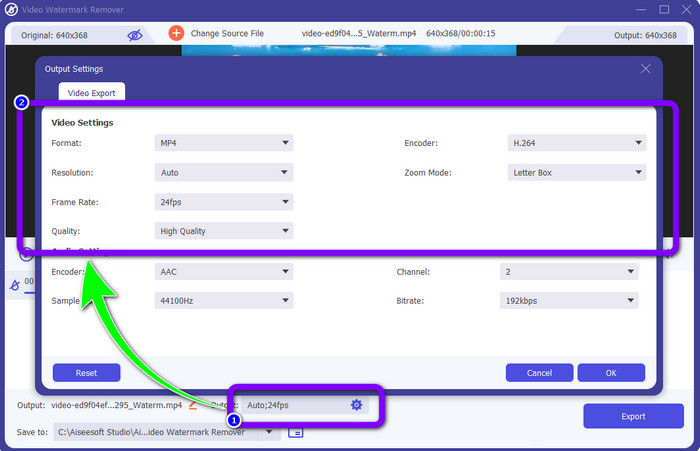
Step 5: After covering the watermarks, you can also change the format, quality, frame rate, and resolutions of your video by clicking the Output option on the lower part of the interface.
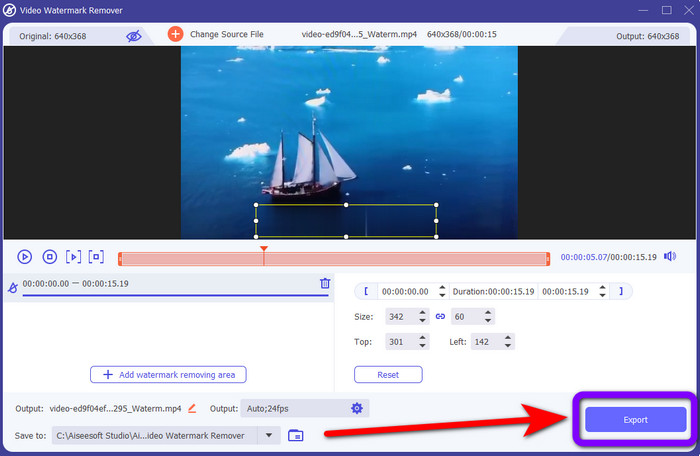
Step 6: Step 6: For the final step, click the Export button and save your edited video.
Usando o cortador de vídeo
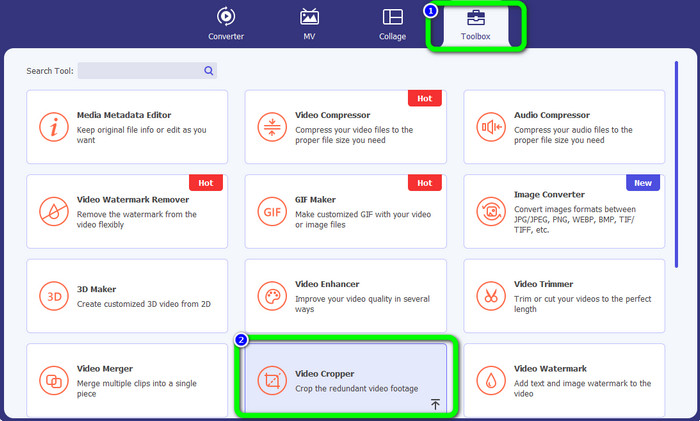
Step 1: Go to the Toolbox panel and select the Video Cropper tool.
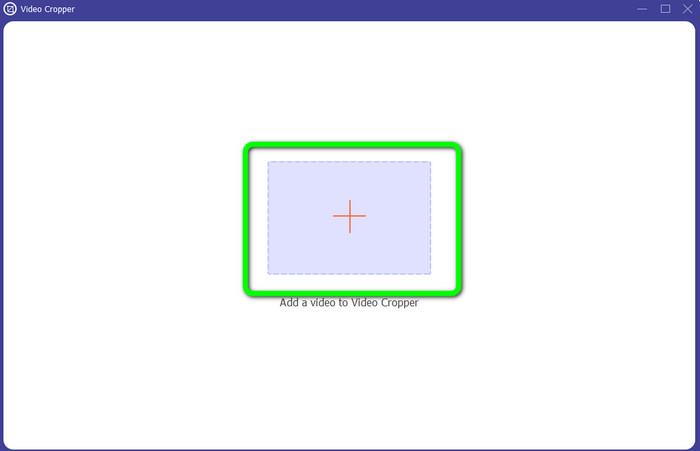
Step 2: Press the + icon to add the video with a watermark.
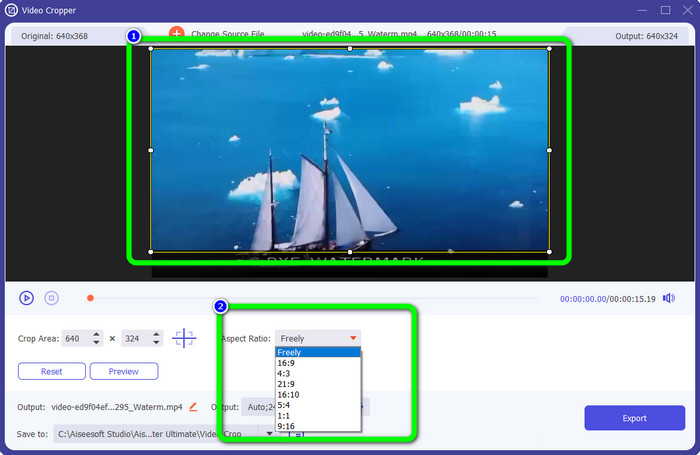
Step 3: You can crop your video to eliminate the watermark in this part. You can also go to the second box to select the cropping pattern you prefer.
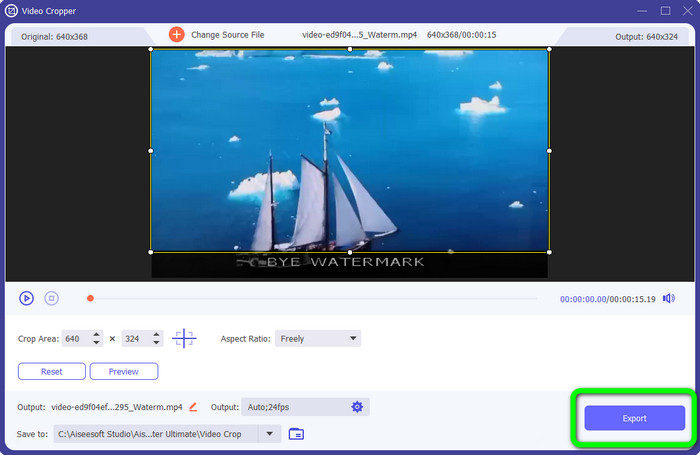
Step 4: If you are done cropping your video, click the Export button to save the video without a watermark.
Usando o removedor de marca d'água de vídeo on-line
After knowing the easiest methods using offline tools, we will show you another watermark remover you can try online. This application is the Video Watermark Remover Online. It is a new, fully automated video watermark remover that will make your life trouble-free. Also, you can remove various elements from your videos, such as logos, signatures, date stamps, watermarks, texts, and more. This software is similar to other removers, but the only thing that makes it unique is it can remove watermarks automatically. This application was made to detect objects and replace them with matching colors to render and fill everything to look like the original file.
No entanto, você só pode enviar cinco vídeos ao usar a versão gratuita. Ele também tem um processo de codificação lento e você não pode exportá-lo para outros formatos de arquivo. Você deve comprar uma assinatura para experimentar mais ótimos recursos desta ferramenta. Siga as etapas abaixo para remover marcas d'água de seus vídeos usando o Video Watermark Remover Online.
Step 1: Go and visit the Video Watermark Remover Online. Click the Blue box to add your video. You can also drag your video.
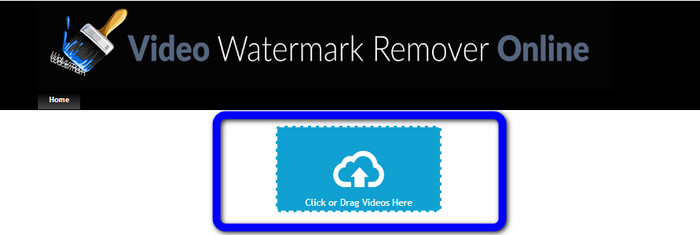
Step 2: After processing the file, click the Remove Watermark button. Wait for the removal process. Save your video without a watermark.

Parte 3: Perguntas frequentes sobre como remover marcas d'água de um vídeo
1. Qual é o melhor removedor de marca d'água de vídeo para Windows e Mac?
Video Converter Ultimate é o melhor removedor de marca d'água. Ele pode facilmente eliminar objetos indesejados de seus vídeos, como marcas d'água, logotipos, adesivos, textos, etc.
2. O removedor de marca d'água de vídeo on-line é seguro?
Nem todos são seguros. Depois de remover as marcas d'água usando ferramentas on-line, eles podem excluir seu arquivo imediatamente para que ninguém possa ver e usar seu arquivo de vídeo. No entanto, alguns aplicativos não são seguros, então você deve primeiro verificar o aplicativo que está usando.
3. A qualidade do meu vídeo mudará após a remoção das marcas d'água?
Depende dos aplicativos que você está usando. Se você não quer afetar a qualidade dos seus vídeos, pode usar o Video Converter Ultimate
Conclusão
You have gained an idea and learned how to remove watermarks from videos in Adobe After Effects. Also, this post provided you with the best alternatives to remove watermarks with the most straightforward methods. And if you want to remove unwanted elements from your videos efficiently and without losing the quality, you can try using the Video Converter Ultimate.
-
 Evidências sólidas para fazer vídeos em câmera lenta usando efeitos posteriores
 Quaisquer pensamentos ou sentimentos podem ser gerados ou aprimorados ao assistir algo em câmera lenta. Leia este artigo para saber como criar câmera lenta no After Effects.
-
 Como acelerar o vídeo no After Effects [Melhor ferramenta de aceleração]
 Acelere ou diminua a velocidade do seu vídeo usando a melhor ferramenta de vídeo para acelerar. Saiba como acelerar um vídeo no After Effects lendo este artigo.
-
 Guias passo a passo sobre como remover emojis do vídeo
 Sentindo-se irritado com emojis em seus vídeos? Este post traz os melhores procedimentos para remover instantaneamente emojis de seus vídeos usando ótimas ferramentas
