


 Video Converter Ultimate
 Gravador de ecrã
 Reparo de vídeo
 Secure Download
Como remover a marca d'água Viva Video em vídeos com facilidade e eficácia
Viva Video é um aplicativo de edição e criação de vídeo que você pode baixar em seus dispositivos móveis para criar um vídeo excelente que você não consegue com o outro editor de vídeo. Com isso, você pode usar sua versão gratuita ou edição de vídeo premium a seu favor. Assim, os usuários encontram problemas ao usar a versão gratuita porque deixa uma marca d'água e outros recursos de edição não são os mesmos da versão pro. A marca d'água embutida no vídeo pode atrapalhar o visual, e removê-la é melhor.
However, you can use a few tools to remove the watermark you can find on the PlayStore and Appstore, but which is the best? Continue reading this article as we provide the tool you can use to remove the watermark with a how-to remove the Viva Video watermark in your video.

Parte 1. Como remover a marca d'água do Viva Video usando os melhores aplicativos de remoção de marca d'água
Video Eraser - Remover marca d'água/logotipo do vídeo [Android]
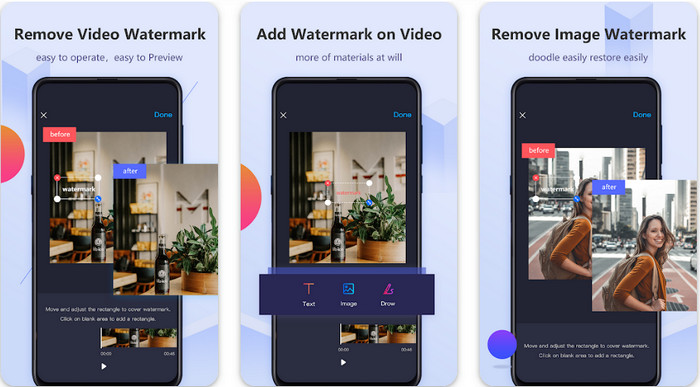
Video Eraser - Remove Watermark/Logo from Video is a powerful watermark remover you can download on your Android device to remove the watermark embedded in your video. This app can help remove any type of watermark in your video, such as logo, text, stamps, etc. You can also take advantage of this if you want to add your personalized watermark, crop, trim, reverse, compress, and change video speed. Even though it has rich features, you can download this tool for free. So, to remove the Viva Video watermark on your Android, you can follow the steps below.
Step 1. First, download the app on your Android by going to the PlayStore, then click Download.
Step 2. Open the watermark remove, click Remove Watermark from Video, allow the tool to access your video, then upload the video with the watermark.
Step 3. Place the rectangle on the watermark to cover it up.
Step 4. Press Done to save the video without the watermark on it.
Related:
Apagador de vídeo - Remoção de retoque [iOS]
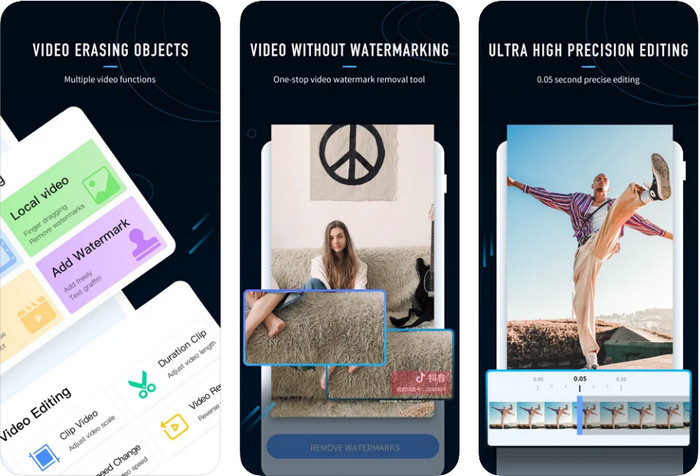
For iOS, you can download on AppStore the Video Eraser- Retouch Removal. It is amongst the Viva Video watermark remover you can download for free that does allow you to get rid of the mark on your video effectively. Same as the Android watermark remover we introduce here, it also supports other editing features you can use, such as upscale video, add watermark, cut, trim, compress, and flip. All of these are in here. Though it has similar features to the Android app, their function difference are different, and before you can use this tool to remove the watermark, you will need to purchase it. You can follow the steps below to teach you how to remove the watermark from Viva Video you export; you can follow the indicated steps below.
Step 1. Download the app on your App Store, then open it after downloading the app.
Step 2. After opening the software, click Local Video/GIF to upload the video with a watermark. Ensure to allow the app to have access to your Photos.
Step 3. Tap the part of your video with a watermark; then, a rectangular shape will show on your screen.
Step 4. Tap Eliminate Watermark to export the video and save it without the hindrance of the watermark on it.
Parte 2. Como remover a marca d'água do Viva Video no Windows e Mac [Ultimate Software]
As a Windows and Mac user, you will need effective software to remove the watermark on your video efficiently without leaving any streak. FVC Video Converter Ultimate can teach you how to remove the Viva Video watermark for free with a professional output at the end. Like the watermark remover apps you can download on Android and iOS; this tool also supports more features and functions that you can take advantage of. This tool offers more than the two watermark remover app we mentioned.
O que torna esta ferramenta impressionante? Os recursos de remoção que esta ferramenta suporta são melhores do que outros removedores de marca d'água que você pode usar em seu vídeo. Portanto, se você usar isso, poderá assistir ao vídeo sem a marca d'água depois de removê-lo aqui. Precisa de um tutorial sobre como usar isso? Os próximos detalhes permitirão que você saiba como usar esta ferramenta tão facilmente quanto 1-2-3.
Step 1. To download the ultimate software, you can click the download button below, then install the software on your device. Follow the WinRAR setup, then click Start Now.
Free DownloadFor Windows 7 or laterSecure Download
Free DownloadFor MacOS 10.7 or laterSecure Download
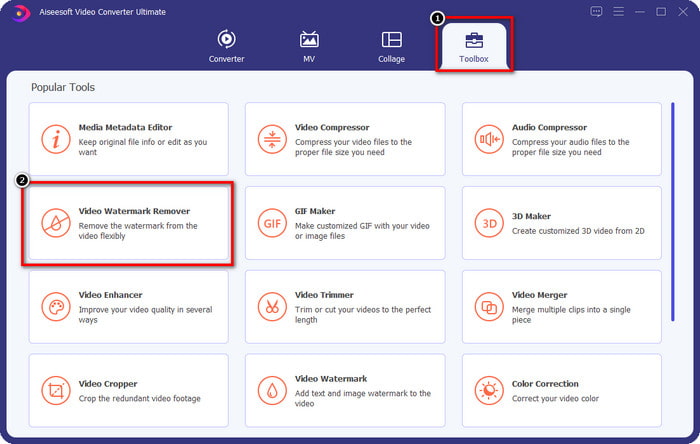
Step 2. Go to the Toolbox, then click Video Watermark Remover to start using this tool's effective watermark remover.
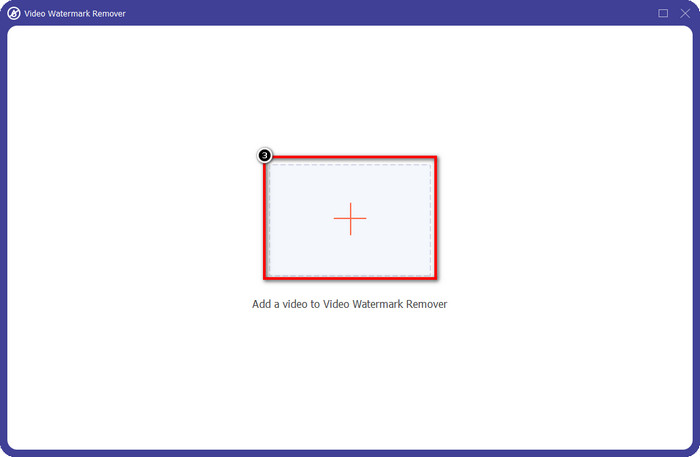
Step 3. You can upload the Viva Video with a watermark saved on your desktop by clicking the + icon. Locate the video file on the folder that will show on your screen and click Open to upload it successfully.
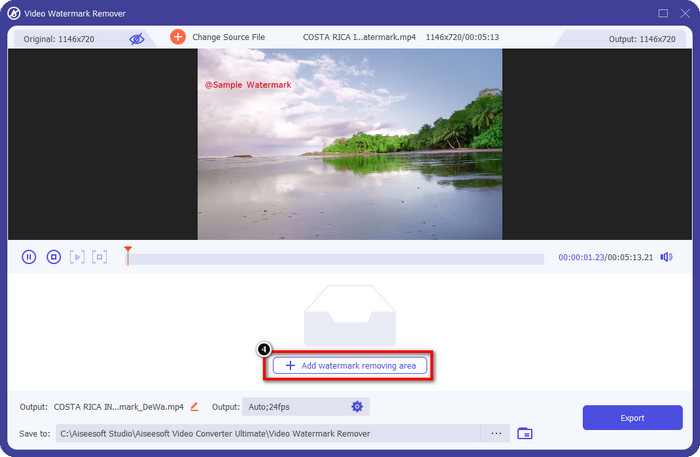
Step 4. Click Add Watermark Removing Area to start using the watermark, removing its function.
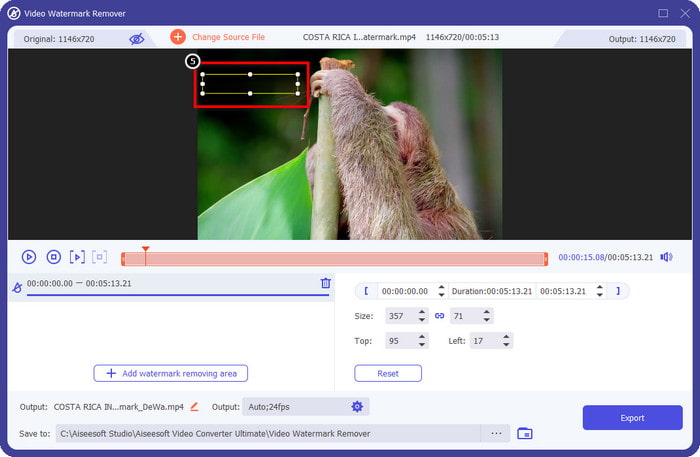
Step 5. Drag and place the rectangular shape to the watermark on your video, and cover it all. It is important to cover it all because if you don't, it will leave a trace of the watermark, and you can resize the shape according to your need.
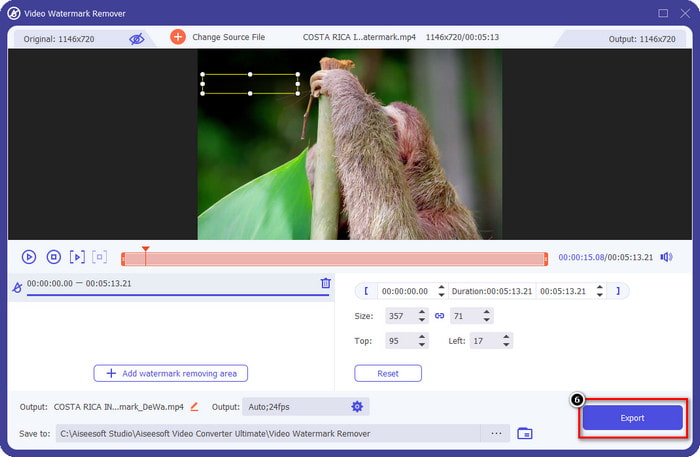
Step 6. After that, click Export to save the video without the watermark. Easy? Well, that is what the ultimate tool is made for, easy but effective on everything.
Parte 3. Perguntas frequentes sobre como remover a marca d'água do Viva Video
Posso baixar o Viva Video sem marca d'água?
Sim, você pode adquirir a versão pro desta ferramenta para que ao exportar o vídeo editado aqui não deixe marca d'água no vídeo. Além disso, depois de comprar a versão pro desta ferramenta, você usará o outro recurso premium que esta ferramenta possui e que não está disponível gratuitamente.
O Viva Video tem uma versão desktop?
Você só pode baixar a versão do Viva Video no Android e iOS. Então, se você quiser baixar a versão desktop, não vai encontrar nenhuma, mas pode procurar as melhores alternativas para edição de vídeo como o que o Viva Video oferece.
O Viva Video tem spyware?
Em 2017, relatórios sobre este aplicativo confirmaram posteriormente que ele possui malware. Portanto, as pessoas que baixaram este software excluíram este aplicativo à força em seus dispositivos para evitar mais consequências.
Conclusão
Com o removedor de marca d'água Viva Video deste artigo, você pode eliminar a marca d'água que o Viva Video incorpora no vídeo exportado. Você pode tentar usar os aplicativos mencionados acima e seguir as instruções que incluímos sobre como remover a marca d'água. Mas para usuários de Windows e Mac com uma marca d'água Viva Video, é melhor usar o melhor software para remover a marca d'água de forma rápida e eficaz e ter um resultado profissional. O que você está esperando? Clique no botão de download para remover a marca d'água definitiva do seu dispositivo agora mesmo e use-a seguindo as etapas acima.
-
 Como remover a marca d'água Lomotif usando essas ferramentas incríveis
 Quer aprender como remover a marca d'água Lomotif do seu vídeo? Leia este artigo para conhecer os métodos mais destacados para removê-lo online e offline.
-
 Como remover turistas de fotos usando removedores de marca d'água
 Como remover turistas das fotos? Se você deseja aprender a remover coisas indesejadas da sua foto, essas ferramentas o ajudarão. Leia este artigo para saber mais.
-
 Removedores de marca d'água 123rf - Revisão completa das ferramentas finais
 Se você quiser saber quais são os removedores de marca d'água 123rf mais destacados, leia este artigo completamente. Este artigo fornece uma revisão detalhada das ferramentas.
