


 Video Converter Ultimate
 Gravador de ecrã
 Reparo de vídeo
 Secure Download
Diretriz para remover a marca d'água VSDC em vídeos com facilidade e eficácia
You can't go wrong in choosing the VSDC Video Editor for basic video editing on Windows. This non-linear can give the needs you are looking for a video editor. For it brings a set of editing features you can use to produce an excellent output at the end. With the rise of this tool, many users have a question about this tool, and one of the infamous right now is, does VSDC free video editor have a watermark? Do you have the same queries as the other audience on the web? To answer the questions a lot have been asking, we will give you the answer you need; keep reading it to know it better.

Parte 1. O VSDC Free Video Editor tem uma marca d'água
Mesmo que você esteja usando a versão gratuita do VSDC para editar os vídeos ou filmes que possui, nenhuma marca d'água do VSDC é incluída depois de exportá-los. Assim, você pode aproveitar o vídeo que editar aqui sem a marca d'água gratuitamente. Para usar os outros recursos de edição de vídeo que ele possui, é melhor você adquirir a ferramenta para desbloqueá-los. Embora seja um editor gratuito, a ferramenta não pode remover a marca d'água que você adicionou ao vídeo. É um problema para alguns, e outros usam seu recurso de divisão e corte para remover a marca d'água, embora seja bom se estiver nas laterais. Mas se a marca d'água estiver no meio, você gostaria de usar um cortador de vídeo? Claro que não! As ferramentas abaixo podem ajudá-lo a remover facilmente a marca d'água do VSDC que está no seu vídeo.
Parte 2. Como remover a marca d'água do vídeo no VSDC com as 2 maneiras disponíveis
FVC Video Converter Ultimate – Removedor de marca d'água definitivo no Windows e Mac
FVC Video Converter Ultimate is the most advance and AI-powered software you can use to remove the VSDC watermark. This tool allows you to manually override the watermark removers feature it provides that many others software doesn't allow you. It precisely removes the watermark from the videos without leaving a trace of the removing area where the watermark originated.
Além disso, esta ferramenta também possui recursos e funções robustos que você não encontra nos outros softwares. Embora essa ferramenta suporte a tecnologia de IA, você não precisa se preocupar com as especificações do seu computador, pois a ferramenta funciona em Windows e macOS de baixo custo. Em termos de desempenho, é superior, usa especificações baixas em computadores, funciona em Windows e Mac e possui desempenho elevado na importação e exportação. Não há mais nada para pesquisar além do tutorial passo a passo sobre como remover a marca d'água do vídeo no VSDC com a ajuda abaixo.
Step 1. Download the software now on your desktop by clicking the below download button. After that, follow the installation and set-up process it requires, and click Start Now to open the tool on your desktop.
Free DownloadFor Windows 7 or laterSecure Download
Free DownloadFor MacOS 10.7 or laterSecure Download
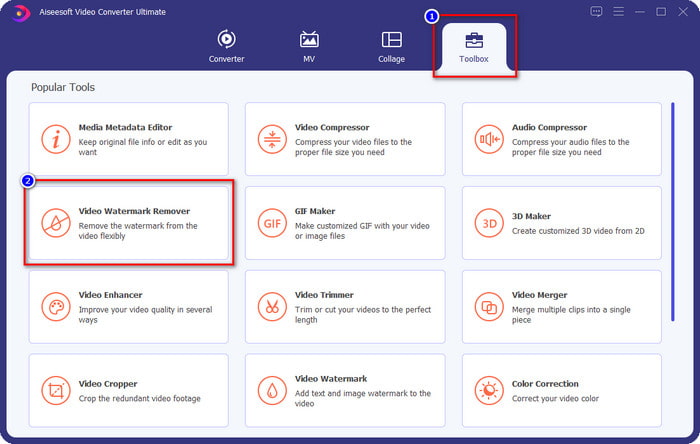
Step 2. After launching the software, go to the Toolbox section, and select the Video Watermark Remover to use the ultimate watermark remover of this software.
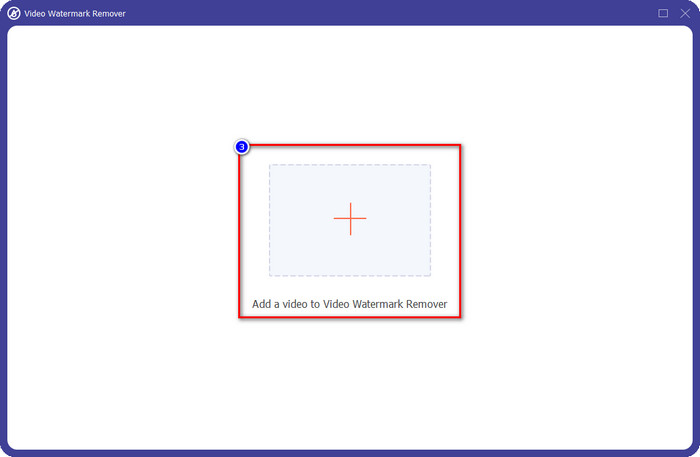
Step 3. On the window that will show on your screen, click the + icon to upload the video with a watermark.
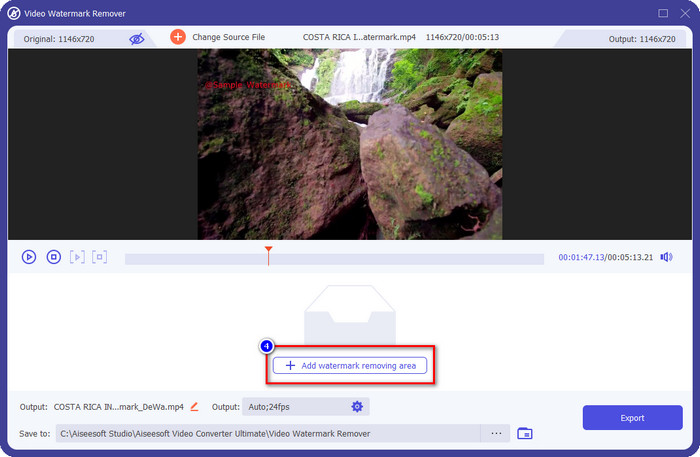
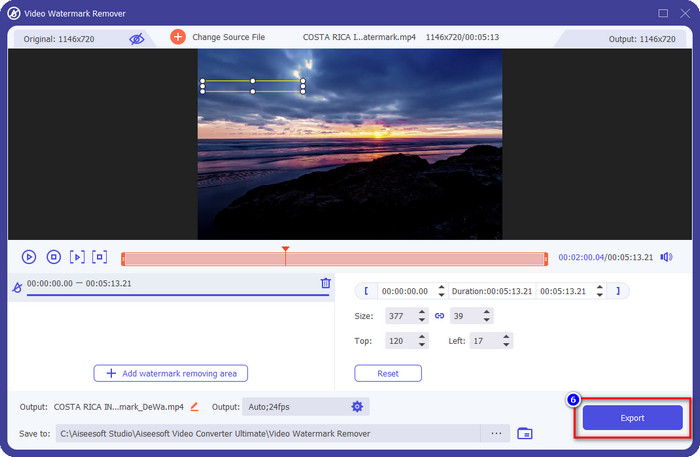
Step 4. To use the watermark remover, click the Add Watermark Removing Area.
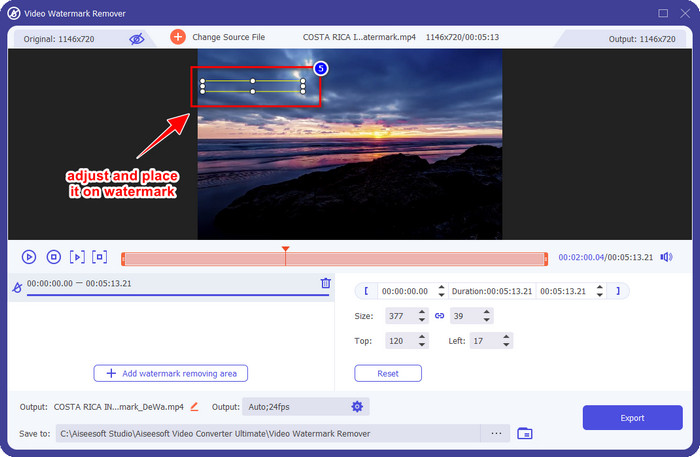
Step 5. Place the selection box in the area with a watermark, and ensure to cover it all so that when you export the video, you wouldn't see the watermark on the video and enjoy watching it.
Step 6. Now that the watermark is covered, click the Export button to save the video without the watermark.
Kapwing

One of the best ways to remove the VSDC free video editor watermark is by using Kapwing.com. This watermark editor allows you to quickly eliminate the pre-existing watermark on the video to make them look amazing. Though you aren't a pro at handling this task, there is no need to worry if you choose this because of its intuitive and complete interface. Learning how to use it became faster. The tool is the best choice, but there are drawbacks to using it; for example, the free version can't export video with 60 mins up, is limited, and needs to sign in to remove the Kapwing watermark once you export it.
Step 1. Open the web tool, and upload the file by dragging and dropping it here.
Step 2. After uploading the file, go to the elements and click the shape you want available here.
Step 3. Hold and place the shape to the watermark. Remember, this method doesn't work well if the video has multi-colors; it only works if the place of the video uses a single color palette.
Step 4. Click Export Video, then click Export MP4 to save the final output.
Related:
How to Remove Photobucket Watermarks
How to Remove Watermark on GIF
Parte 3. Perguntas frequentes sobre o VSDC Free Video Editor tem uma marca d'água
Can I export a 4k video on VSDC?
Sim, esta ferramenta pode exportar vídeos em resolução 4k se você quiser. No entanto, o processo leva mais tempo do que as outras resoluções de vídeo, como 1080 e 720. Embora a renderização demore tanto tempo, a ferramenta ainda pode produzir uma qualidade de vídeo de altíssima definição, como 4k, se necessário.
How to remove the watermark in VSDC?
Faça o download da ferramenta, inicie-a para continuar, clique em Adicionar objeto e, abaixo dela, clique em Vídeo. Abra o Filtro de Vídeo; então as opções serão exibidas; clique em Filtros; clique em DeLogo. Com o DeLogo, agora você pode encobrir a marca d'água do vídeo no VSDC. Funciona apenas com uma versão recém-atualizada da ferramenta; se não conseguir encontrá-lo, você deve atualizar o que está usando baixando a versão mais recente.
Is VSDC the best video editor to use?
Não é o melhor, mas podemos considerá-lo uma ferramenta obrigatória, pois fornece recursos básicos de edição que você pode precisar para criar um vídeo impressionante. Embora aprender a usá-lo seja difícil, outros usuários tendem a gastar tempo aprendendo esse software em vez de fazer a edição. Mesmo que não esteja entre os 10 melhores editores de vídeo, ainda é considerado uma ótima ferramenta para fins de edição.
Conclusão
To remove the VSDC watermark, you will need to have a watermark remover you can depend on, like the two mentioned software in this article. With the provided steps on each, you can choose which do you think will fit your needs and be useful for removing the watermark on the video you have. But if you want a multi-purpose software you can use to remove and add watermark, edit video, convert, and do more, you must select the FVC Video Converter Ultimate. Why? It is simply the best all-around software you will need on your desktop. Did reading this article become beneficial for you? If so, you can give us five stars below if you are satisfied with this article.
-
 Guia sobre o que é uma marca d'água em uma foto [atualizado em 2022]
 O que é uma marca d'água em uma foto? Precisamos adicionar um? Como podemos removê-lo? Todas as coisas que você precisa estão aqui, então continue lendo este blog.
-
 Como remover a marca d'água do Wondershare DVD Creator com facilidade
 Este artigo aborda informações sobre como remover a marca d'água do Wondershare DVD Creator. Para obter todas as informações que você precisa é uma obrigação ler isso.
-
 Remova facilmente a marca d'água do PDF com etapas simples
 Remova a marca d'água do PDF seguindo estas etapas simples. Aprenda como remover facilmente marcas d'água do seu arquivo PDF usando essas ferramentas incríveis.
