


 Video Converter Ultimate
 Gravador de ecrã
 Reparo de vídeo
 Secure Download
Como remover facilmente a marca d'água do Filmora em projetos/vídeos exportados
O Wondershare Filmora é considerado um editor de vídeo intermediário que você pode usar para criar um ajuste fino para o projeto em que está trabalhando. Apesar de ser um editor de nível intermediário, ele possui recursos abrangentes que você adoraria usar, como efeitos, modelos, plug-ins etc. sem dúvida, esta poderia ser uma escolha para você.
Due to its user-friendliness, many users have tried and produced a video using it, and the result is terrific, but there is a product watermark. One way to remove the watermark is by purchasing a plan monthly, annually, or per perpetual; what if you don’t have money to buy it? Here, we will teach you how to remove the Filmora watermark on every exported video.

Parte 1. Como remover a marca d'água do Filmora sem redimensionar o vídeo
FVC Video Converter Ultimate is the ultimate video editor you can download that can edit videos' watermarks even if they are in 4k resolution. Windows and Mac users can enjoy using this editor not because it is available on their OS but because of its features and functions. It might not be at the rank 1 video editor, but its power in removing the watermark on video is surprisingly impressive.
Mesmo que você precise comprar o software, consideramos seu preço mais barato que o Filmora. Precisa de um removedor de marca d'água Filmora? É o seu objetivo, e aqui estão as etapas para remover efetivamente esse removedor de marca d'água na remoção de marcas d'água ou carimbos em vídeo.
Step 1. Download the official version of this editor by clicking the download button we added below. Install it, open the software, and an attractive GUI will appear on your screen.
Free DownloadFor Windows 7 or laterSecure Download
Free DownloadFor MacOS 10.7 or laterSecure Download
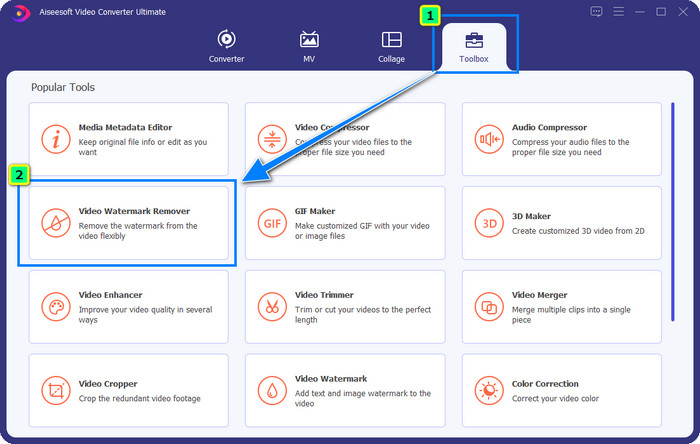
Step 2. Now that the editor is opened, four options are available in this software. To be able to remove the watermark, open the Toolbox. Select the Video Watermark Remover that is under the Toolbox menu.
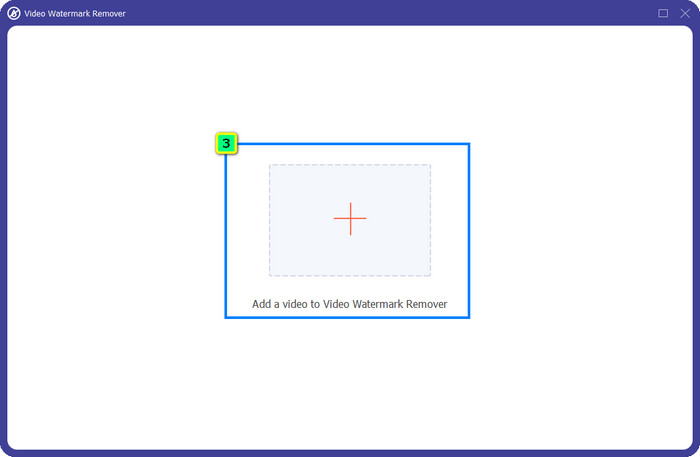
Step 3. After you’ve clicked it, a new window will show on your screen. At the center, click the plus icon to add the file you want to remove the Wondershare Filmora watermark.
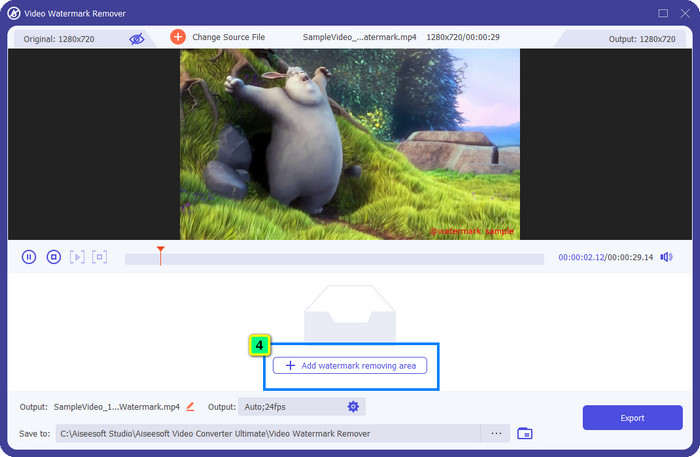
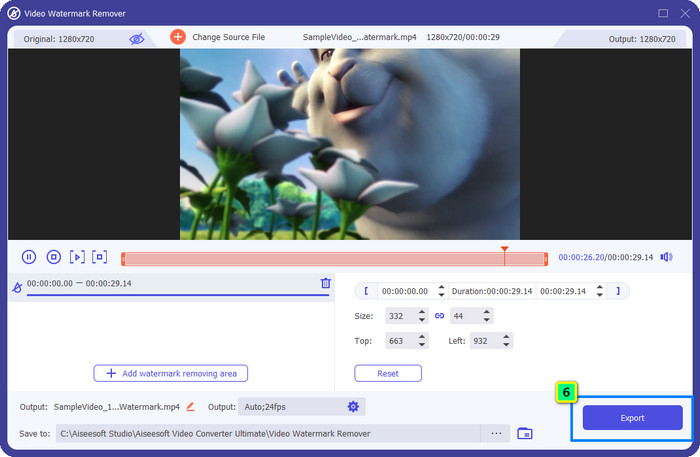
Step 4. Next, click the Add Watermark Removing Area to start using this tool's watermark removal feature.
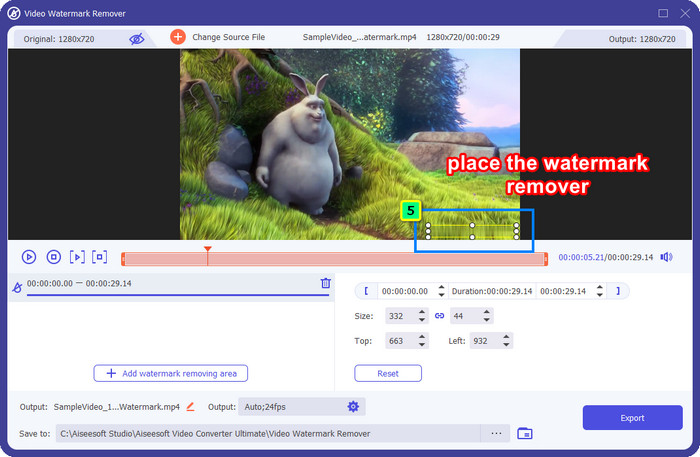
Step 5. Now, all you need to do is place the box on the watermark and make sure that the watermark you want to remove is inside the box. If not, you can adjust the box by dragging the dots from the edges to resize it.
Step 6. To start taking off the watermark bound on your video, click Export, and the final output will be ready in a matter of seconds, as easy as that.
Parte 2. Como remover a marca d'água do Filmora cortando a marca d'água
Since the watermark remover that we introduce first is effective, you might as well need a different approach with this Filmora video editor watermark remover, and that is by cropping. FVC Video Converter Ultimate supports an AI-powered video cropper that you can use to resize the video and remove the attached watermark. Though this way provides fewer steps compared to the watermark remover, it is still considered an option and not the first choice. Why? Because it's cutting the dimension of the image and some parts of the video.
No entanto, se você quiser tentar usá-lo, poderá tê-lo assim que tiver a ferramenta definitiva em seu dispositivo.
Free DownloadFor Windows 7 or laterSecure Download
Free DownloadFor MacOS 10.7 or laterSecure Download
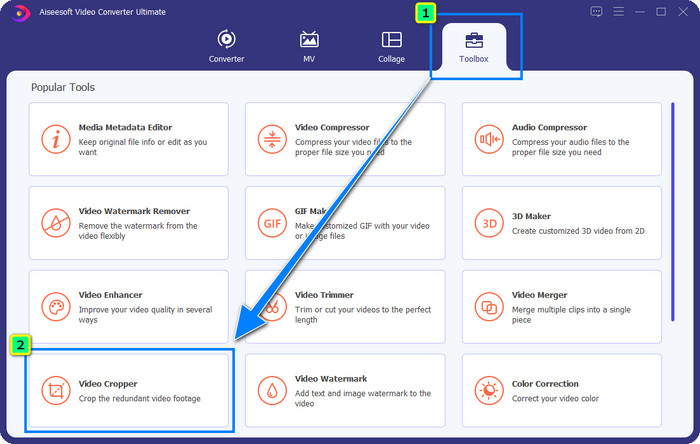
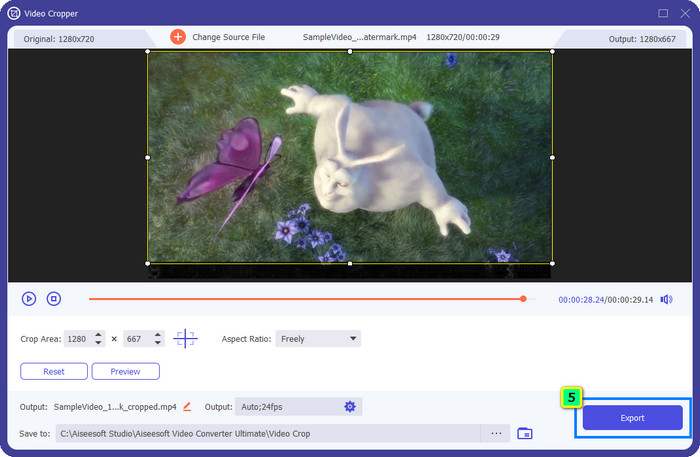
Step 1. After downloading the software, click Toolbox and locate the Video Cropper.
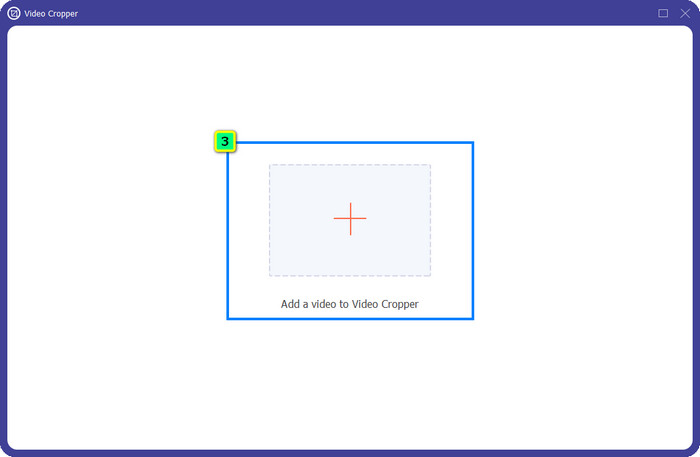
Step 2. Add the video you want to crop here by clicking the plus sign.
Step 3. You can change the frame by dragging the dots based on your preferences.
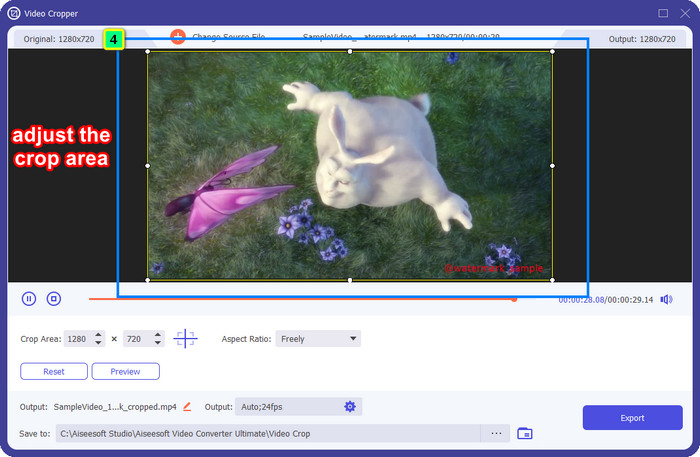
Step 4. If satisfied with the cropped version, click Export, and the AI will crop the video automatically.
Parte 3. Como remover a marca d'água do Filmora Online gratuitamente
How to remove the Filmora logo without downloading software? You can try using the Video Watermark Remover Online. It is an online solution for those who need to do a quick watermark removal on the video without downloading any software. Flexible, we add this watermark remover in this article because you can access it on different web browsers you have on your device.
Por ser uma ferramenta online, existem algumas limitações, como quantas vezes você pode remover uma marca d'água, uma pequena variedade de formatos de entrada de vídeo e velocidade de processamento. Mas se você não se importa com isso, você pode começar a seguir os passos.

Step 1. Open your favorite web browser, search its name, and click the result's name to directly lead you to the main domain of this watermark remover.
Step 2. Click the upload icon, or you can drag and drop the video file with a watermark.
Step 3. Wait for the tool to process the video because it traces the watermark. Then press Remove Watermark.
Parte 4. Perguntas frequentes sobre como remover o logotipo do Filmora
Como remover a marca d'água do Filmora?
A maneira oficial de remover a marca d'água do Filmora é comprando um plano mensal, anual ou perpétuo. Para que toda vez que você exportar o projeto que criou aqui não deixe uma marca d'água na saída final. Você pode usar diferentes códigos de registro gratuitos disponíveis na web se não quiser comprar um plano.
É seguro baixar uma versão crackeada do Wondershare Filmora?
Não, não é! Baixar este software em um site de terceiros não é o que recomendamos, pois alguns sites não são seguros para acessar, e a versão do crackeado pode trazer malware para o seu computador. Evite acessar sites maliciosos de terceiros e fazer download deles para evitar danos irreparáveis.
Qual é o melhor editor de vídeo alternativo para o Filmora?
For Windows users, you better read the information we add in this article, as we include top 5 Windows video editor you can download or use on your OS that works better or similarly with Filmora. But if you are using a Mac device, then you can know what are the best Mac video editor alternatives for Wondershare Filmora that work best on macOS.
Conclusão
Tudo está incluído! Informações sobre como remover a marca d'água do Filmora são adicionadas neste artigo. Então, o que você acha das ferramentas que adicionamos? Mesmo que você não tenha experiência com remoção de marca d'água, você pode seguir o tutorial de cada ferramenta que adicionamos. Hoje, você pode começar a assistir ao projeto que criou no Filmora sem comprar um plano. Compartilhe este artigo com outras pessoas, para que possamos ajudá-las! Compartilhar é se importar!
-
 Como remover a marca d'água do Wondershare DVD Creator com facilidade
 Este artigo aborda informações sobre como remover a marca d'água do Wondershare DVD Creator. Para obter todas as informações que você precisa é uma obrigação ler isso.
-
 Aprenda a remover a marca d'água Movavi gratuitamente [obrigatório!]
 Exportar um vídeo ou imagem no Movavi deixará uma marca d'água, mas é possível removê-la? Para ensinar como remover a marca d'água de graça leia isso.
-
 3 maneiras fáceis de remover a marca d'água Fiverr no Windows e Mac
 Você está na página certa se estiver procurando por um aplicativo que possa remover a marca d'água do Fiverr. Leia este post para saber como você pode remover facilmente a marca d'água Fiverr.
