


 Video Converter Ultimate
 Gravador de ecrã
 Reparo de vídeo
 Secure Download
Como Girar Vídeos no Android em Minutos com os Melhores Métodos
Do you love capturing life's precious moments on your Android device but hate it when the videos turn out tilted or upside down? It's a common problem, but fortunately, it's easy to fix. You don't need any advanced video editing skills. All you need is your Android device or an effective android app to rotate videos and a few minutes of your time.
No final da postagem, você poderá girar seus vídeos como um profissional e nunca mais terá que assistir a vídeos de lado. Dito isso, vamos começar e aprender como girar vídeos no Android!

Parte 1. Como Girar Vídeos na Galeria Android
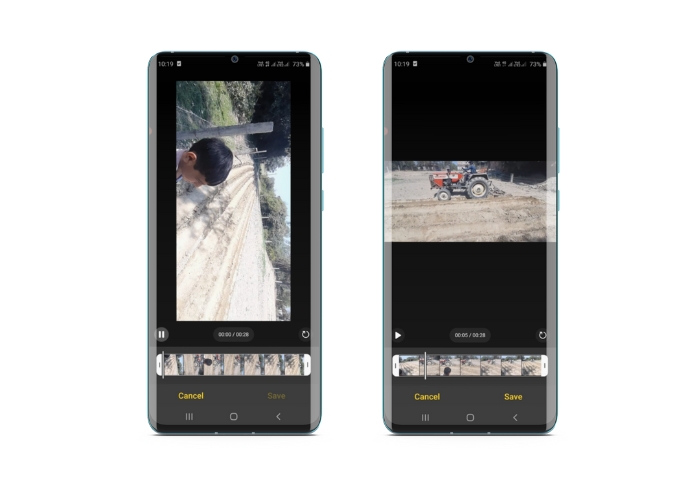
O aplicativo Android Gallery possui várias ferramentas para edição de vídeos que podem ajudá-lo a melhorar seus vídeos. Com o aplicativo Galeria, você pode recortar, recortar, girar e até mesmo adicionar filtros e efeitos aos seus vídeos. Se você deseja remover partes indesejadas, ajustar a proporção ou adicionar algum talento criativo, o aplicativo Galeria o cobre. E a melhor parte? Você não precisa de nenhuma experiência anterior em edição de vídeo para usar esses recursos. A interface é intuitiva, tornando mais fácil para qualquer pessoa criar vídeos impressionantes diretamente de seu dispositivo Android. Consulte as etapas fornecidas para aprender como girar vídeos na Galeria no Android.
Step 1. Launch the Gallery app on your Android device. Find the video that you want to rotate and tap on it to open it.
Step 2. Tap on the edit icon (it looks like a pencil) located at the bottom of the screen. You will now see a range of editing tools at the bottom of the screen, including Trim, Crop, Filters, and Adjust.
Step 3. To rotate the video, select the Adjust tool. You will now see a range of adjustment options, including Brightness, Contrast, Saturation, and more. Look for the Rotate option and tap on it.
Step 4. Each tap on the Rotate button will rotate the video 90 degrees to the right. Therefore, you can use Android to rotate videos by 90 degrees. Keep tapping until the video is rotated to the desired orientation. Once you're happy with the rotation, tap on the save icon to apply the changes.
Parte 2. Como girar vídeos no aplicativo PowerDirector para Android
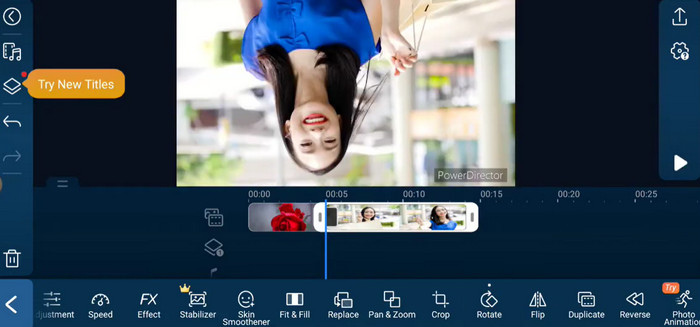
O PowerDirector é um aplicativo de edição de vídeo disponível na plataforma Android. É um aplicativo repleto de recursos que permite aos usuários editar vídeos em seus smartphones e tablets. Este aplicativo permite que os usuários girem seus vídeos em qualquer direção, seja no sentido horário ou anti-horário. Isso é especialmente útil para vídeos que foram gravados na direção errada, como vídeos verticais que precisam ser girados para o modo paisagem. Siga o guia simples abaixo para dominar como girar vídeos no PowerDirector em um dispositivo Android.
Step 1. Launch the PowerDirector app on your Android device. Next, tap on the Create a video project button to start a new project.
Step 2. Choose the video you want to rotate by tapping on the Add media button and browsing for the video in your device's storage. Then, drag and drop the video clip to the timeline.
Step 3. After that, please tap on the video clip in the timeline to select it. Now, tap on the Edit button that appears above the timeline.
Step 4. Tap on the Rotate button in the editing menu that appears. Use the Rotate left and Rotate right buttons to rotate the video in the desired direction. Lastly, tap on the Done button to save the changes you made to the video.
Parte 3. Como girar vídeos no aplicativo VLC para Android
VLC is a renowned media player that can be used on many platforms, including Android. It's a powerful and flexible app that works with a lot of different media formats and has a lot of features, like the ability to rotate videos. Not only that, it comes with other useful features, such as the capability to adjust playback speed, add subtitles, and apply audio and video filters. Meanwhile, here are the steps on how to rotate videos in VLC on an Android device.
Step 1. Open the VLC app on your Android device. Next, tap on the Video button in the bottom menu bar.
Step 2. Select the video you want to rotate from your device's storage. After that, tap on the More options button in the top-right corner of the screen.
Step 3. At last, tap on Rotate to access the video rotation options. Choose the direction you want to rotate the video in (clockwise or counterclockwise).
Parte 4. Como girar vídeos do Android no computador
Looking for a powerful video converter that can do it all? Look no further than FVC Video Converter Ultimate. This cutting-edge software is designed to give you complete control over your videos. With its ability to rotate videos, you can adjust the orientation of your video by 90 degrees, 180 degrees, or even 270 degrees or mimic an Android video full-screen rotate feature. But that's not all this app can do. It does the process without any loss of quality. Here is an instructional guide on how to use this program to rotate videos on your PC.
Step 1. Grab a copy of the program and install it
Primeiro, você precisa obter uma cópia do instalador do programa e configurá-lo em seu computador. Depois disso, comece imediatamente.
Free DownloadFor Windows 7 or laterSecure Download
Free DownloadFor MacOS 10.7 or laterSecure Download
Step 2. Embed a video to rotate
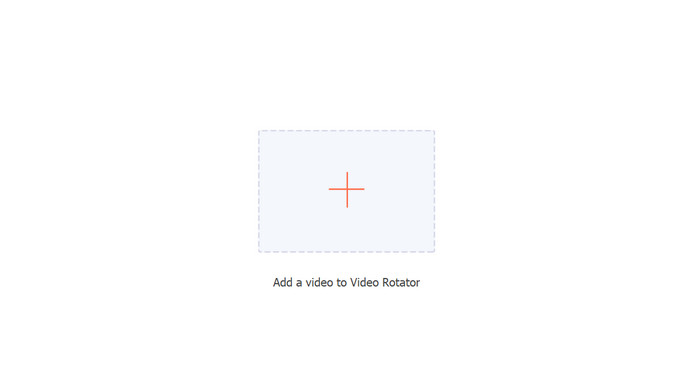
The program's Video Rotator can then be accessed from the Toolbox tab. If you select this option, you'll be prompted to add a video to your account. To upload a video, just hit the + button now.
Step 3. Choose a Rotating Approach
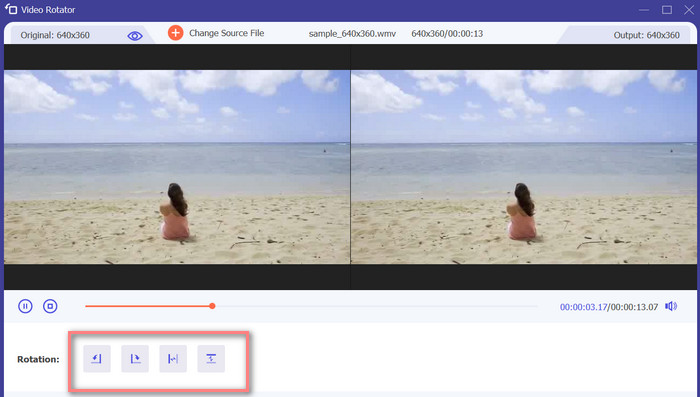
Para começar, decida como deseja que o vídeo seja girado. Virar horizontalmente, virar verticalmente, girar 90 graus e virar 90 graus são as quatro opções. Basta escolher o método de rotação desejado.
Step 4. Export the video file
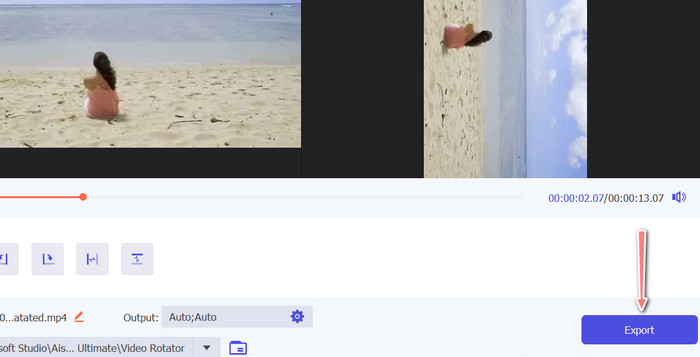
Once you are done with all the changes, you may modify the audio and video settings from the output menu. Then, tick the Export button to finish the process.
Parte 5. Perguntas frequentes sobre rotação de vídeos no Android
Posso girar um vídeo usando o reprodutor de vídeo padrão do meu Android?
No, the default video player on most Android devices does not have the ability to rotate videos. In this case, the gallery app can help you.
A rotação de um vídeo no meu dispositivo Android afetará sua qualidade?
Se você estiver usando um aplicativo de edição de vídeo de alta qualidade em seu dispositivo Android, girar o filme não prejudicará a qualidade.
A rotação de um vídeo no meu dispositivo Android altera a proporção?
Girar um vídeo em seu dispositivo Android pode alterar a proporção dependendo da orientação do vídeo original e do grau de rotação aplicado.
Conclusão
Rotating videos on your Android device can be a useful tool when it comes to video editing and sharing. However, it is important to note that rotating a video may affect the aspect ratio and quality of the original video, depending on the Android app to rotate video used and the degree of rotation applied. Therefore, it is essential to use a reputable video editing app, like FVC Video Converter Ultimate, that does not compress or reduce the resolution of your video during the rotation process.
-
 Guia sobre como reparar vídeos que não estão sendo reproduzidos em telefones Android
 Quer saber quais são as razões pelas quais os vídeos no seu dispositivo Android não podem ser reproduzidos? E em caso afirmativo, existem maneiras de resolver o problema por conta própria? Continue lendo para saber mais.
-
 Maneiras mais fáceis de acelerar um vídeo em seus dispositivos Android [2023]
 Você sabia que pode acelerar um vídeo no seu Android? Então, se você quiser saber como acelerar um vídeo em seu telefone Android, leia este artigo.
-
 3 métodos excelentes para cortar vídeo no Android
 Você quer usar seu dispositivo Android para cortar um vídeo? Então este post é para você. Discutiremos maneiras valiosas de como encurtar um vídeo no Android.
