


 Video Converter Ultimate
 Gravador de ecrã
 Reparo de vídeo
 Secure Download
Maneiras mais rápidas e fáceis de encurtar o vídeo com as melhores ferramentas
Aparar ou encurtar um vídeo é importante porque destaca apenas os clipes necessários do seu vídeo. Aparar um vídeo significa tirar o início do final de um videoclipe. Esse elemento fundamental da edição é necessário para que você não perca a atenção do seu público. Portanto, se você deseja aparar ou encurtar seu vídeo longo, aprenderá neste artigo as maneiras de encurtar um vídeo.

Parte 1. 2 métodos para encurtar um vídeo em um aparador usando o melhor aplicativo
FVC Video Converter Ultimate is the best desktop tool for trimming your video. This tool has an intuitive software interface and is free to use. This offline converter allows you to add segments to your video file. In addition to that, it has a feature where you can fast split your video into your preferred different parts. And if you are searching for a tool that can merge multiple file-formats into one, this application can do that for you.
Moreover, this tool offers many advanced features, like GIF maker, video merger, video watermark remover, etc. And what's even more excellent is that it supports numerous file formats, including MP4, WMV, FLV, AVI, MPG, WebM, MKV, and 1000+ more formats. So, if you want to use this app to shorten your video, we have two methods for you to follow.
Método 1. Use o aparador de vídeo do FVC
Step 1. Firt, download FVC Video Converter Ultimate by clicking the Download button below. Follow the installation process, then run the app.
Free DownloadFor Windows 7 or laterSecure Download
Free DownloadFor MacOS 10.7 or laterSecure Download
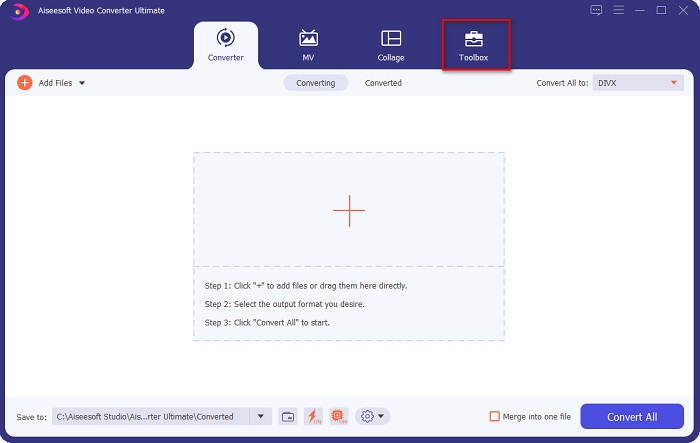
Step 2. Next, select the Toolbox panel located above the software interface. Then, on the toolbox panel, click the Video Trimmer.
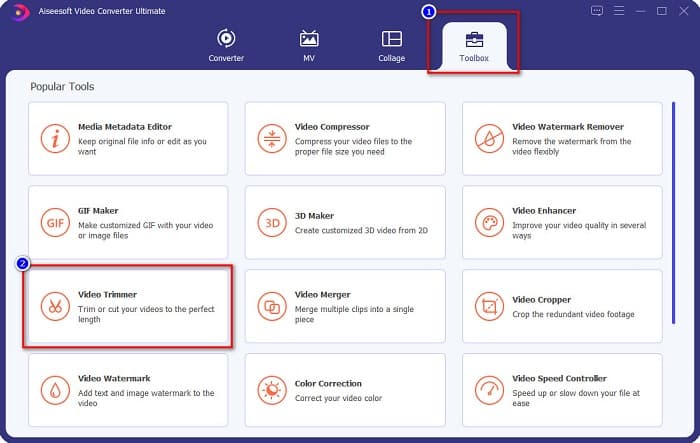
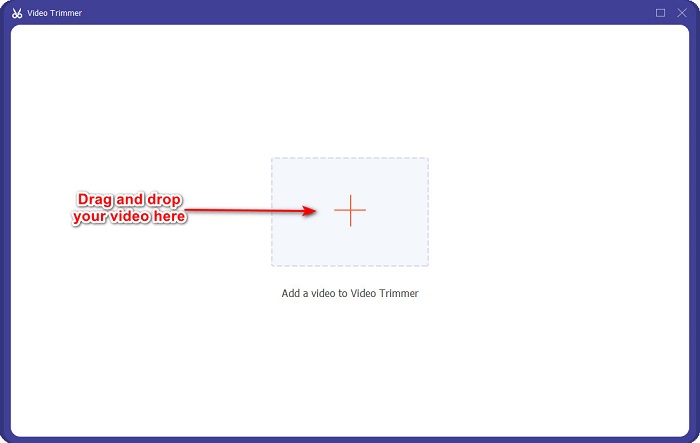
Step 3. And then, on the next interface, click the + sign button or drag and drop your video into the + sign.
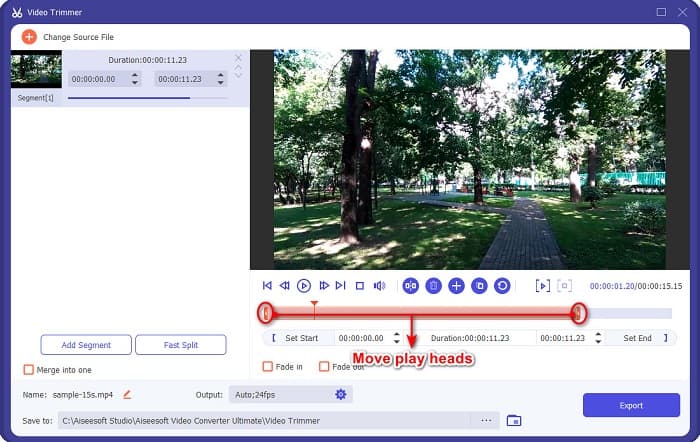
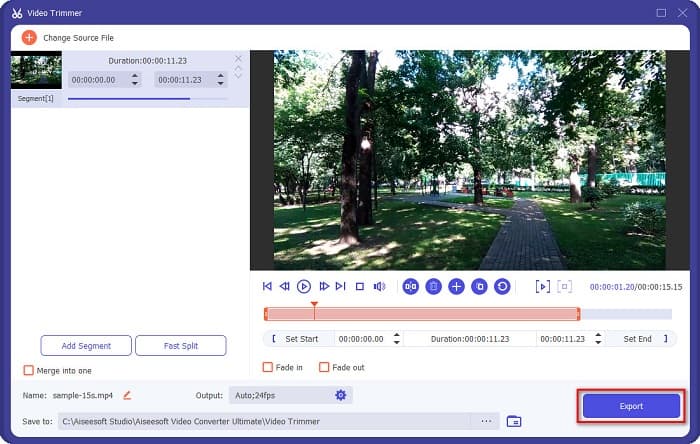
Step 4. Then, move the play head buttons to your desired length. The arrowhead indicates the location of the preview of your video. And the play heads indicate the length of your video. You can see the temporary changes to your video in the preview.
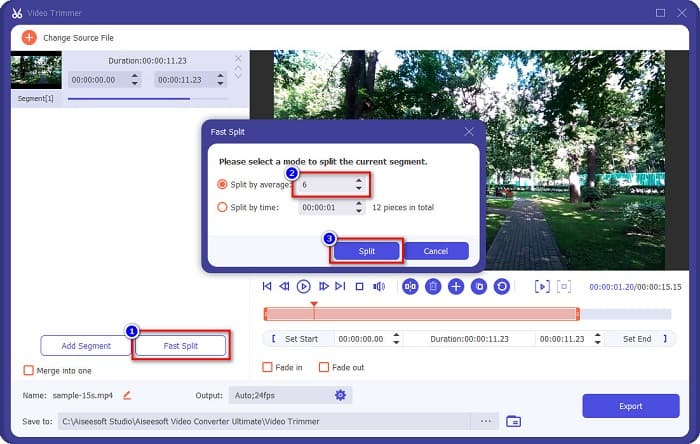
Optional. If you want a simpler way to split your video into segments:
1. Click the Fast Split button.
2. Select the number of splits you want in your video, then press Split.
3. Se você não quiser dividir seu vídeo, vá para a próxima etapa.
Step 5. Finally, click the Export button to apply the changes to your video. Then your output will automatically be saved on your computer files.
Método 2. Use o trocador de velocidade de vídeo do FVC
O FVC Video Converter Ultimate também possui um recurso onde você pode alterar a velocidade do seu vídeo em 0,125x, 0,25x, 0,5x, 0,75x, 1,25x, 1,5x, 2x, 4x e 8x. E se você quiser encurtar a duração do seu vídeo, ajuste-o para uma velocidade rápida. Para etapas mais detalhadas, siga o guia abaixo.
Step 1. Open FVC Video Converter Ultimate. And on the software's main interface, click the Toolbox option.
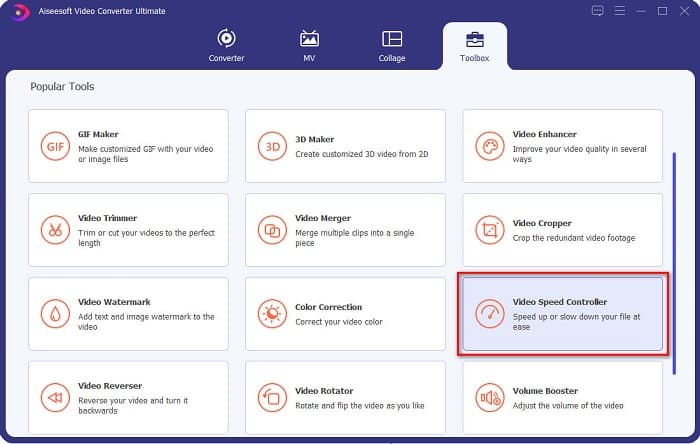
Step 2. And then, click the Video Speed Controller, and proceed to the next step.
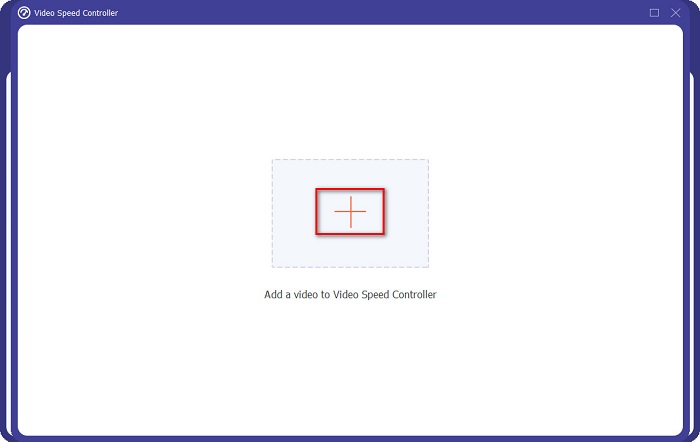
Step 3. Next, click the + sign button to upload the video you want to trim. Your computer folders will appear where you will select the video and upload it to the software’s interface.
Step 4. To shorten your video, select the speed from 1.25x to 8x speed.
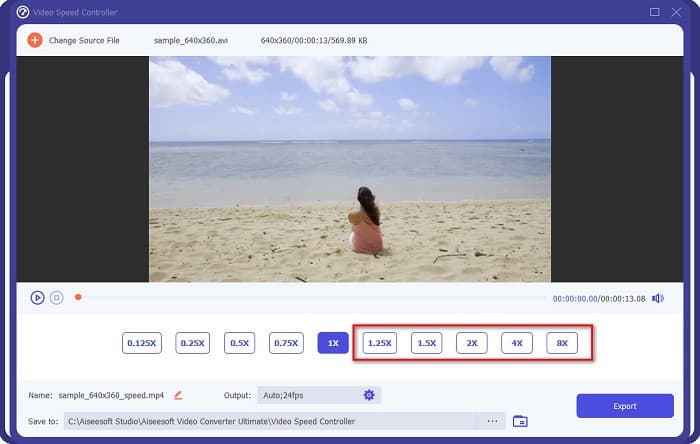
Step 5. For the final step, click the Export button to save the changes from your video. Then your output will automatically be saved on your computer files.
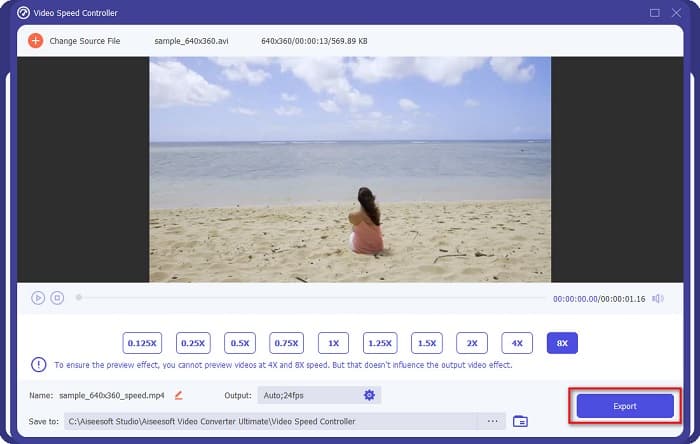
Para uma duração de vídeo mais curta, selecione a velocidade 8x.
Prós
- Ele suporta vários formatos de arquivo, incluindo MOV, MKV, AVI, MP4, WMV, WMA, MPEG e mais de 1000 formatos.
- Possui uma interface de software fácil de usar.
- Ele permite que você divida rapidamente seu vídeo com apenas alguns cliques.
- Disponível para download em todas as plataformas de mídia cruzada, como Windows, Mac e Linux.
Contras
- Compre o aplicativo antes de acessar seus outros recursos.
Parte 2. 2 Aparador de vídeo online para experimentar
Se você deseja cortar seu vídeo sem baixar nada, existem aparadores de vídeo online que você pode usar. Listamos os melhores aparadores de vídeo online que muitas pessoas usam nesta parte.
Cortar vídeo
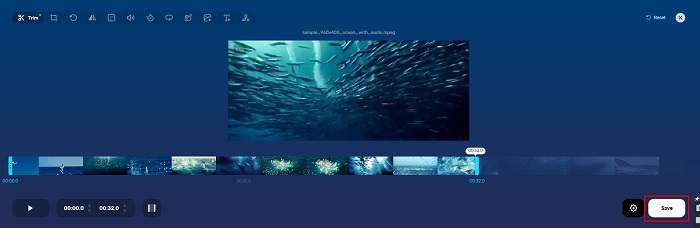
Trim Video is an online video trimming tool that is easy to use because of its intuitive user interface. It is a handy tool because it does not require installation like other online tools. In addition to that, it has a feature where you can rotate your video to 90, 180, or 270 degrees. Furthermore, you do not need to doubt the security of your data because this tool is privacy protected. However, since it is a web-based application, it contains ads that might distract you.
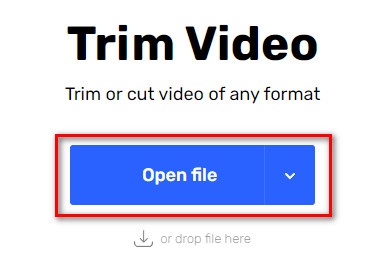
Step 1. On your browser, search online video trimmer. Then, click the Trim Video site. On the software's main interface, click the Open File button.
Step 2. Then, adjust the play head buttons to your desired length.
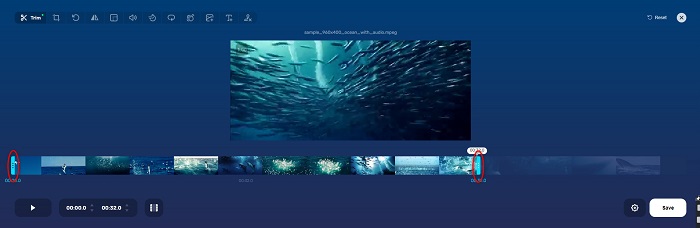
Step 3. Click the Save button to change the length of your video.
Prós
- Tem uma GUI fácil de usar.
- Possui recursos para cortar e girar seu vídeo.
- É seguro usar.
Contras
- Ele contém anúncios irritantes.
- Tem lento processo de carregamento e upload.
Clideo
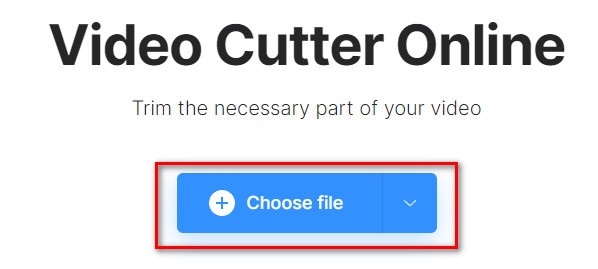
Another online video trimmer tool is Clideo. This online tool has a simple user interface, making it a user-friendly tool. It also supports most standard file formats, like AVI, MP4, VOB, MPG, MOV, etc. Furthermore, this tool imposes high security, which means your data are safe and will not be able to view by others. In addition to that, Clideo does not contain any ads that can distract you.
Step 1. On the browser that you use, search Clideo video trimmer. And on the software’s first interface, click the Choose File button. Your computer folders will appear where you will select the video that you want to shorten.
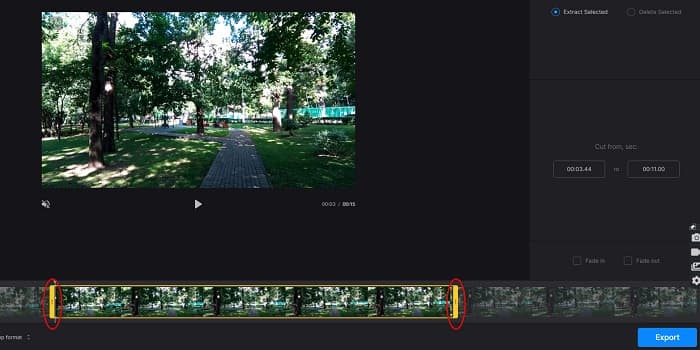
Step 2. Move the play head buttons to the length you want your video to have.
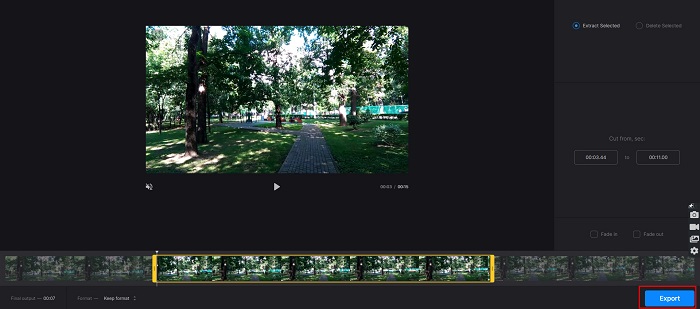
Step 3. For the final step, click the Export button to change the video length of your video.
Prós
- Tem uma interface fácil de usar.
- É seguro usar.
- Não contém nenhum anúncio.
Contras
- Você pode experimentar um processo lento quando sua conexão com a Internet estiver lenta.
Parte 3. Perguntas frequentes sobre como encurtar vídeos
Como encurtar vídeo no iPhone?
Primeiro, abra o aplicativo Foto e selecione o vídeo que deseja cortar. Em seguida, toque em Editar. Depois, mova os controles deslizantes para a duração de vídeo desejada e toque em Concluído para salvar as alterações do seu vídeo.
Cortar seu vídeo afeta a qualidade?
Não. A maioria das ferramentas de corte não afeta a qualidade do seu vídeo. Mas se você está garantindo uma ferramenta que não afete a qualidade ao encurtar seu vídeo, use o FVC Video Converter Ultimate.
O encurtamento do vídeo afeta o tamanho do arquivo?
Sim. Quanto menor for o seu vídeo, menor será o tamanho do arquivo. Por outro lado, se o seu vídeo for longo, ele conterá um tamanho de arquivo enorme.
Conclusão
That’s all about how to shorten a video using a trimmer and video speed changer. All the listed tools show great results and assure you the best performance. But if you are looking for the best tool with many features to use and is widely popular when it comes to shortening your video, FVC Video Converter Ultimate is the best tool for you.
-
 Como recortar e mesclar músicas online - 4 maneiras que você deve conhecer
 Quando você deseja cortar e mesclar músicas online para criar uma peça musical, você pode aprender mais sobre as 4 melhores ferramentas online para recortar as músicas e combinar os arquivos do artigo.
-
 Descubra o Melhor Aparador MP4 com Procedimento e Informações
 Quer aprender a cortar vídeos como os vloggers que você assiste? Então continue lendo este post para saber quais aparadores de MP4 você pode usar.
-
 5 cortadores de MP3 para cortar qualquer áudio facilmente [2022 atualizado]
 Você precisa de um cortador de MP3 para cortar o áudio? Nesse caso, leia este artigo porque fornecemos as ferramentas nas quais você pode confiar que facilitam o corte do áudio.
