


 Video Converter Ultimate
 Gravador de ecrã
 Reparo de vídeo
Intensifique sua experiência em resolver problemas como como diminuir a velocidade de um vídeo
You're an aspiring artist and want to watch an art design tutorial to improve your skills in arts. However, most of these tutorials are fast enough to accumulate a certain amount of time to upload with small file size. So, you think of a solution that needs to decrease the speed of the video. But you don't know how to slow down a time-lapse video like most art tutorials. Read this article to feed your knowledge about this certain issue most aspiring artists have.

Parte 1. 3 etapas fáceis para desacelerar um vídeo [Desktop/Laptop]
Há muitas abordagens que a web oferece, seja editor online ou offline. Alguns deles precisam ser baixados, especialmente quando você estiver usando um desktop ou laptop na edição. Há uma diferença significativa entre usar um desktop em termos de detalhes de uso; é por isso que este artigo seleciona a melhor maneira de desacelerar um vídeo offline ou online em um desktop. Aqui estão as abordagens com suas etapas fornecidas:
Abordagem 1. Use o Video Converter Ultimate
It is possible to download and use many converters even when they are not online. To slow down a video, you can use Video Converter Ultimate, one of the best alternatives. It is accessible to use, and you can download it for free. You don't have to worry about the internet slowing down a video online because this software can hassle-free your video. Thanks to its impressive tool Video Speed Controller, you can now adjust the playback speed of your videos in less than a minute. Now that you have been intrigued by how it is going to happen, here are some guided procedures for you to follow:
Step 1: Simply click on the Free Download button to download the software to your computer's desktop. Installation of the software and customization of the setup is then completed in the following steps.
Free DownloadFor Windows 7 or laterSecure Download
Free DownloadFor MacOS 10.7 or laterSecure Download
Step 2: To use Video Speed Controller, launch the software immediately after installation and select it from the Toolbox menu.
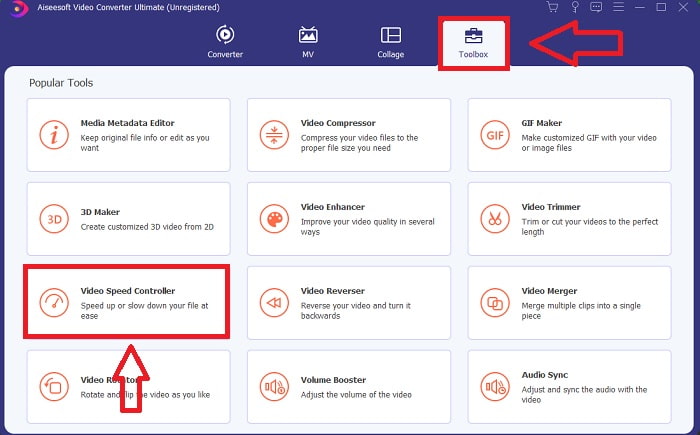
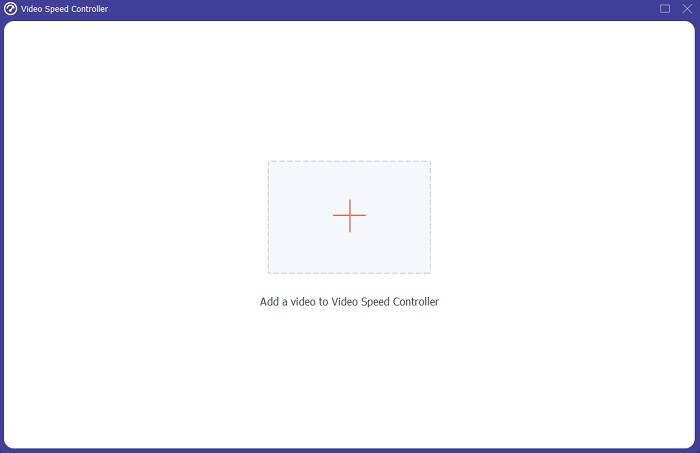
Step 3: The interface of the Video Speed Controller will appear after you click it. And to upload a file, click the + icon.
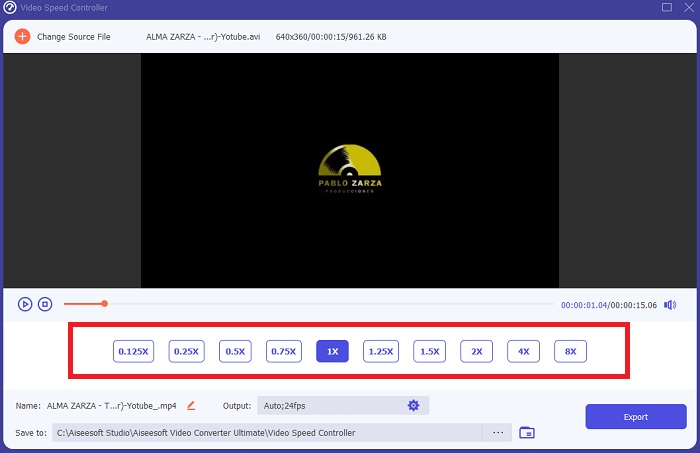
Step 4: You can now begin to slow down your video by choosing lesser integers than the normal speed. Most of the numbers will appear on the left side of the actual speed of your video.
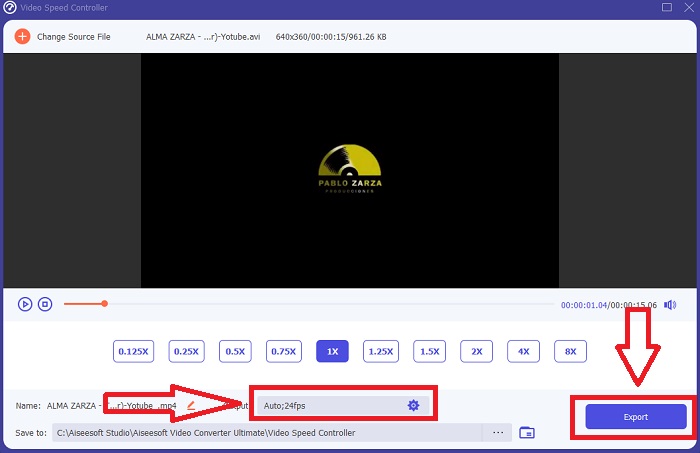
Step 5: After you have finished modifying the playback speed of your video clip, you can select the output format, resolution, quality, and other parameters that you want to use. When you're finished, click Export and choose where you want your file to be saved once everything is completed.
Abordagem 2. Use VEED
O VEED e sua ferramenta web de código aberto são usados por criadores de conteúdo em todo o mundo para produzir vídeos para mídias sociais e outros usos. É um aplicativo da web que requer uma conexão sólida para funcionar corretamente, mas você pode fazer o upload diretamente e alterar a velocidade de reprodução em sua interface de usuário. Além disso, possui vários recursos, um dos quais é a diminuição da velocidade de reprodução do vídeo. Agora você pode desacelerar um vídeo sem baixar nada para sua área de trabalho. Você só precisa de um mecanismo de pesquisa e uma conexão forte para acessar esta ferramenta online. Ele possui uma interface de usuário simples e amigável que pode beneficiar a maioria dos usuários iniciantes que precisam desacelerar um vídeo sem aprender etapas complicadas. Aqui estão os procedimentos de amostra para digerir para obter os ajustes desejados em seu vídeo.
Step 1: Click the Upload Your Video button to send a video file from your computer to the server.
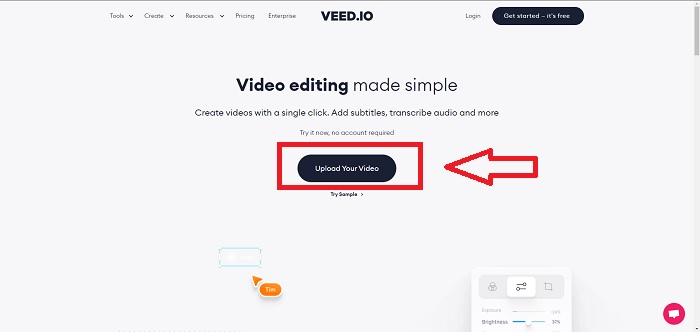
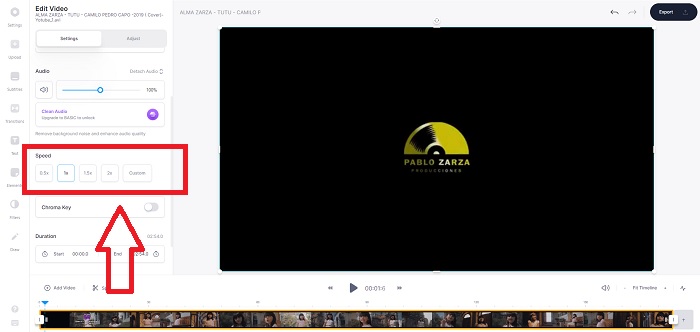
Step 2: The webtool's editing interface can be accessed by clicking on the Video Track in the upper-left corner. Select a faster playback speed by looking for the Speed option and clicking on it. If your preferred speed isn't offered as an option, you can choose Custom to override the default settings and play your video clip at a custom speed.
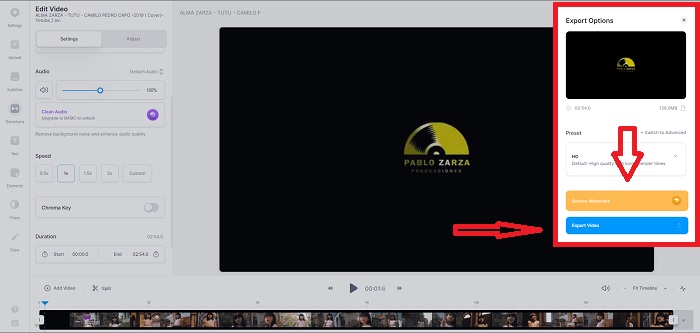
Step 3: After you edit your desired video speed. Proceed in the export tab by clicking Export. Meanwhile, you can choose what quality you prefer for your video and remove the watermark by purchasing the premium of the webtool. If everything is settled, transport the converted video to your computer by Exporting Video.
Parte 2. 3 etapas fáceis para desacelerar um vídeo [telefone celular]
Você está cansado de pensar em uma solução que responda como desacelerar um vídeo no iPhone ou Android? Existem muitos aplicativos e ferramentas disponíveis na internet para justificar que há uma resposta para o problema. Mas aqui estão as melhores e mais acessíveis ferramentas que recomendamos usar se você for um editor de celular e quiser fazer uma obra-prima do pequeno dispositivo que possui.
Abordagem 1. Use o iMovie
You can now control the playback speed or slow down your video on your iPhone and iPad with this free and helpful application called iMovie. This is one of the trusted apps available on iOS system devices that can edit your video and, most importantly, edit the playback speed of a video. To know more about the said applications, here are the steps you need to do to resolve the issue given above:
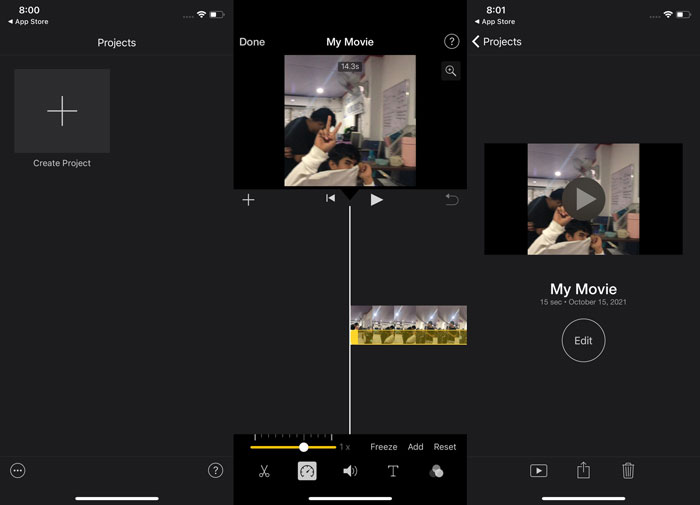
Step 1: Start editing your movie in iMovie on your iPhone or iPad. You may be presented with a brief overview of the user interface before you continue. On the Projects page, click the plus sign to add a new video clip—next, select Movie from the New Projects menu.
Step 2: A video from your camera roll should be selected before moving to the Create Movie section. The speed tool resembles a speedometer and can be found by tapping the video clip in the timeline and then waiting for the editing tools to appear before using them. Rewind or forward your video footage by sliding the yellow slider at the bottom. When compared to their original speed, things can be accelerated by up to twice that amount or slowed down by an eighth of that amount.
Step 3: Click Done in the phone's upper-left corner once you're finished in the process. You can save your finished video by selecting it from the Share menu and then deciding where you want to keep it.
Abordagem 2. Use o VideoFX Music Video Maker
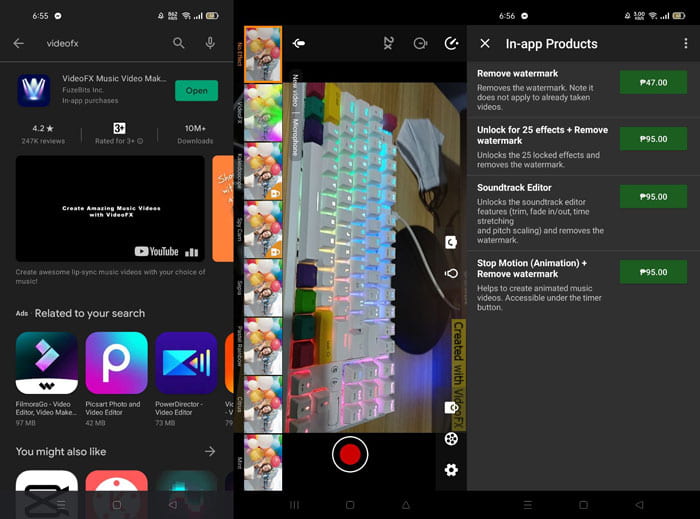
Create your music videos in a matter of seconds with VideoFX Music Video Maker tool. All you have to do is record a video using one of the many available effects, pick a song, and save it to the internal memory of your android phone. Because you can apply filters before you record the video, it's a breeze to use. For better or worse, post-production editing isn't an option; it's only possible before the video is shot. Before you start taping, pick a song that will go well with your video. You can speed up or slow down the music, but the changes must be made before the video is taped. Here are the steps to follow:
Step 1: Download and Install VideoFX to your android phone.
Step 2: Since this app features only apply after the video changes, start recording by pressing the Record button.
Step 3: Then, click the 2x to adjust the speed of the video you record. Before you unlock all the app's features, you need to purchase full access first.
Parte 3. Perguntas frequentes sobre como desacelerar um vídeo
Como desacelerar um vídeo no iPhone?
Content creators and videographers have a wealth of tools at their disposal, and slow-motion is one of the best. A video with higher frames per second will give you a more enjoyable viewing experience. Even so, slowed-down videos aren't always the best approach in every video you make. In some cases, slow-motion just isn't appropriate or even unnecessary. As a result, your only option is to return the iPhone's slow-motion video to normal speed.
Como você desacelera um vídeo na galeria?
Os telefones Android e iOS têm ícones de configurações para tocar para ativar o modo câmera lenta ou câmera lenta antes de gravar o vídeo. Você deve gravar suas cenas em câmera lenta em rajadas de cinco a dez segundos para evitar ter muita filmagem.
Perco a qualidade se diminuir a velocidade de um vídeo?
Não, você não perderá a qualidade de um vídeo, mas verá a resolução e a taxa de quadros do seu vídeo caindo a cada segundo que você reduzir na velocidade média. Quando a velocidade de reprodução do seu vídeo for aumentada ou diminuída, apenas o quadro será dividido. Aumentando isso terá o efeito desejado. Cinco vezes mais rápido, ou seja, 60 quadros por 1/120 de segundo. Em outras palavras, a menos que o vídeo tenha uma taxa de quadros baixa, ele não terá efeito.
Conclusão
Therefore, through this article, you learn all about different methods every operating system has in coping with the issue of all the apps to slow down a video. There are also steps provided for some beginner users who don't have any background in editing videos. Recommending an app that helps you in the playback speed of your video and on the rest of the editing tools an editor has, download the software Video Converter Ultimate to experience the best out of being a professional editor.
-
 Os 4 melhores jogadores VOB para celulares Android para diferentes usos
 Quando você baixa vídeos VOB e deseja assisti-los no Android, você pode escolher o mais adequado entre os 4 principais jogadores VOB a seguir neste artigo.
-
 As 5 melhores alternativas do Windows Media Player para celulares Android
 Como não é possível baixar o Windows Media Player para Android, você deve ler este artigo e aprender sobre as 5 melhores alternativas para o Windows Media Player.
-
 Os 5 melhores players de vídeo para iPhone que você não deve perder em 2021
 Para reproduzir vídeos em todos os formatos e ter uma melhor experiência de visualização em seu iPhone, você deve ler este artigo e aprender sobre os 5 melhores reprodutores de vídeo para iPhone 12/11 / X / 8/7/6.
