


 Video Converter Ultimate
 Gravador de ecrã
 Reparo de vídeo
Domine como acelerar vídeos no Windows Media Player da melhor maneira possível [baseado em evidências]
All the video scenes differ in their playback speed, but they also differ in purposes when they change in speed. When you increase the speed of your video, it symbolizes irrelevance and uninteresting events in the movie or video. In contrast, when you slow down the video, it emphasizes moments or scenes that are very important to picture. These modifications to playback speed are very crucial to execute in editing or creating video films. Read this article to teach the users how to speed up videos, especially in some common media players on our desktop like Windows Media Player.

Parte 1. Windows Media Player: como acelerar vídeos
O Windows Media Player é um reprodutor de mídia gratuito da Microsoft que vem com todas as cópias do Windows. Também é conhecido como WMP ou WM player pela Microsoft. Para além de permitir que vejam fotos e ouçam música, também lhes permite ver vídeos. Ripar CDs de áudio e organizar sua biblioteca de música são possíveis com o Windows Media Player (WMP). Também possui uma guia de edição que ajuda a ajustar vídeos, fotos e músicas. Se você deseja acelerar um vídeo usando o Windows Media Player, aqui estão as etapas a seguir:
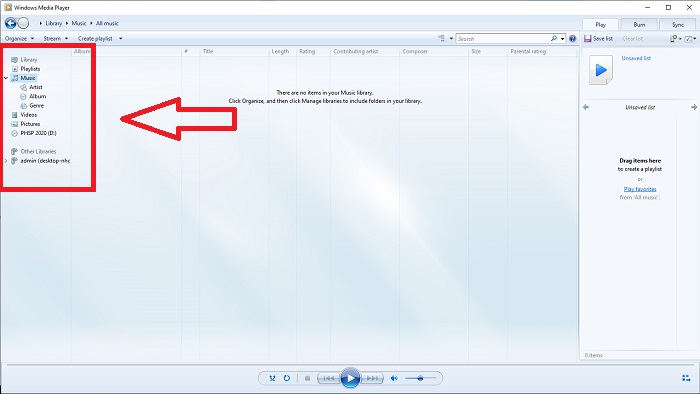
Step 1: Open Windows Media Player; at the left corner, choose the Video tab.
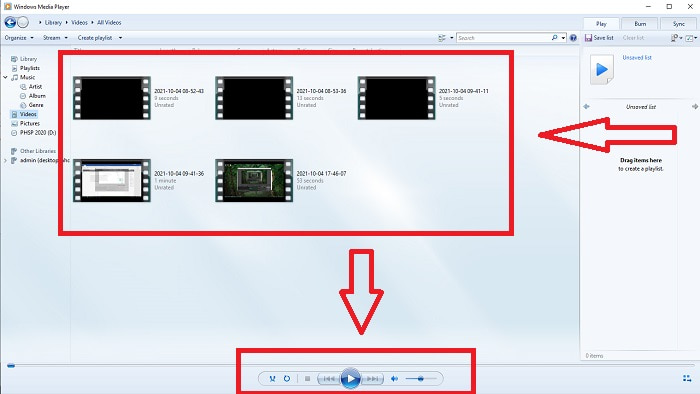
Step 2: Play the video either double left clicks or right-click, or you can hit on the Play button at the bottom middle corner of the interface.
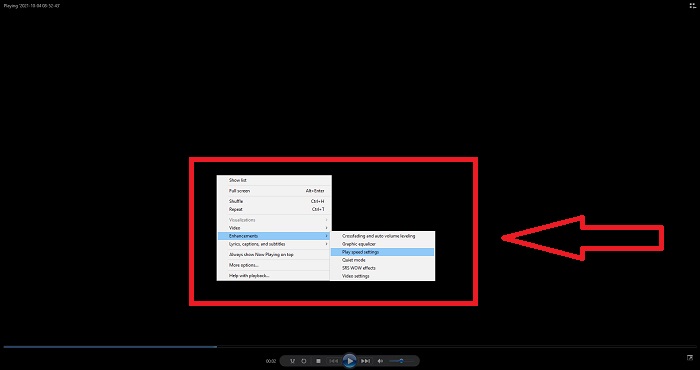
Step 3: Then, right-click the screen to access the editing tab. Proceed by clicking Enhancements and Play Speed Settings. After that, you can now adjust the playback speed of your video clip by dragging the Slider.
Parte 2. E se a velocidade de reprodução do Windows Media Player não estiver funcionando?
Ao reproduzir arquivos de vídeo AVI, WAV ou MOV, você pode executar o reprodutor de mídia do Windows e encontrar um problema ao reproduzir o erro de arquivo. Vídeos de qualidade medíocre são freqüentemente vistos no formato AVI. Outros reprodutores de mídia não têm problemas para reproduzir o AVI. O WMP, por outro lado, pode apresentar uma falha ao reproduzir um arquivo AVI. O Windows Media Player não oferece suporte a arquivos AVI porque eles são codificados com codecs. Você pode ter recebido a seguinte notificação: O Windows Media Player não pode reproduzir o arquivo. O Player pode não oferecer suporte ao tipo de arquivo ou ao codec usado para compactar o arquivo. Existem duas explicações possíveis para este fenômeno.
1. Por não corresponder ao arquivo necessário, o reprodutor de mídia do Windows (WMP) não pode suportar o codec para o arquivo.
2. O reprodutor de mídia do Windows não oferece suporte aos codecs de compactação.
Step 1: Open the control panel on your computer and locate View By, then Click the Large Icons to access all the full features of the control panel.
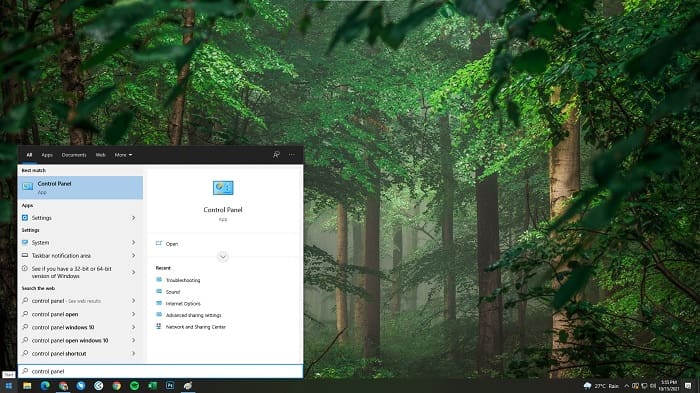
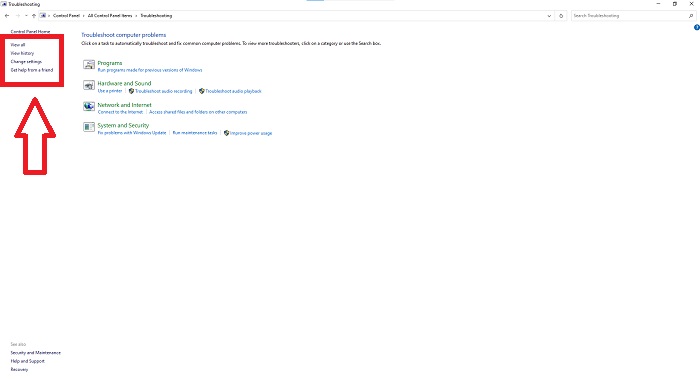
Step 2: Proceed with clicking Troubleshooting. At the left corner, click View all and locate Windows Media Player Library.
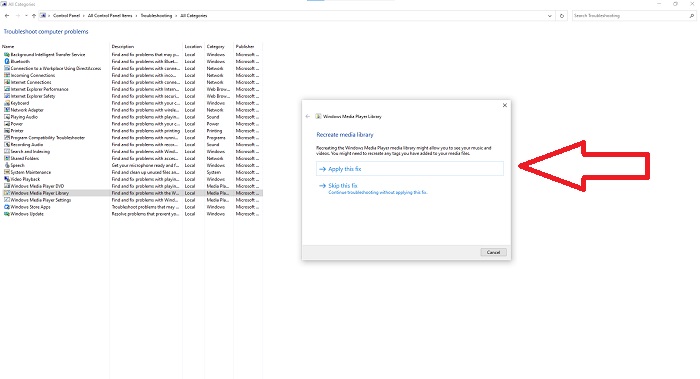
Step 3: Lastly, troubleshoot your Windows Media Player by clicking next after a tab appears. And then continue selecting Apply this Fix. If the troubleshooting is finished, choose if you will close the troubleshooting or give reviews into it.
Parte 3. Outra maneira viável de acelerar os vídeos
Suponha que você esteja tendo problemas para corrigir a velocidade de reprodução de seus vídeos devido às etapas complicadas. Além disso, se a solução de problemas não estiver funcionando e você ainda não conseguir reproduzir o vídeo. Existem ferramentas web disponíveis na internet, e algumas delas precisam ser adquiridas antes de ter acesso à ferramenta completa. Video Converter Ultimate é a melhor alternativa para aumentar a velocidade de vídeos, e seu uso é gratuito. Este software pode editar seu vídeo para o próximo nível, e aqui estão as etapas fornecidas:
Step 1: Select Free Download the software directly to your computer. After that, customize and install the program.
Free DownloadFor Windows 7 or laterSecure Download
Free DownloadFor MacOS 10.7 or laterSecure Download
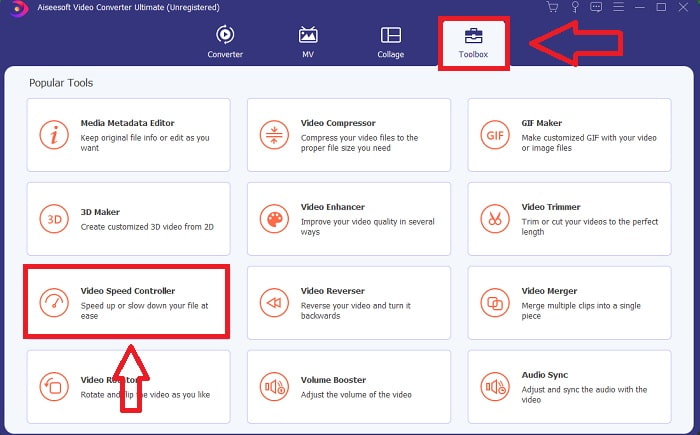
Step 2: Once the software has been installed, run it by selecting the Toolbox option from the menu bar and then selecting Video Speed Controller from the list that appears.
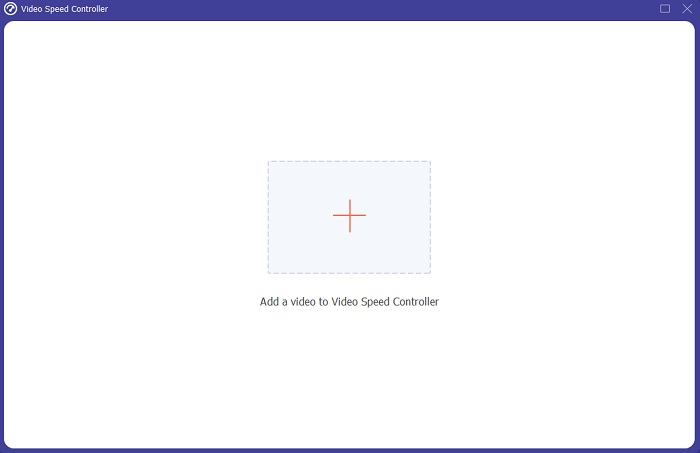
Step 3: Click the + button in your preference to add a file and then continue editing the video.
Step 4: Select how many times the video's frame rate will increase or decrease to alter the playback speed.
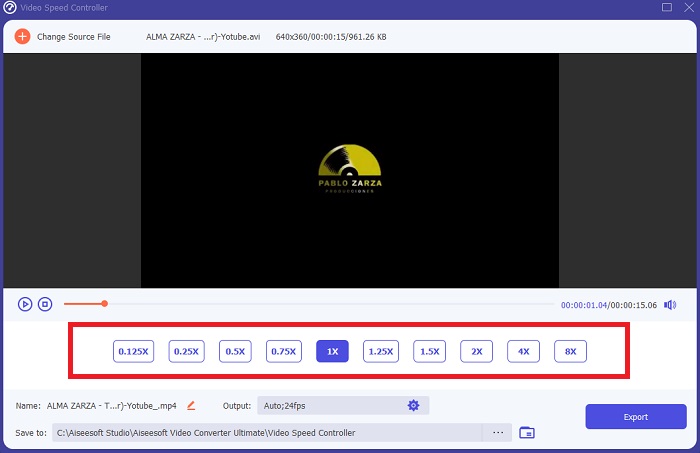
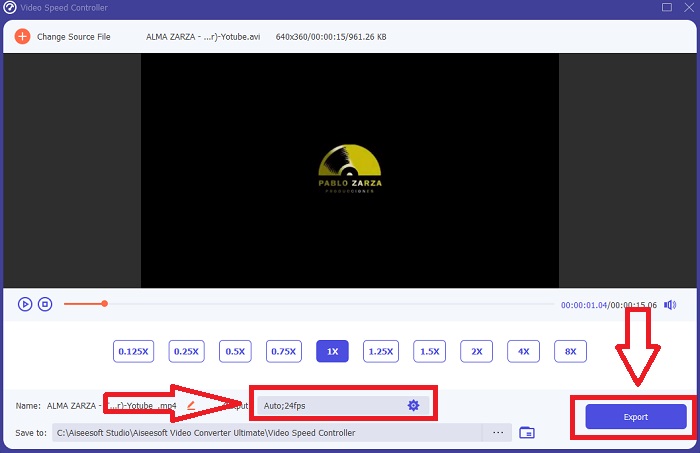
Step 5: Changing the format, resolution, quality, and so on will let you choose your desired output after you've finished adjusting your video's playback speed. Click Export and then select a location to save your work when you're finished.
Parte 4. Perguntas frequentes sobre como acelerar vídeos no Windows Media Player
Como consertar vídeos MP4 que não podem ser reproduzidos no Windows Media Player?
As the article said beforehand, Windows Media Player doesn't support a wide range of video formats. Since it only supports most windows suitable formats, it is hard to fix errors using this media player. That's why you need to learn how to convert or know how to play MP4 video formats. The link here is a helpful article for you to solve this problem.
Como reproduzir DVD no Windows Media Player?
Some films are on DVD, and to play this, you need to find the right media player to play DVD. Windows media player is one of the common media players that play DVD. In addition, this media player also introduces some settings to help in editing while playing DVD. Here are further details on how to play DVDs in Windows Media Player.
O tamanho do arquivo de vídeo fica menor se você aumentar a velocidade de reprodução?
Apenas o quadro será dividido cada vez que você aumentar ou diminuir a velocidade de reprodução do seu vídeo. Se você aumentar 0,5x mais rápido, o quadro será de 60 quadros por 1/120 segundos. Resumindo, não pode afetar o vídeo, a menos que ele já tenha uma taxa de quadros baixa.
Conclusão
In conclusion, Windows Media Player might be a faulty software that only limits few formats. Still, there are some features this software can offer that can fix problems related to video formats. However, if you want to increase the playback speed of your video clip, download Video Converter Ultimate, not just by speeding up your video. This software can turn your video to another level. With all the features available, this will be the best and accessible software we recommend using.
-
 WebM para GIF - 3 conversores gratuitos de WebM para GIF para criar seus próprios GIFs
 O WebM é um GIF? Como transformar um vídeo em GIF? Existe algum conversor gratuito de WebM para GIF? Esta postagem compartilha 3 maneiras gratuitas de ajudá-lo a converter WebM em GIF.
-
 Como converter vídeos MKV em GIFs animados sem Photoshop / FFmpeg
 Depois de baixar e assistir a filmes MKV em seu computador, você pode querer compartilhar alguns momentos maravilhosos com amigos ou na Internet como GIFs. Neste artigo, você pode aprender sobre as 2 maneiras mais fáceis de converter MKV em GIF.
-
 Crie seu melhor GIF animado por meio do criador de GIF on-line [2021]
 Uma revisão informativa sobre como fazer um GIF usando esses simples criadores de GIF online que você já encontra ou não na web.
