


 Video Converter Ultimate
 Gravador de ecrã
 Reparo de vídeo
 Secure Download
Como girar vídeos com ferramentas de rotação simples, mas eficazes
Você está cansado de assistir vídeos de lado ou de cabeça para baixo? Ou talvez você tenha filmado algo em um ângulo estranho e queira consertar? Felizmente, girar um vídeo é um processo simples que pode ser feito em computadores Windows e Mac. Seja você um cinegrafista profissional ou apenas procurando editar algumas filmagens pessoais, ser capaz de girar vídeos é uma habilidade útil de se ter.
In this guide, we'll explore some of the most popular methods for rotating videos on Windows and Mac computers. We'll cover different software options and walk you through the simple steps for each video rotator.

Parte 1. Rotadores de vídeo para Windows e Mac
Talvez você tenha filmado um vídeo em seu telefone e acidentalmente o tenha segurado de lado ou queira criar uma composição visualmente mais atraente. Seja qual for o motivo, há várias opções de software diferentes disponíveis para ajudá-lo a criar vídeos no Windows e no Mac. Aqui, vamos enfrentá-los um por um.
1. Video Converter Ultimate
If you're looking for reliable and easy-to-use video editing software to help you rotate videos, FVC Video Converter Ultimate is an excellent choice. This versatile software allows you to rotate your videos to any angle you desire with just a few clicks. In addition to rotating videos, this app also offers a variety of other video editing features, such as trimming, cropping, adding subtitles, and adjusting video settings like brightness and contrast.
Key Features of FVC Video Converter Ultimate:
◆ Gire os vídeos em qualquer ângulo
◆ Virar horizontalmente ou verticalmente
◆ Interface amigável
◆ Conversão em lote ou rotação de vídeo
◆ Recursos adicionais de edição de vídeo
As etapas sobre como fazer vídeos em paisagem ou retrato são as seguintes:
Step 1. Download and install FVC Video Converter Ultimate on your computer.
Free DownloadFor Windows 7 or laterSecure Download
Free DownloadFor MacOS 10.7 or laterSecure Download
Step 2. Launch the software and click the Add File button to insert the video you want to rotate.
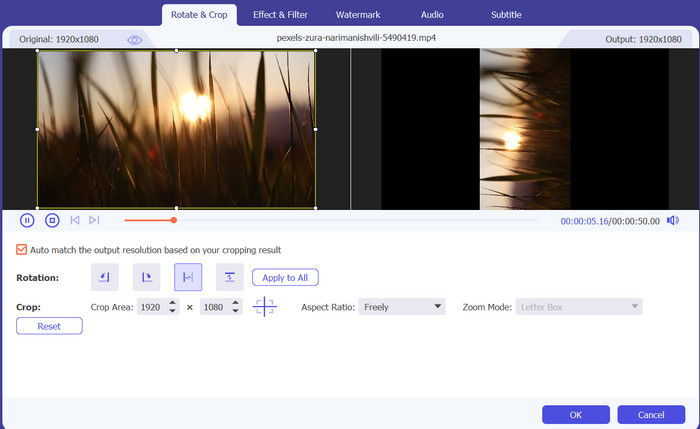
Step 3. Hit the Edit button next to the video file to open the video editing panel.
Step 4. Click the Rotate tab, and select the desired rotation angle for your video. You may also flip the video horizontally or vertically if needed.
Step 5. Preview the rotated video to make sure it looks good, then click OK to save the changes.
2. VLC Media Player
O VLC Media Player é um reprodutor de mídia gratuito e de código aberto amplamente utilizado por pessoas em todo o mundo. Um dos recursos de destaque do VLC é a capacidade de girar vídeos. Com o VLC, você pode facilmente girar vídeos que foram gravados em um ângulo ou orientação estranho.
VLC’s Key Features:
◆ Ângulos de rotação de vídeo personalizáveis
◆ Rotação de vídeo em lote
◆ Atalhos de teclado
Veja como girar vídeos no VLC:
Step 1. To perform VLC rotate videos, simply open the video in VLC,
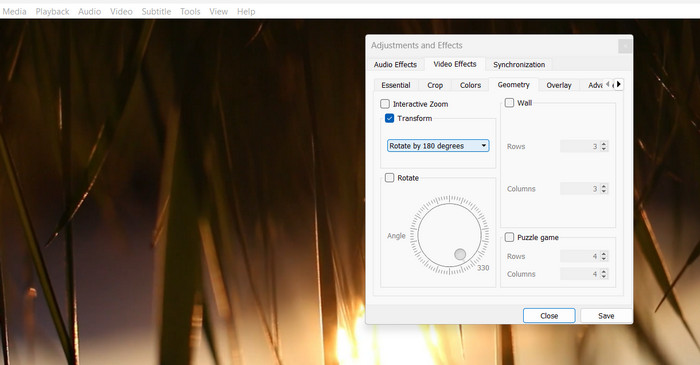
Step 2. Click on the Tools menu, and select Effects and Filters.
Step 3. In the Video Effects tab, click on the Geometry tab and then select the desired rotation angle.
3. Estreia
Adobe Premiere é um popular software de edição de vídeo usado por profissionais e amadores. O que há de bom no recurso de rotação de vídeo do Premiere é que ele oferece uma ampla variedade de opções de personalização, incluindo quadros-chave para ajustes mais precisos. Você também pode usar o Premiere para cortar e redimensionar seus vídeos, adicionar transições e aplicar correção de cores e outros efeitos.
Premiere’s Key Features:
◆ Estabilização de vídeo
◆ Correção da relação de aspecto
◆ Rotação precisa
Aqui estão as etapas sobre como girar vídeos no Premiere:
Step 1. To rotate a video with Premiere, simply import the video clip and drag it onto the timeline.
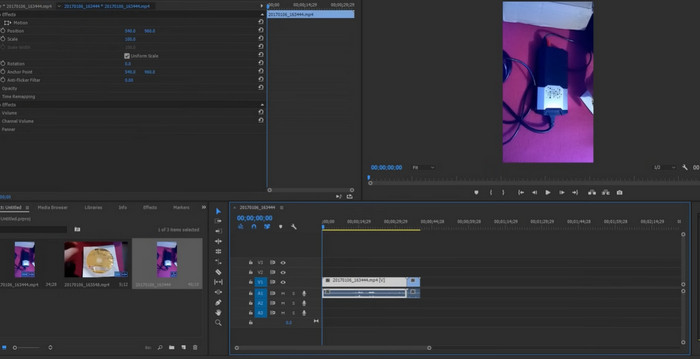
Step 2. Then, pick the clip by clicking on it, and navigate to the Effect Controls panel.
Step 3. In the Motion tab, the Rotation option allows you to modify the video's angle as necessary.
4. PowerDirector
O PowerDirector é um software de edição de vídeo versátil que oferece uma variedade de recursos, incluindo a capacidade de girar vídeos. Com o PowerDirector, você pode corrigir facilmente vídeos que foram gravados na orientação errada ou em um ângulo estranho.
PowerDirector’s Key Features:
◆ Controle de quadro-chave
◆ Edição Multicâmera
◆ Efeitos de vídeo criativos
Aqui está um breve guia para executar vídeos de rotação do PowerDirector:
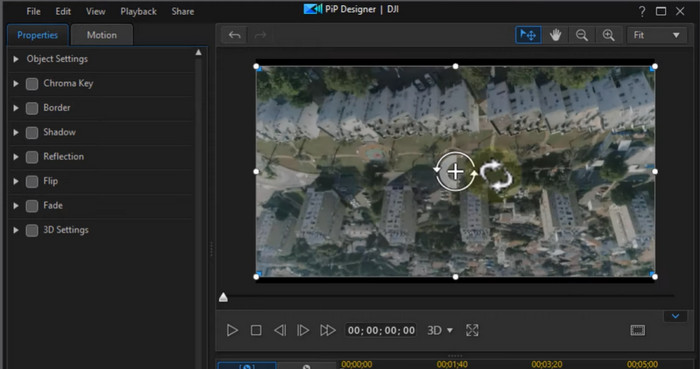
Step 1. To rotate a video in PowerDirector, simply import your video clip into the software, and drag it onto the timeline.
Step 2. Then, click on the clip to select it, and go to the Fix/Enhance tab. Here, you'll find the Rotation option, where you can adjust the angle of the video as needed.
5. DaVinci Resolve
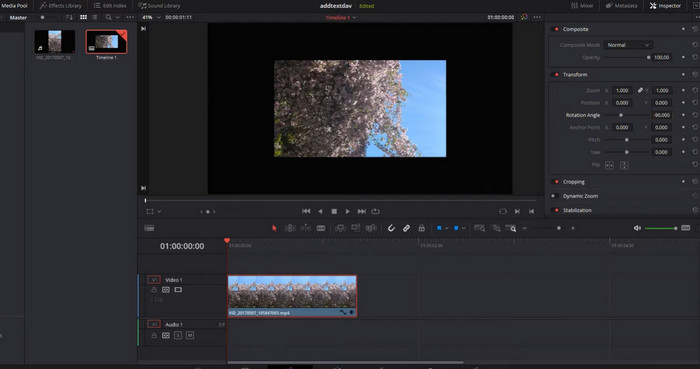
Um dos melhores recursos do DaVinci Resolve relacionado à rotação de vídeo é sua capacidade de girar vídeos com precisão e controle. Você pode ajustar facilmente o ângulo de rotação usando o painel Transform, que permite inserir o grau de rotação exato que você precisa. O DaVinci Resolve também oferece controle de quadro-chave, permitindo criar animações de rotação suaves e precisas ao longo do tempo.
DaVinci Resolve’s Key Features:
◆ Controle de rotação preciso
◆ Correção de cores avançada
◆ Efeitos Visuais
Aqui estão as etapas para executar os vídeos de rotação do DaVinci Resolve:
Step 1. Open DaVinci Resolve and make a new project. Then, import your video into the media pool by clicking on the Import Media button. Drag your video from the media pool to the timeline.
Step 2. Click on the Inspector button to open the Inspector Panel. Select the Transform tab: In the Inspector Panel, select the Transform tab.
Step 3. Adjust the rotation angle: In the Transform tab, you can adjust the rotation angle by changing the Rotation value. You can also use the keyframe control to create smooth and precise rotation animations over time.
Parte 2. Rotator de vídeo apenas para Windows
Agora, ao procurar rotadores de vídeo dedicados a usuários do Windows, você pode consultar o programa abaixo.
1. Windows Media Player
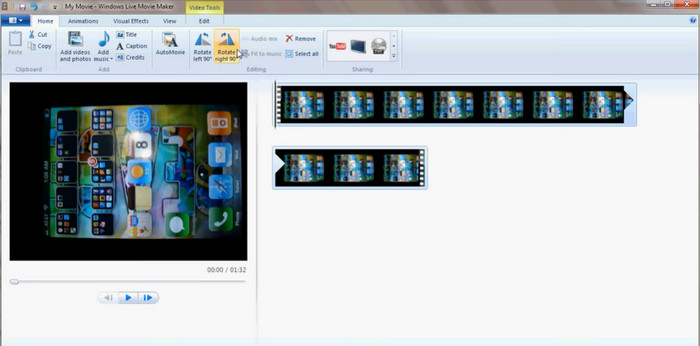
Windows Media Player can be a VLC Alternative player for videos that comes pre-installed on Windows computers. It can play a variety of video and audio file formats and offers some basic video editing features, including video rotation. Also, you can rotate your videos to the left or right by 90 degrees, which is useful if you have recorded a video in the wrong orientation. From a landscape video, you can rotate it to a portrait.
Windows Media Player Key Features:
◆ Reprodução de vários formatos de mídia
◆ Suporte a codec integrado
◆ Girar vídeos em 90 graus
Aqui está uma instrução sobre como girar um vídeo no Windows Media Player:
Step 1. Simply open the video file in the player and then click on the Organize button at the top of the window.
Step 2. From the dropdown menu, select Options and then click on the Performance tab.
Step 3. Under the Video Acceleration section, you should see an option to Rotate Video by 90 degrees.
Step 4. Check the box next to this option to enable video rotation, and then click Apply and OK to save the changes.
2. ClipChamp
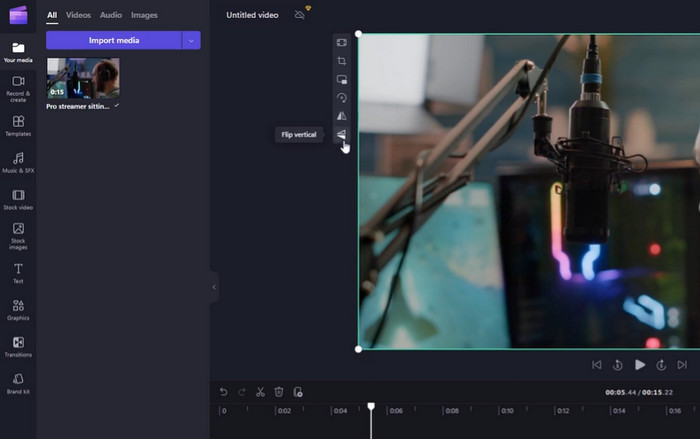
Clipchamp is a video editing and conversion app that operates entirely online. It allows users to edit and enhance their videos with a range of tools and features, including video rotation, cropping, trimming, adding text and filters, and more.
ClipChamp’s Key Features:
◆ Armazenamento em nuvem
◆ Integração com mídias sociais
◆ Saída de vídeo personalizável
Aqui estão as etapas para executar o vídeo de rotação do ClipChamp:
Step 1. Log in to your ClipChamp’s account and click on the Create a video button on the dashboard and select the video you want to rotate from your computer.
Step 2. After the video is uploaded, click on the Edit button to open the Clipchamp video editor.
Step 3. To turn around the video, click on the Rotate button in the left-hand panel of the editor.
Step 4. Once you have rotated the video, tick on the Save button editor to save the changes.
Parte 3. Rotator de vídeo apenas para Mac
Os computadores Mac também possuem ferramentas dedicadas para girar vídeos. Abaixo estão alguns dos recomendados.
1. iMovie
O iMovie é um excelente software de edição de vídeo desenvolvido pela Apple, disponível para macOS, iOS e iPadOS. É um aplicativo robusto e fácil de usar que permite aos usuários editar e aprimorar seus vídeos com uma variedade de recursos e ferramentas, incluindo rotação de vídeo.
Key Features of iMovie:
◆ Títulos e sobreposições de texto
◆ Efeitos especiais
◆ Integração perfeita com produtos Apple
Para executar o vídeo de rotação do iMovie, siga o guia abaixo.
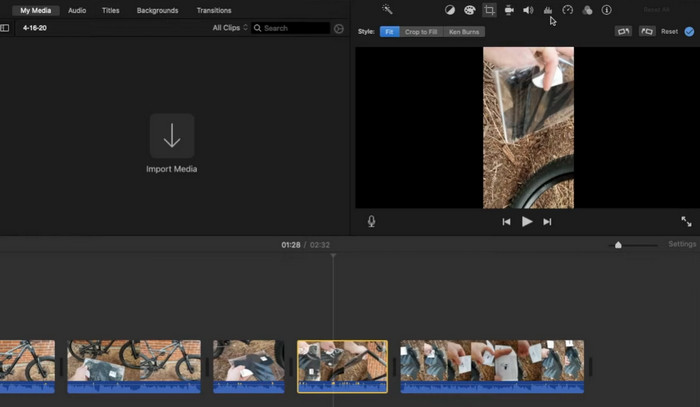
Step 1. Open iMovie and select the project you want to edit. Find the video clip you want to rotate in the timeline and select it.
Step 2. Click on the Crop button, which looks like a square with two arrows circling it, located in the toolbar above the viewer. Select Rotate from the dropdown menu that appears.
Step 3. Use the rotate controls to adjust the angle of the video clip. You can also use the slider to flip the video horizontally or vertically.
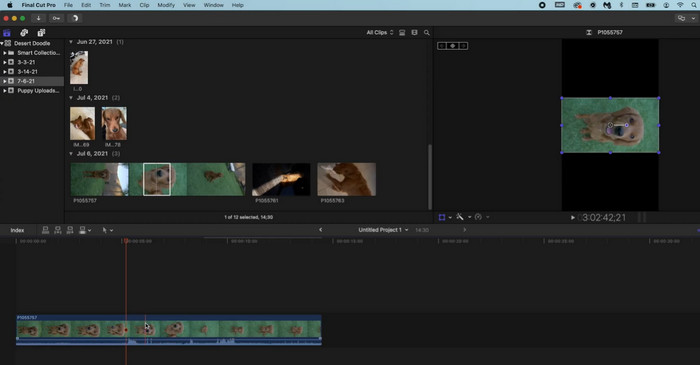
2. Final Cut Pro
O Final Cut Pro é um ótimo software de edição de vídeo projetado para usuários de Mac. Ele oferece uma ampla variedade de ferramentas e recursos de edição de vídeo, incluindo a capacidade de girar vídeos. Você pode facilmente girar seus vídeos para a orientação desejada e criar vídeos de alta qualidade com facilidade.
Key Features of Final Cut Pro:
◆ Suporte para várias câmeras
◆ Suporte para vídeo em 360 graus
◆ Ferramentas de edição de áudio
Aqui está um guia passo a passo para vídeos do Final Cut Pro Rotate:
Step 1. Launch Final Cut Pro and import the desired footage into your project. Once the video has been imported, drag it to the bottom of the screen's timeline.
Step 2. Click the Crop button in the toolbar at the top of the screen to crop the image.
Step 3. Choose Rotate from the Crop dropdown menu. Use the rotation dial to adjust the video clip's orientation.
Parte 4. Perguntas frequentes sobre rotadores de vídeo
Posso girar um vídeo sem perder qualidade?
Sim, você pode girar um vídeo sem perder a qualidade usando um software de edição de vídeo que permite rotação sem perdas.
Posso executar vídeos de rotação FFmpeg?
Sim, você pode usar o FFmpeg para girar vídeos. Para girar um vídeo com o FFmpeg, você precisaria usar os filtros de transposição ou rotação.
É possível converter vídeos de retrato para paisagem?
Sim, é possível converter um vídeo de retrato em paisagem usando software ou ferramentas de edição de vídeo. Uma coisa a fazer é adicionar barras pretas nas laterais do vídeo de retrato para ajustá-lo à proporção de 16:9 dos vídeos de paisagem.
Conclusão
By rotating your videos, you can enhance the viewing experience for your audience and make your videos more visually appealing and professional-looking. From social media content to business presentations and personal videos, video rotators can make a big difference in the quality and impact of your visual content.
-
 11 aparadores de vídeo notáveis para usar [gratuitos e pagos]
 Aqui estão as listas de software de edição de vídeo que você pode usar para cortar um vídeo. Analisaremos genuinamente esses programas e forneceremos todos os detalhes que você procura.
-
 5 melhores editores de vídeo do Windows com dicas para profissionais e iniciantes [2023]
 Procurando um editor de vídeo do Windows que forneça recursos de edição de alta qualidade? Então leia este artigo enquanto otimizamos as diferentes ferramentas que você pode escolher.
-
 7 melhores editores de metadados para mídia/fotos/documentos [Web e off-line]
 Quer conhecer o melhor editor de metadados? Felizmente, este artigo fornece o melhor editor de metadados que você pode usar para alterar facilmente as tags em todos os arquivos.
