


 Video Converter Ultimate
 Gravador de ecrã
 Reparo de vídeo
 Secure Download
Como combinar vídeos no Android sem esforço com os programas mais bem avaliados
Are you tired of switching between different video clips to watch your favorite moments? Or maybe you want to showcase your videography skills by creating a stunning compilation of your work? Whatever the reason, merging videos on your Android device is a great way to create a seamless and captivating video experience. But where do you start? The good news is, it's easier than you think! In this article, we'll explore the tips, tricks, and top-rated video merger apps to help you merge your videos like a pro. That said, grab your Android device, and let's get started on creating your own masterpiece!

Parte 1. Os 5 melhores aplicativos combinadores de vídeo para dispositivos Android
Existem muitos dos melhores aplicativos gratuitos de fusão de vídeo para dispositivos Android disponíveis para mesclar vídeos. Aqui estão alguns dos melhores programas, juntamente com breves descrições, principais recursos, classificações e etapas simplificadas.
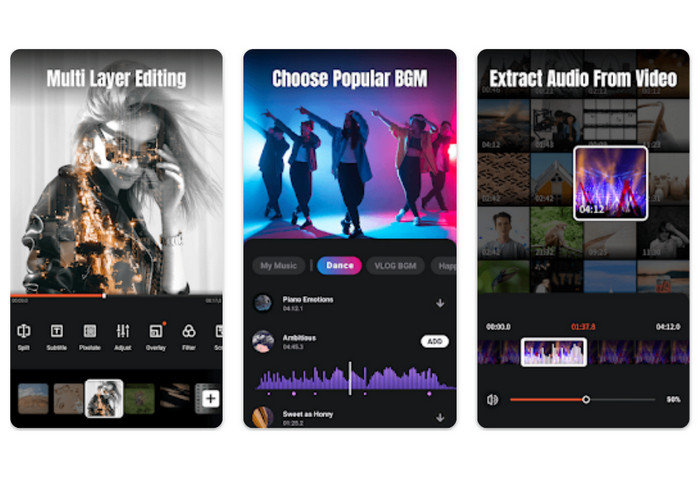
1. VideoShow - Editor de vídeo, criador de vídeo com música
VideoShow é um aplicativo de edição de vídeo popular que permite mesclar vídeos, adicionar música e texto e aplicar uma variedade de efeitos e filtros. O aplicativo também inclui uma variedade de ferramentas de edição, como aparar, cortar e dividir clipes. Além disso, o VideoShow é conhecido por sua interface amigável e ferramentas de edição fáceis de usar.
Key Features
◆ Mesclar vídeos de forma rápida e fácil
◆ Adicione música e texto
◆ Aplicar efeitos e filtros
Rating: 7.5/10
Os passos sobre como juntar vídeos no Android usando o VideoShow são fornecidos abaixo:
Step 1. Download and install the Videoshow app from the Google Play Store. Open the app and tap on the Edit Video button on the main screen.
Step 2. Tap on Select Video and choose the first video clip that you want to join. Tap on the + button to add another video clip to the project.
Step 3. Select the second video clip you want to join and tap the checkmark button to add it to the project.
Step 4. Drag and drop the video clips in the timeline to arrange them in the order that you want them to appear in the final video. Finally, tap the Export button to save the final video to your Android device.
2. Adobe Premiere Rush
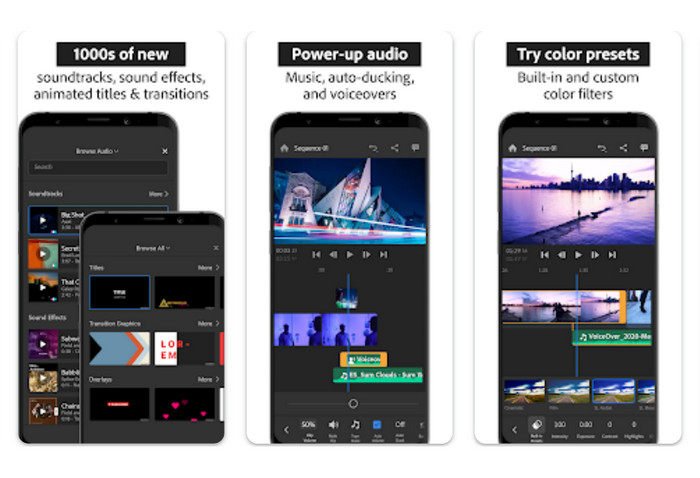
Quando se trata de edição de vídeo móvel, o Adobe Premiere Rush é sua melhor aposta. Este aplicativo para Android pode unir dois vídeos, criar transições e efeitos e personalizar o áudio e o visual de suas produções. A inclusão do aplicativo na Creative Cloud da Adobe significa que os vídeos feitos nele podem ser facilmente compartilhados entre dispositivos e sistemas operacionais.
Key Features
◆ Linha do tempo com várias faixas.
◆ Sincronização automática.
◆ Fácil aparar e dividir.
Rating: 8.9/10
Aqui estão as etapas simples para unir vídeos com o Adobe Premiere Rush:
Step 1. Acquire and install Adobe Premiere Rush from the Google Play Store. Open the app and tap on the + button to create a new project.
Step 2. Give your project a name, and choose the aspect ratio and frame rate that you want to use. Tap on Create to create the project.
Step 3. Tap on Add Media and choose the first video clip that you want to stitch. Tap and hold the clip and then drag it to the timeline at the bottom of the screen.
Step 4. Then, tap the Export button to begin the process of saving the output.
3. Viva Vídeo
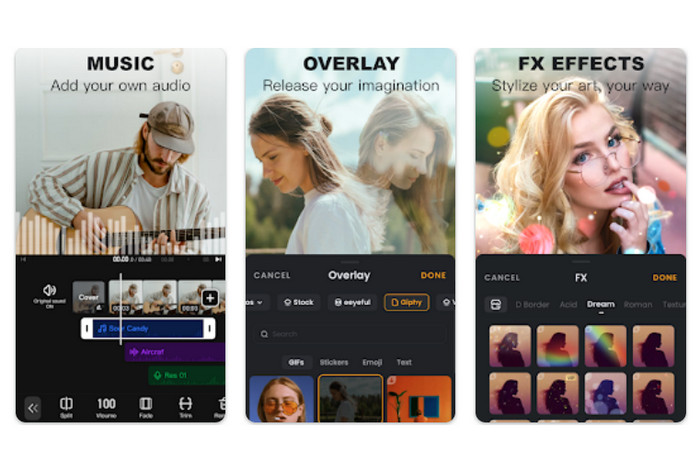
VivaVideo is a powerful video editor with many options to stitch videos together on an Android device. The app's editing capabilities allow users to trim, cut, and split video, as well as add music and text. Moreover, you can use the variety of themes and templates provided by VivaVideo to make your videos look like they were made by a pro.
Key Features
◆ Suporta uma ampla variedade de formatos de vídeo.
◆ Suporta aparar e editar vídeos.
◆ Configurações de vídeo personalizáveis.
Rating: 8.9/10
Siga os passos de como mesclar 2 vídeos no Android usando o VivaVideo:
Step 2. Tap on the Edit tab at the bottom of the screen and then tap on the Import button to import the two videos you want to merge.
Step 3. Drag and drop the clips to arrange them in the desired order of merging.
Step 4. Then, select the Merge option from the list of editing tools. VivaVideo will automatically merge the selected videos into one single video clip based on the arrangement you made on the timeline.
4. YouCut - Editor de vídeo e criador de vídeo, sem marca d'água
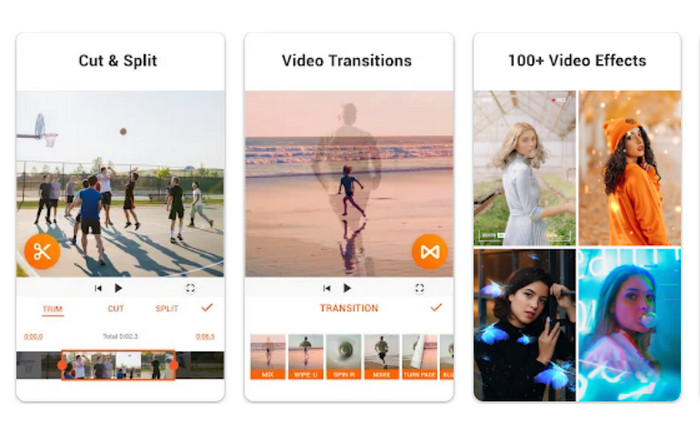
YouCut é um popular aplicativo de edição de vídeo que permite mesclar vídeos, adicionar música e texto e aplicar uma variedade de efeitos e filtros. YouCut é conhecido por sua interface intuitiva e ferramentas de edição fáceis de usar. O aplicativo também não possui marca d'água, o que é um diferencial para quem deseja criar vídeos com aparência profissional sem nenhuma marca. Isso também o torna um dos melhores aplicativos gratuitos de fusão de vídeo para Android.
Key Features
◆ Dividir e cortar vídeos.
◆ Oferece efeitos de transição.
◆ Adicionar música e texto.
Rating: 8.0/10
Aqui estão os passos simples para mesclar vídeos no Android usando o YouCut:
Step 1. Download and Install YouCut - Video Editor & Video Maker from the Google Play Store and open the app on your Android device.
Step 2. Tap on the Video Merger option from the main screen to access the video merging feature.
Step 3. Tap on the + icon or Add button to import the videos that you want to merge from your device's gallery or other sources. You can select multiple video clips at once.
Step 4. Arrange the imported video clips in the desired order on the timeline. You can drag and drop the video clips to rearrange their sequence.
Step 5. Once you have arranged and edited the video clips to your satisfaction, tap on the Export button to merge the videos together.
5. AndroVid - Editor de vídeo, criador de vídeo, editor de fotos
AndroVid é um aplicativo de edição de vídeo versátil que permite mesclar vídeos, adicionar música e texto e aplicar uma variedade de efeitos e filtros. O aplicativo também inclui uma variedade de ferramentas de edição, como aparar, cortar e dividir clipes. Além disso, AndroVid também permite extrair áudio de seus vídeos e converter vídeos para diferentes formatos.
Key Features
◆ Criador de apresentações de slides integrado.
◆ Interface amigável.
◆ Integração de mídia social.
Rating: 8.5/10
Step 1. First of all, get the program and install it on your device.
Step 2. From the main menu of AndroVid, select the Join option, which is typically displayed as a plus icon or as Join Video text.
Step 3. In the Join Videos screen, tap on the Add Videos button to select the videos you want to merge. After adding the videos, you can arrange their order by dragging and dropping them in the desired sequence.
Step 4. Once you have arranged the videos in the desired order, tap on the Merge button to start the merging process.
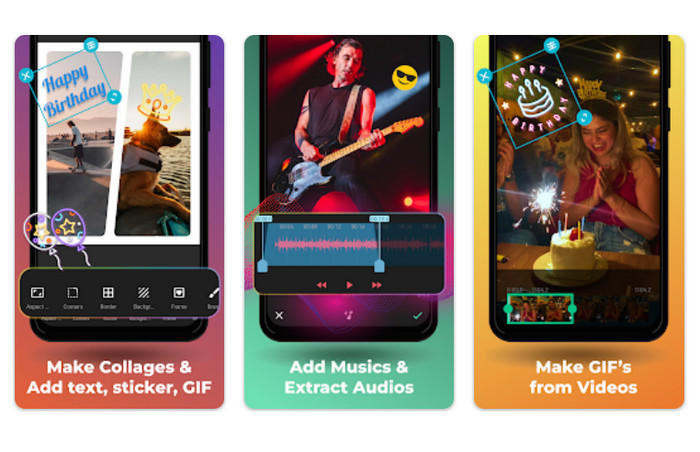
Parte 2. Ótima alternativa: combinador de vídeo para PC
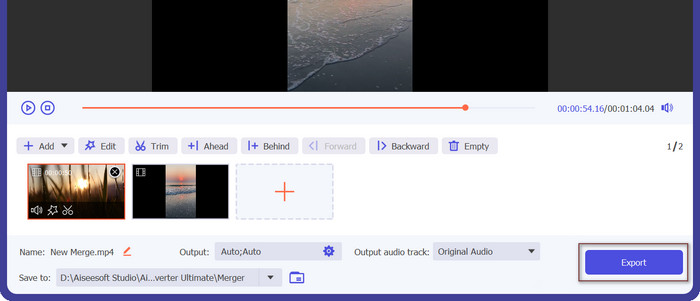
FVC Free Video Converter Ultimate's merging feature is among the most straightforward and simple in the industry. Videos can be dragged and dropped into the software, rearranged to the desired order, and then merged into a single file. The merged video's output parameters can be adjusted to your liking, including the video format, quality, and bitrate.
Free DownloadFor Windows 7 or laterSecure Download
Free DownloadFor MacOS 10.7 or laterSecure Download
Step 1. Grab the program and install
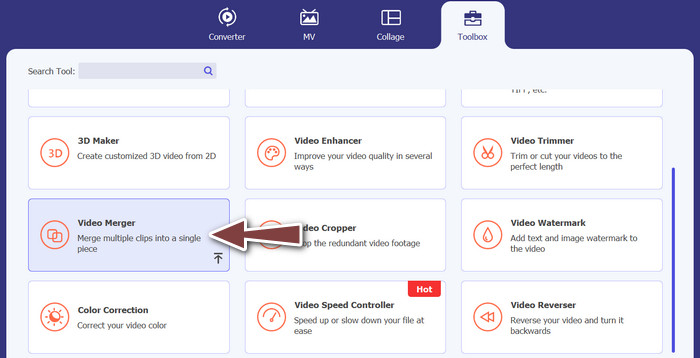
To use the video merging function, launch the FVC Video Converter toolbox and navigate to the Toolbox tab. Choose Video Merger from the available options.
Step 2. Add video files
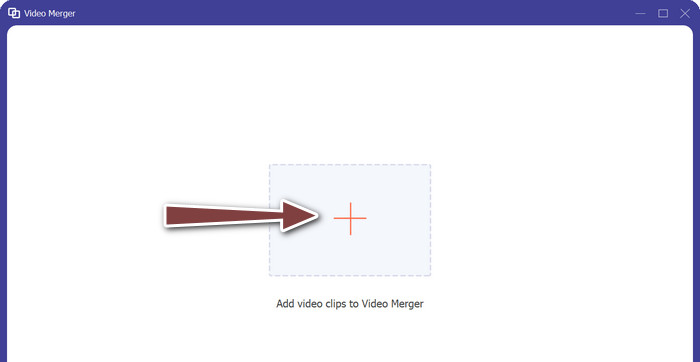
Then, either choose the films you want to combine from your computer and click the Add button or drag and drop the videos you want to merge into the tool's interface.
Step 3. Rearrange the Video Playlist
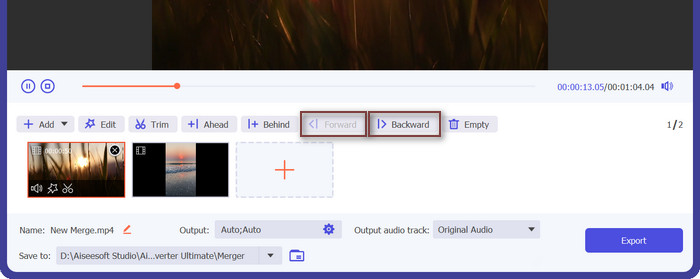
After the videos have been added, they can be rearranged to your liking before being combined. To rearrange the videos, click the Previous and Next buttons or simply drag and drop them into a new order.
Step 4. Begin video combining and store the resulting file
To begin the merging process, select it and then click the Export button. Depending on the size of the films, the process of merging them into a single file will take the tool a few minutes to complete automatically.
Parte 3. Perguntas frequentes sobre aplicativos combinadores de vídeo para Android
Quais recursos devo procurar em um aplicativo de mesclagem de vídeo?
When choosing a video merging app, it's important to look for features such as the ability to trim videos, rearrange video clips, apply transitions, adjust video playback speed, add text or captions, and export videos in different resolutions and formats.
Posso editar o vídeo mesclado depois de criado?
Sim, muitos aplicativos de mesclagem de vídeo permitem que os usuários editem o vídeo mesclado após sua criação. Isso pode incluir opções para adicionar texto ou legendas, aplicar filtros ou efeitos, ajustar a velocidade de reprodução do vídeo e até fazer edições básicas de áudio.
Posso compartilhar o vídeo mesclado diretamente do aplicativo?
Sim, a maioria dos aplicativos de mesclagem de vídeo oferece opções para compartilhar o vídeo mesclado diretamente do aplicativo para plataformas de mídia social, aplicativos de mensagens ou outras plataformas de compartilhamento.
Conclusão
Video merger apps offer a convenient and easy-to-use solution for merging multiple videos into a single video file on Android devices. They typically provide features such as video trimming, arrangement of video clips, transitions, and basic video editing effects. Many video merging apps also allow for further editing of the merged video, such as adding text, captions, filters, and adjusting playback speed.
-
 Os 6 principais aplicativos de filtro de vídeo que você pode baixar no Android e iPhone [2023]
 Você quer ter os melhores aplicativos móveis de filtro de vídeo? Bem, nós lhe daremos o que você quer. Este artigo apresentará uma revisão dos 6 aplicativos de filtro mais recentes que você pode baixar.
-
 Os 5 principais aplicativos para acelerar o vídeo em qualquer dispositivo que você tenha [2023]
 Precisa acelerar o vídeo no iOS, Android, Windows e Mac? Bem, todos os melhores trocadores de velocidade estão disponíveis neste artigo, então você deve lê-lo.
-
 Melhor aplicativo de vídeo em câmera lenta para Windows e Mac
 Conheça o melhor aplicativo de câmera lenta gratuito para seu Windows e Mac. Essas ferramentas ajudarão você a fazer seu vídeo em câmera lenta facilmente. Leia este artigo para conhecer os melhores aplicativos de câmera lenta.
