


 Video Converter Ultimate
 Gravador de ecrã
 Reparo de vídeo
 Secure Download
Principais fusões de vídeo online e alternativa offline para combinar vídeos
With the advent of online video merging tools, the process of merging videos has become easier and more accessible than ever before. These tools offer a range of features, from simple drag-and-drop interfaces to more advanced editing capabilities. In this article, we'll cover some of the best online video merging tools available to merge videos online for free and provide step-by-step instructions on how to use them. Whether you're a beginner or a seasoned video editor, you'll be able to create seamless, professional-looking videos in no time!

Parte 1. As 5 Principais Fusões de Vídeo Online
1. WeVideo
O WeVideo é uma popular plataforma de edição de vídeo online que oferece uma variedade de recursos para ajudá-lo a criar vídeos com aparência profissional. Um de seus principais recursos é a capacidade de mesclar vários arquivos de vídeo em um único vídeo. Esse recurso permite criar vídeos mais longos e coesos que contam uma história completa.
Existem várias vantagens em usar o recurso de mesclagem de vídeo do WeVideo. Por um lado, facilita a combinação de vários vídeos em um único arquivo, economizando tempo e esforço. Além disso, as ferramentas de edição do programa permitem que você adicione transições e efeitos entre seus videoclipes, dando ao seu vídeo mesclado uma aparência polida e profissional.
Prós
- Acesso baseado em nuvem a arquivos WeVideo
- Recurso de colaboração para vários usuários
- Transição e efeitos
Contras
- Versão gratuita limitada
- Recursos de edição limitados
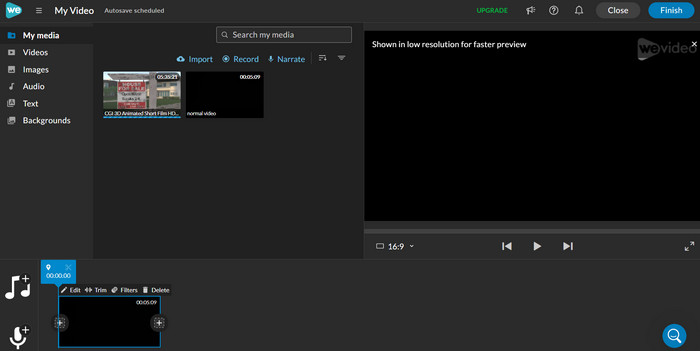
Siga este guia simplificado para aprender a combinar vídeos online com o WeVideo:
Step 1. Go to WeVideo's website and sign up for an account. Once you've signed up, click on the Create New Project button on the homepage to get started.
Step 2. To add the videos you want to merge, click on the Media button, and then click on the Upload button to select the videos you want to merge. You can also drag and drop your videos directly into the media library.
Step 3. Click and drag each video from the media library to the timeline at the bottom of the screen.
Step 4. Arrange the videos in the order you want them to appear in the merged video.
2. FlexClip
Outro combinador de vídeo online é o FlexClip. Com a interface amigável do FlexClip e uma variedade de ferramentas de edição, você pode mesclar vídeos e criar vídeos polidos e com aparência profissional em apenas algumas etapas simples. Seu recurso de mesclagem facilita a combinação de vários videoclipes em um único arquivo, economizando tempo e esforço. Talvez você queira exportar seus arquivos mesclados em uma variedade de formatos e resoluções. Isso também é possível com este programa.
Prós
- Suporte a um aplicativo móvel.
- Velocidade de renderização rápida.
- Suporte ao cliente.
Contras
- Opções de personalização limitadas.
- O tamanho do arquivo é limitado.
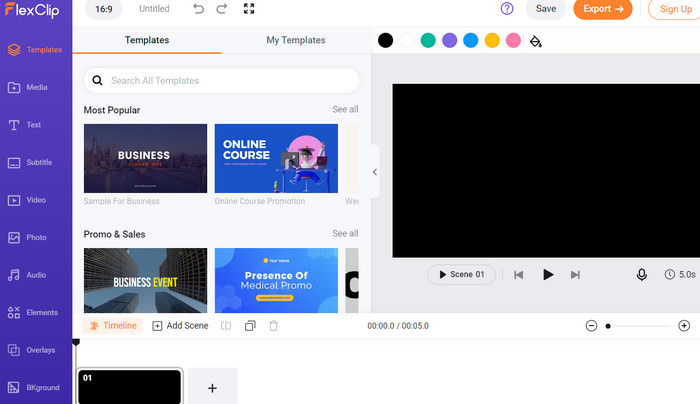
Aprenda a mesclar vídeos online gratuitamente sem marca d'água usando o FlexClip.
Step 1. Go to the FlexClip website and sign up for a free account. Click the Create New button on the dashboard and choose the Storyboard option.
Step 2. Click the Plus button to add the first video you want to merge. You can choose to upload a video from your computer or select a video from FlexClip's media library.2
Step 3. Once you've added the first video, drag it to the storyboard timeline.
Step 4. Click the Plus button again to add the second video you want to merge. Again, you can choose to upload a video or select one from FlexClip's media library. Drag the second video to the timeline, positioning it after the first video.
Step 5. To merge the videos, click the Export button at the top right of the screen.
3. Clídeo
With Clideo, you can add audio track, special effects, and more to create a polished and professional-looking video. Plus, Clideo supports a range of popular video file formats, ensuring that your merged video will be compatible with a variety of devices and platforms. But that's not all! Clideo is also a cloud-based platform, meaning that you can access your merged videos from anywhere with an internet connection.
Prós
- Interface amigável.
- Compatível com uma variedade de formatos de vídeo.
Contras
- Permite armazenar vídeos mesclados por tempo limitado.
- A função de exportação de vídeo é limitada ao usar a versão gratuita.
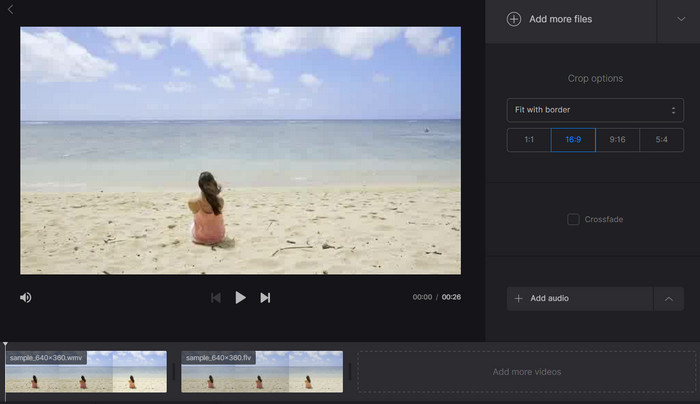
Conheça mais sobre este programa seguindo os passos abaixo:
Step 1. Go to the Clideo website and click the Merge Video option from the homepage.
Step 2. Click the Choose files button and select the videos you want to merge from your computer or device. Alternatively, you can drag and drop the videos into the upload area.
Step 3. Arrange the video order: You can change the order of your videos by dragging and dropping them into the desired sequence. Click on the Merge button to start the process.
Step 4. Wait for the videos to be merged. This may take a few minutes, depending on the length of the videos and the internet speed.
4. Kapwing
Kapwing is an online video editing tool that has become increasingly popular due to its simple and user-friendly interface. You can easily upload your videos, arrange them in the desired order, and add transitions between each clip to create a smooth and polished final product. You can also add text overlays, music, and other creative elements to your merged video to make it more engaging and entertaining.
Prós
- Recursos de edição versáteis.
- Tempo de renderização rápido.
Contras
- Controle limitado sobre a qualidade do vídeo.
- Sem recursos avançados.
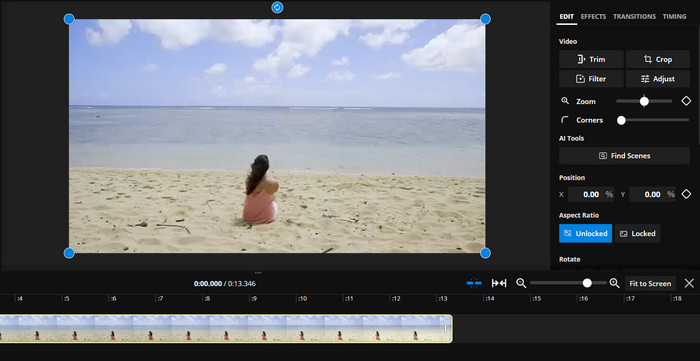
Dê uma olhada em como este editor de vídeos on-line gratuito funciona através do passo a passo abaixo:
Step 1. Go to the Kapwing website and click on Start Editing.
Step 2. On the Kapwing studio, click on Upload to upload the videos you want to merge.
Step 3. Once your videos are uploaded, drag and drop them onto the canvas in the desired order.
Step 4. Use the Trim tool to cut out any unwanted parts of the videos.
Step 5. Click on Timeline to add transitions between the videos. Choose a transition effect from the options provided and adjust the duration if needed.
Step 6. Once you're happy with your merged video, click on Export to process and download the video.
5. Animoto
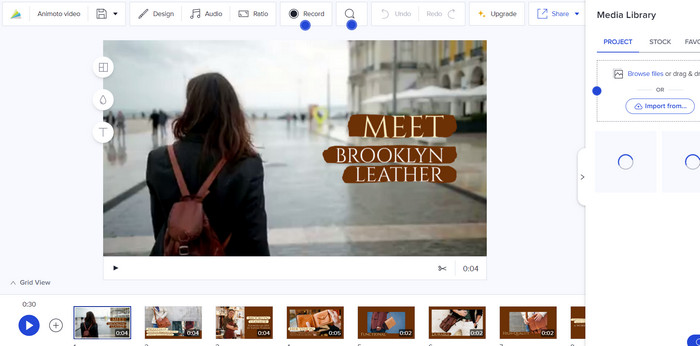
Animoto é um programa de criação de vídeo baseado em nuvem que torna mais fácil para os usuários criar vídeos de alta qualidade com o mínimo de esforço. O Animoto também oferece uma variedade de modelos e temas para escolher, facilitando a criação de vídeos que combinam com sua marca ou estilo. Você também pode personalizar seu vídeo com texto, música e outros elementos criativos para destacá-lo.
Prós
- Oferece temas e modelos.
- Integração de mídias sociais.
Contras
- Duração do vídeo limitada.
- O controle sobre as transições de vídeo é limitado.
Aqui estão os passos para juntar 2 vídeos online com o Animoto:
Step 1. Log in to your Animoto account and click on Create to start a new project. Select a template or start with a blank canvas.
Step 2. Upload your videos to the project. Drag and drop your videos onto the timeline in the order you want them to appear.
Step 3. Trim the videos if necessary to fit the desired length. Add text overlays, music, and other creative elements to enhance the montage.
Step 4. Preview the video and make any necessary adjustments. Once you're happy with the video, click on Produce to render the final video.
Parte 2. Melhor fusão de vídeo offline
The merging feature of the FVC Video Converter Ultimate is incredibly intuitive and user-friendly. You can easily drag and drop the videos you want to merge into the software, arrange them in the desired order, and then merge them into a single video file. You can also customize the output settings of the merged video, such as the video format, resolution, and bitrate.
Free DownloadFor Windows 7 or laterSecure Download
Free DownloadFor MacOS 10.7 or laterSecure Download
Step 1. Launch FVC Video Converter
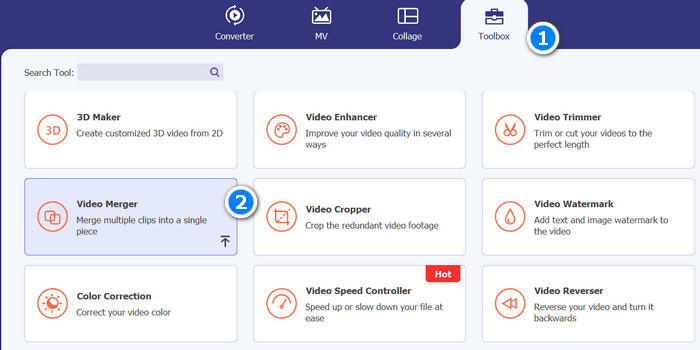
First, open the FVC Video Converter toolbox on your computer, and then click on the Toolbox tab to access the video merging feature. Next, choose Video Merger from the menu.
Step 2. Add videos to merge
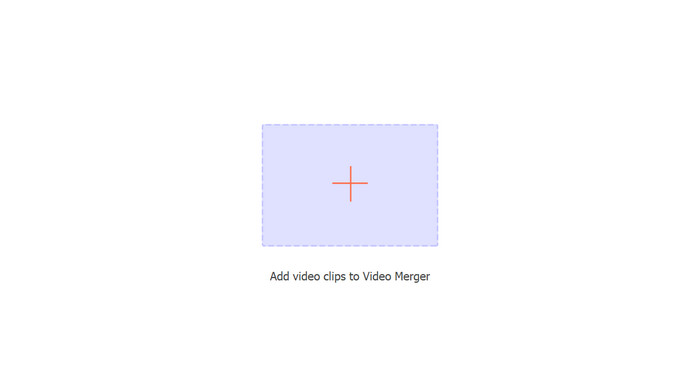
Next, click on the Add button to select the videos you want to merge from your computer or drag and drop them into the tool's interface.
Step 3. Arrange the order of videos
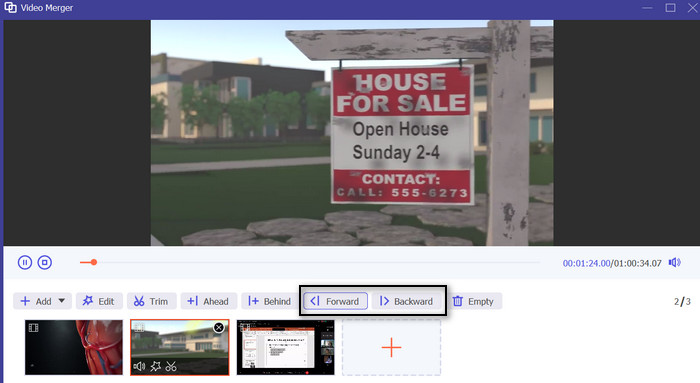
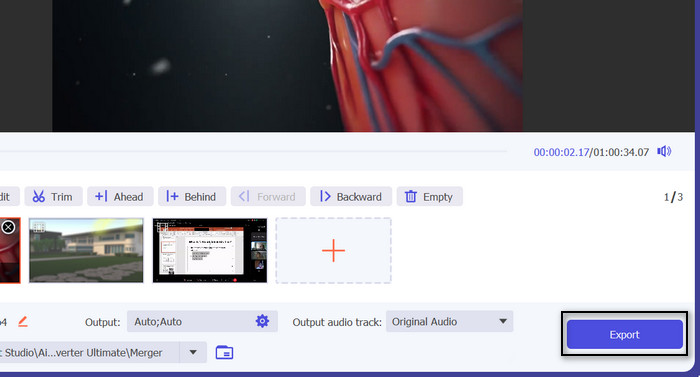
Once you have added the videos, you can arrange them in the order you want them to appear in the merged file. You can use the Forward and Backward buttons or drag and drop the videos to change their sequence.
Step 4. Start merging videos and save the output
Now, click on the Export button to start the merging process. The tool will automatically merge the selected videos into one file, and the process will be completed in a few minutes, depending on the size of the videos.
Parte 3. Perguntas frequentes sobre fusões de vídeo on-line
Por que eu precisaria mesclar vídeos?
Mesclar vídeos pode ser útil por vários motivos, como combinar vários clipes em um único vídeo, criar uma montagem de vídeo ou fazer uma compilação de vídeo.
Existe um limite de quantos vídeos posso mesclar online?
A maioria das ferramentas de fusão de vídeo on-line tem limitações quanto ao número de vídeos que você pode mesclar de uma só vez, bem como ao tamanho total do arquivo do vídeo mesclado. Você deve verificar as especificações da ferramenta para ver quais são os limites e se eles atendem às suas necessidades.
Posso mesclar vídeos de diferentes formatos de arquivo?
Sim, a maioria das ferramentas de fusão de vídeo on-line oferece suporte a uma ampla variedade de formatos de arquivo, para que você possa mesclar vídeos de diferentes tipos. No entanto, é sempre uma boa ideia verificar os formatos de arquivo suportados antes de iniciar o processo de mesclagem.
Conclusão
There is a variety of video merger online tools available, each with its own set of features and capabilities. WeVideo, FlexClip, Clideo, Kapwing, and Animoto are just a few of the popular tools available, and each tool offers an easy-to-use interface and step-by-step instructions to guide you through the merging process. Yet, if you wish to do this offline, you can always rely on FVC Video Converter Ultimate.
-
 Excelentes maneiras de cortar vídeos on-line de maneira conveniente
 Cortar um vídeo é a melhor maneira de criar destaques de vídeo. Portanto, esta postagem fornecerá os métodos para aparar vídeos online com facilidade. Leia para saber mais.
-
 Revisão dos melhores rotadores de vídeo on-line e uma alternativa off-line
 Se você precisa girar um vídeo por motivos pessoais ou profissionais, um rotador de vídeo online é uma solução conveniente e acessível. Confira-os aqui para saber mais.
-
 8 removedores de marca d'água de vídeo excelentes online e offline
 Se você está procurando o melhor software de remoção de marca d'água de vídeo gratuito que pode usar em seus telefones Windows, Mac, iPhone e Android, este artigo é para você.
