


 Video Converter Ultimate
 Gravador de ecrã
 Reparo de vídeo
 Secure Download
Como alterar a velocidade de reprodução do VLC usando controle de velocidade e teclas de atalho [revelado]
Changing the video speed can be a tough job on most media player players, but with VLC Player, this job is easy peasy. Suppose you have an hour-long video and want to watch it at high speed to save some time, then speeding up is a choice. On the other hand, if you're going to watch a video to see more detail, you must watch it in a slow-mo. With VLC, you can easily change the playback speed of the video you watch, whether it is a speed-up or slow-down; everything is possible here. Keep on reading this article as it reveals the secret techniques you can use to change VLC playback speed according to your wants.

Parte 1. Alterar a velocidade de reprodução do VLC usando controle de velocidade e teclas de atalho
Existem duas maneiras de alterar a velocidade do vídeo que você está reproduzindo no VLC; estes são o controle de velocidade e teclas de atalho. Felizmente, vamos dar-lhe ambos. Se você estiver pronto para controlar a velocidade do VLC para cima ou para baixo, escolha o caminho que deseja seguir.
Antes de prosseguirmos com as etapas, verifique se você já baixou o media player em sua área de trabalho. Se não, você pode visitar seu site oficial para ter o media player.
1ª Via. Use o controle de velocidade no VLC Player no Windows e Mac
Embora o controle de velocidade esteja disponível nas versões Windows e Mac do VLC, as etapas ainda são diferentes para cada uma. Portanto, se você é um usuário do Windows e deseja alterar a velocidade do vídeo, está assistindo e leia as etapas para o usuário do Windows, mas se for um usuário do Mac, leia o outro.
For Windows Users:
Step 1. After downloading the media player, open it, then open the media file you want to play on a change speed.
Step 2. Go to the Playback menu and choose the Speed option to use the VLC to change the playback speed.
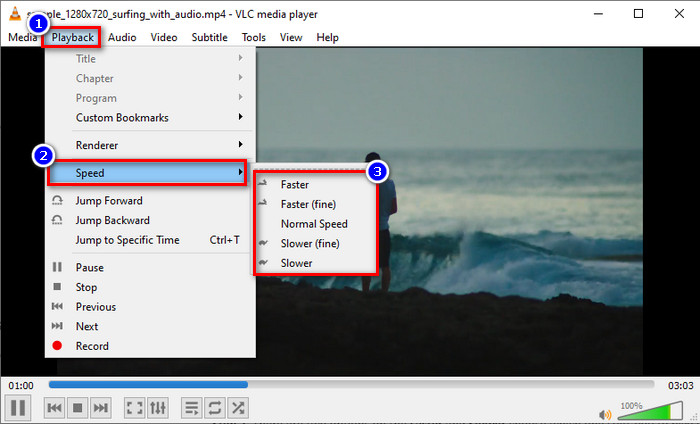
Step 3. Choose the speed you want to have and click it. Play the video you upload to watch it at your selected speed.
For Mac Users:
Step 1. Play whatever video or audio file you want on the Mac version of this software.
Step 2. To use the speed controller, click Playback.
Step 3. There are two options on the faster and slower drag the slider to choose which one suits you to play the video at the speed you pick.

2ª Via. Use as teclas de atalho para alterar a velocidade no VLC Player
Suponha que você esteja cansado de seguir as etapas acima e tente usar a tecla de atalho de velocidade de reprodução do VLC. Eles fazem o mesmo trabalho; teclas de atalho podem acelerar ou desacelerar um vídeo como a primeira maneira que adicionamos neste artigo. Não há nada de especial em usar teclas de atalho além de tornar o trabalho mais fácil e eficaz. Embora você possa controlar a velocidade do vídeo usando o atalho, as etapas para a tecla de atalho do Windows e do Mac são diferentes para cada um. Para saber como alterar a velocidade usando as teclas do teclado, siga os próximos detalhes.
For Windows Users:
Step 1. Open the media file you want to play in this media player.
Step 2. While playing, click the [ on your keyboard to slow down the video. But if you want to speed it up a little, click ]. To return the speed of the video you are watching at the normal speed, click =.
For Mac Users:
Step 1. Launch the media player and open the media file to play it here.
Step 2. While watching the file, click the command + to increase the video speed, and if you want to slow it down, press the command -.
Parte 2. Altere a velocidade do vídeo para sempre no Windows e Mac
VLC can change the speed that is currently playing but not permanently apply the speed up or slow-down you set, so what should you do to save it forever? You can use the FVC Video Converter Ultimate to save the video playback you choose permanently on the video. So, you won't need to change the playback and do the steps we mentioned above to play the video to your desired speed. Even though the software can offer a hand on changing the speed, the software doesn't support shortcut commands to convert the speed more quickly.
Also, you have full control over the video if you use this software to change the speed of the video you want. To apply the VLC increase speed or decrease, you can follow the step-by-step procedure we add below for you to follow.
Step 1. Click the download button below to have the editor on your desktop, then follow the set-up process to install the software. After that, click it to open it right away.
Free DownloadFor Windows 7 or laterSecure Download
Free DownloadFor MacOS 10.7 or laterSecure Download
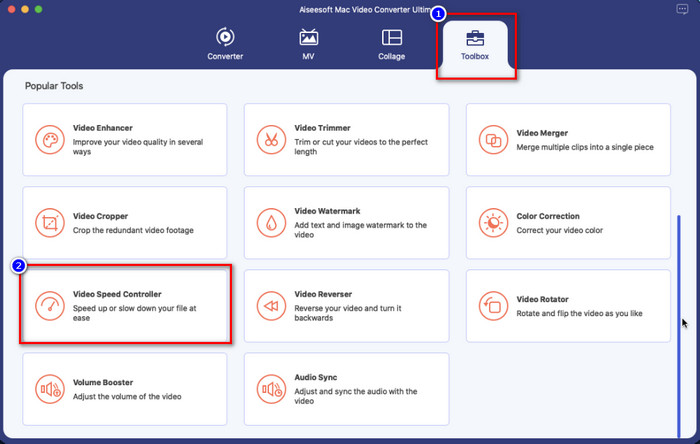
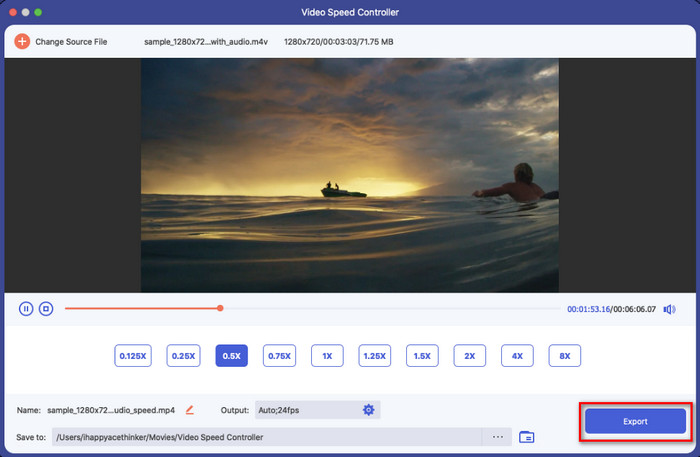
Step 2. Open Toolbox and locate the Video Speed Controller on the available options.
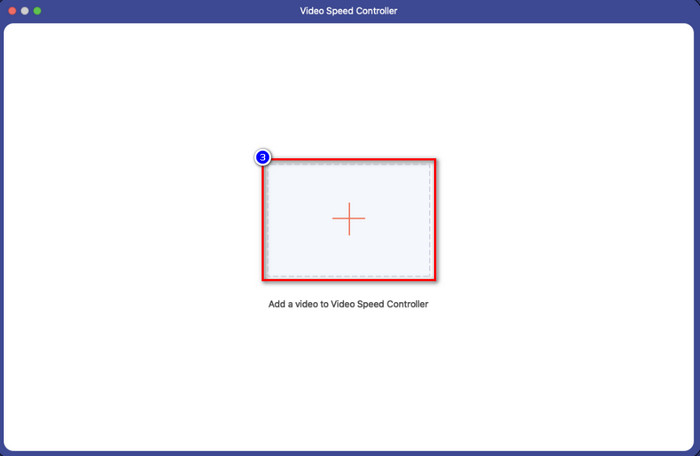
Step 3. You can now add the file you want to the folder by clicking the + button and clicking Open to upload it.
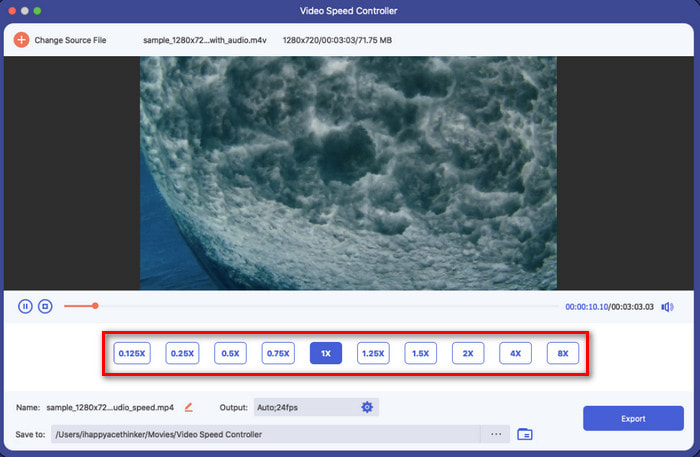
Step 4. Pick the speed you want to apply to your video. Once you click the speed, there will be a preview sample of the video that will play right away.
Step 5. If everything is done, click Export to save the video with a permanent increase or decrease in video speed on your desktop. If you want to revert the changes to the original speed, then do the same steps before and this time, choose the other way instead.
Parte 3. Perguntas frequentes sobre a reprodução rápida do VLC
Existe alguma limitação na velocidade de reprodução ao usar o VLC?
Particularmente, não há outra coisa que você não pode salvar o vídeo que você acelera permanentemente porque o media player não foi feito para esse trabalho. Depois de acelerar um vídeo aqui, ele reverterá para a velocidade original assim que você pausar e reproduzi-lo. Para evitar isso, siga as etapas que adicionamos na parte dois se você decidir alterar a velocidade do seu vídeo permanentemente.
Por que o vídeo acelera para pular muitas cenas do VLC com clipe?
Por causa da velocidade que você escolheu, se você usar demais o controlador de velocidade e usar a aceleração mais alta, espere que o VLC pule alguma parte para compensar a velocidade que você escolher. Portanto, para evitar esse problema, você deve controlar a velocidade escolhida corretamente e não exagerar.
Como posso reverter a velocidade ao normal no VLC?
Você pode clicar em pausar e reproduzir para reverter a velocidade do vídeo para uma normal. Mas você também pode tocar no = no seu teclado para Windows; para Mac, é melhor clicar no botão pausar/reproduzir para voltar à velocidade normal do vídeo.
Conclusão
You can select either to use the speed control or the hotkeys to control the VLC playback speed. What way you choose, they both do the same thing, controlling the speed of the video you play on VLC. However, you can’t export the change video speed to your desktop because VLC isn’t meant for saving the video you change speed. But you can forever save the video speed once you convert it on FVC Video Converter Ultimate. If you want to try using the Video Speed Controller option, you will impress yourself with how easy it is and fast.
-
 Os 4 principais reprodutores de vídeo com controlador de velocidade em 2021
 Você não percebeu a velocidade de reprodução de cada reprodutor de mídia sempre que reproduz um vídeo? Este artigo é adequado para você aprender tudo sobre players de vídeo com controle de velocidade.
-
 3 maneiras de acelerar o vídeo no iPhone [comprovado]
 Está tendo problemas para ajustar a velocidade de reprodução do seu vídeo porque está usando um iPhone? Este é um excelente artigo para ajudá-lo com seu problema.
-
 Windows Media Player | Aprenda a acelerar vídeos [Comprovado]
 Você deseja diminuir a velocidade do seu videoclipe usando o Windows Media Player, mas está tendo problemas para fazer isso? Este artigo é ideal para leitura e pode esclarecer seu ponto de vista sobre como acelerar vídeos usando o Windows Media Player.
