


 Video Converter Ultimate
 Gravador de ecrã
 Reparo de vídeo
Como fazer vídeos em câmera lenta no Windows Movie Player
The video production industry has lately expanded due to the growing demand for video content from internet users. Various video consumption platforms are rapidly rising, especially YouTube, which has been now the second most popular search engine and will continue to do so. Because of this, content creators have explored the extent of video production to be as creative as possible to meet the ever-growing standards of viewers and potential viewers. One of such ways is to slow-motion a clip of their video to add a dramatic effect. However, to do so requires software or an app that is more likely inaccessible to aspiring creators who are just starting in the business. So, this article intends to help by providing the easy steps on how to make a slow-motion video in Windows Movie Maker.

Parte 1. Como fazer um vídeo em câmera lenta no Windows Movie Maker
Os vídeos em câmera lenta são um dos melhores efeitos dramáticos para incluir em diferentes tipos de vídeos. Pode ser para enfatizar um clipe, causar um impacto emocional no espectador e muitos outros propósitos que você pode inventar. Felizmente, isso pode ser feito facilmente usando o efeito de câmera lenta do Windows Movie Maker. Ele pode ser baixado na Microsoft Store com facilidade, e basta seguir este tutorial em câmera lenta do Windows Movie Maker para conseguir o que você pretende fazer em seu vídeo.
Step 1. Open Windows Movie Maker. To upload videos and pictures from your computer, select Add Videos, and Photos or you can just drag and drop videos to the storyboard.
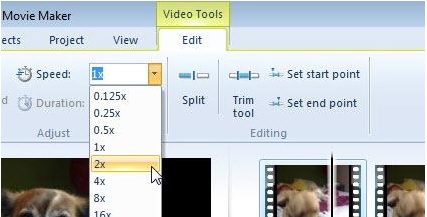
Step 2. Select the video clip and go to the Edit tab under Video Tools.
Step 3. Click the Drop Down under Speed to choose a playback speed depending on how slow or fast you want your video to appear. To check if you got the speed you wanted, press the triangle play button, and once satisfied, click the save icon on the upper left corner of the window.
Windows Movie Maker is an excellent free video editing program, but it lacks certain capabilities compared to other video editing applications. Proceed to the next part to see another video editing software other than Windows Movie Maker with slow-motion effects while still providing strong editing tools.
Parte 2. Video Converter Ultimate: a melhor alternativa para fazer vídeos em câmera lenta
If you find Windows Movie Maker insufficient for your video editing needs and do not want to resort to an online web tool editor or other non-free software, use the Video Converter Ultimate to produce your videos and add a slow-motion effect in just one click.Video Converter Ultimate is one of the best alternatives to every media player, online tool, or even software in adjusting the playback speed of a video. With its capability to increase or decrease the playback speed with one click, it is the internet's most user-friendly software. In addition, it also produces high-quality videos even if you're going to convert normal speed videos to slow motion. To know more about the procedures on how is it going to happen, here are the provided steps to follow:
Step 1. Download the software by clicking the Free Download button. And once the .exe file is downloaded, open it to proceed with the installation. Wait until it finishes and click the Start Now button.
Free DownloadFor Windows 7 or laterSecure Download
Free DownloadFor MacOS 10.7 or laterSecure Download
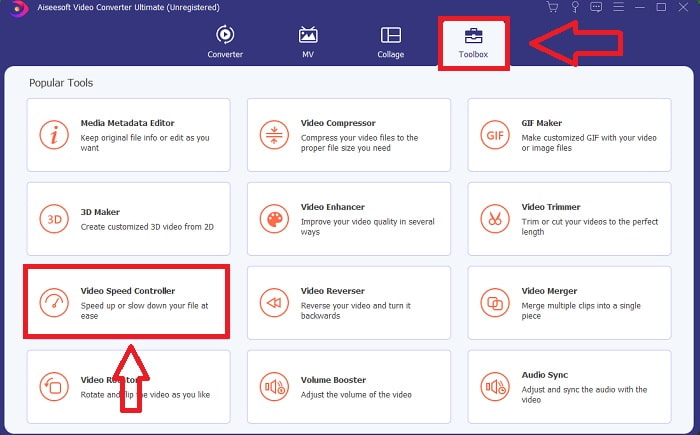
Step 2. After the installation, you can directly proceed to the software by launching it. Click the Toolbox feature on the far right of the tab above, then into the Video Speed Controller option to begin editing.
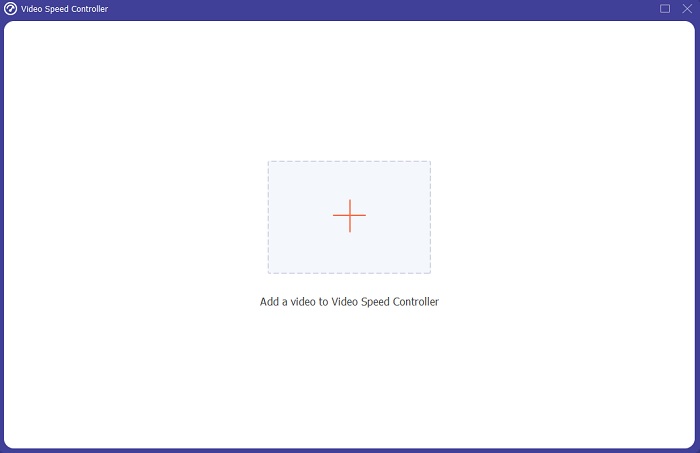
Step 3. A new window will pop up in the middle of the window. Click + to add the video file you wish to edit.
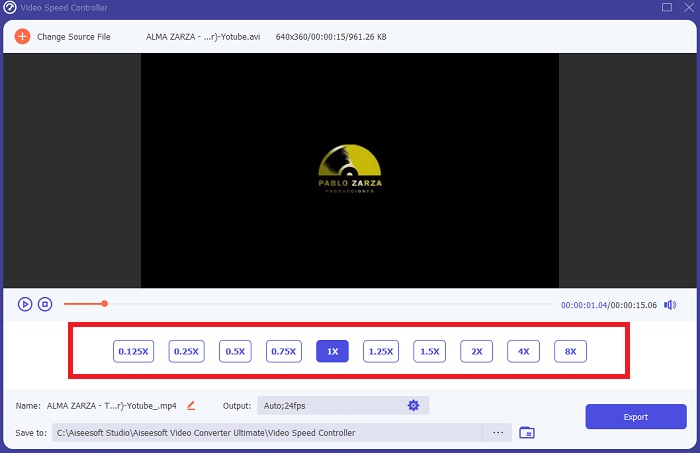
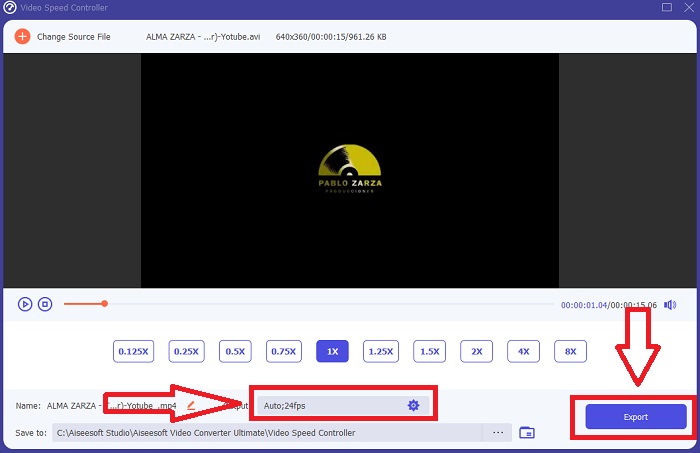
Step 4. Once the video file has been opened, you can choose between the different playback speeds displayed below the video depending on how much you want the slow-motion effect to apply to your video.
Step 5. You can edit the output of your video in terms of video such as format, resolution, frame rate, and quality, and audio such as sample rate and bitrate in the output settings. Also, you can choose the destination of your video to be exported just below the output setting. To save it, click on the Export button on the lower right corner of the window and wait for it to finish.
Related:
Parte 3. Perguntas frequentes sobre como fazer vídeos em câmera lenta
Como funciona a câmera lenta?
O vídeo em câmera lenta é simplesmente a técnica de reproduzir a filmagem em uma taxa de quadros mais lenta do que quando foi gravada. No entanto, isso não funcionará com qualquer vídeo - ou pelo menos não bem. Você vai querer ter certeza de que está gravando em uma taxa de quadros razoável. Se você gravar 120 quadros por segundo e depois reproduzi-lo a 24 quadros por segundo, seu clipe será executado por 5 segundos desde 120/24 = 5. Este vídeo foi desacelerado cinco vezes.
Qual é a taxa de quadros e o que isso significa para câmera lenta?
Qual FPS devo usar para câmera lenta?
Para fazer um vídeo em câmera lenta, você pode utilizar uma variedade de taxas de quadros. Na realidade, qualquer taxa de quadros acima de 24-30 FPS pode ser usada para criar vídeos em câmera lenta, mas a aparência e a sensação serão diferentes. Em princípio, quanto maior a taxa de quadros, mais lento o filme pode ser. Além disso, quanto mais rápida a taxa de quadros, mais tempo durará sua foto em câmera lenta. No entanto, isso não significa que mais lento seja sempre melhor. Tudo depende de quão lento você deseja que seu filme pareça e de quanto tempo você deseja que o clipe dure.
Conclusão
Estar na indústria de produção de vídeo ou simplesmente criar conteúdo como um hobby significa explorar como você torna seu vídeo diferente de antes ou de outros. É por isso que é importante adicionar versatilidade ao seu arsenal - você nunca saberá o que chamará a atenção dos espectadores a cada dia que passa. Uma das mais simples é aprender a acompanhar o ritmo de execução de seus clipes. A câmera lenta pode já estar em toda a Internet, mas sempre depende de como você a utiliza e a personaliza. Portanto, ter um software ao seu lado que você tenha certeza de que será capaz de editar a velocidade de reprodução do seu vídeo sem problemas a qualquer momento é essencial. Este artigo fornecerá a opção mais simples e melhor para se familiarizar com o software a ser usado para fazer vídeos em câmera lenta.
-
 Os 4 melhores jogadores VOB para celulares Android para diferentes usos
 Quando você baixa vídeos VOB e deseja assisti-los no Android, você pode escolher o mais adequado entre os 4 principais jogadores VOB a seguir neste artigo.
-
 As 5 melhores alternativas do Windows Media Player para celulares Android
 Como não é possível baixar o Windows Media Player para Android, você deve ler este artigo e aprender sobre as 5 melhores alternativas para o Windows Media Player.
-
 Os 5 melhores players de vídeo para iPhone que você não deve perder em 2021
 Para reproduzir vídeos em todos os formatos e ter uma melhor experiência de visualização em seu iPhone, você deve ler este artigo e aprender sobre os 5 melhores reprodutores de vídeo para iPhone 12/11 / X / 8/7/6.
