


 Video Converter Ultimate
 Screen Recorder
 Reparație video
 Descărcare sigură
7 moduri ușoare de a converti rapid HEIC în PNG în câteva secunde
Vrei ca fișierul tău HEIC să fie compatibil pe scară largă cu alte dispozitive? Avem exact ce cauți! Acest articol îți arată cele mai bune moduri de a converti fișierul HEIC în PNG fără bătăi de cap. Așadar, pregătește-te în timp ce descoperim cele mai bune modalități de a converti HEIC în PNG fără efort.

Partea 1. De ce să convertiți HEIC în format PNG
Formatul de fișier HEIC este un format de imagine creat de Apple. Este un format de imagine pe care dispozitivele Apple îl folosesc în mod obișnuit. Deși are o rezoluție de înaltă calitate, nu ocupă prea mult spațiu pe dispozitiv. Cu toate acestea, fișierele HEIC nu sunt compatibile cu dispozitivele non-Apple. În schimb, PNG, care înseamnă Portable Graphics Format, este un format de fișier imagine creat pentru a înlocui formatele GIF.
Este cel mai folosit format de imagine care este necomprimat, ceea ce înseamnă că are o dimensiune uriașă a fișierului. Cu toate acestea, aproape toate dispozitivele acceptă acest format de fișier imagine. Deci, dacă doriți să vă deschideți imaginea HEIC pe alte dispozitive în afară de Apple, mai bine convertiți-o într-un format de fișier PNG.
Partea 2. 5 moduri ușoare de a vă converti fișierul HEIC în fișier PNG online
Căutarea celor mai bune modalități de a converti HEIC în PNG este destul de dificilă. Cu toate acestea, am căutat cele mai bune și mai simple metode pentru a schimba HEIC într-un format de fișier PNG.
Utilizați FVC Free HEIC to PNG Converter
Cel mai bun mod de a converti HEIC în PNG este să folosești un instrument de conversie. Iar cel mai bun instrument pe care l-am găsit pe internet este FVC Free HEIC to PNG Converter. Acest convertor este un instrument online care îți convertește cu ușurință fișierul HEIC în format PNG. În plus, dacă vrei să convertești în lot mai multe fișiere HEIC în PNG, acest instrument îți oferă și această funcție.
De asemenea, este accesibil în aproape toate browserele comune, ceea ce îl face un instrument fără limită de browser. În plus, are o interfață software simplă și nu are limită de dimensiune a fișierului, astfel încât să puteți converti fișiere HEIC fără să vă gândiți la dimensiunea fișierului. Prin urmare, urmați ghidul simplu de mai jos dacă sunteți interesat să utilizați acest convertor online HEIC în PNG.
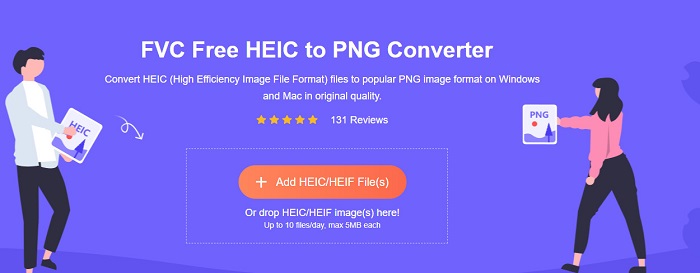
Pasul 1. În browser, caută FVC Free HEIC to PNG Converter. Poți, de asemenea, să dai clic pe acest link pentru a merge direct pe pagina lor. Așa arată prima interfață:
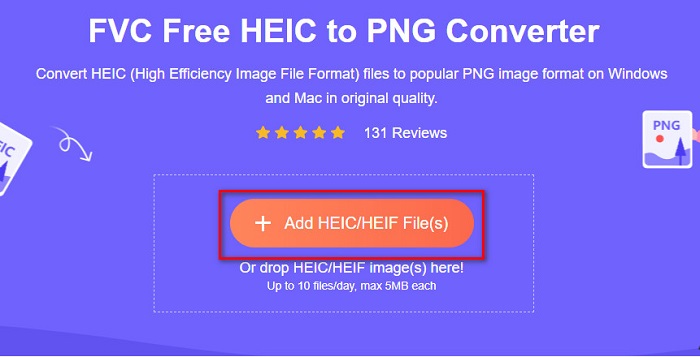
Pasul 2. Apoi, dă clic pe butonul Add HEIC/HEIF File(s). Vor apărea folderele de pe computer, unde vei selecta fișierul HEIC.
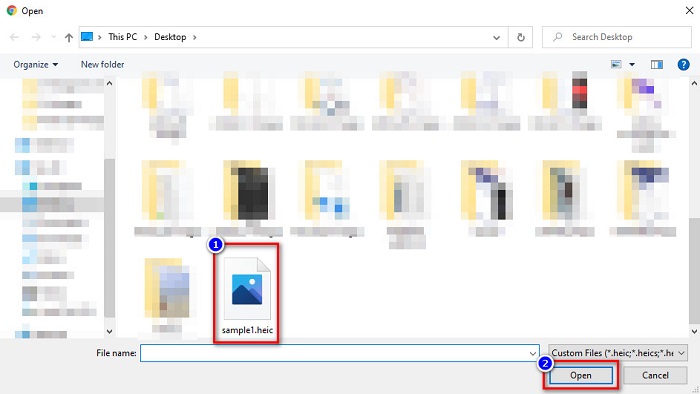
Pasul 3. Apoi vor apărea folderele de pe computer, unde vei selecta fișierul HEIC. Apasă Open. Conversia HEIC în PNG va începe.
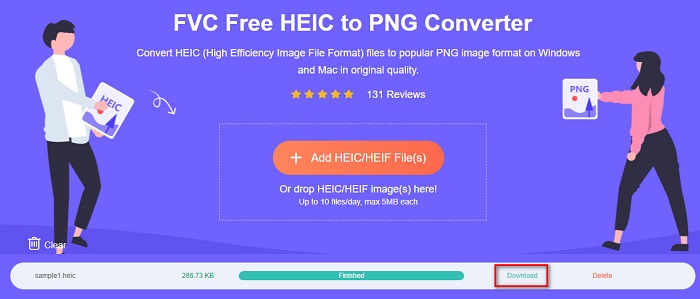
Pasul 4. În final, în interfața software-ului, dă clic pe butonul Download pentru a descărca fișierul PNG.
Simplu, nu-i așa? Puteți converti fișierul dvs. HEIC într-un fișier PNG urmând acești pași simpli.
Utilizați Xconvert.com
Xconvert este un convertor HEIC în PNG online, gratuit, care convertește cu ușurință fișierele HEIC în fișiere PNG. Acest convertor online are o interfață ușor de utilizat, avantajoasă pentru începători. În plus, poți modifica rezoluția imaginii atunci când folosești acest convertor online. Totuși, deoarece depinde de conexiunea la internet, poți avea un proces de conversie mai lent atunci când internetul merge greu. De asemenea, conține reclame care pot fi deranjante pentru tine.
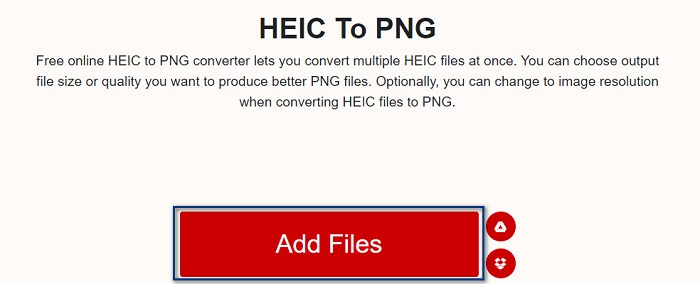
Pasul 1. Caută Xconvert.com în browser. Pe site-ul lor, dă clic pe butonul Add Files, apoi vor apărea fișierele de pe computer și selectează fișierul HEIC.
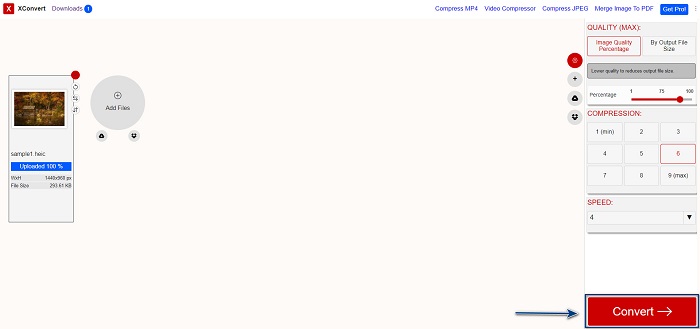
Pasul 2. Imaginea va fi încărcată în interfața software-ului. După încărcare, dă clic pe butonul Convert situat în colțul din dreapta jos al interfeței. Apoi așteaptă ca fișierul tău să fie gata de descărcare și treci la pasul următor.
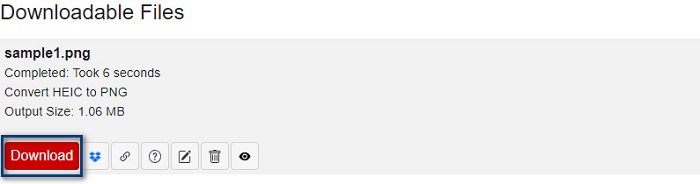
Pasul 3. Când fișierul este gata, dă clic pe butonul Download pentru a descărca fișierul PNG; deasupra butonului de descărcare vei vedea și dimensiunea fișierului rezultat și cât a durat conversia.
Folosește Zamzar
O altă modalitate de a converti HEIC în PNG online este folosirea convertorului online Zamzar. Probabil ai văzut deja acest convertor când ai căutat un convertor HEIC în PNG. Acest convertor este accesibil din aproape toate browserele disponibile. În plus, are o interfață simplă, ceea ce îl face un instrument ușor de folosit. Totuși, fișierul tău se poate corupe dacă internetul este întrerupt în timpul procesului de conversie. Cu toate acestea, mulți utilizatori folosesc acest convertor pentru a transforma HEIC în fișier PNG.
Pasul 1. În browserul pe care îl folosești, caută Zamzar. Pe site-ul lor, dă clic pe butonul Add Files. Vor apărea fișierele de pe computer, apoi încarcă imaginea HEIC.
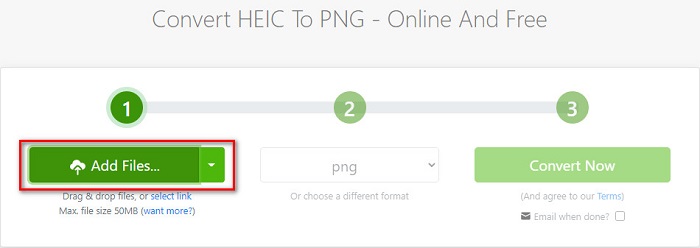
Pasul 2. După ce ai încărcat fișierul HEIC, dă clic pe butonul drop-down, apoi selectează PNG ca format de ieșire pentru fișier.
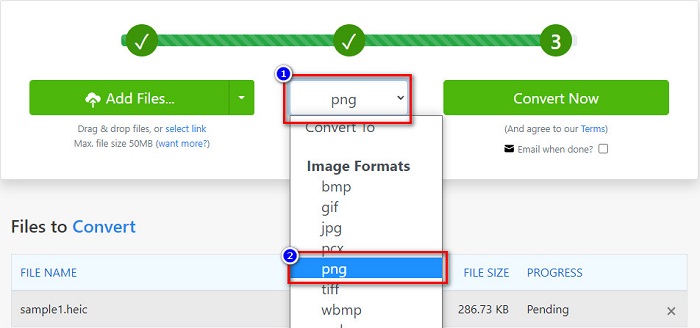
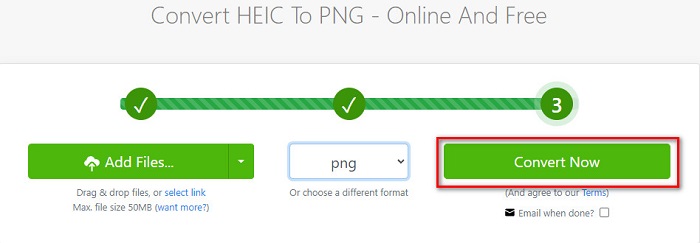
Pasul 3. În cele din urmă, dă clic pe butonul Convert Now pentru a converti fișierul HEIC în format PNG. Apoi descarcă fișierul PNG. Doar așteaptă câteva secunde și gata!
Utilizați Conversion Tools.io
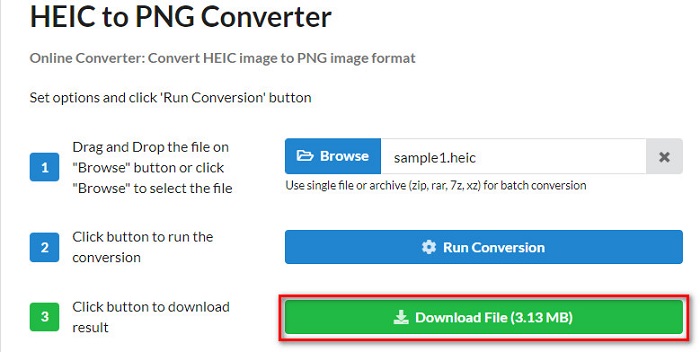
Conversion Tool este un convertor online HEIC în PNG cu o interfață simplă. Poate converti fișierul tău HEIC în PNG cu viteză mare. În plus, nu conține la fel de multe reclame ca alte convertoare online. Dezavantajul este însă că poți converti doar zece fișiere pe zi și are o limită de dimensiune a fișierului. Dar dacă convertești un fișier mic, atunci acest instrument s-ar putea să fie potrivit pentru tine.
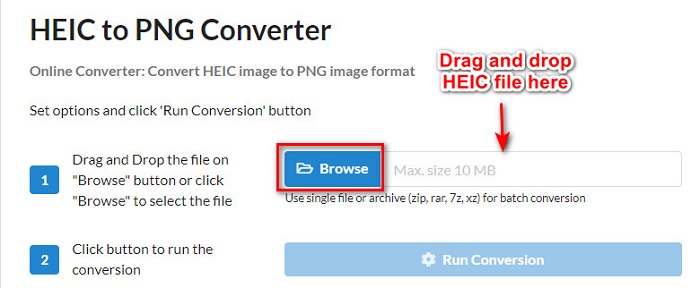
Pasul 1. Caută Conversion Tools.io în browser. Apoi, dă clic pe butonul Browse din interfața principală a software-ului sau trage și plasează fișierul HEIC peste butonul Browse.
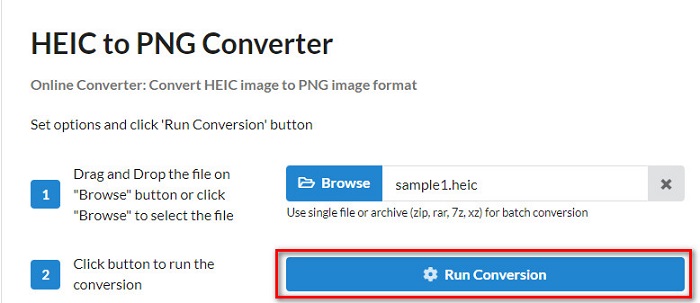
Pasul 2. Apoi, dă clic pe butonul Run Conversion pentru a începe conversia fișierului HEIC în fișier PNG. Apoi așteaptă ca imaginea să fie procesată și treci la pasul următor.
Pasul 3. Pentru a termina, dă clic pe butonul Download pentru a descărca fișierul PNG.
Utilizați CDKM
Ultimul instrument pe care ți-l prezentăm este CDKM. Acest instrument îți permite să convertești fișiere HEIC în PNG cu doar câteva clicuri. Totuși, folosirea acestui convertor online poate dura câteva secunde, în funcție de viteza conexiunii tale la internet. Conține și reclame care pot fi iritante. Cu toate acestea, nu are limită de dimensiune a fișierului, așa că merită încercat.
Pasul 1. În browser, caută CDKM online converter. În interfața principală a software-ului, dă clic pe butonul Choose Files. Vor apărea folderele de pe computer, apoi selectează fișierul HEIC pentru încărcare.

Pasul 2. Apoi, dă clic pe butonul Start Conversion pentru a porni procesul de conversie.

Pasul 3. În cele din urmă, derulează puțin în jos și vei vedea butonul Download. Dă clic pe butonul Download pentru a descărca fișierul PNG.

Partea 3. Convertiți HEIC în PNG pe Mac
Dispozitivele Apple acceptă formate de fișiere HEIC și, folosind Mac, puteți deschide în mod nativ un fișier HEIC. Dar dacă doriți să vă convertiți fișierul HEIC în PNG, îl puteți modifica folosind aplicația Photo din Mac. În consecință, dacă sunteți un utilizator de Mac, mai bine citiți această parte.
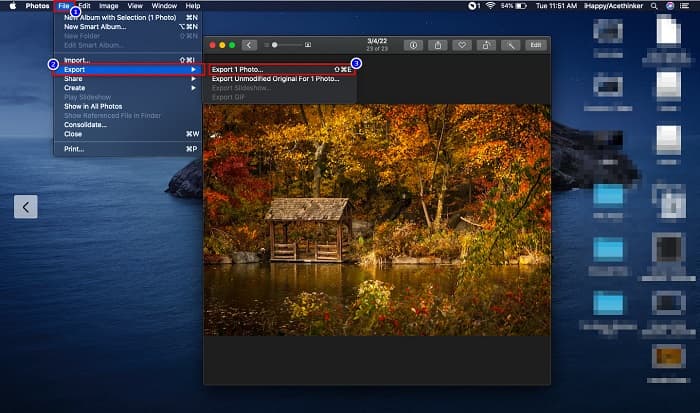
Pasul 1. Mai întâi, trage și plasează fișierul HEIC în aplicația Photos. Apoi previzualizează fotografia HEIC și dă clic pe File > Export > Export 1 Photo.
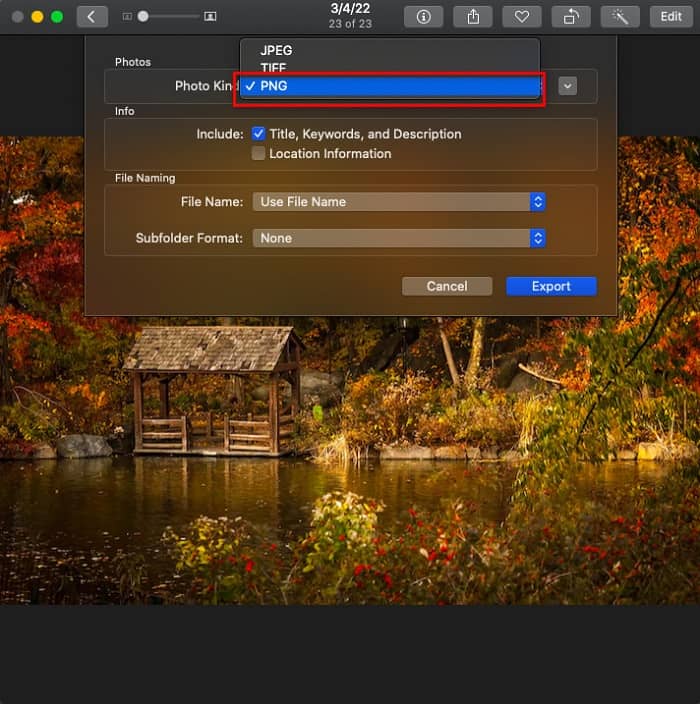
Pasul 2. Apoi, la Photo Kind, alege formatul de ieșire dorit. Selectează formatul de fișier PNG.
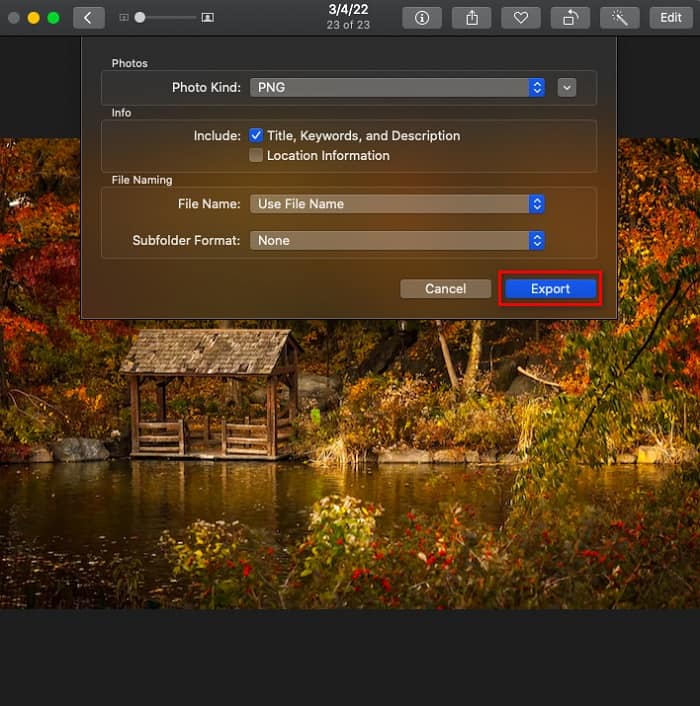
Pasul 3. Apoi, dă clic pe butonul Export, apoi selectează destinația fișierului de ieșire. Vei vedea că fișierul HEIC a fost transformat în format PNG.
Partea 4. Convertiți fișierul HEIC în PNG pe iPhone
Dacă utilizați un iPhone, puteți deschide un fișier HEIC pe dispozitiv. Dar dacă doriți să vă convertiți fișierul HEIC în PNG folosind un dispozitiv iPhone, atunci avem o modalitate pentru dvs. Urmând acești pași simpli și simpli de mai jos, puteți converti HEIC în PNG fără efort.
Pasul 1. În aplicația Photos de pe iPhone, atinge butonul Select din partea de sus a ecranului. Apoi selectează fișierul HEIC, apoi atinge pictograma Share.
Pasul 2. Glisează în sus pe ecran; vei vedea opțiunea Copy Photo, apoi atinge-o.
Pasul 3. În cele din urmă, mergi în aplicația Files, atinge butonul Browse și selectează locația de ieșire dorită (atinge iCloud Drive sau On My iPhone). Apoi lipește acolo fișierul HEIC.
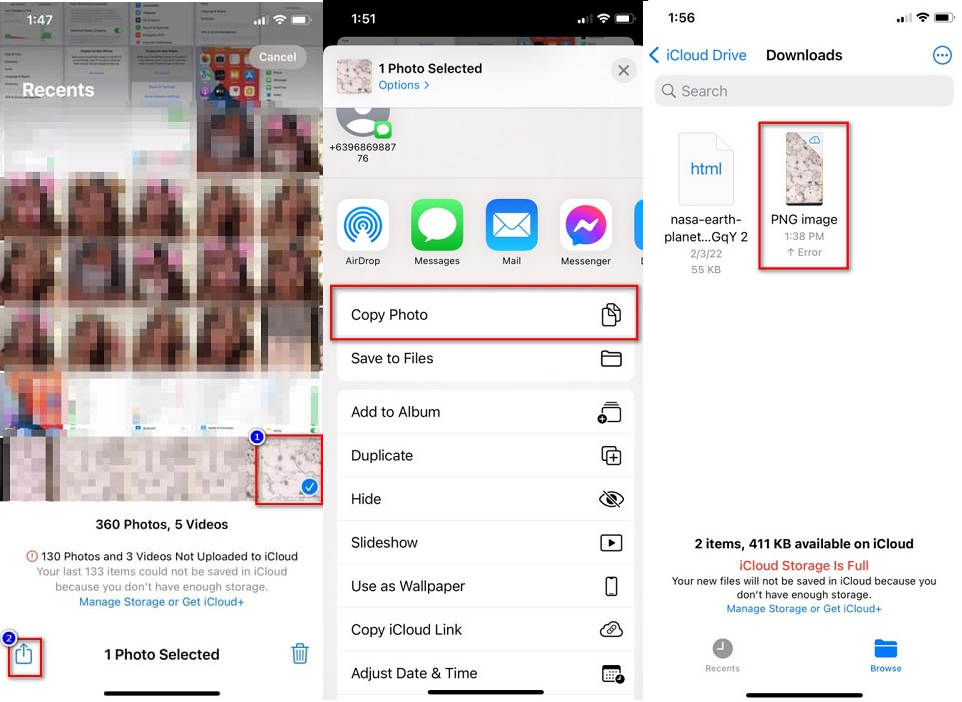
După ce lipiți fișierul, veți vedea că fișierul dvs. va fi convertit automat într-un fișier PNG.
Partea 5. Cunoștințe extinse despre fișierul HEIC și fișierul PNG
Dacă mai aveți îndoieli dacă doriți să convertiți fișierul dvs. HEIC în PNG, vă oferim o diagramă de comparație pentru a vă ajuta să distingeți diferențele dintre aceste două fișiere. În plus, vă oferă o imagine de ansamblu clară a caracteristicilor HEIC și PNG. Citiți cu atenție pentru a afla diferența dintre fișierele HEIC și fișierele PNG.
| HEIC | PNG | |
| Compatibilitate | Numai dispozitivul Apple acceptă acest format de fișier. | Aproape toate dispozitivele acceptă acest fișier, inclusiv dispozitivele Apple. |
| Mărime fișier | Fișier de dimensiune mică. | Poate atinge dimensiunea uriașă a fișierului. |
| Calitatea imaginii | Calitate ridicată a imaginii. | Are o calitate bună, dar nu mai bună decât fișierul HEIC. |
| Comprimat/Necomprimat | Comprimat | Necomprimat |
| Editarea | Păstrează calitatea imaginii la editare. | Calitatea se poate degrada la editare. |
Partea 6. Întrebări frecvente despre conversia HEIC în PNG
Conversia HEIC în PNG va afecta dimensiunea fișierului?
Da. Când convertiți HEIC în PNG, dimensiunea fișierului va crește, deși nu va fi mare.
Puteți deschide fișiere PNG pe Adobe Photoshop?
Cu siguranță. Puteți deschide fișiere PNG pe Adobe Photoshop, deoarece Adobe Photoshop acceptă formatul de fișier PNG.
Puteți deschide formatul de fișier PNG pe dispozitivele Apple în mod nativ?
Da. Când faceți capturi de ecran de pe iPhone, acestea vor fi salvate automat pe camera foto ca fișier PNG.
Concluzie
În sfârșit! Am ajuns la finalul 'aventurii' noastre. Acest articol îți oferă cele mai bune soluții pentru a converti fișierul HEIC în format PNG. Toate convertoarele online HEIC în PNG prezentate mai sus îți pot converti fișierul eficient și fără efort. În plus, există și alte opțiuni pe care le poți folosi dacă ești utilizator de Mac sau iPhone. Însă dacă ești în căutarea celui mai bun convertor HEIC în PNG, cu funcții excelente, atunci FVC Free HEIC to PNG Converter este cea mai bună alegere pentru tine.
-
 Cum să deschideți fișierul HEIC pe Windows, Mac și online
 Căutați o modalitate de a deschide fișierele HEIC? Acest articol vă oferă cele mai bune soluții pentru a deschide fișiere HEIC pe Windows, Mac și online.
-
 JPG VS GIF: 3 moduri fără efort de a converti JPG în GIF
 Vrei să știi diferența dintre JPG și GIF? Sau doriți să comutați JPG în format animat GIF? Atunci citește acest articol pentru a avea o idee.
-
 Cele mai bune 5 moduri de a schimba imaginea în GIF animat [Actualizat 2022]
 Ai nevoie de un convertor de imagine în GIF? Acest articol va oferi cele mai bune cinci convertoare pe care le putem găsi pe piață. Deci, să aflăm aceste instrumente citind acest articol.
