


 Video Converter Ultimate
 Screen Recorder
 Reparație video
 Descărcare sigură
Cum să decolorați imaginile folosind cele mai puternice aplicații
Este destul de frustrant să afli că imaginea pe care ai făcut‑o este neclară. Fotografia ta este neclară deoarece subiectul pe care îl fotografiezi se mișcă, camera se zguduie sau iluminarea din locul respectiv nu este bună. În plus, nu poți da timpul înapoi în momentul în care ai făcut fotografia, ceea ce este foarte dezamăgitor. Să repari acea imagine pare imposibil, dar nu este. Din fericire, există metode specifice pe care le poți folosi pentru a face clară o imagine neclară. Cu cele mai bune aplicații de reparare a imaginilor, îți poți repara fotografia neclară. Acest ghid îți va arăta cum să faci o imagine mai clară fără efort.

Partea 1. Cum să decolorați o imagine online
Oamenii preferă să folosească o aplicație online pentru a nu estompa imaginile, deoarece le permite să economisească spațiu pe dispozitivele lor. De asemenea, atunci când utilizați un instrument online, trebuie doar să îl accesați în browser. Convenabil nu? Prin urmare, căutăm cel mai bun upscaler de imagini online pentru a remedia neclaritatea fotografiei tale.
FVC Free Image Upscaler este cea mai bună alegere dacă cauți o modalitate de a clarifica o imagine online. În plus, este gratuită și sigură de utilizat. O poți accesa, de asemenea, în toate browserele web, inclusiv Google, Firefox și Safari. Mai mult, poți îmbunătăți calitatea imaginii de 2x, 4x, 6x și 8x. De asemenea, folosește tehnologie AI (Inteligență Artificială) care detectează automat părțile neclare ale imaginii tale, apoi le îmbunătățește.
În plus, FVC Free Image Upscaler vă permite să remediați cu precizie pixelii pierduți, texturile de culoare și mai multe detalii. Și, în ciuda faptului că este o aplicație online, are un proces de upscaling rapid și nu conține reclame care ar putea să vă distragă atenția. Deci, dacă sunteți interesat să utilizați upscaler-ul gratuit de imagini, urmați ghidul simplu de mai jos.
Cum să decolorați imaginile folosind FVC Free Image Upscaler:
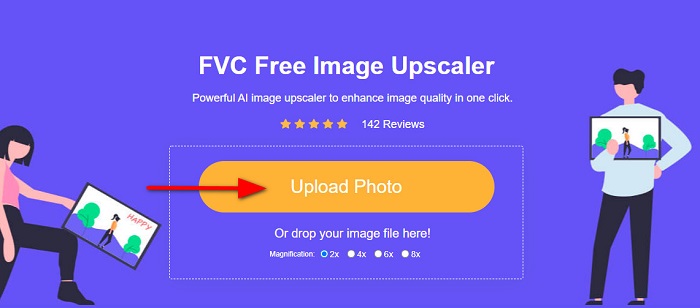
Pasul 1. Mai întâi, deschide browserul și tastează FVC Free Image Upscaler în bara de căutare. Poți, de asemenea, să dai clic direct pe link pentru a merge la pagina principală. Apoi lansează aplicația făcând clic pe butonul Upload Photo. După lansarea aplicației, treci la pasul următor.
Pasul 2. Pe prima interfață, dă clic pe butonul Upload Photo pentru a importa imaginea pe care vrei să o clarifici. Se vor deschide folderele calculatorului, unde îți vei localiza fotografia. Dă clic pe Open pentru a o încărca.
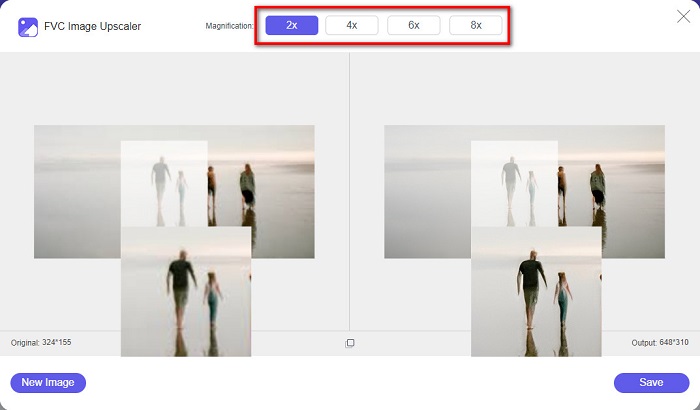
Pasul 3. După ce ai încărcat imaginea, selectează presetarea de mărire pe care o preferi pentru imagine. Poți alege între măriri de 2x, 4x, 6x și 8x. Apoi poți vedea previzualizarea rezultatului în partea dreaptă, pentru a observa diferența față de fișierul original.
Pasul 4. La final, salvează rezultatul făcând clic pe butonul Save din colțul dreapta jos al interfeței.
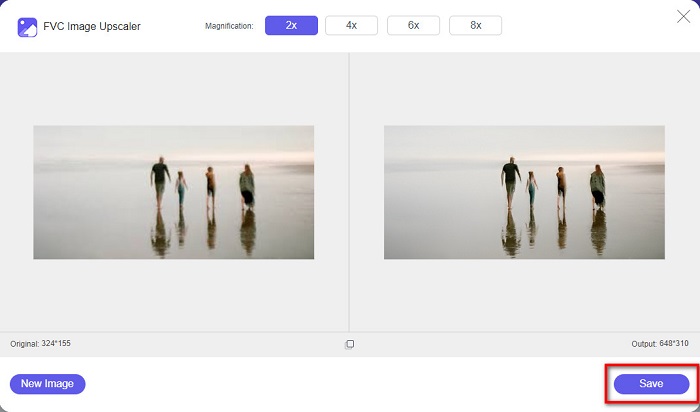
Și aceștia sunt pașii despre cum să decolorați o imagine online. Veți vedea din rezultat cum acest upscaler gratuit de imagini vă poate ajuta să vă remediați calitatea imaginii.
Partea 2. Cum să decolorați o imagine offline pe desktop
Mulți profesioniști folosesc un computer pentru a edita imagini sau videoclipuri. De asemenea, multe aplicații de editare foto sunt disponibile doar pe desktop-uri. Și în această parte, vă vom învăța cele mai bune metode de a ne estompa o imagine offline pe desktop.
Unblur imagine folosind Photoshop
Adobe Photoshop este probabil cea mai bună aplicație de editare foto pe care o poți folosi pentru a clarifica imaginile. Această aplicație offline are numeroase funcții și instrumente de editare pe care le poți utiliza pentru a îmbunătăți o imagine. În plus, poți adăuga claritate fotografiei dacă aceasta nu are o calitate bună sau este neclară. Folosind instrumentele sale avansate de editare, poți produce cu siguranță rezultate excelente. În plus, poți elimina persoane sau obiecte din imagine, poți desena o imagine sau un obiect folosind instrumentul creion sau stilou, poți modifica culoarea fotografiei și multe altele. Cu Adobe Photoshop poți crea imagini fantastice pe care le-ai editat. Totuși, Adobe Photoshop nu este un instrument ușor de folosit. Ai nevoie de cunoștințe aprofundate despre modul de utilizare a instrumentelor pentru a clarifica sau edita imaginea. Cu toate acestea, îți vom oferi pașii pentru a folosi Photoshop pentru a clarifica imaginile. Îți vom arăta, de asemenea, două moduri de a utiliza Photoshop pentru a reduce neclaritatea imaginii.
Procesul de estompare a imaginii folosind Adobe Photoshop:
Pasul 1. Descarcă Adobe Photoshop pe desktop și instalează‑l. După ce ai descărcat și instalat aplicația, ruleaz-o pe dispozitiv.
Pasul 2. Apoi, deschide imaginea pe care vrei să o clarifici în interfața principală. Poți, de asemenea, să apeși CTRL + O pe tastatură pentru a‑ți deschide rapid imaginea.
Pasul 3. În continuare, duplică fundalul layer‑ului și selectează‑l. Apoi dă clic pe Filter > Other > High Pass. Setează High Pass la 10%.
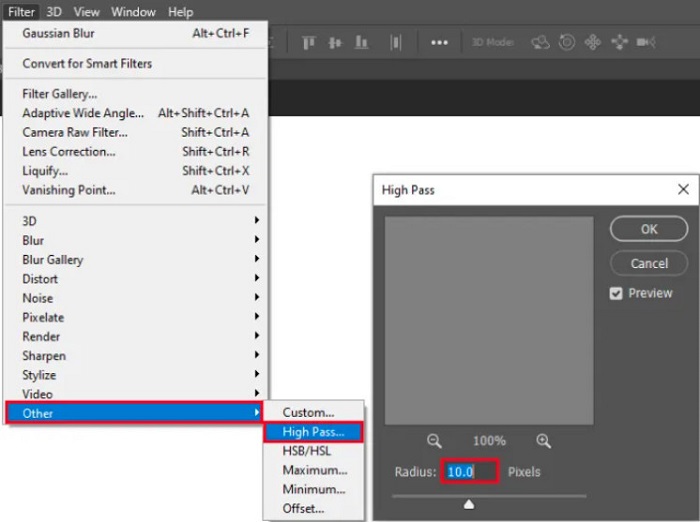
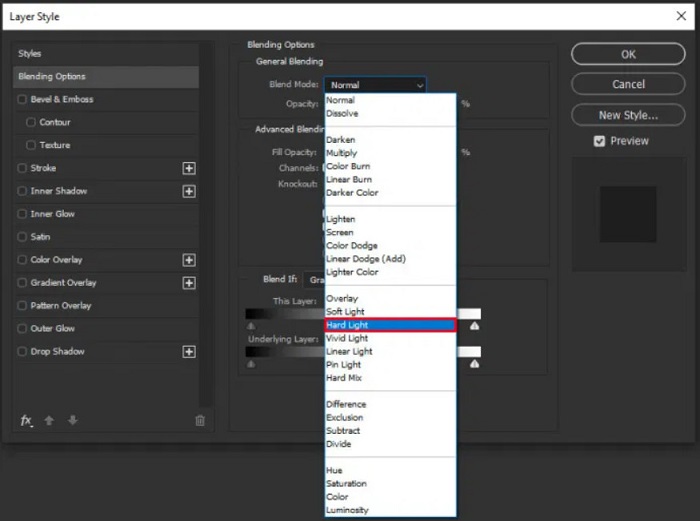
Pasul 4. Iar în fereastra Layer Style, schimbă modul de îmbinare (blend mode) din normal în hard light, apoi modifică opacity până când fotografia devine clară sau îmbunătățită.
Dacă folosești noua versiune de Photoshop, poți utiliza opțiunea de reducere a zguduirii camerei (camera shake reduction) pentru a ascuți o imagine în Photoshop.
Pasul 1. Importă imaginea pe care vrei să o clarifici în Photoshop.
Pasul 2. Apoi mergi la Filter > Sharpen > Shake Reduction.
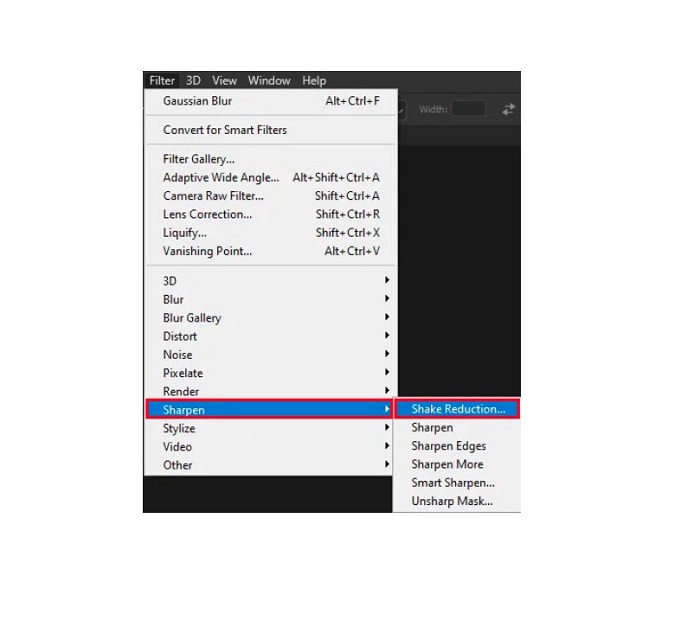
Pasul 3. Apoi, Photoshop va procesa imaginea, după care îți poți vizualiza rezultatul.
Unblur imagine folosind Paint.net
Un alt software gratuit de editare foto offline pe care îl poți folosi este Paint.net. Una dintre funcțiile puternice ale acestei aplicații este ascuțirea unei imagini. Mutând cursorul (slider‑ul), poți ajusta nivelul de claritate al imaginii, ceea ce va face ca imaginea să aibă un aspect clar și precis și va elimina neclaritatea. În plus, este mai ușor de utilizat decât Adobe Photoshop. De asemenea, are și alte funcții de editare pe care le poți folosi pentru a‑ți edita fotografiile. Iar dacă nu știi cum să utilizezi aplicația, poți accesa consultanța online și tutorialele sale „cum să faci”. În plus, este una dintre cele mai cunoscute aplicații de editare a imaginilor pentru utilizatorii de Windows, deoarece are multe funcții de corecție pe care le poți folosi pentru a‑ți îmbunătăți fotografia. Un mic dezavantaj al Paint.net este că nu poți corecta textul introdus după aplicarea efectelor. Cu toate acestea, acest software îți permite să creezi rezultate de editare a imaginilor pe mai multe niveluri.
Cum să decolorați o imagine folosind Paint.net:
Pasul 1. Pentru început, deschide imaginea în Paint.net apăsând CTRL + O pe tastatură. Poți, de asemenea, să mergi la File și să cauți opțiunea Open. Apoi vor apărea fișierele de pe desktop, unde îți vei selecta imaginea și o vei deschide.
Pasul 2. Apoi, dă clic pe Effects > Picture, apoi selectează Sharpen.
Pasul 3. Apoi, în panoul Sharpen, vei vedea slider‑ul cu ajutorul căruia vei ajusta claritatea imaginii pentru a o face mai puțin neclară. De asemenea, poți apăsa pe butonul săgeată sus/jos pentru a schimba cantitatea de claritate a fotografiei.
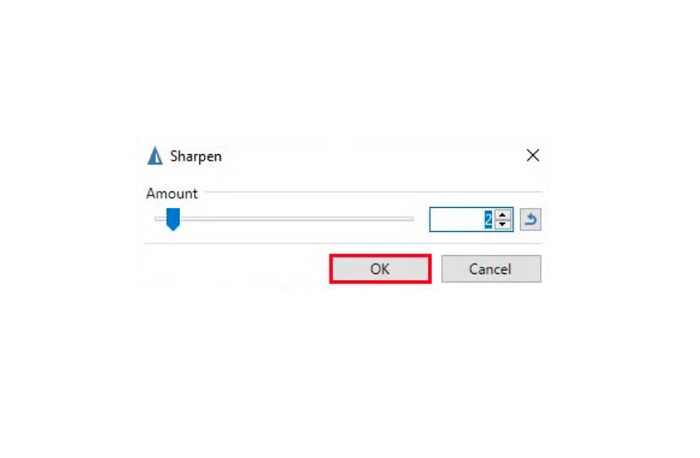
Pasul 4. Apasă butonul OK și salvează rezultatul.
Partea 3. Cum să decolorați o imagine pe iPhone
Dacă sunteți utilizator de dispozitiv iPhone, puteți descărca și unele aplicații pentru a vă estompa imaginea. Puteți alege dintre aplicațiile din App Store pentru a ne estompa imaginea. Cu toate acestea, unele aplicații pot fi achiziționate, necesitând să le achiziționați înainte de a le folosi. Dar în această parte, vă vom învăța cum să vă decolorați imaginea pe iPhone folosind o aplicație gratuită și remarcabilă.
Foton este una dintre cele mai utilizate aplicații de clarificare a imaginilor pe iPhone. Poți descărca această aplicație gratuit din App Store. În plus, are și alte funcții de editare pe care le poți folosi, precum colaj, decupare, adăugare de șabloane, împărțire și altele. Are, de asemenea, o interfață ușor de utilizat, ceea ce o face o aplicație prietenoasă pentru utilizatori. Cu această aplicație poți clarifica imaginea ajustând claritatea acesteia. Iar dacă vrei să adaugi mai multă precizie fotografiei pentru a o face și mai impresionantă, poți ajusta contrastul, claritatea, saturația și dehaze‑ul imaginii. În plus, este sigură de utilizat, astfel încât nu trebuie să îți faci griji cu privire la securitatea fișierelor tale de imagine. Dezavantajul acestei aplicații este că trebuie să cumperi versiunea pro pentru a utiliza celelalte funcții.
Cum să decolorați o imagine pe iPhone:
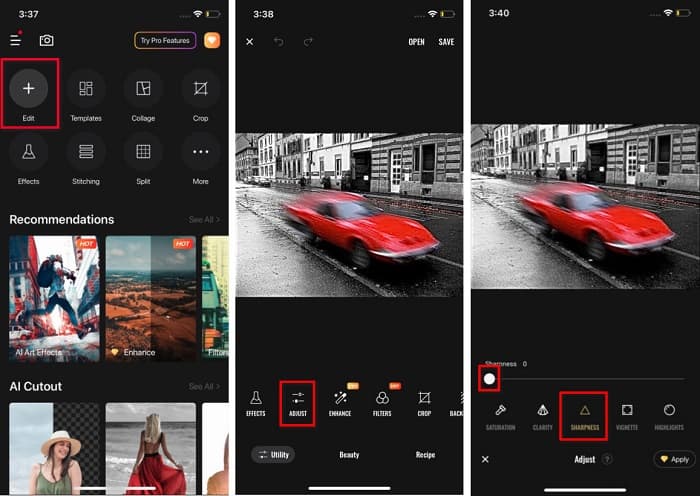
Pasul 1. Deschide App Store pe iPhone, apoi caută Foton. Instaleaz-o pe telefon și deschide‑o după instalare. Apoi, în interfața principală a aplicației, atinge opțiunea Edit.
Pasul 2. Selectează imaginea pe care vrei să o clarifici; vei fi apoi direcționat către o altă interfață. Atinge opțiunea Adjust de sub imagine, apoi glisează spre stânga pentru a găsi funcția Sharpness.
Pasul 3. În panoul Sharpness, trage slider‑ul până la nivelul de claritate dorit, până când neclaritatea imaginii este redusă.
Pasul 4. La final, atinge butonul Save din colțul dreapta sus al interfeței pentru a salva rezultatul pe dispozitivul tău iPhone. Dă clic aici pentru a afla cum să redimensionezi o imagine pe iPhone.
Partea 4. Cum să decolorați o imagine pe telefonul Android
Mulți oameni dețin și dispozitive Android și, dacă utilizați și unul, puteți citi această parte pentru a afla cum să decolorați o imagine pe Android. Am căutat cele mai populare aplicații de deblocare a fotografiilor pentru Android și le-am încercat una câte una. Din fericire, am găsit o aplicație care este cel mai bine de recomandat.
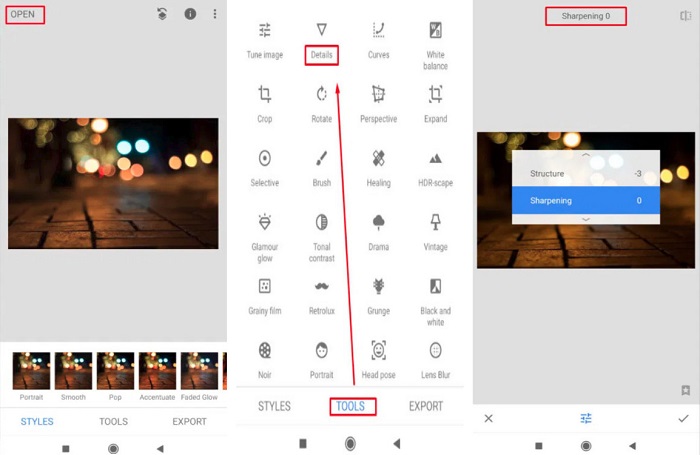
Snapseed este cea mai bună aplicație dacă vrei să clarifici o imagine pe dispozitivul Android. Folosind funcțiile de sharpen și structure, poți adăuga claritate imaginii pentru a elimina părțile neclare. În plus, are numeroase funcții de editare care te pot ajuta să îmbunătățești calitatea imaginii. Și, la fel ca celelalte instrumente menționate mai sus, are o interfață simplă. Așadar, dacă ești începător, poți folosi această aplicație pentru a clarifica o imagine. Totuși, trebuie să îți activezi conexiunea WiFi înainte de a folosi aplicația.
Cum să estompeze o imagine pe Android folosind Snapseed:
Pasul 1. Descarcă aplicația pe dispozitivul Android, apoi deschide‑o. După deschidere, încarcă imaginea în aplicație.
Pasul 2. Apoi, în panoul Tools, selectează opțiunea Details.
Pasul 3. În continuare, selectează Sharpen sau Structure pentru imagine, pentru a obține o schimbare în fotografia neclară. Ajustând aceste două opțiuni, vei elimina neclaritatea imaginii.
Partea 5. Întrebări frecvente despre Cum să decolorați o imagine
Va crește dimensiunea fișierului atunci când decolorați o imagine?
Da. Când decolorați o imagine, PPI-ul acesteia va crește, ceea ce face ca dimensiunea fișierului să fie mai mare decât cea originală.
De ce imaginea mea devine neclară când o măresc?
Probabil se datorează unei probleme de compresie. Când încercați să redimensionați o imagine, măriți și pixelii fotografiei. Deci, comprimarea unei imagini poate afecta calitatea imaginii.
Pot anula estomparea unei imagini JPG pe Adobe?
Categoric! Puteți utiliza Adobe Photoshop dacă doriți să anulați estomparea unei imagini JPG. Adobe Photoshop acceptă formate standard de imagine, cum ar fi PNG, JPG și JPEG
Concluzie
Acum că știi cum să faci o imagine mai clară folosind cele mai simple metode, îți poți clarifica fotografiile. Toate metodele demonstrate mai sus te vor ajuta cu siguranță să îți atingi obiectivul. Dar, dacă vrei să economisești spațiu pe dispozitiv, îți recomandăm să folosești FVC Free Image Upscaler, la care poți avea acces gratuit și online.
-
 Cum să redimensionezi o imagine în PowerPoint [Cel mai rapid mod de a schimba dimensiunea]
 Învățarea cum să redimensionați imaginile în PowerPoint este esențială, mai ales dacă doriți să le utilizați în prezentarea dvs. Citiți acest articol pentru a ști cum să o faceți.
-
 Imagine 1440p – Informații all inclusive de care veți avea nevoie [Actualizare 2022]
 Vrei să știi despre imaginile 1440p? Sau de unde il poti lua? Treci imaginea la 1440p? Citiți asta pentru a le cunoaște pe toate.
-
 Tutorial pentru a depixela o imagine folosind cel mai bun 3 Photo Unpixelator
 Aveți probleme la manipularea imaginilor pixelate? Astăzi, am rezolvat problema și puteți folosi instrumentele pe care le adăugam aici.
