


 Video Converter Ultimate
 Screen Recorder
 Reparație video
 Descărcare sigură
3 metode de redare video MKV în Windows Media Player cu codecul potrivit
MKV, înseamnă Matroska Multimedia Container, este un format de fișier container gratuit și deschis care conține un număr de piese video, audio, imagine și subtitrare într-un singur fișier. Fișierele MKV sunt utilizate în mod obișnuit pentru stocarea videoclipurilor, filmelor și emisiunilor TV. Unii utilizatori de Windows 8/7 se plâng că nu pot reda videoclipul MKV în playerul video implicit - Windows Media Player.
Adevărul este că Windows Media Player nu acceptă divizarea (deschiderea) containerelor MKV. Ei bine, dacă totuși doriți să redați videoclipuri MKV în Windows Media Player, ar trebui să instalați codecul MKV corect pentru Windows Media Player. În acest articol, vă vom spune unde găsiți codec MKV pentru Windows Media Player și alte modalități de a reda videoclipuri MKV în Windows Media Player.

Partea 1. Unde se descarcă MKV Codec pentru Windows Media Player
Dacă vrei să redai fișiere video MKV în Windows Media Player, trebuie să instalezi codecul corespunzător. Iată 3 pachete de codecuri populare pentru Windows Media Player. Poți descărca și instala codecul MKV pentru Windows Media Player.
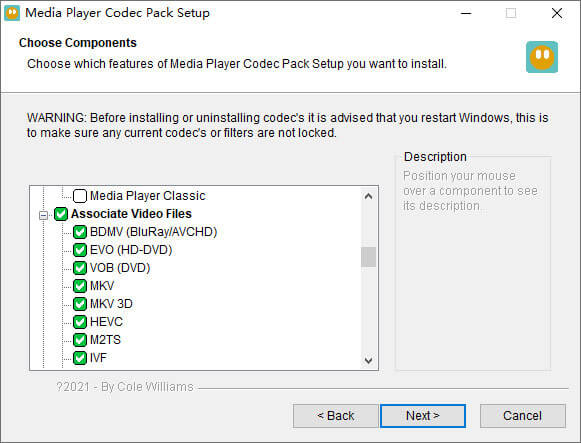
1. Media Player Codec Pack
Media Player Codec Pack este un pachet de codec versatil pentru Windows Media Player. Este folosit pentru a conține fișiere video și audio moderne. Este compatibil cu Microsoft Windows 10, 8.1, 8, 7, Vista, XP, 2000, 2008, 2003. Puteți descărca Media Player Codec Pack și puteți obține codecuri precum MKV, XviD, VOB, EVO, HEVC, M2TS, IVF, BDMV, MP4, MOV, WEBM, FLV etc. pentru Windows Media Player 12, 11 sau 10.
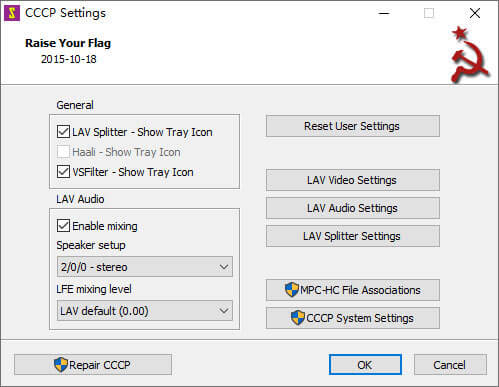
2. CCCP (Combined Community Codec Pack)
Combined Community Codec Pack este un pachet de redare pentru Windows. Oferă un set cuprinzător de codecuri care pot reda orice fel de fișiere video precum MKV, MP4, MOV, VOB etc. în Windows Media Player. Este compatibil cu Windows 10/8/7, WindowsVista, Windows XP, Windows 2000. Puteți descărca cu ușurință această aplicație de pe site-ul oficial gratuit.
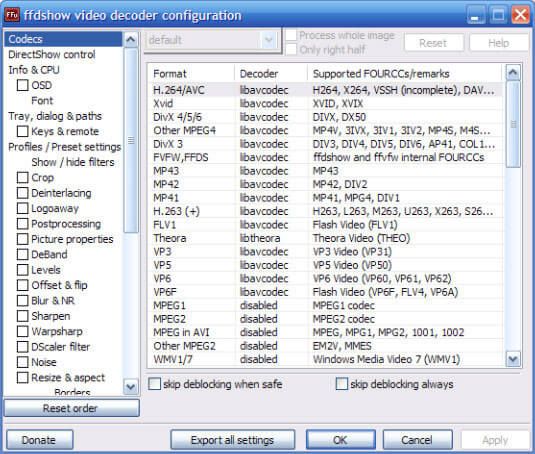
3. ffdshow
Ffdshow este un pachet de redare avansat pentru codec Windows care acceptă majoritatea formatelor audio și video. Puteți instala codecul potrivit pentru h.264, MPEG-4, H.263, VP3, Theora, SVQ3, MP3, AC3, DTS, AAC și multe altele. De asemenea, oferă filtre pentru redimensionare, deplasare și afișare a subtitrărilor etc. Puteți descărca ffdshow și instala codecul MKV potrivit pentru Windows Media Player.
Partea 2. Conversia MKV pentru redare în Windows Media Player
Deși fișierele video MKV nu sunt acceptate de Windows Media Player, poți converti fișierul video MKV în formate compatibile cu Windows Media Player. După cum știm, Windows Media Player 12 are suport integrat pentru majoritatea formatelor video și audio, precum MPEG, WMV, AVCHD, WMA, AAC, 3GP etc. Cu Video Converter Ultimate, poți converti fișierul MKV în orice format video/audio, inclusiv MP4, AVI, MOV, WMV, MKV, MPEG, MP3, FLAC etc.
Descărcare gratuită pentru Windows 7 sau o versiune ulterioară Descărcare securizată
Descărcare gratuită pentru MacOS 10.7 sau o versiune ulterioară Descărcare securizată
Pasul 1. Fă clic pe butonul Download pentru a descărca Video Converter Ultimate pe computer. Deschide acest convertor MKV și fă clic pe butonul Add Files pentru a adăuga fișierele video MKV în program.
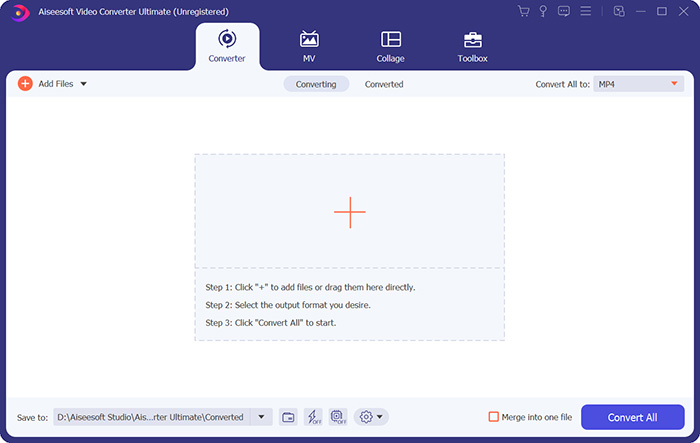
Pasul 2. Fă clic pe săgeata derulantă de lângă Convert All to și selectează MP4 sau alte formate din fila Video.

Pasul 3. Apoi poți merge în zona Save to din partea de jos pentru a selecta o locație pentru fișierul MKV convertit. În final, fă clic pe butonul Convert All pentru a începe conversia MKV în MP4 pe computer.
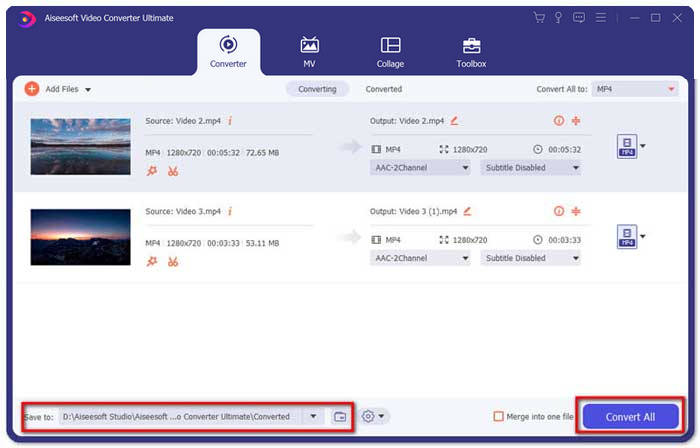
Când conversia este finalizată, puteți reda videoclipul MKV convertit în Windows Media Player. Dacă doriți să vă lustruiți în continuare videoclipul MKV înainte de conversie, puteți face clic pe pictograma Editare din interfața principală pentru a roti, decupa, filigrați videoclipul MKV, adăuga subtitrări și aplica alte filtre.
Partea 3. Joacă MKV cu Windows Media Player Alternative
Ce se întâmplă dacă Windows Media Player nu funcționează chiar dacă ai obținut un fișier MKV convertit? Orice factor poate împiedica redarea MKV în Windows Media Player. Dacă nu vrei să instalezi un anumit codec pentru Windows Media Player, poți încerca în schimb un alt player video MKV. FVC Free Video Player este un player video MKV online care te ajută să redai orice fișiere multimedia în toate formatele, precum MKV, MP4, FLV, MOV, AVI, 3GP, MP3, AAC etc. Bazat pe tehnologia HTML 5, acest player video MKV acceptă redarea fluentă a tuturor fișierelor MKV direct în browser. Nu este nevoie de niciun pachet suplimentar de descărcat, cumpărat sau de înregistrare.
Pasul 1. Accesează pagina web oficială a FVC Free Video Player. Fă clic pe butonul Play Now pentru a descărca și instala lansatorul pe computer.

Pasul 2. Poți face clic pe butonul Open File din interfața principală pentru a adăuga fișierul video MKV în alternativa la Windows Media Player.

Pasul 3. După ce ai importat fișierul video MKV, acesta va fi redat automat pe computer. În timpul redării, poți merge la fila Control pentru a reda, opri, derula înainte sau înapoi redarea videoclipului MKV.

Să nu ratezi: Cum să redai un DVD în Windows Media Player?
Partea 4. Întrebări frecvente despre MKV Codec pentru Windows Media Player
Ce player media poate reda codec MKV?
Există mulți jucători care acceptă codec MKV, inclusiv VLC Media Player, Media Player Classic, KMPlayer, MX Player, MKPlayer, Zoom Player, 5K Player, GOM Player etc.
Fișierele MKV sunt mai mici decât MP4?
Fișierul MKV are de obicei o dimensiune de fișier mare decât MP4, deoarece piesa audio multiplă, piesele de subtitrare și alte caracteristici. Deși fișierul MP4 este păstrat în dimensiuni mici, acesta păstrează calitatea înaltă ca MKV. Acest lucru se datorează faptului că cele două formate de containere MKV și MP4 pot încapsula același videoclip și sunet.
VLC Media Player redă fișiere MKV?
Da. VLC Media Player poate recunoaște și reda aproape toate formatele video și audio, inclusiv MKV. Dacă fișierele MKV nu pot fi redate în VLC Media Player, puteți instala codecul MKV sau puteți încerca alte playere MKV, cum ar fi FVC Free Video Player.
Concluzie
Fișierele MKV pot suporta o calitate fără pierderi și pot conține imagini, videoclipuri și audio nelimitate. Este enervant faptul că MKV nu poate reda în Windows Media Player 12, playerul media implicit pentru Windows. Puteți încerca să instalați codecul MKV pentru redare lină sau să convertiți MKV în alte formate video. Dacă te-ai săturat de Windows Media Player, poți încerca alt player video MKV precum FVC Free Video Player. Sper că problema dvs. a fost perfect rezolvată.
-
 VLC Player nu va reda MKV, cum să îl remediați
 VLC player acceptă fișiere MKV? De ce VLC nu va juca MKV? Această postare împărtășește 4 sfaturi utile pentru a remedia VLC playerul nu va reda fișiere MKV.
-
 Cum să redați fișiere MKV pe iPad 2021
 Cum să redați fișiere MKV pe iPad 2? Pot converti MKV în MP4 pentru a juca pe iPad Pro / Air / 2? Această postare împărtășește 2 moduri simple de a juca MKV pe iPad.
-
 Windows Media Player nu redă MP4? 5 moduri eficiente de remediere
 Nu s-a putut reda MP4 în Windows Media Player? Aflați mai multe despre motivele și soluțiile finale pentru a reda MP4 în Windows Media Player pe computerul Windows 10.
