


 Video Converter Ultimate
 Screen Recorder
 Reparație video
 Descărcare sigură
2 moduri simple de a reda fișiere MKV pe iPad
Pot reda fișiere MKV pe iPad?
Nu poți reda direct fișiere MKV pe iPad, fie că folosești un iPad Pro, iPad Air, iPad mini sau iPad 2/4/6/8. MKV este un format popular de container multimedia, dar nu este acceptat de toate produsele Apple, inclusiv iPad, iPhone, iPod și Mac. Atunci cum poți reda fișiere MKV pe iPad?

Poți folosi o aplicație terță pentru a reda fișiere MKV pe iPad. De asemenea, poți alege să convertești MKV în formate acceptate de iPad, cum ar fi MP4 sau MOV. În acest articol îți prezentăm 2 metode eficiente care te ajută să redai fișiere MKV pe iPad Pro, Air, mini și alte modele.
Partea 1. Cum să redați direct fișiere MKV pe iPad cu VLC
După cum am menționat mai sus, nu ai voie să redai direct fișiere MKV pe iPad Pro, Air, mini sau iPad 8/6/4/2. Totuși, în App Store există unele aplicații de redare MKV de la terți care te pot ajuta să redei MKV pe iPad, iPhone sau iPod touch. Te poți baza pe popularul player media VLC pentru a reda orice tip de videoclip, inclusiv fișiere MKV, pe dispozitivul tău iOS.
VLC Media Player este un instrument foarte popular pentru redarea fișierelor media, care acceptă toate formatele video utilizate frecvent, inclusiv MKV, MOV, MP4, AVI, FLV și altele. Îți permite să redai fișiere media pe computer cu Windows, Mac și Linux. În plus, VLC oferă o aplicație pentru iOS care îți permite să redai fișiere MKV pe iPad și iPhone.
Pasul 1. Intră în App Store pe iPad-ul tău și caută VLC. Primul rezultat va fi VLC for Mobile. Atinge-l, apoi apasă Get pentru a-l instala gratuit pe iPad. Această aplicație VLC este compatibilă cu iPad, iPhone, iPod touch și Apple TV.
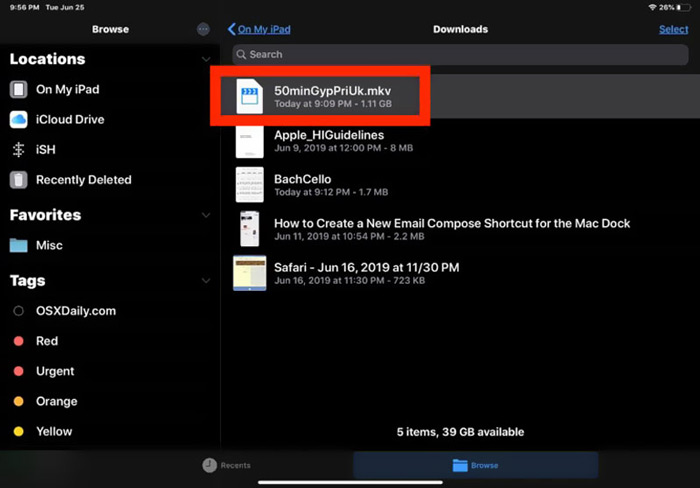
Pasul 2. Atinge pictograma VLC pentru a o deschide. Acum poți sincroniza fișierele MKV prin iTunes, partajare Wi-Fi sau servicii cloud. După aceea, le poți vedea în Video. Aici îți poți verifica fișierele MKV și în aplicația Files. Alege fișierul MKV pe care vrei să îl redai pe iPad, apoi apasă butonul Share.
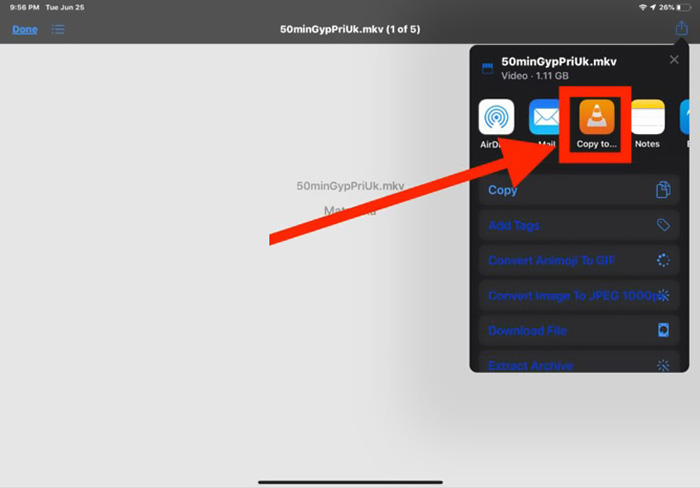
Pasul 3. Selectează opțiunea Open in VLC sau Copy to VLC din lista derulantă. Apoi vei putea reda fișierul MKV pe iPad cu ajutorul acestei aplicații VLC.
Pe lângă fișierele MKV, te poți baza pe VLC și pentru a reda fără probleme alte fișiere media. Desigur, există și alți playere MKV, precum KMPlayer și altele, care te pot ajuta să urmărești fișiere MKV pe iPad.
Partea 2. Cum se convertește MKV în MP4 pentru redare pe iPad
Când vrei să redai fișiere MKV pe iPad, poți alege și să convertești MKV într-un format video acceptat de iPad, cum ar fi MP4 sau MOV. Pentru asta, te poți baza pe un software profesionist de conversie MKV, Free Online Video Converter.
Acest convertor MKV în iPad acceptă foarte mult orice format video și audio utilizat frecvent. Vă permite să convertiți MKV în format acceptat de iPad, inclusiv MOV și MP4, fără pierderi de calitate. Următorul ghid vă va arăta cum să-l utilizați pentru a converti MKV în iPad.
Pasul 1. Deschide un browser precum Chrome, IE, Firefox sau Safari și accesează site-ul Free Online Video Converter. Când ajungi acolo, dă clic pe Add Files to Convert și apoi pe butonul de download pentru a instala rapid un mic FVC Launcher pentru conversia MKV.

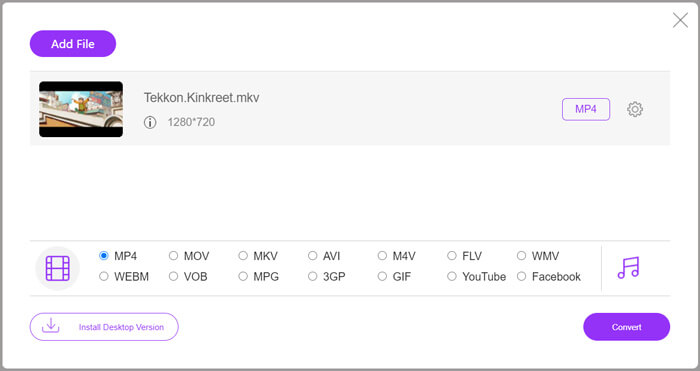
Pasul 2. Pe ecran va apărea o fereastră pop-up Open File pentru a-ți permite să cauți și să imporți fișierul MKV. Apoi vei fi dus în fereastra principală de conversie. Vei vedea listate multe formate video populare, precum MP4, MKV, MOV, AVI, FLV, WMV, VOB, WEBM și altele. Aici ar trebui să selectezi MP4 sau MOV ca format de ieșire.
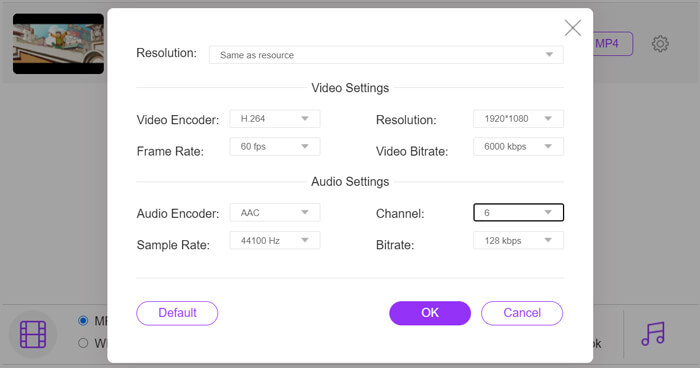
Pasul 3. Înainte de conversie, poți da clic pe pictograma Settings de lângă formatul de ieșire pentru a personaliza diverse setări video și audio. Aici poți ajusta rezoluția video, encoder-ul, numărul de cadre pe secundă, bitrate-ul, canalul audio, rata de eșantionare și altele. Apasă butonul OK pentru a salva modificările.
Pasul 4. După toate aceste operațiuni, poți apăsa pe butonul Convert pentru a începe conversia MKV în MP4. Fișierul rezultat va păstra exact aceeași calitate a imaginii și a sunetului. Apoi îl poți transfera pe iPad pentru redare.
Partea 3. Întrebări frecvente despre redarea fișierelor MKV pe iPad
Întrebarea 1. Poate iMovie să editeze fișiere MKV?
Nu. După cum am menționat mai sus, toate dispozitivele Apple și software-ul conex nu pot accepta formatul MKV. Fiind editorul implicit pentru iPad, iPhone și Mac, iMovie nu poate deschide și edita fișiere MKV.
Întrebarea 2. Poate converti VLC MKV în MP4?
Da. VLC Media Player are capacitatea de a converti fișierul MKV. Puteți deschide VLC, faceți clic pe meniul Media și puteți utiliza funcția Conversie / Salvare. În fereastra Open Media, puteți face clic pe butonul Adăugare pentru a încărca fișierul MKV. Faceți clic pe butonul Conversie și apoi selectați MP4 ca format țintă. După aceea, puteți alege un folder de destinație adecvat și puteți redenumi fișierul de ieșire. Apoi puteți face clic pe butonul Start pentru a face conversia video de la MKV la MP4 cu VLC.
Întrebarea 3. Poate Windows 10 să redea fișiere MKV?
Nu vă puteți baza pe playerul implicit, Windows Media Player, pentru a reda fișiere MKV pe un computer cu Windows 10. Când doriți să deschideți fișiere MKV, trebuie să vă bazați pe un player media terță parte, cum ar fi VLC, PotPlayer și multe altele.
Concluzie
După ce citești acest articol, poți folosi 2 sfaturi utile pentru a reda fișiere MKV pe iPad. Indiferent dacă vrei să urmărești direct fișiere MKV pe iPad sau să le convertești într-un format compatibil cu iPad, poți găsi un instrument potrivit. Pentru mai multe întrebări despre redarea fișierelor MKV pe iPad, ne poți lăsa un mesaj.
-
 M2TS către iPad - Moduri gratuite de redare a fișierelor video M2TS pe iPad
 Citiți și obțineți cel mai bun mod de a converti M2TS în iPad. Iată convertoare de fișiere M2TS online și offline pentru redarea iPad M2TS. Doar citiți și alegeți soluția care vă place.
-
 MKV în MOV - Cum se convertește MKV în MOV
 Cum convertesc MKV în MOV pe Mac? Poate iMovie să citească MKV? Ce înseamnă formatul MOV? Această postare spune 2 moduri simple de a vă ajuta să convertiți MKV în MOV cu convertoare video gratuite online și profesionale.
-
 Tutorial - 4 moduri gratuite de a îmbina videoclipurile pe iPhone într-unul nou
 Citiți și obțineți 4 modalități ușoare de a îmbina videoclipurile pe iPhone. Toate modelele iPhone și versiunile iOS sunt acceptate. Puteți combina rapid 2 și mai multe videoclipuri pe iPhone într-un videoclip nou.
