


 Video Converter Ultimate
 Screen Recorder
 Reparație video
 Descărcare sigură
Ghid simplu despre cum să faci parte dintr-un videoclip cu încetinitorul în mod eficient
Majoritatea cineaștilor folosesc supracadrări (overcranking) pentru ca videoclipul să fie redat în slow motion, însă în principal aceasta este folosită în sport pentru reluări instantanee. Datorită efectului artistic pe care îl aduce, toată lumea schimbă viteza videoclipului la ritmul dorit. Cu alte cuvinte, cererea pentru un editor de slow motion s-a răspândit pe scară largă în întreaga lume a internetului, iar nevoia pentru un controler perfect al vitezei videoclipului a devenit din ce în ce mai mare. Pentru a răspunde cerinței tale de a avea cel mai bun controler de viteză, vom analiza top 3 controlere de viteză pe care le-am găsit pe piață și care oferă rezultate remarcabile pentru editarea vitezei videoclipului. În plus, vom include și un tutorial despre cum să faci o parte dintr-un videoclip în slow motion în fiecare unealtă pe care o selectăm special pentru tine.

Partea 1. Cel mai bun mod de a face o parte dintr-un videoclip în mișcare lentă [foarte sugerat]
Odată cu cererea de a avea cel mai bun controler de viteză pentru încetinirea unui clip, FVC Video Converter Ultimate îți oferă asistența de care ai nevoie pentru a finaliza această sarcină. Acest convertor „ultimate” oferă o funcție unică pentru a-ți încetini videoclipul sau pentru a-l reda cu viteză foarte mare și apoi a aplica setarea în doar câteva clicuri. Nu poți da greș folosind acest software, deoarece este unul dintre cele mai ușor de înțeles programe pe care le poți avea și are o interfață (GUI) clară, care te ajută să înțelegi și să organizezi totul.
Pe lângă controlerul său de viteză, puteți utiliza și acest software pentru a împărți și îmbina mai multe videoclipuri simultan. Mulți utilizatori au devenit încântați de acest software datorită caracteristicilor și funcțiilor multifuncționale pe care vi le oferă. Deci, să presupunem că doriți să faceți parte din comunitatea încântată și să fiți impresionat de acest software. În acest caz, puteți citi tutorialul de mai jos despre cum să încetiniți o parte a unui videoclip, dar mai întâi va trebui să descărcați și să instalați software-ul și apoi să îl deschideți pentru a începe.
Descărcare gratuită pentru Windows 7 sau o versiune ulterioară Descărcare securizată
Descărcare gratuită pentru MacOS 10.7 sau o versiune ulterioară Descărcare securizată
1. Decupați partea din videoclip pe care doriți să o faceți cu încetinitorul
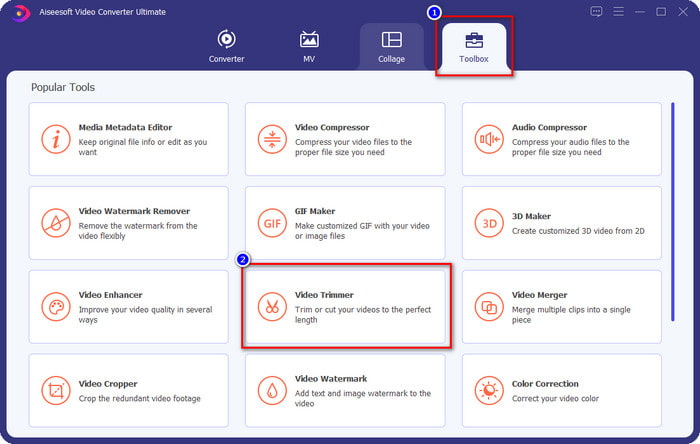
Pasul 1. După ce lansezi software-ul, mergi la Toolbox și găsește acolo Video Trimmer.
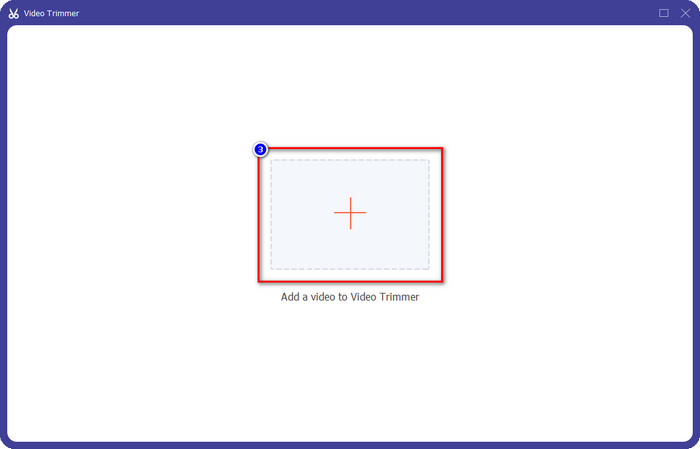
Pasul 2. Apasă pictograma + pentru a adăuga videoclipul pe care vrei să‑l împarți, caută-l în folder și dă clic pe Open.
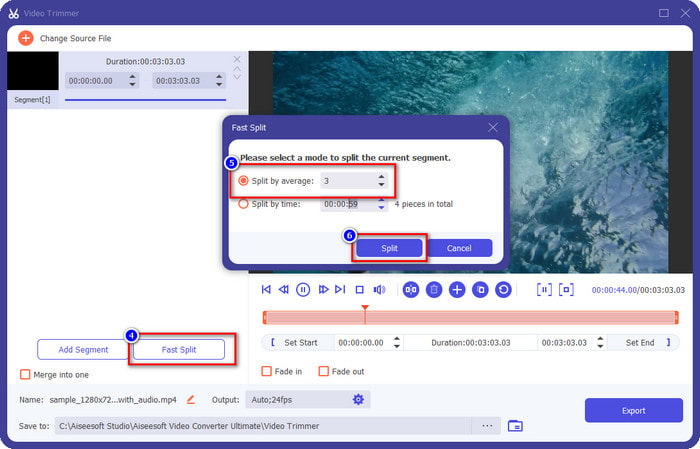
Pasul 3. În trimmer, fă clic pe Fast Split pentru a împărți videoclipul adăugat în segmente și schimbă numărul de împărțiri în funcție de cum dorești. După ce setezi segmentele videoclipului, fă clic pe Split.
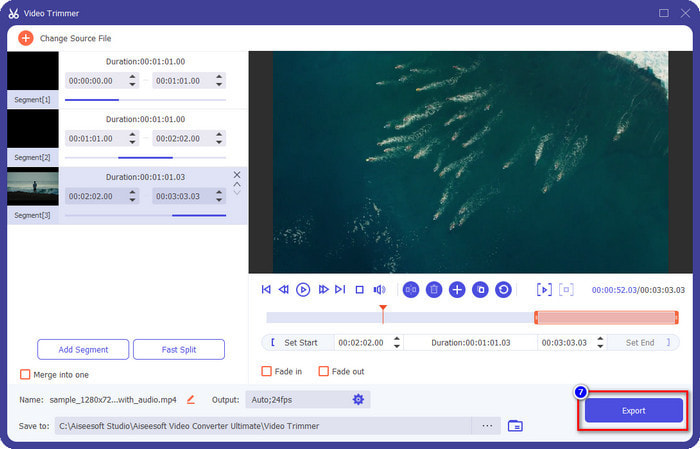
Pasul 4. Dă clic pe fiecare videoclip pentru a verifica dacă sunt segmentele corecte pe care vrei să le pui în slow motion, apoi apasă Export pentru a salva videoclipul pe unitatea ta de stocare.
2. Modificați viteza segmentului pe care l-ați exportat
Pasul 1. Caută Video Speed Controller în Toolbox pentru a încetini segmentul pe care l-ai tăiat mai devreme.
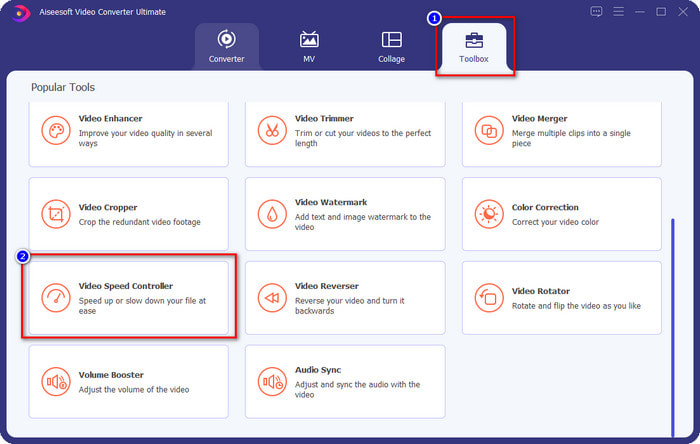
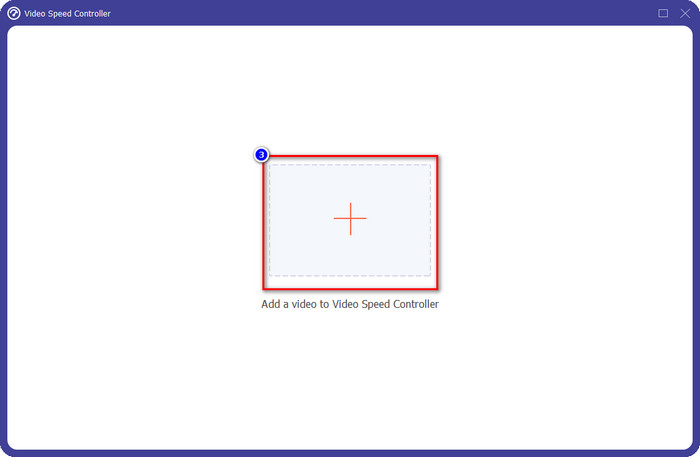
Pasul 2. Apasă butonul + pentru a adăuga un fișier video, localizează fișierul video pe care l-ai împărțit și pe care vrei să‑l încetinești, apoi fă clic pe Open pentru a-l încărca.
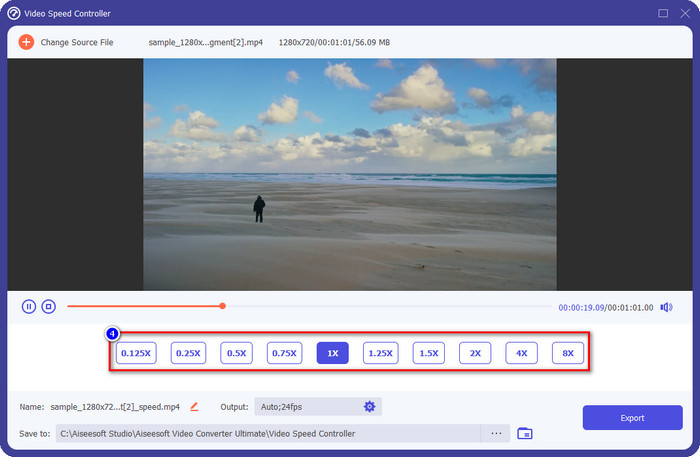
Pasul 3. După ce ai introdus videoclipul, alege efectul de slow motion pe care vrei să-l aplici segmentului tăiat. Pe ecran vor apărea mai multe opțiuni de viteză. Încearcă-le pe toate pentru a vedea care este efectul de slow motion pe care vrei să‑l obții.
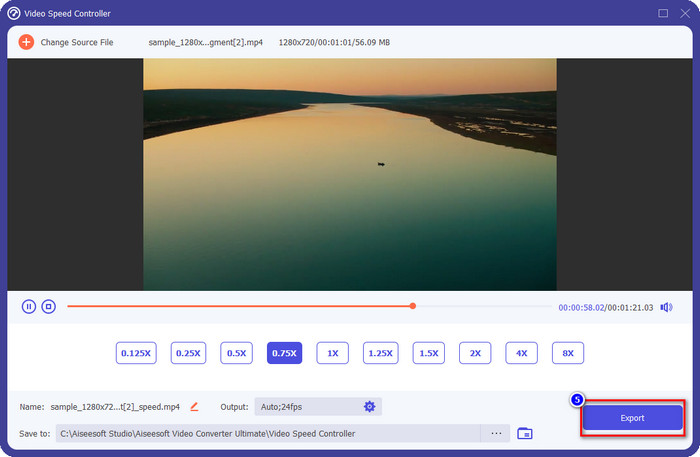
Pasul 4. Pentru a salva videoclipul pe care l-ai încetinit, fă clic pe Export.
3. Îmbinați videoclipul pe care l-ați tăiat mai devreme cu slow-mo-ul
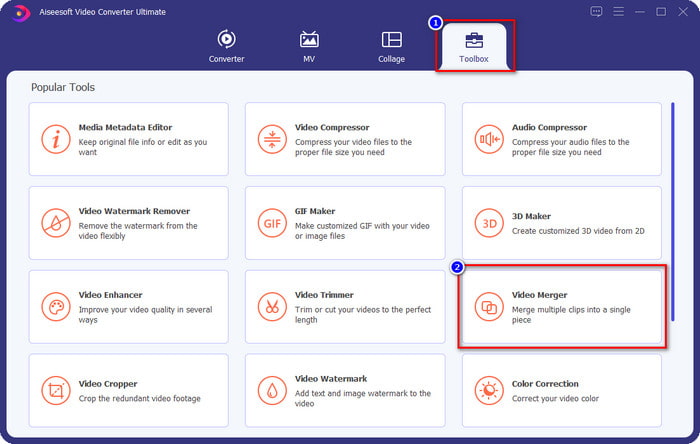
Pasul 1. După ce ai tăiat și ai adăugat efectul de slow motion videoclipului, dă clic pe Video Merger pentru a combina toate videoclipurile; îl poți găsi în Toolbox.
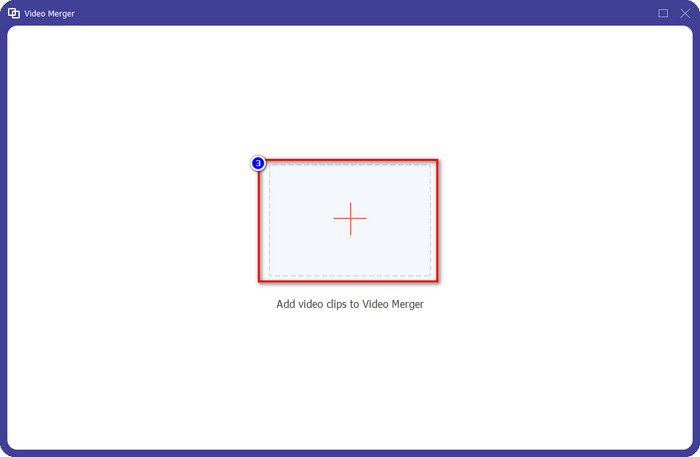
Pasul 2. Dând clic pe butonul +, pe ecran va apărea un folder; alege fișierul pe care vrei să-l adaugi, apoi apasă Open.
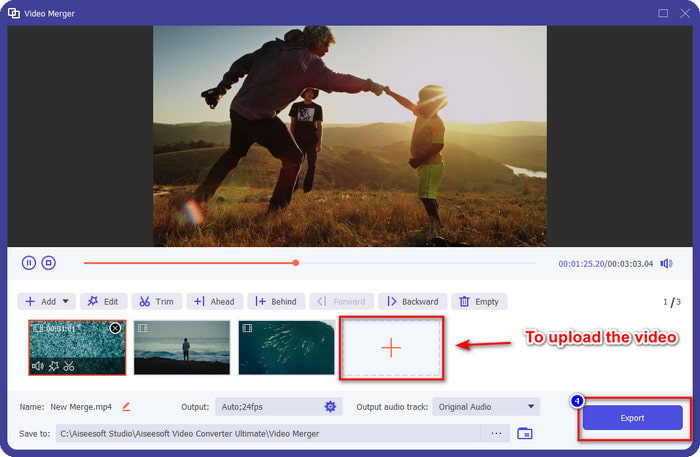
Pasul 3. Pentru a adăuga și celelalte segmente pe care le-ai împărțit, fă clic pe butonul + pentru a le adăuga pe toate. Aranjează-le corect prin tragerea fiecărui segment, iar dacă totul este în regulă, apasă Export pentru a salva videoclipul cu partea în slow motion.
Partea 2. Alte programe online și offline pe care le puteți utiliza pentru a schimba viteza video în slow-mo
Video Cutter online – Controler de viteză
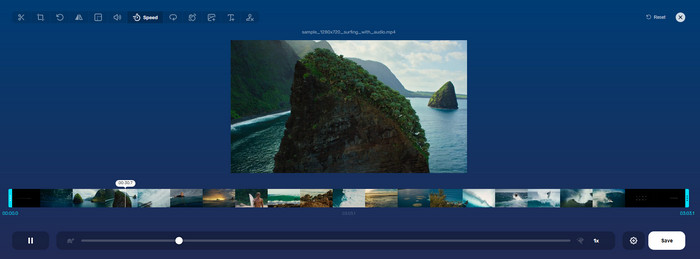
Online Video Cutter – Speed Controller nu este un instrument pe care trebuie să‑l descarci, deoarece este bazat pe web. Cu un controler de viteză video online ca acesta, poți folosi imediat unealta, chiar dacă nu descarci resurse sau fișiere suplimentare pentru a lansa software-ul. De asemenea, acest instrument web acceptă funcții de editare de bază de care vei avea nevoie la un moment dat. Deși acest instrument nu este la fel de profesionist ca editorul menționat mai sus, este totuși foarte bun pentru a încetini un videoclip. Pentru a afla cum să faci o parte dintr-un videoclip în slow motion, poți copia pașii de mai jos.
Pasul 1. Pentru a accesa unealta online, o poți căuta în browserul la alegere.
Pasul 2. Fă clic pe Open File și încarcă fișierul video sau segmentul pe care vrei să‑l pui în slow motion.
Pasul 3. Trage sliderul spre stânga pentru a încetini videoclipul și fă clic pe Save.
Video viteză gratuit
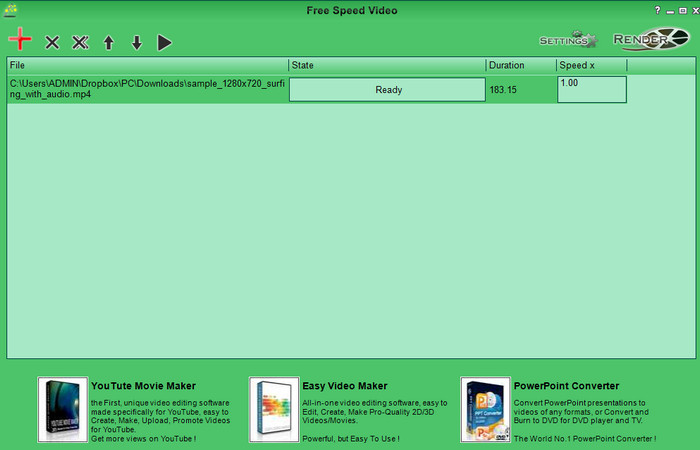
Un alt controler de viteză pe care îl poți descărca pe desktop este Free Speed Video. Acest instrument este foarte simplu, așa că învățarea modului de folosire este lipsită de stres. Deși are o interfață grafică simplă, ar avea nevoie de un update pentru un design mai bun și pentru a ajuta utilizatorul să identifice mai clar opțiunile disponibile. Dacă designul interfeței nu te deranjează, poți folosi acest software gratuit pentru a ajusta viteza videoclipului în funcție de nevoile tale. Pentru a te ajuta să încetinești videoclipul, pașii de mai jos te vor ghida cum să încetinești doar o parte dintr-un videoclip.
Pasul 1. Descarcă programul și urmează procesul de instalare pentru a-l avea pe computer.
Pasul 2. Fă clic pe butonul + pentru a adăuga videoclipul pe care vrei să‑l încetinești.
Pasul 3. Sub Speed x, tastează valoarea vitezei pe care vrei să o ai.
Pasul 4. Fă clic pe Render pentru a salva rezultatul final pe desktop.
Partea 3. Întrebări frecvente despre cum să faci o parte dintr-un videoclip în mișcare lentă
De ce se îngheață partea din videoclip cu slow-mo?
Tranziția între încetinirea și viteza normală video îngheață din cauza vitezelor diferite ale ambelor videoclipuri. Nu trebuie să experimentați o tranziție înghețată și întârziată, în ciuda diferențelor, dacă utilizați în schimb instrumentul suprem.
Ce face tranziția video de la slow-mo la viteză normală mai lină?
Nu există un răspuns anume, dar este mai bine să încetiniți o parte video dacă instrumentul pe care îl aveți poate crește viteza. Pentru o tranziție mai lină între videoclip la o viteză normală și încetinire, trebuie să încercați să îmbinați videoclipul așa cum am făcut cu software-ul suprem.
Este greu să aplicați un efect de încetinire a părții video?
Ar putea fi mai ales că nu toate programele pe care le puteți utiliza pot schimba o anumită parte a vitezei video. Majoritatea regulatoarelor de viteză ajustează viteza întregului videoclip în locul părții specifice. Deci, dacă doriți să schimbați o parte a vitezei de redare a clipurilor, atunci citiți partea 1 pentru a afla totul.
Concluzie
În sfârșit, avem suficiente informații despre cum să faci o parte dintr-un videoclip în slow motion cu ajutorul pașilor și al dedicării tale de a parcurge acest articol. Deși software-urile pot schimba viteza videoclipului, tot apare o problemă atunci când vrei să modifici doar o parte a acestuia. Așadar, pentru a transforma o parte a clipului într-o versiune slow motion, pentru a adăuga un plus de dinamism videoclipului tău, trebuie să folosești FVC Video Converter Ultimate. Poți avea acest software descărcându-l și instalându-l pe desktop, apoi urmând pașii pe care i-am prezentat mai devreme pentru a schimba doar o parte din clip și nu viteza întregului videoclip.
-
 Dovezi solide pentru a realiza videoclipuri cu încetinitorul utilizând After Effects
 Orice gânduri sau sentimente pot fi generate sau îmbunătățite urmărind ceva cu încetinitorul. Citiți acest articol pentru a afla cum să creați mișcare lentă în After Effects.
-
 Abordări dovedite pentru a crea videoclipuri cu mișcare lentă în Adobe Premiere
 Unul dintre cele mai bune software de la Adobe este Premiere; funcționează mai mult pentru a îmbunătăți videoclipurile la nivelul următor, cum ar fi realizarea de videoclipuri cu încetinitorul. Citiți acest articol pentru a afla mai multe despre Adobe Premiere și caracteristicile sale utile.
-
 Mod ușor de a realiza un videoclip cu mișcare lentă în Windows Movie Maker
 Vrei să arunci un efect dramatic videoclipului tău pentru a sublinia sau măcar a face un clip să iasă în evidență de restul prin încetinitorul, și nu știi cum? Continuați să citiți acest articol pentru a afla mai multe.
