


 Video Converter Ultimate
 Screen Recorder
 Reparație video
Adună-ți gândurile înțelegând cum să accelerezi un videoclip pe iMovie
Îți place să urmărești documentare pe noul tău iPhone, le urmărești mereu datorită poveștii pe care o propun. Fără un motiv anume, vrei să le aduni pe toate și să le editezi rapid. Cauți cea mai bună aplicație care poate edita și, în același timp, accelera videoclipul tău și astfel descoperi iMovie. Dar, deoarece ești nou atât pe iPhone, cât și în aplicație, nu știi cum să o folosești și cum să accelerezi un videoclip folosind iMovie. Continuă să citești, deoarece acest articol îți oferă multe detalii ca să afli mai multe despre această aplicație.

Partea 1. Cum să accelerezi videoclipurile în iMovie
Întrebarea despre cum să accelerezi un videoclip poate fi răspunsă folosind funcțiile iMovie. Ieșirea sa video de înaltă calitate, diferitele șabloane și instrumentele de finisare la îndemână pot aduce controlul vitezei de redare pe iPhone pentru prima dată. iMovie are, de asemenea, puterea de a accelera un videoclip ca și alte aplicații. Unul dintre instrumentele sale poate face ajustări la videoclipul dvs. împreună cu celelalte instrumente disponibile. Acum este ușor să accesați videoclipurile pe care doriți să le accelerați folosind această aplicație care este disponibilă numai pe sistemele de operare iOS și Mac. Acum știți despre instrument, haideți să vorbim despre procedurile pe care trebuie să le urmați.
Pentru utilizatorii de iPhone
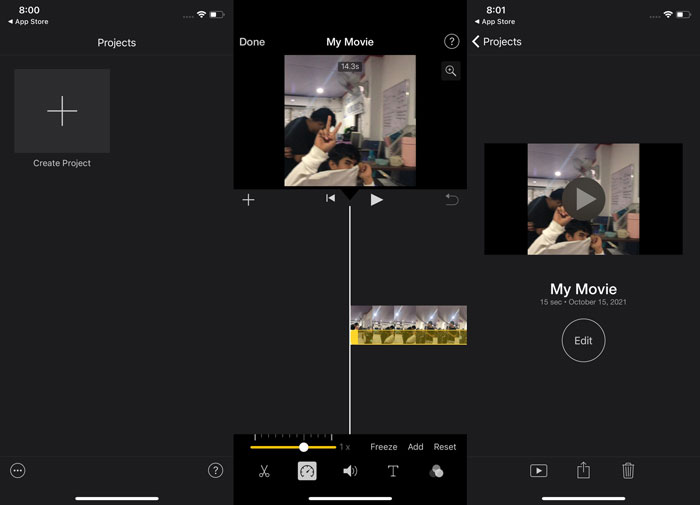
Pasul 1: Accesează App Store pe iPhone sau iPad și descarcă aplicația iMovie. Când apare o prezentare generală a interfeței, alege Continue. Când ești în pagina Projects, atinge pictograma cu semnul + plus pentru a începe un clip video nou. Continuă selectând Movie în fereastra New Projects.
Pasul 2: După ce ai selectat un videoclip din galeria camerei, apasă butonul Create Movie din partea de jos a ecranului. Atinge cronologia și așteaptă să apară instrumentele de editare înainte de a folosi instrumentul de viteză, care arată ca un vitezometru. Pentru a derula înainte sau înapoi videoclipul, mută pur și simplu Slider-ul galben de jos. Ai opțiunea de a accelera videoclipul de până la două ori sau de a-l încetini până la o optime din viteza sa inițială.
Pasul 3: Când ai terminat, mergi în colțul din stânga sus al ecranului telefonului și apasă Done. Pentru a-ți salva videoclipul finalizat, mergi la meniul Share și alege unde vrei să îl salvezi dintre opțiunile care apar.
Pentru utilizatorii de Mac
Pasul 1: Selectează un clip în cronologie în aplicația iMovie de pe Mac și apoi modifică viteza clipului.
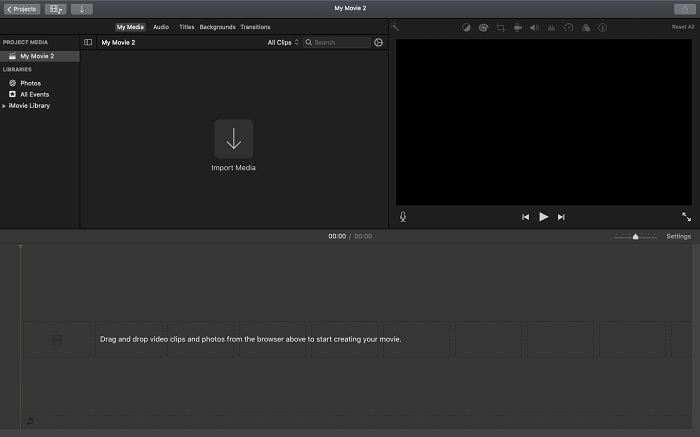
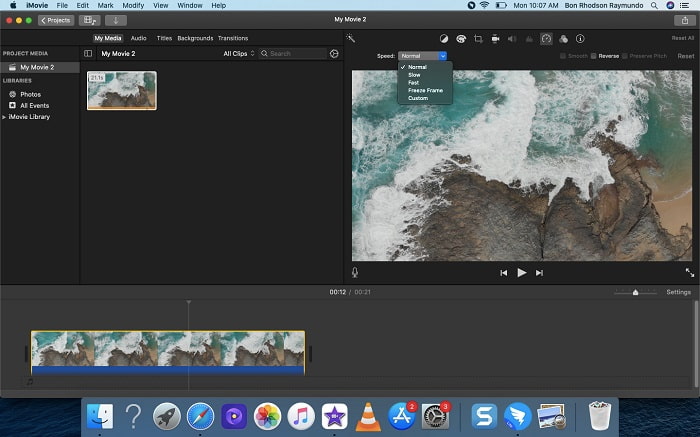
Pasul 2: Dând clic pe butonul Speed din partea superioară a interfeței, poți afișa setările de viteză. Pur și simplu alege între vitezele Slow și Fast dintr-un buton de viteză pentru a ajusta fin viteza de redare.
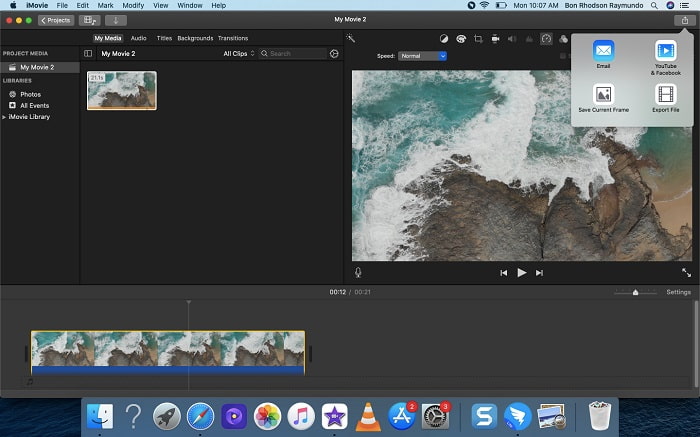
Pasul 3: Fă clic pe pictograma Upload din colțul de sus al interfeței pentru a exporta fișierul pe desktop.
Partea 2. O altă modalitate mai ușoară de a accelera videoclipurile
Să folosești un iPhone sau alte aplicații online disponibile doar pe iPhone ca editor pentru videoclipul tău poate fi dificil dacă vrei să mărești viteza de redare a videoclipului. Video Converter Ultimate va fi cea mai bună opțiune de luat în considerare, deoarece îți va permite să accelerezi permanent videoclipul. Poți ajusta viteza de redare a videoclipului cu acest instrument, pe care îl poți obține gratuit. Are diferite instrumente incluse, printre care Video Speed Controller, care poate face ca videoclipul tău să își mărească viteza de redare cu o ieșire de înaltă calitate și o conversie foarte rapidă. Pentru a afla mai multe detalii, iată pașii pe care trebuie să îi urmezi:
Pasul 1: Pentru a salva software-ul pe computer, fă clic pe Free Download. După aceea, configurează software-ul instalându-l.
Descărcare gratuită pentru Windows 7 sau o versiune ulterioară Descărcare securizată
Descărcare gratuită pentru MacOS 10.7 sau o versiune ulterioară Descărcare securizată
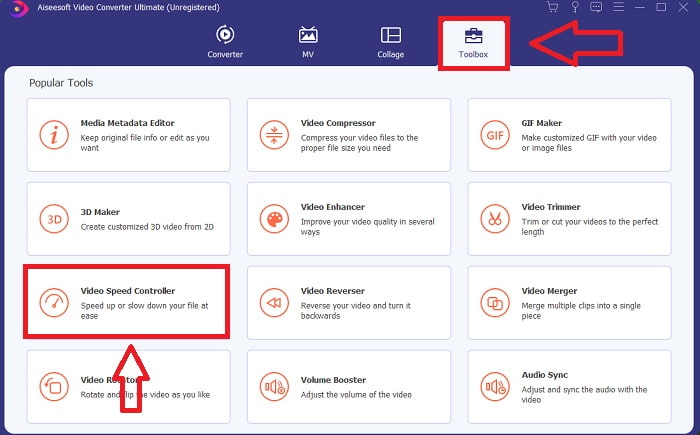
Pasul 2: După ce lansezi software-ul pentru prima dată după instalare, selectează funcția Toolbox și apoi funcția Video Speed Controller.
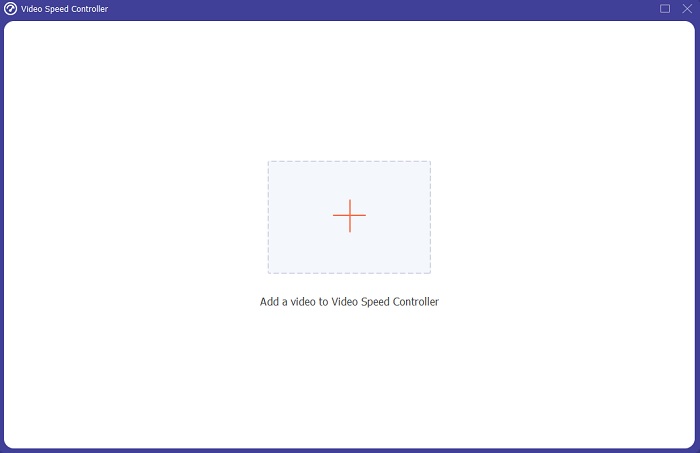
Pasul 3: Pentru a începe faza de editare, poți acum încărca un fișier video de pe computer făcând clic pe semnul + care va apărea după ce continui cu clic pe instrumentul Video Speed Controller.
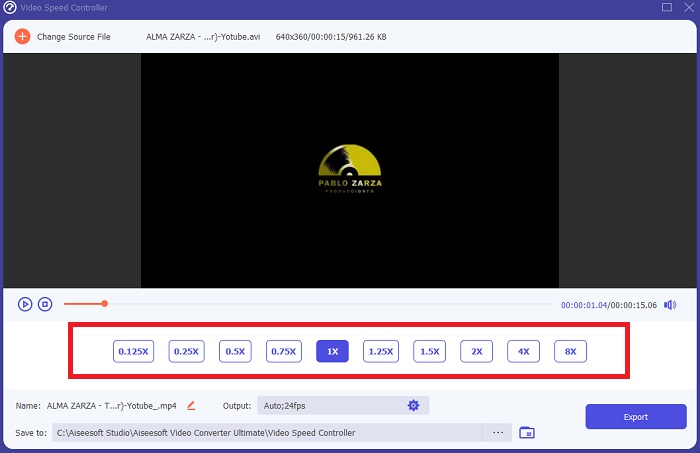
Pasul 4: Acum poți accelera un videoclip mai mult decât în iMovie, deoarece acest instrument îți oferă opțiuni din care să alegi cât de rapid vei aplica multiplicatorul de viteză videoclipului tău. Poți, de asemenea, reda previzualizarea videoclipului după ce alegi ajustarea de viteză preferată, pentru a vedea dacă ești mulțumit de rezultat.
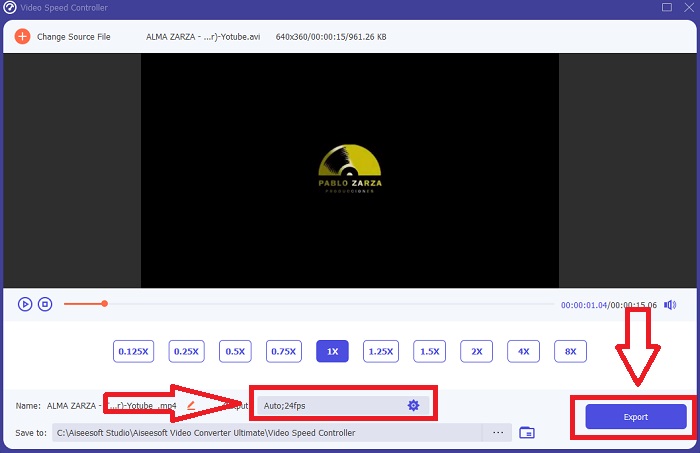
Pasul 5: Îți poți alege rezultatul dorit schimbând formatul, rezoluția și calitatea clipului video după ce ai terminat de ajustat viteza de redare a acestuia, printre altele. Când ești gata să îți salvezi munca, selectează Export și specifică o locație.
Articole similare:
Cel mai bun player video pentru iPhone
Cum să îmbini videoclipuri pe iPhone
Partea 3. Întrebări frecvente despre cum să accelerezi videoclipurile
Ce se întâmplă dacă trimit un videoclip rapid și primesc un videoclip lent pentru a reduce dimensiunea videoclipului?
Nu, afectează doar prezentarea datelor și nu cantitatea de date în sine. Cu toate acestea, este posibil să reduceți dimensiunea videoclipului făcându-l să ruleze la o rată de cadre mai mică. Cu mai puține cadre pe secundă, menține aceeași viteză ca originalul. 60 față de 30 de cadre pe secundă are un impact semnificativ asupra dimensiunii fișierului video. Din cauza variațiilor de la cadru la cadru care sunt luate în considerare în timpul codificării video. Reduceți rezoluția videoclipului, de exemplu, de la 1080p la 720p, pentru a-i reduce și mai mult dimensiunea. Din această cauză, dimensiunea fișierului va fi redusă semnificativ.
Care sunt opțiunile dvs. pentru a accelera redarea videoclipurilor pe un Mac?
Pentru a crește viteza de redare de două sau de mai multe ori (de 5 sau mai multe), faceți clic pe butonul înainte sau înapoi până când videoclipul este redat la viteza dorită, cum ar fi de 30 sau 60 de ori. În timpul redării videoclipului, puteți modifica viteza de redare în trepte de 1,1x făcând Opțiune-clic pe butonul înainte sau înapoi.
Cum schimb permanent viteza de redare a videoclipurilor?
Gândește-te la câți pași sunt necesari pentru a schimba viteza de redare a videoclipurilor tale. Deși instrumentele și editorii video sunt disponibili cu ușurință online, încă ești în căutarea celui mai bun instrument pentru a rezolva problemele de viteză de redare ale clipului tău video. Numeroase instrumente web sunt disponibile pe internet, unele dintre ele fiind gratuite, dar necesitând plată pentru a debloca toate funcțiile. Video Converter Ultimate, un program gratuit pentru accelerarea videoclipurilor, este cea mai bună opțiune pentru a schimba permanent viteza de redare.
Concluzie
În concluzie, iMovie este o aplicație grozavă disponibilă pe dispozitivele cu sistem iOS, precum Mac și iPhone, pentru a rezolva problema vitezei de redare a unui videoclip. Este accesibilă unui număr mare de utilizatori, este convenabilă și este gratuită. Da, este excelentă pentru editarea vitezei de redare; dar ce se întâmplă cu ceilalți factori-cheie ai videoclipului? De aceea recomandăm folosirea Video Converter Ultimate ca cel mai bun software pentru a repara viteza de redare a unui videoclip; și nu doar atât, are și o mulțime de funcții care te pot ajuta să creezi un videoclip extraordinar, la care nici nu te-ai fi gândit.
-
 Android DVD Player - Cum să redați videoclipuri DVD pe dispozitive mobile Android
 Cum să redați fișiere DVD pe telefoanele mobile Android? Există playere DVD Android? În acest articol, veți afla despre 3 moduri de a reda videoclipuri DVD pe telefoane mobile Android cu sau fără driver extern.
-
 Cele mai bune 10 playere MP4 Android gratuite pentru redarea videoclipurilor HD / 4K
 Deși telefoanele mobile Android au playere implicite pentru a reda videoclipuri MP4, acestea nu acceptă ajustarea setărilor de redare și a altor funcții. Astfel, puteți afla despre cele mai bune 10 playere MP4 Android din acest articol.
-
 Samsung Video Player Blocat: Top 5 cele mai bune playere video pentru Samsung
 Când redați videoclipuri prin playerul video Samsung implicit, este posibil să constatați că acesta se blochează întotdeauna. Pentru a avea o experiență de vizionare lină și mai bună, puteți afla despre cele mai bune 5 playere video pentru Samsung din acest articol.
